A vote lets your members decide on a question. You can link a vote to a meeting (to an agenda category or a document), or create it on its own from the Tools tab.
✋ Who can do what
- Administrators create votes, choose who takes part and who sees the results, set the voting period, and can extend the end date.
- Board members and other users vote. By default, all users have voting rights.
To learn how to vote, see How to participate in a vote.
⚖️ Administrators: create a vote linked to a meeting
You can link the vote to an agenda category or to a document. The steps are the same in both cases. The example below uses a document.
- Go to the Meetings tab.
- Find the published meeting that contains the document and click See Agenda.
- Hover over the three dots next to the eye icon. Other icons appear.
- Click the Create a vote associated with this document icon.
- In the window that opens, type your question in the information section.
- Type the possible answers. To add more answers, click Add a choice.
- If needed, use the other sections to:
- choose who takes part in the vote and who sees the results;
- set how long the vote lasts;
- make the vote anonymous. This choice cannot be undone;
- attach a document to the vote.
⚖️ Administrators: create a vote without a meeting
All the votes of your board are listed in this menu, including those linked to meetings.
- Go to the Tools tab, then open the Votes menu.
- Click the Add a vote icon. A window opens.
- Set up your vote in the same way as above.
⏳ Administrators: give participants more time
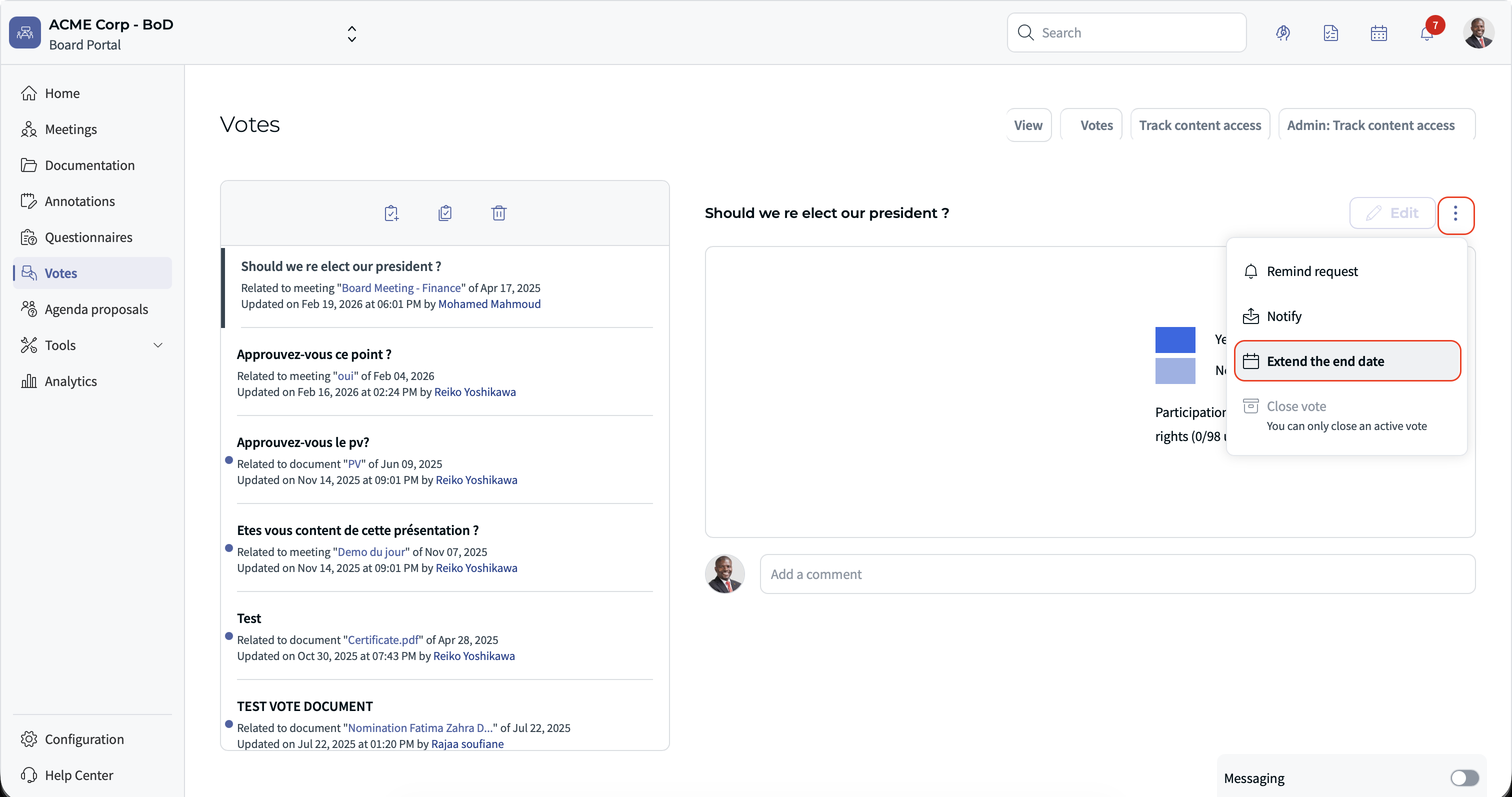
If participants need more time to vote, open the vote settings and extend the end date.
❓ FAQ
Who can vote by default?
All users have voting rights by default. You can change the participants in the vote settings.
Can I make an anonymous vote public again?
No. The anonymous option cannot be undone.
Was this article helpful?
That’s Great!
Thank you for your feedback
Sorry! We couldn't be helpful
Thank you for your feedback
Feedback sent
We appreciate your effort and will try to fix the article