DiliTrust Entities lets you create shares, assign them to shareholders, update share information, transfer shares, and review shareholding transactions.
Before you start
Make sure that:
- The company already exists in DiliTrust Entities.
- You have the permissions required to manage its shareholding information.
- The relevant share designations are available in your environment.
- You know whether the share contributes to capital, voting rights, or both.
Open the shareholding screen
- Open the relevant company.
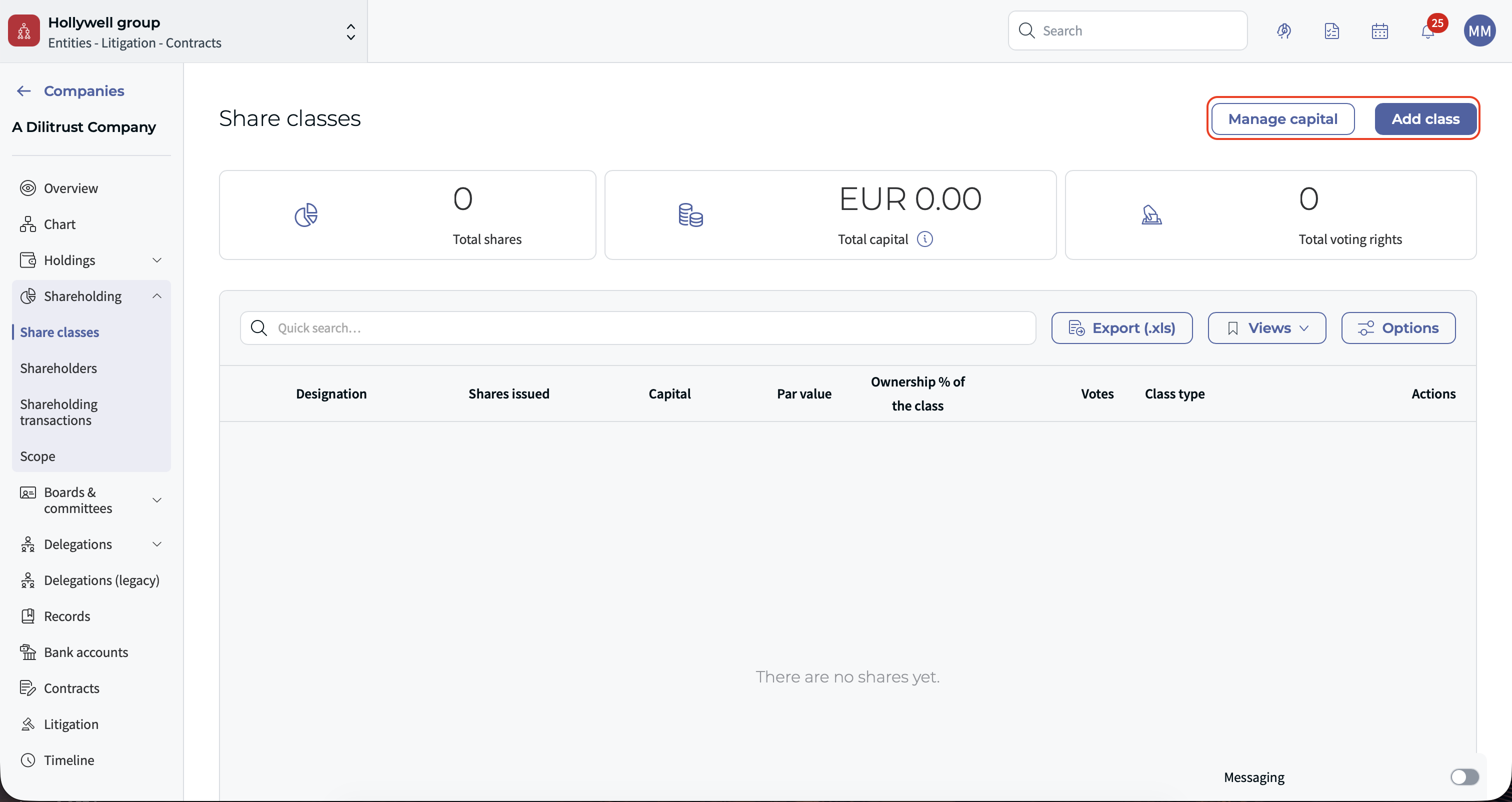
- Go to Shareholding > Share classes.
- Use the available actions to create, assign, update, or transfer shares.
Create a class
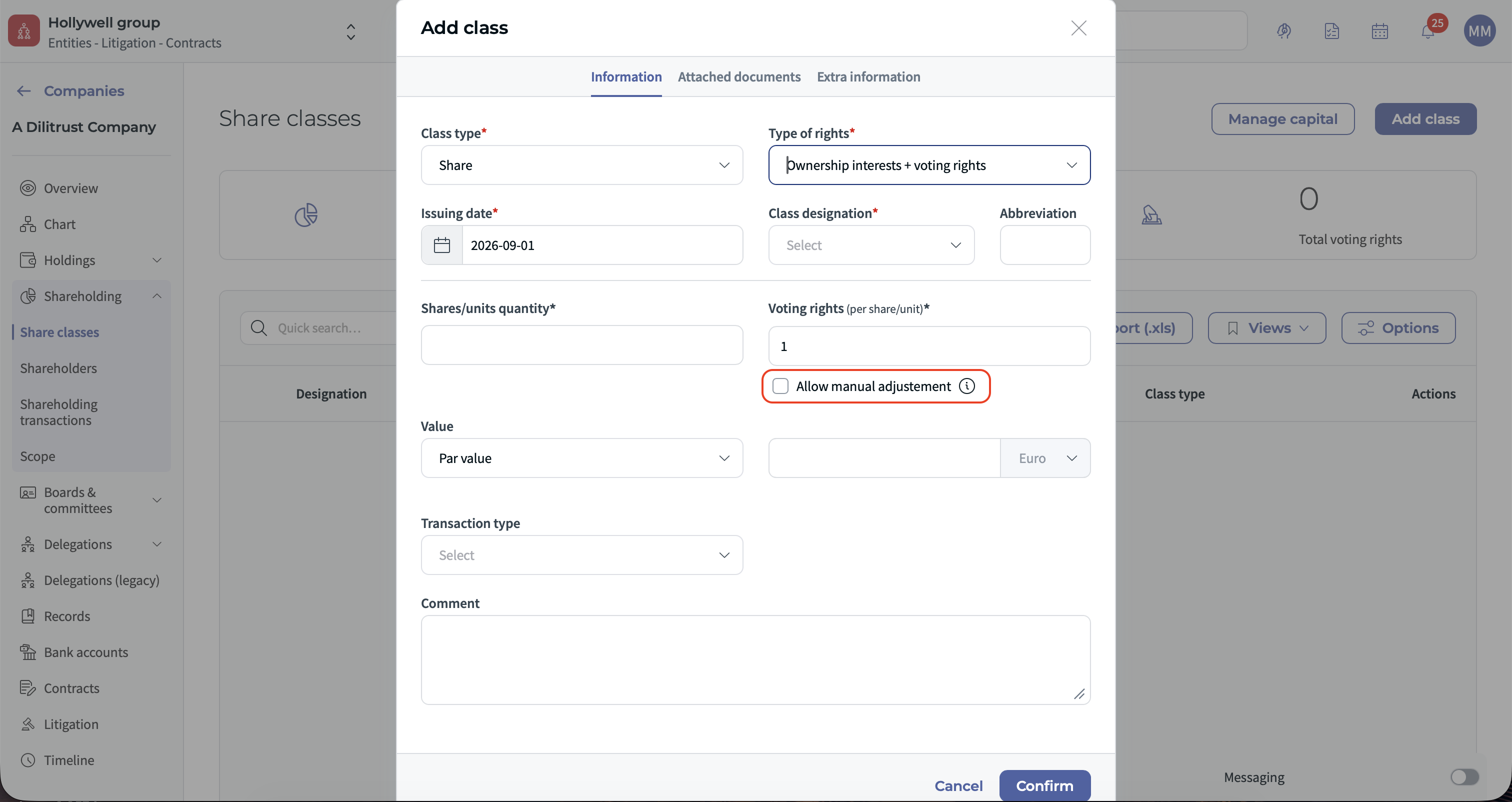
- Select Add class.
- Choose how the type of rights:
- Ownership interests + voting rights
- Ownership interests only
- Voting rights only
- Select the Class designation.
- Complete the fields displayed for the selected option.
- Add the transaction date, transaction type, or comment if these fields are available.
- Select Save.
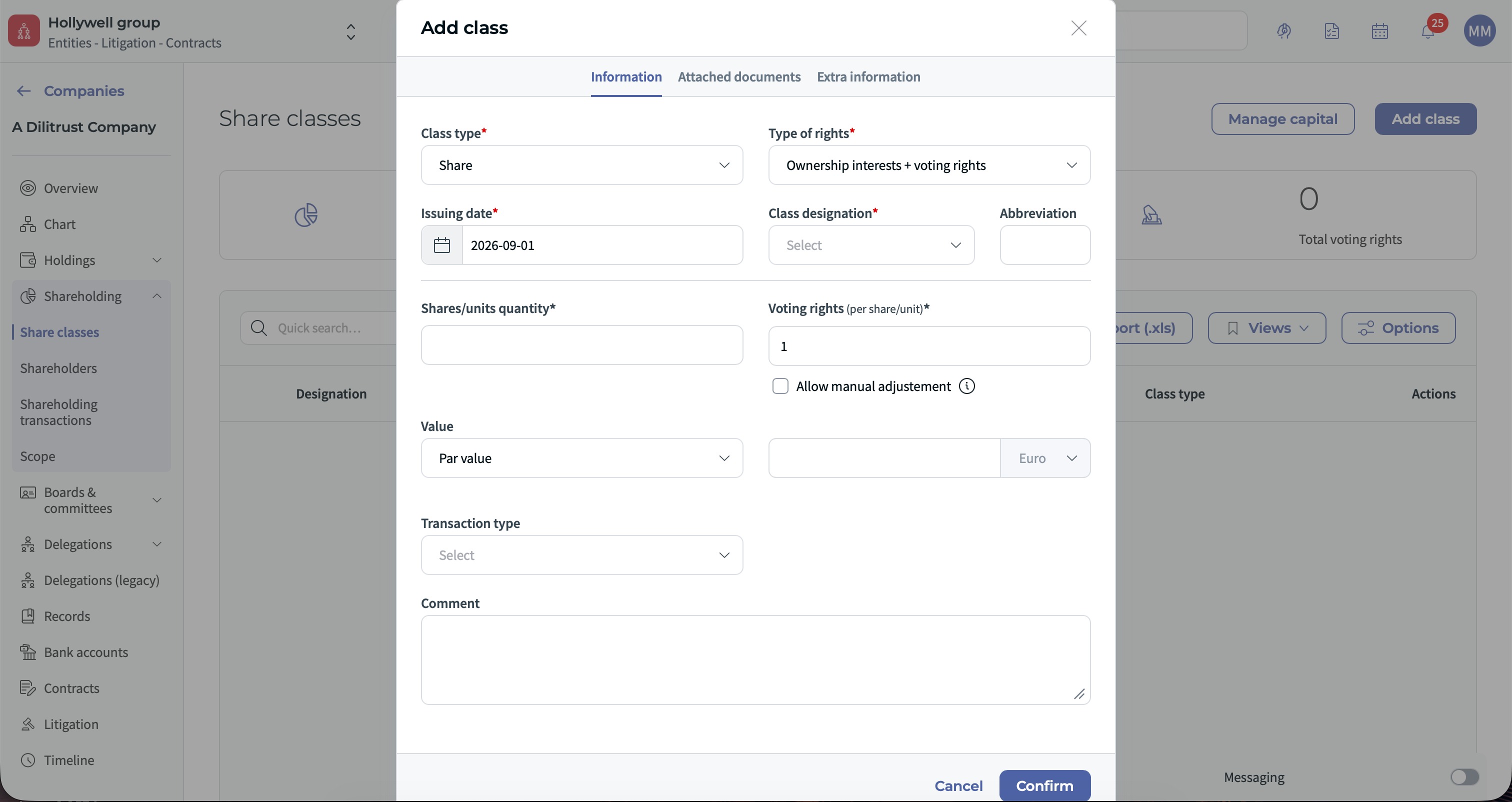
Ownership interests + voting rights
Enter:
- Shares/units quantity
- Voting rights (per share/unit)
- Value
- The value input mode, either par value, overall value or no-par value.
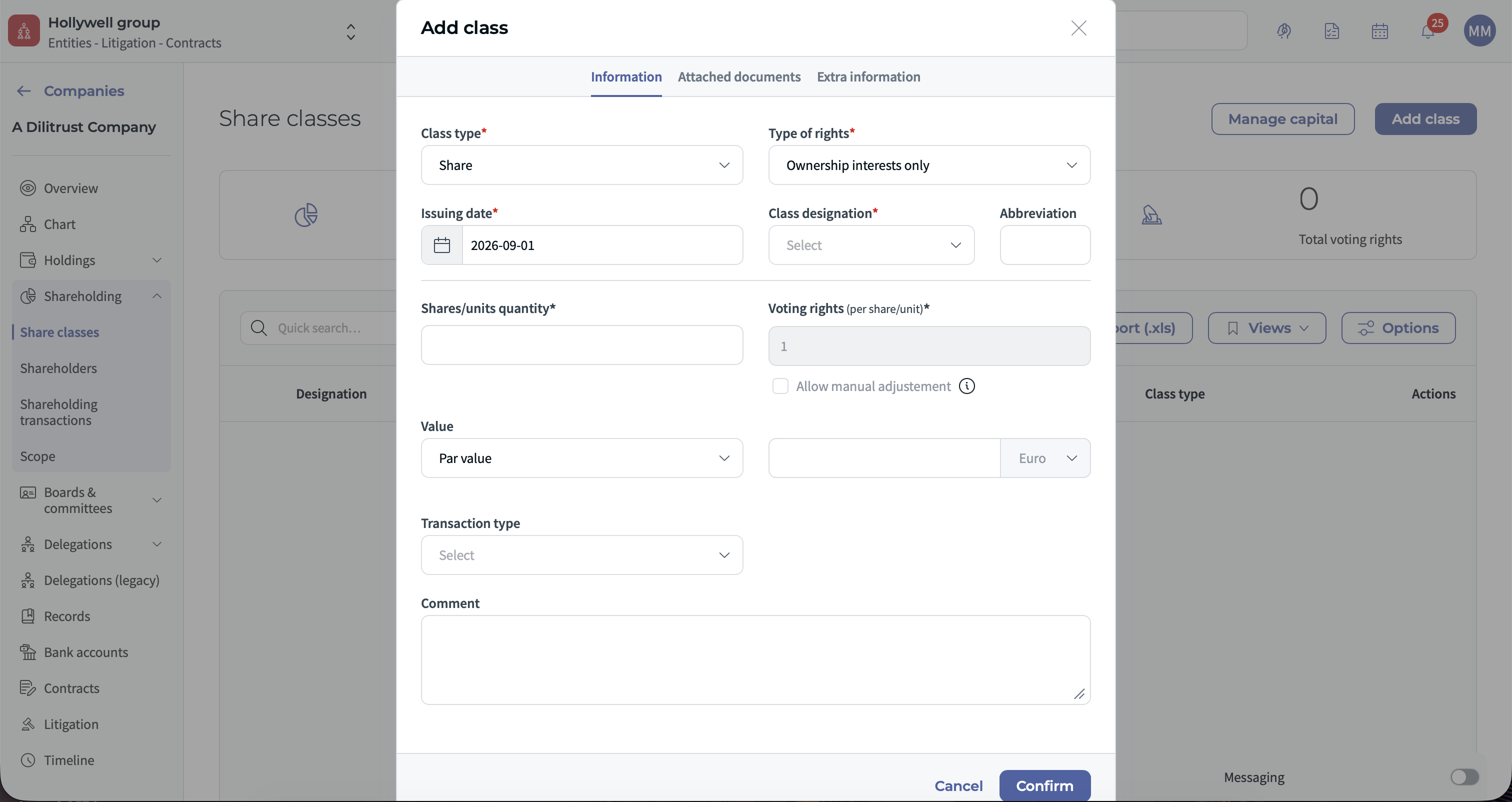
Ownership interests only
Enter:
- Shares/units quantity
- Value
- The value input mode, either par value, overall value or no-par value.
Voting rights are set as deactivated for this type of rights.
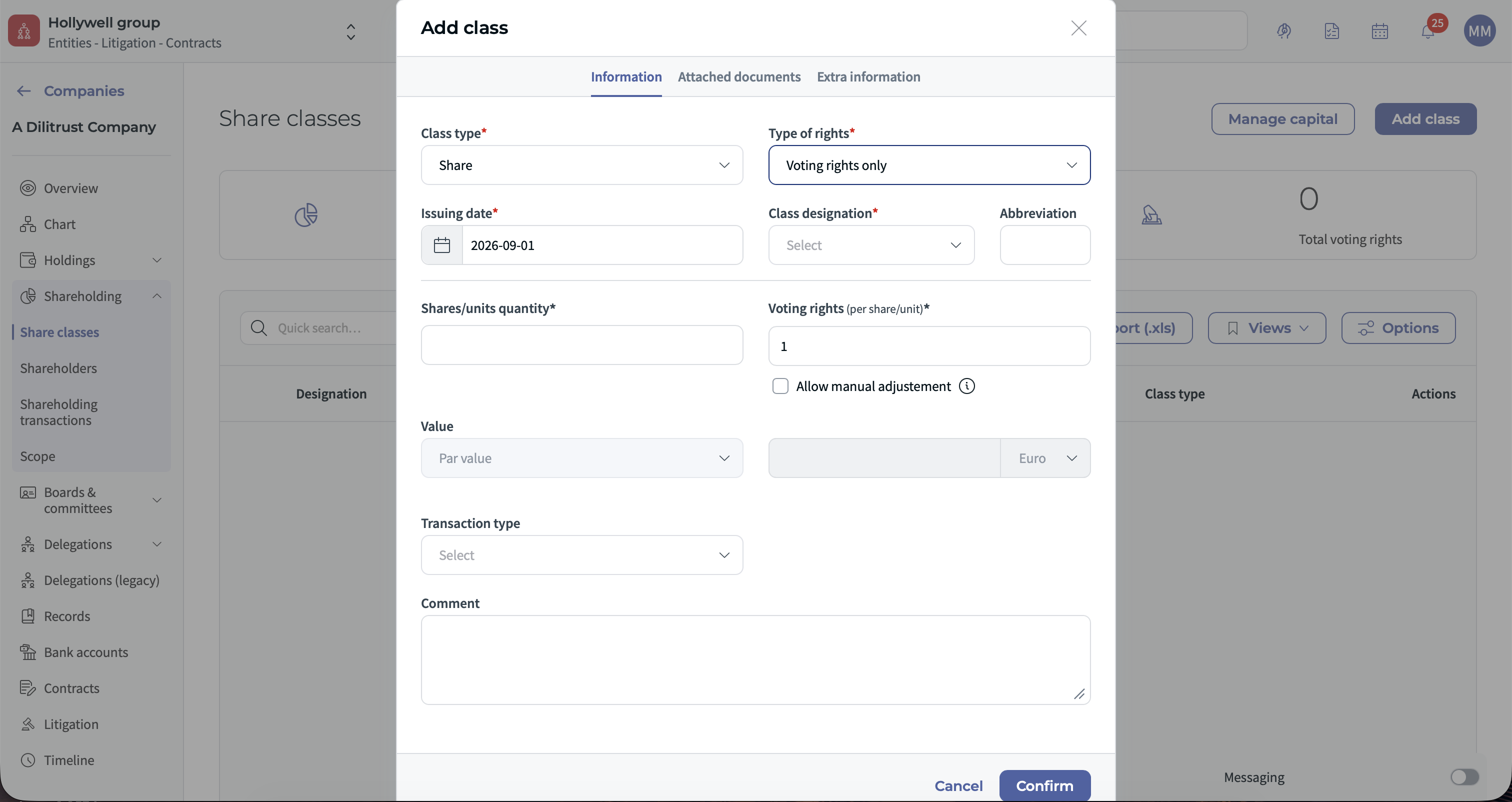
Voting rights only
Enter:
- Voting rights quantity
This option creates voting rights without a capital value.
Manual voting rights adjustment
If the option Allow manual adjustment is available, activate it when shareholders may receive voting rights that differ from the standard voting rights calculation.
When this option is enabled, voting rights can be adjusted during share assignment or transfer.
Assign interests to a shareholder
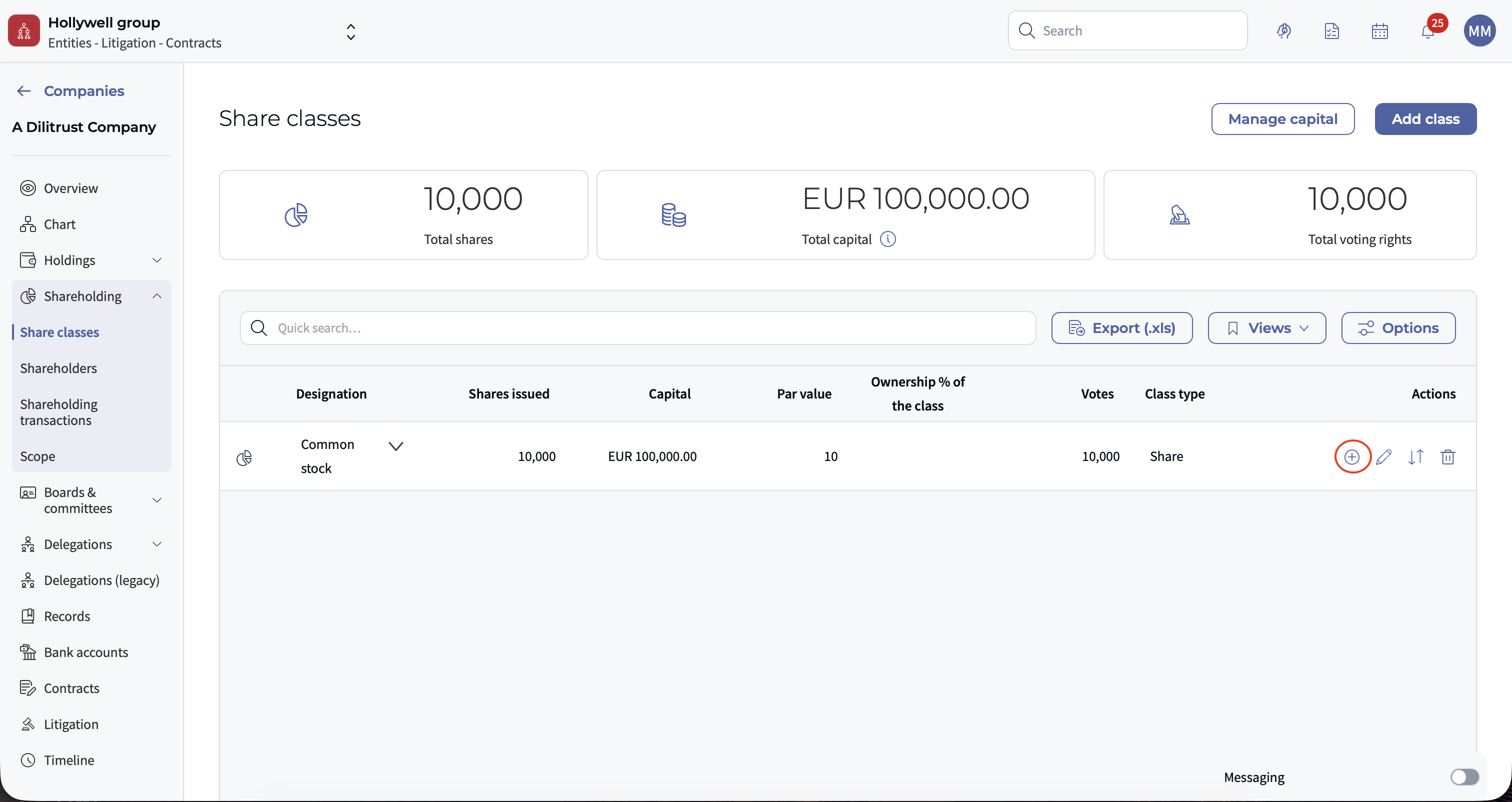
After creating a class, you can assign it to a company or an individual.
- In the share row, select the assignment action.
- Enter the transaction date.
- Select the shareholder.
- Enter the number of shares to assign.
- If required, enter or review the voting rights assigned to the shareholder.
- Review the transaction.
- Select Confirm.
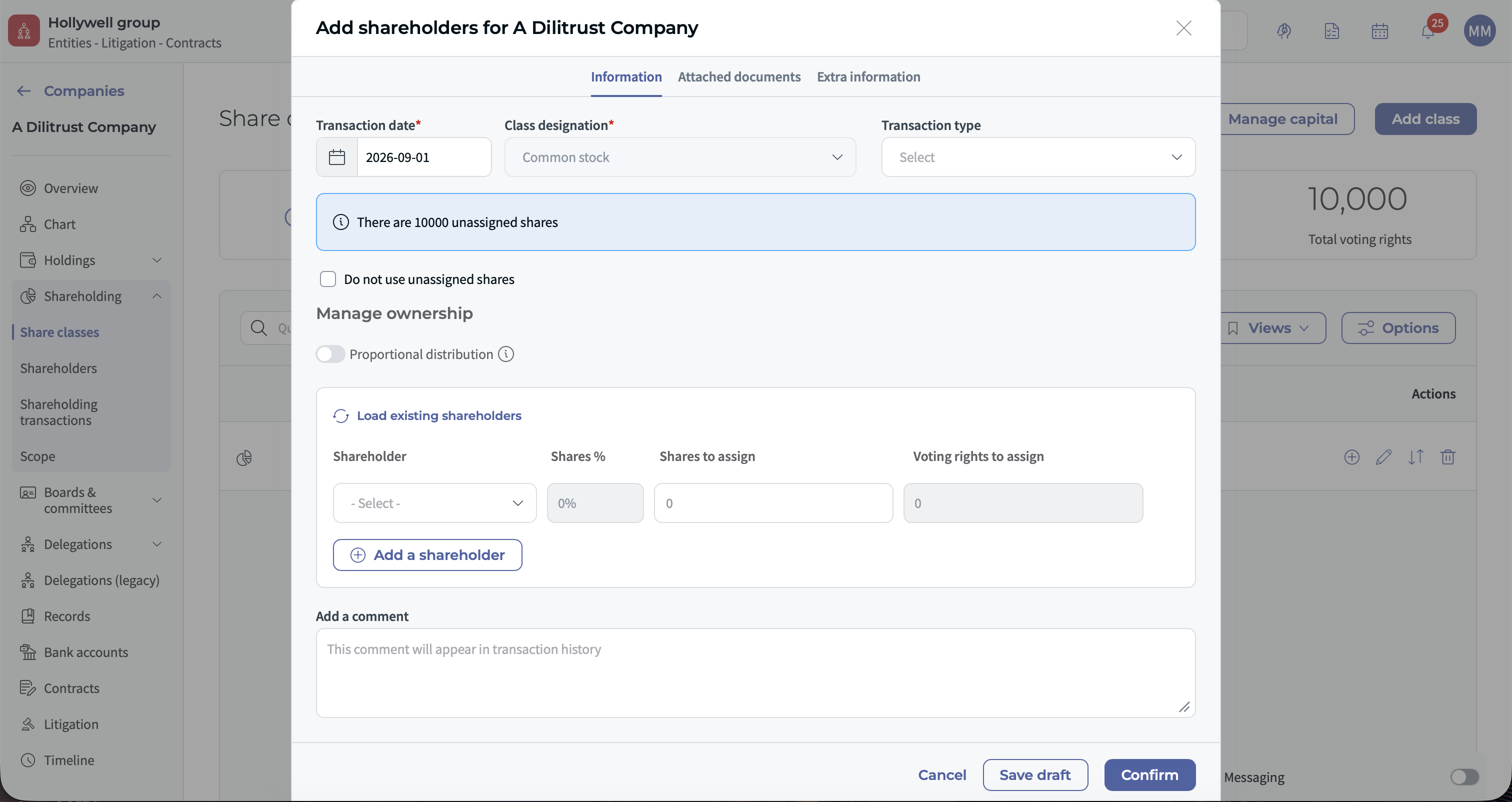
If your configuration includes the option Do not use unassigned shares, follow the instructions displayed in the assignment window. Depending on the transaction, you may be able to issue new shares or distribute them according to the existing shareholding structure.
When proportional distribution is available, DiliTrust calculates the proposed allocation based on the current shareholding structure. Review the proposed values before confirming the transaction.
Update share information
Use the update action to change information recorded for an existing share.
Depending on the share configuration, you can update:
- Shares quantity
- Voting rights
- Share value
- Currency, when permitted
- Transaction date
- Transaction type
- Comment
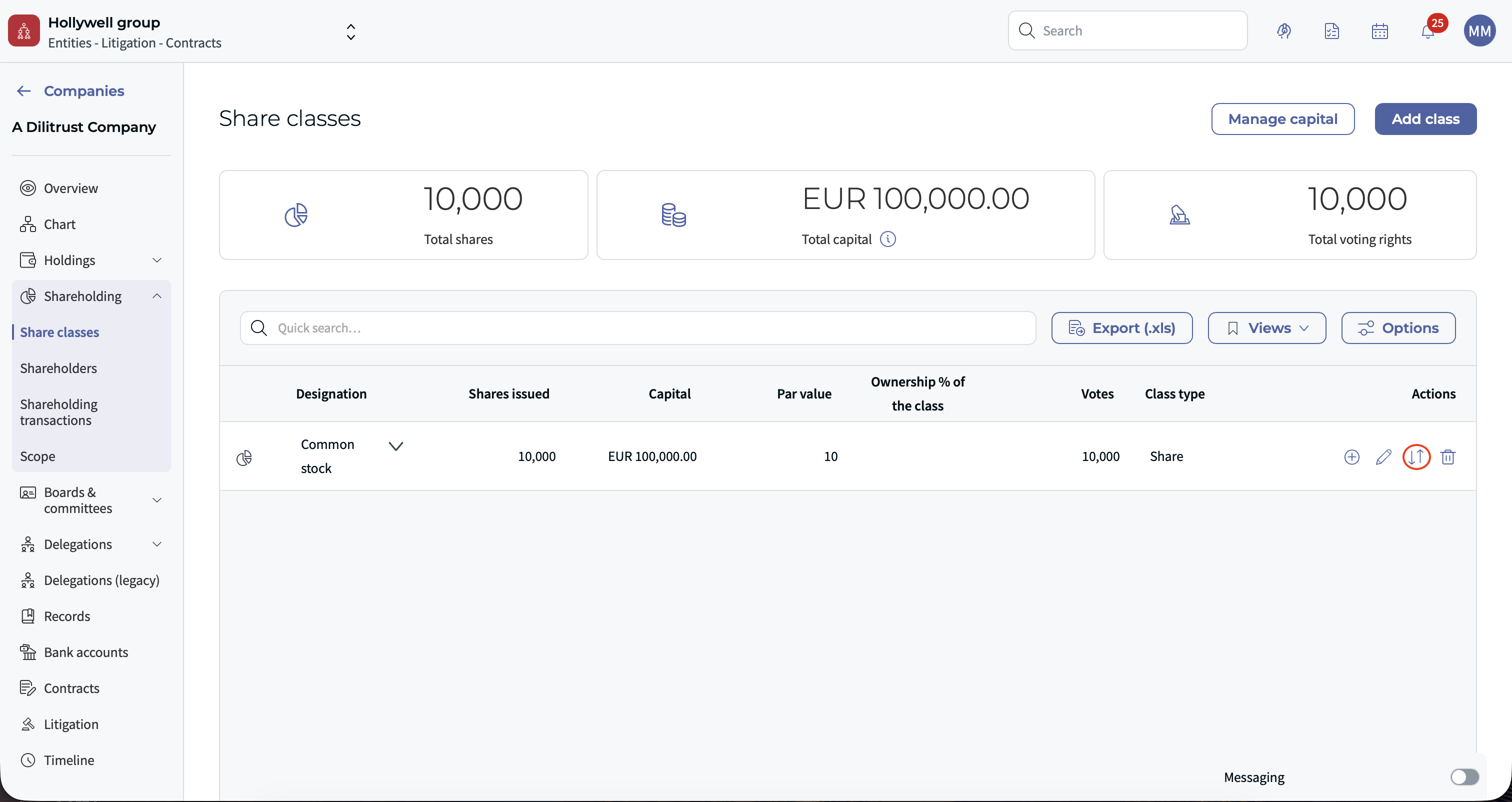
The share designation and share type may be locked in the update form. If you need to change the designation, use the separate Edit share action when it is available.
Every update is recorded in the shareholding transaction history.
Change the type of rights after creation
The type of rights is chosen when the class is created, but the choice is not final. There is no field that switches a class from one type of rights to another: the change comes from updating the values recorded for the class.
- To turn a Voting rights only class into an Ownership interests + voting rights class, use the update action and add a value, for example a par value. Once the class carries a value, it also represents capital shares.
- If a class was created as Ownership interests + voting rights and the voting rights do not apply, update the voting rights to 0.
Transfer shares
You can transfer shares from a shareholder or from an owned company.
- Open the shareholder or owned company record.
- Select Transfer.
- Set the transaction date.
- Select the share type.
- Enter the number of shares to transfer.
- Select the recipient.
- Add a transaction type or comment if required.
- Review the before-and-after information.
- Confirm the transfer.
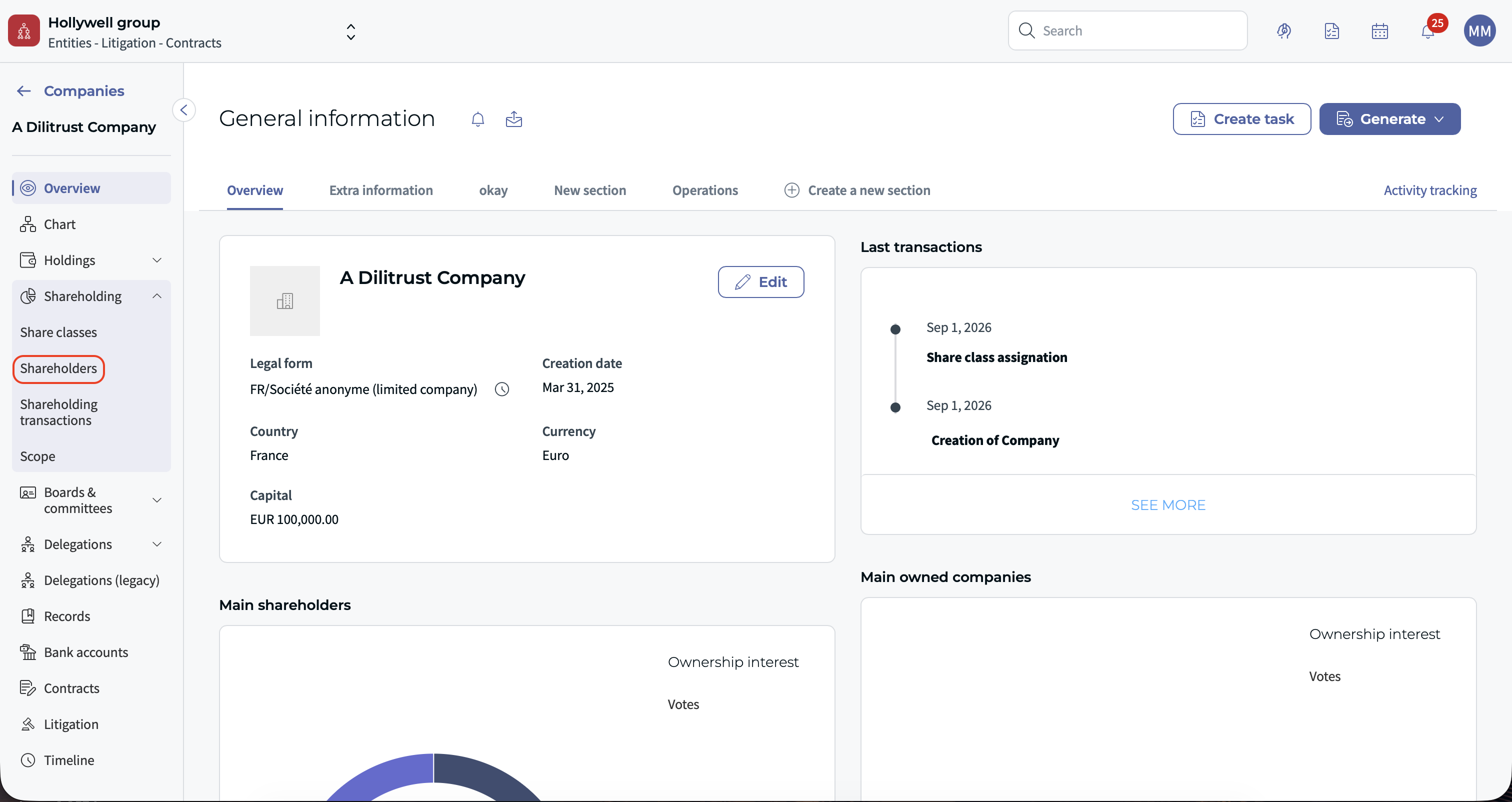
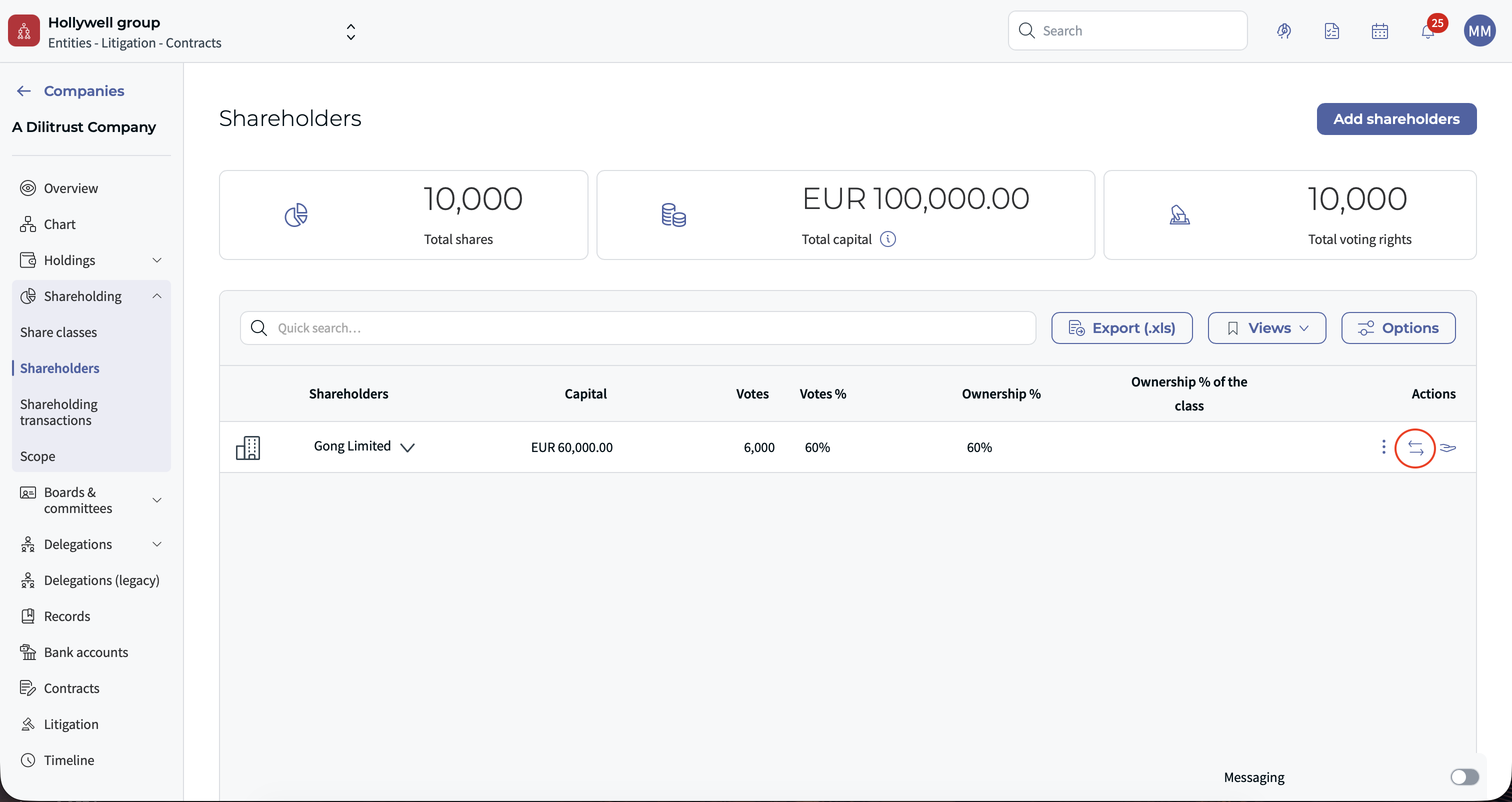
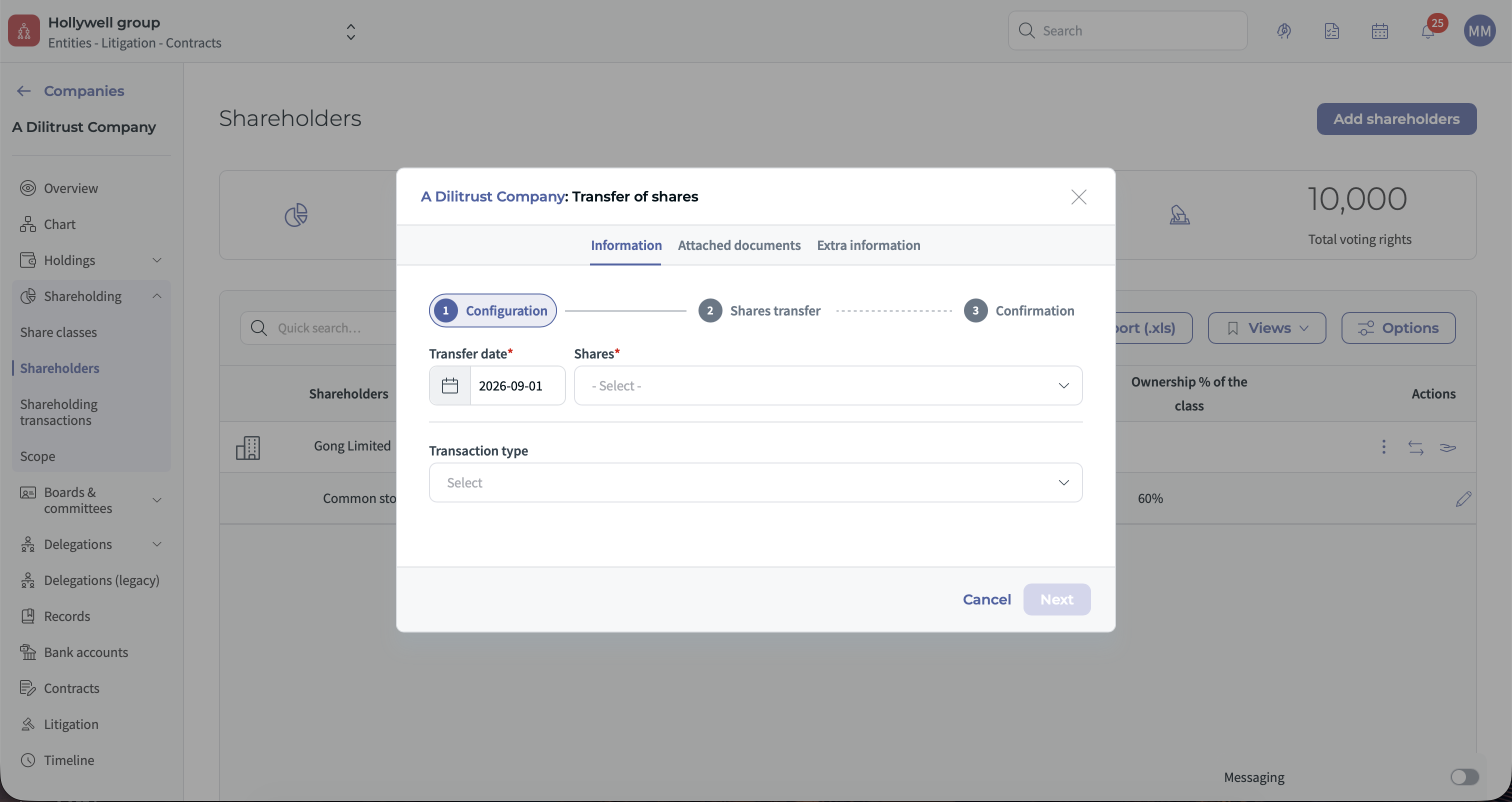
The recipient can be a company or an individual available in your DiliTrust environment. The transfer window guides you through the required information and displays a summary before confirmation.
Review shareholding transactions
All share-related operations are recorded in the shareholding transaction history.
These operations include:
- Share creation
- Share assignment
- Share updates
- Share transfers
- Go to Shareholding > Transaction History.
- Review the list of recorded transactions.
- Use the available filters or table options.
- Activate Detailed Table of Exchanges when you need to review the detailed ledger view.
The transaction history can include the transaction date, the user who performed the action, the entities involved, share quantities, values, and recipients or sources.
❓ FAQ
Do I have to state the type of rights when I create a share class?
Yes. When you create a class you must select the type of rights, either Ownership interests + voting rights, Ownership interests only, or Voting rights only, and complete the fields displayed for that option. It cannot be left empty and completed later.
Can the figures be updated after the class is created?
Yes. The update action lets you change the share quantity, voting rights, value, currency when permitted, transaction date, transaction type and comment, so the figures can be refined once they are confirmed.
I selected Voting rights only. Is that choice permanent?
No. Adding a value to the class with the update action turns it into an Ownership interests + voting rights class. In the same way, a class created with voting rights can have its voting rights set to 0 when they do not apply. Only the values are updated, as there is no separate field for changing the type of rights.
Related articles
Was this article helpful?
That’s Great!
Thank you for your feedback
Sorry! We couldn't be helpful
Thank you for your feedback
Feedback sent
We appreciate your effort and will try to fix the article