Risk Detector helps legal and business teams review contracts faster, more consistently, and with full control. It uses AI-driven rules—called playbooks—to automatically identify key clauses, suggest changes, and ensure compliance with your organization’s standards.
What is Risk Detector ❓
Risk Detector is a contract review assistant that understands your legal playbooks and applies them instantly to documents like NDAs, MSAs, and more ⚖️. You define the rules once, and the AI takes care of the rest.
- ✅ Automatically detects the document type
- ✍ Applies your company's compliance rules
- ✂️ Highlights risky or non-compliant clauses
- ☝ Suggests changes with tracked edits
- ✌ Shows which clauses already meet your standards
How to Use Risk Detector
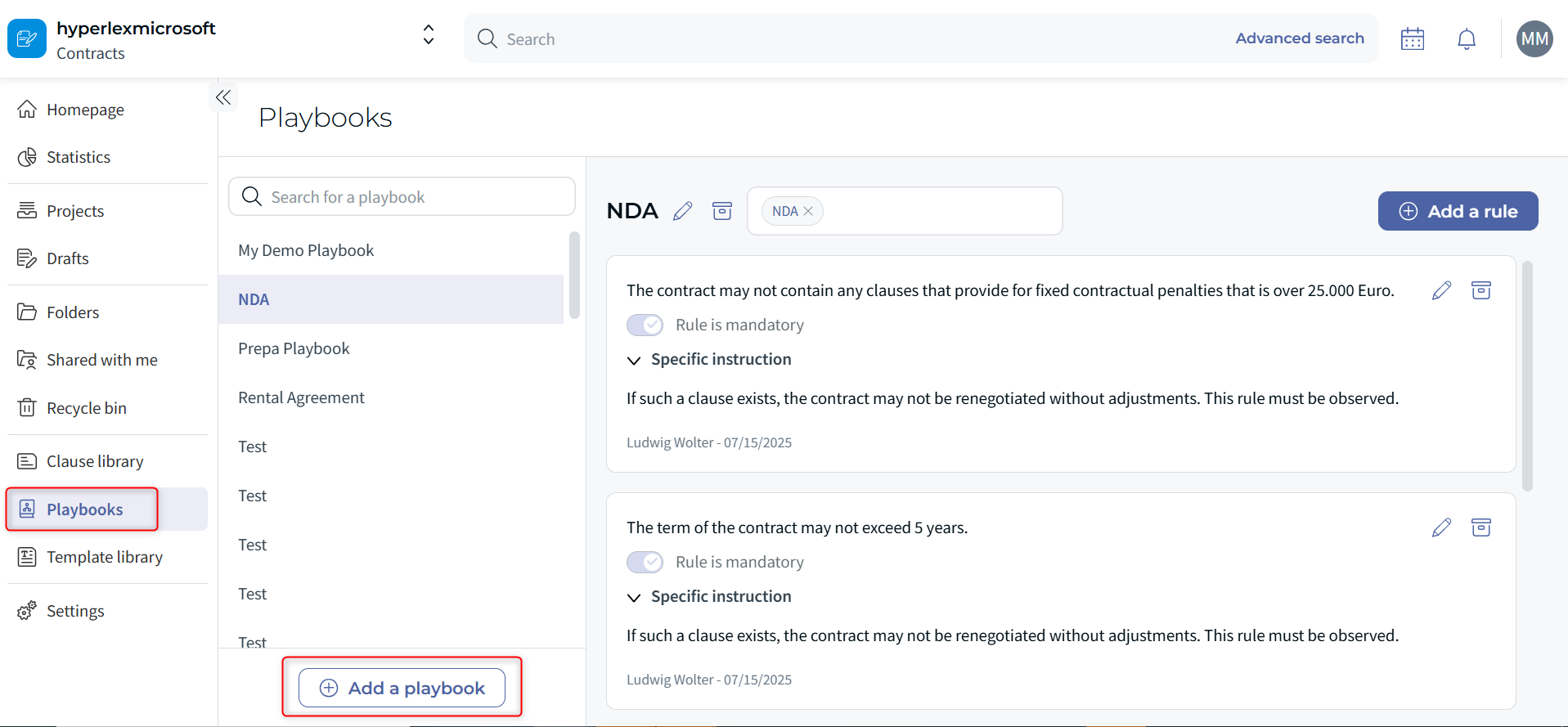
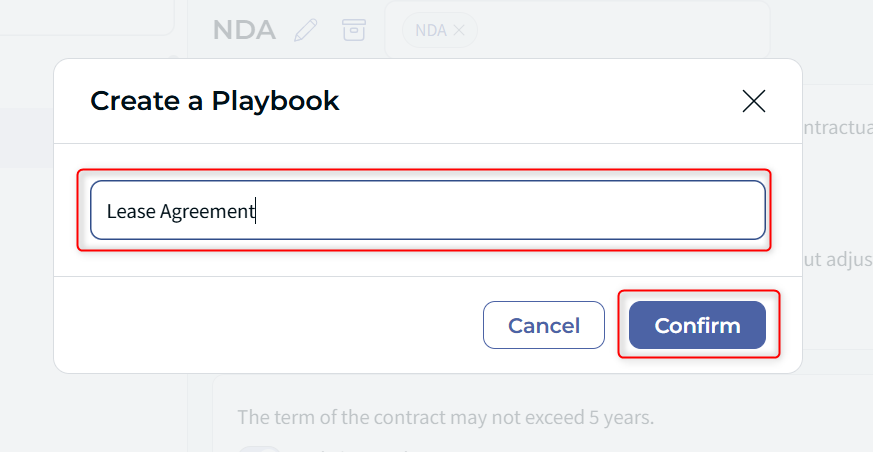
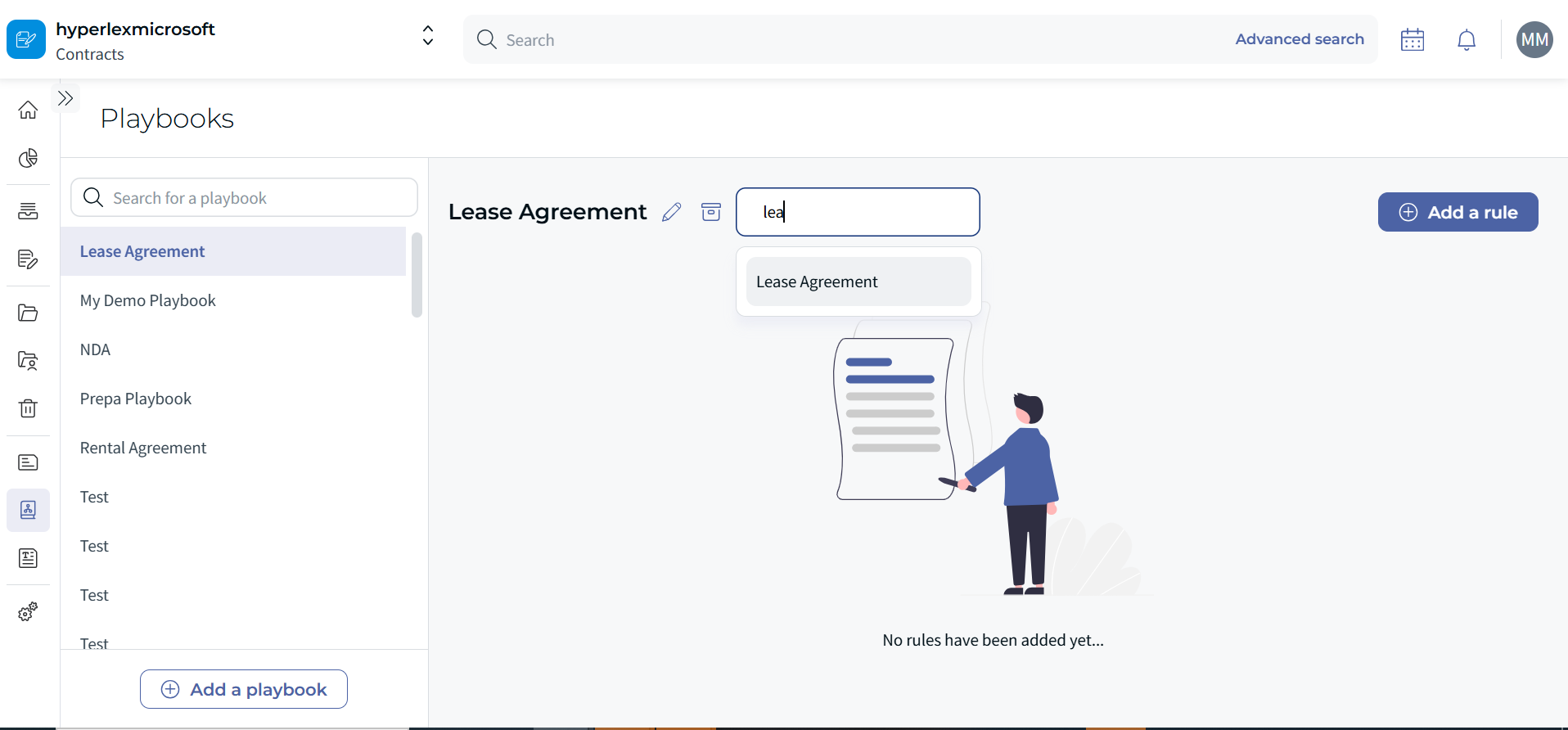
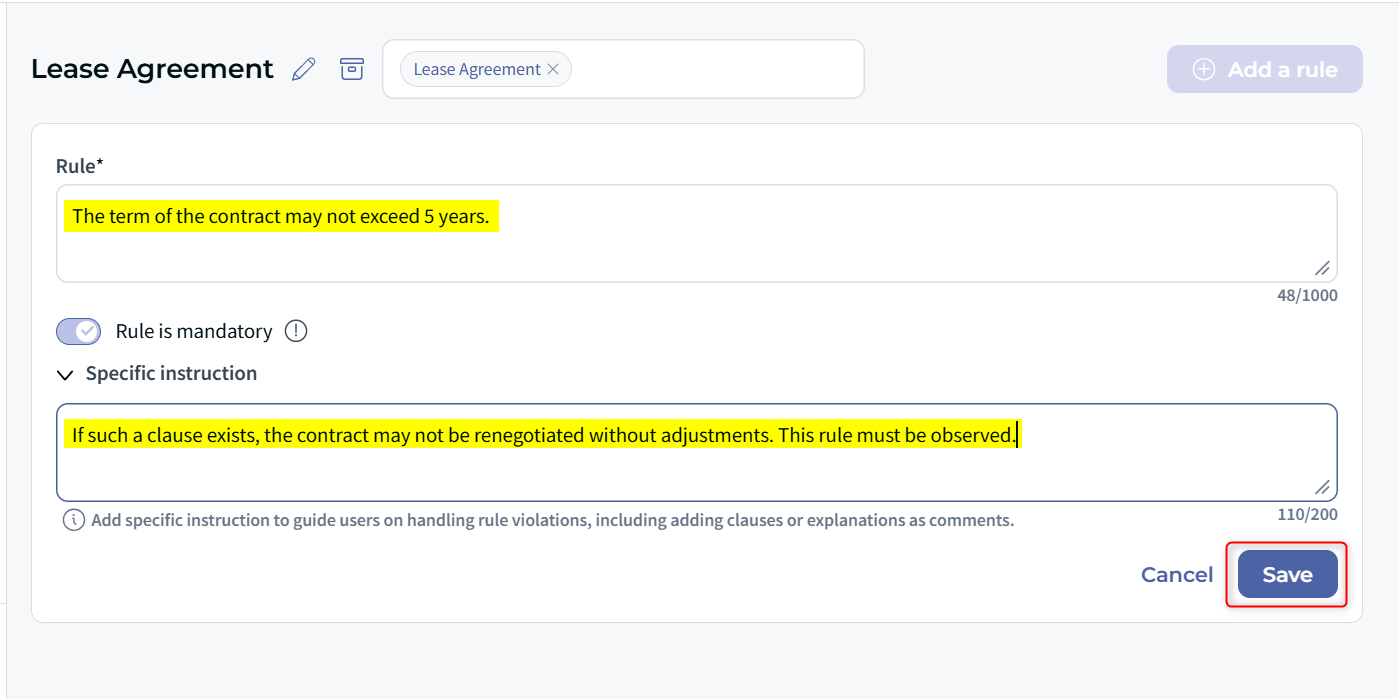
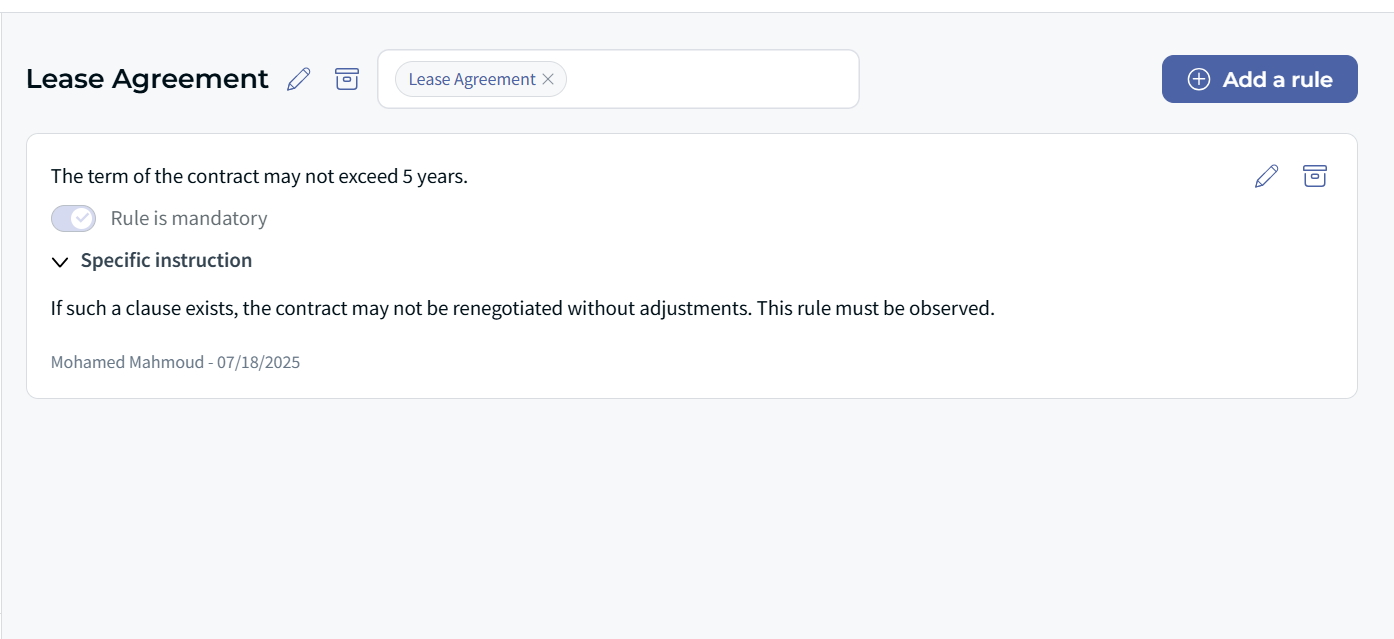
Step 1: Define Your Playbook
Create playbooks, which contain your contract review rules. Each contract type (e.g., NDA, MSA) can have its own playbook, with rules describing what clauses must (or must not) appear.
Step 2: Upload a Contract
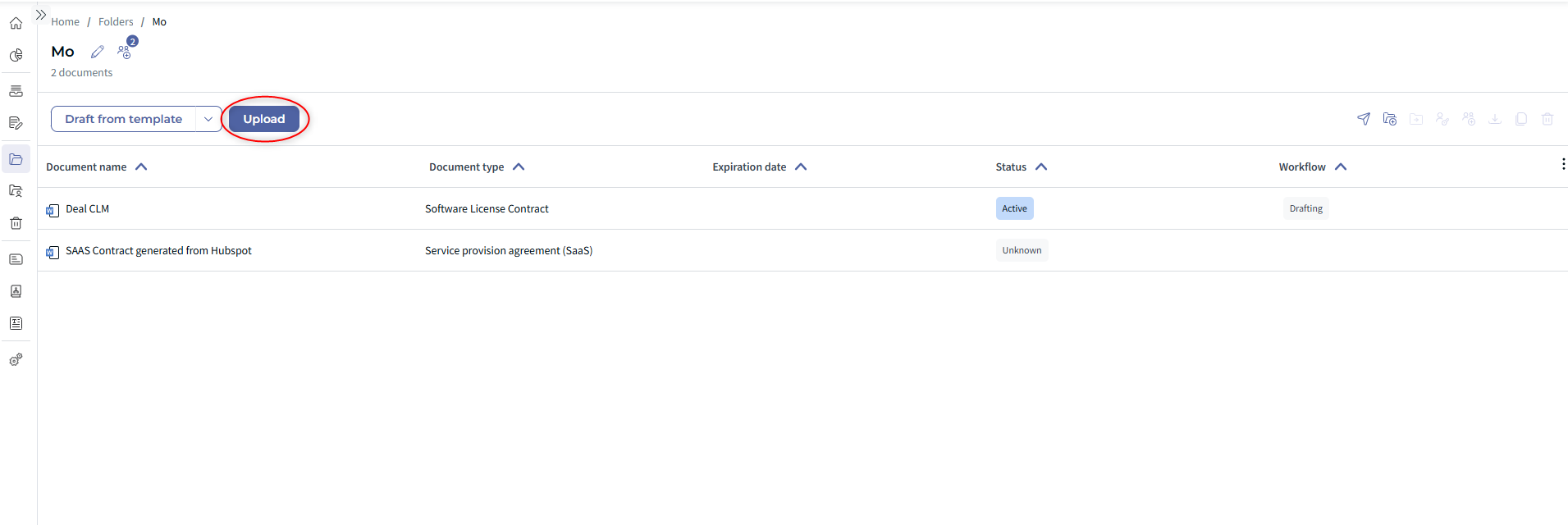
Upload your document. Risk Detector will:
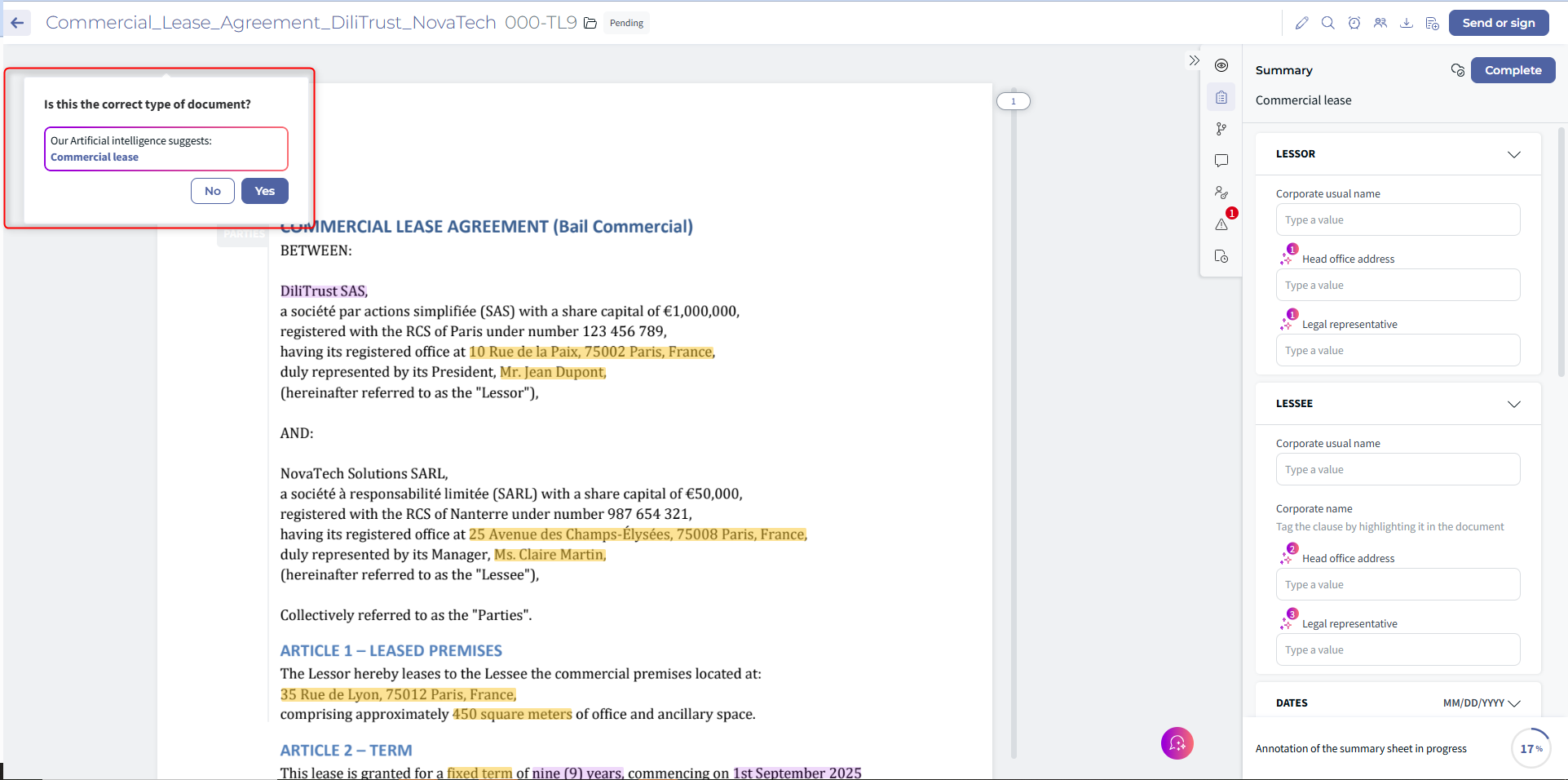
- Automatically recognize the document type
- Match it with the relevant playbook
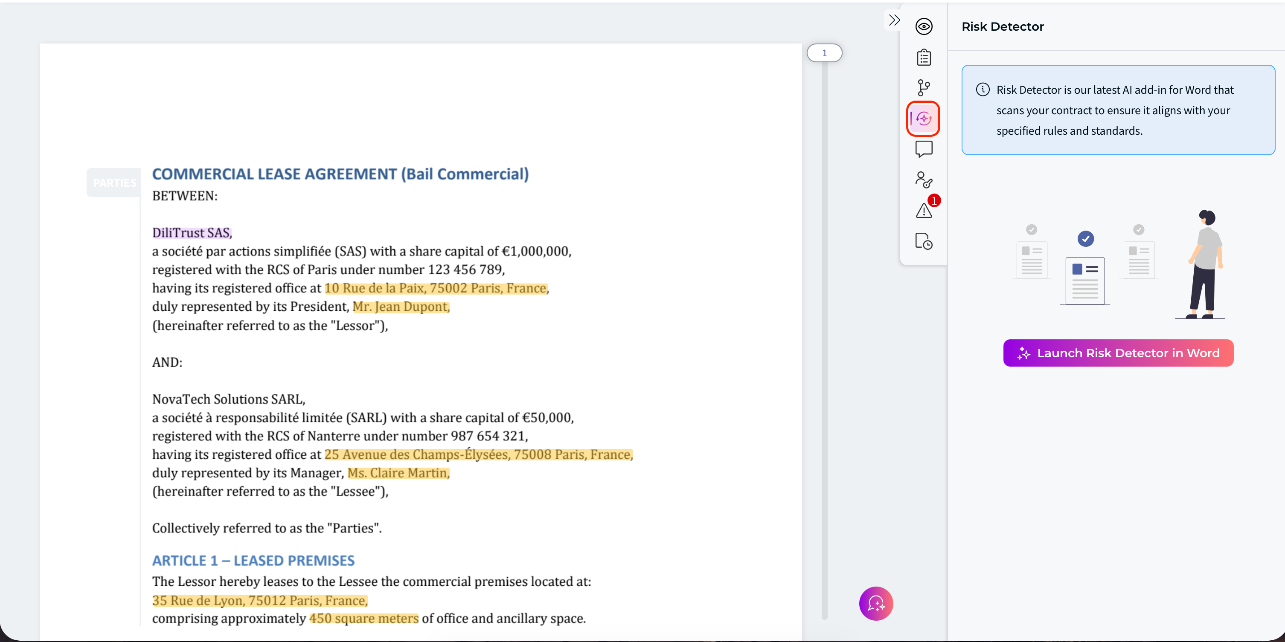
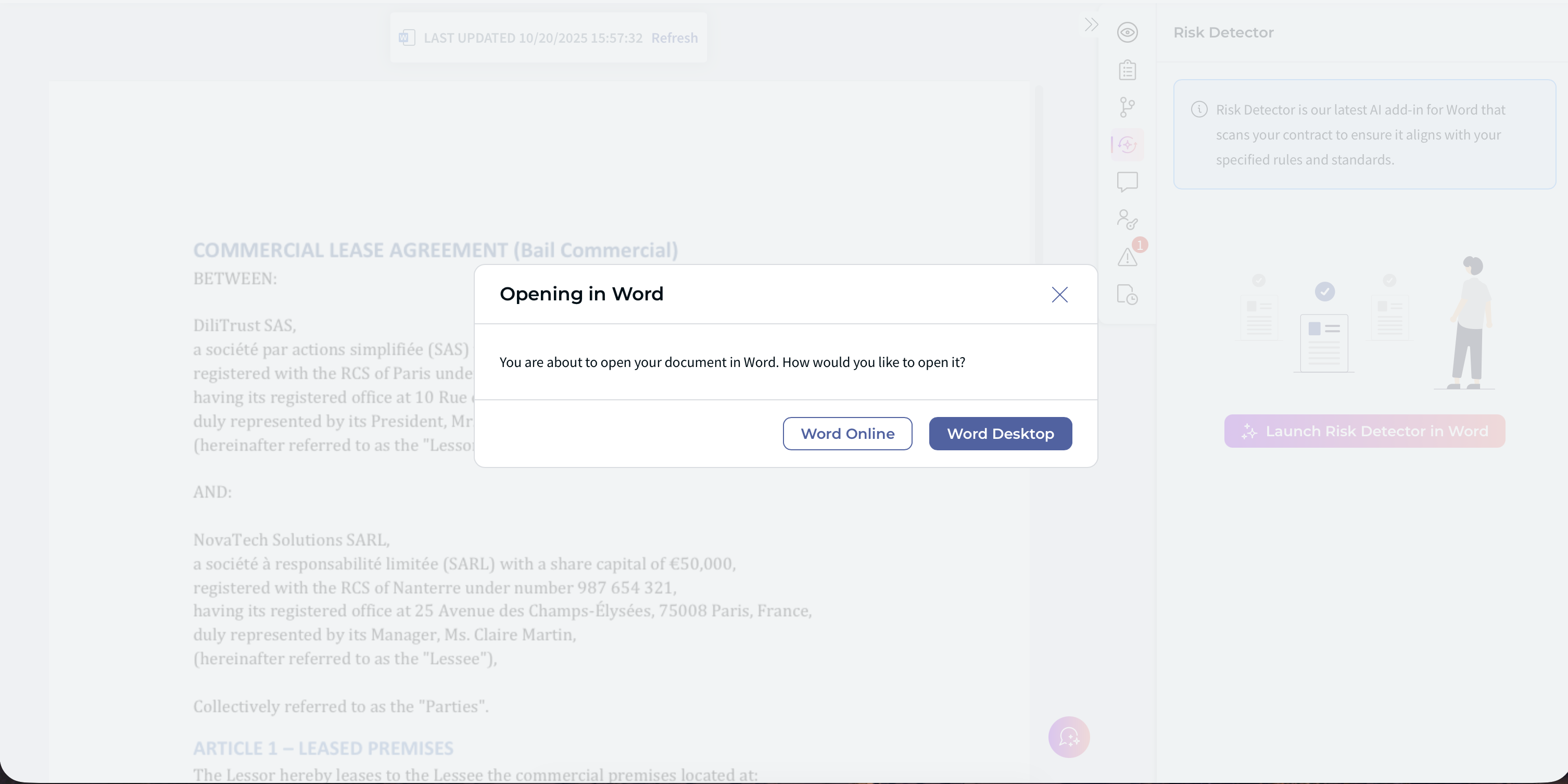
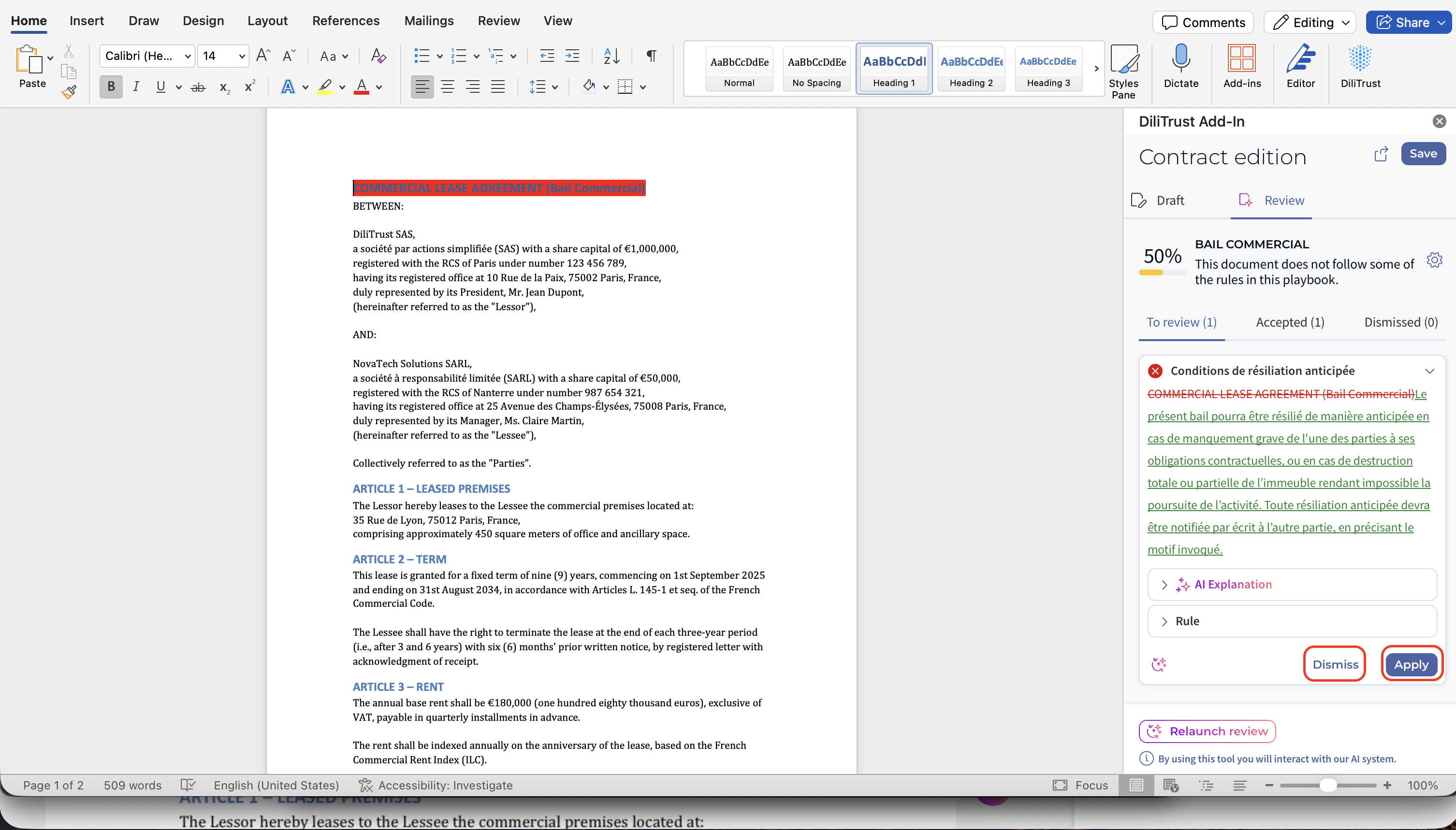
Use the dedicated button to launch the Risk Detector in Word.
Confirm the opening in Word
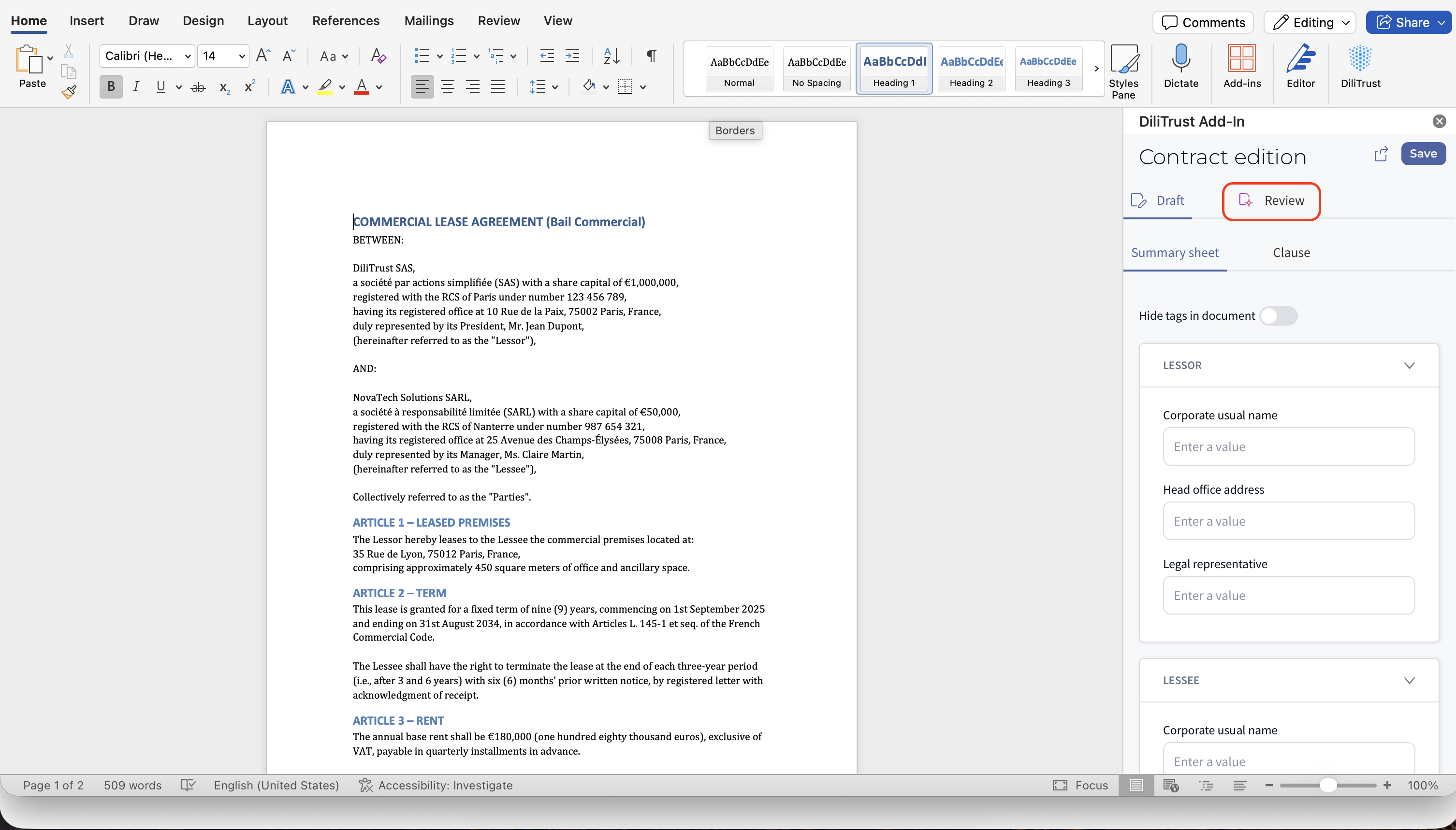
Hit the "Review" button
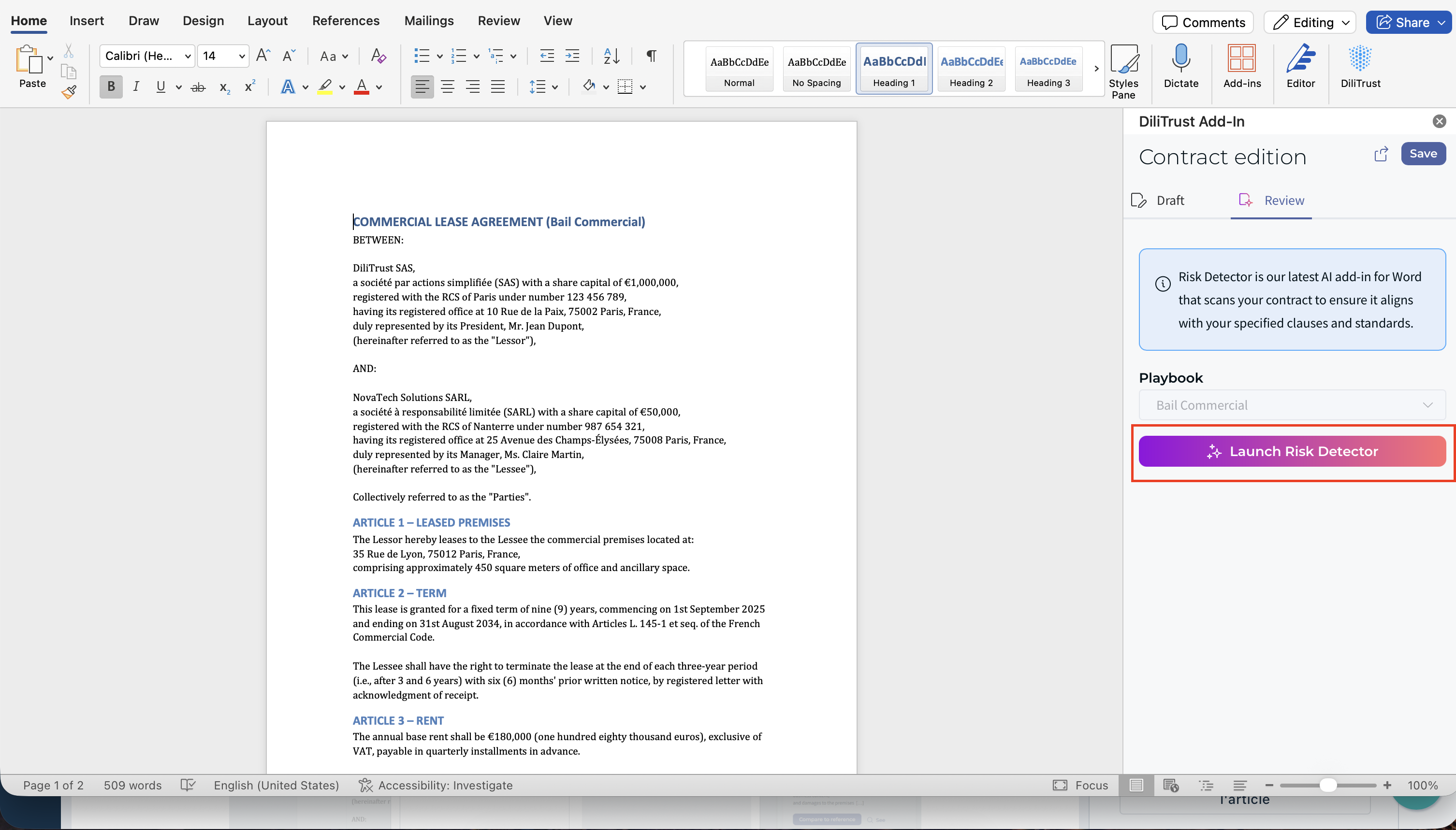
Launch the feature
Step 3: Review AI Suggestions
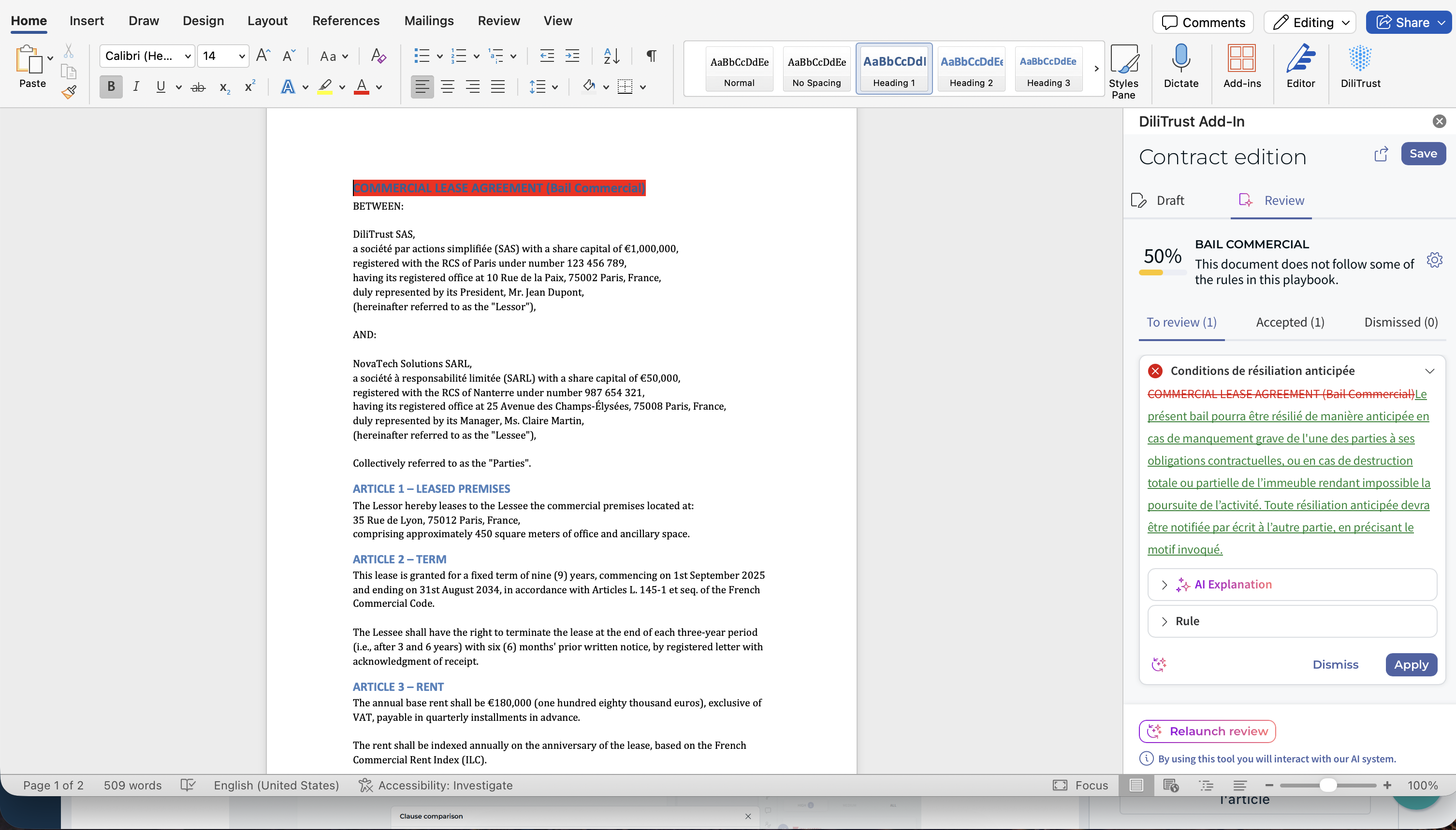
For each rule, Risk Detector will:
- ✅ Check if the clause is present
- ⭐ Jump to the relevant contract section
- ✍️ Suggest edits with track-changes enabled
Step 4: Apply or Adjust Suggestions
You can accept, modify, or reject suggestions with full transparency. All accepted rules and clauses are saved for future reference.
New: Risk Detector in CLM (View Version) ✨
You can now access a read-only version of Risk Detector results directly in CLM. This makes it easier to monitor contract compliance without switching back to Word.
What You Can Do:
- ✅ See the compliance percentage of a reviewed contract
- ☝ Review flagged clauses and AI explanations
- ✌ Check which clauses were accepted or dismissed by your team
Important to Know:
- ❗ The View Version is read-only. You cannot accept or reject suggestions here.
- ❗ Editing actions (apply, dismiss, replace text) are only available in the Word add-in.
- ❗ Available only for contracts edited in Word. Support for Google Docs and CKEditor is planned in future releases.
Benefits of Using Risk Detector ✨
- ✅ Zero setup required during contract upload
- ⚖️ Ensures contracts follow your company’s legal standards
- ✍ Reduces manual editing and missed risks
- ✌ Speeds up approvals and negotiations
- ☝ Makes legal expertise available to every team member
- ⭐ New: Consult AI results in CLM without leaving the platform
⭐ Risk Detector Limited Preview (When the AI Add-on Is Not Activated)
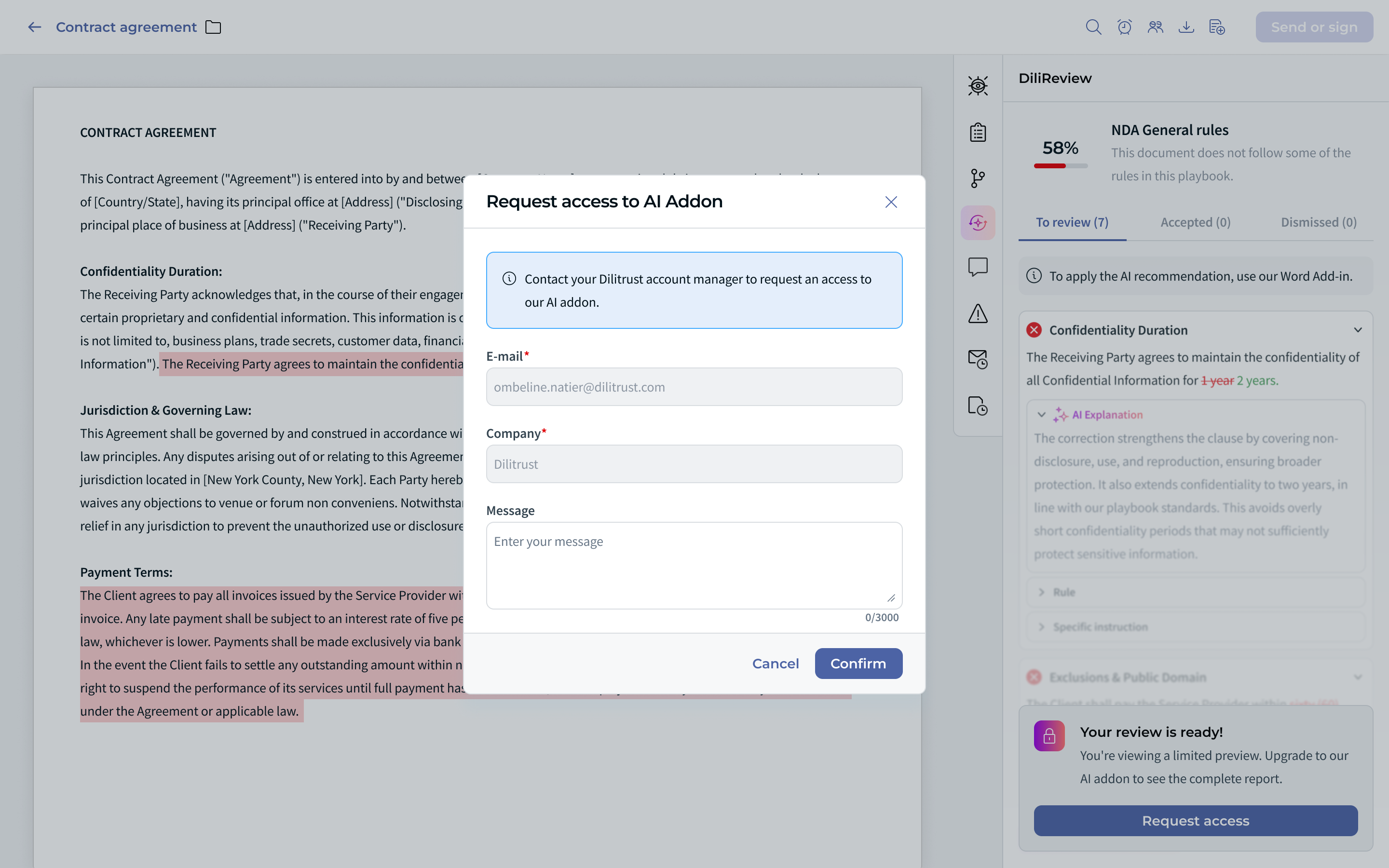
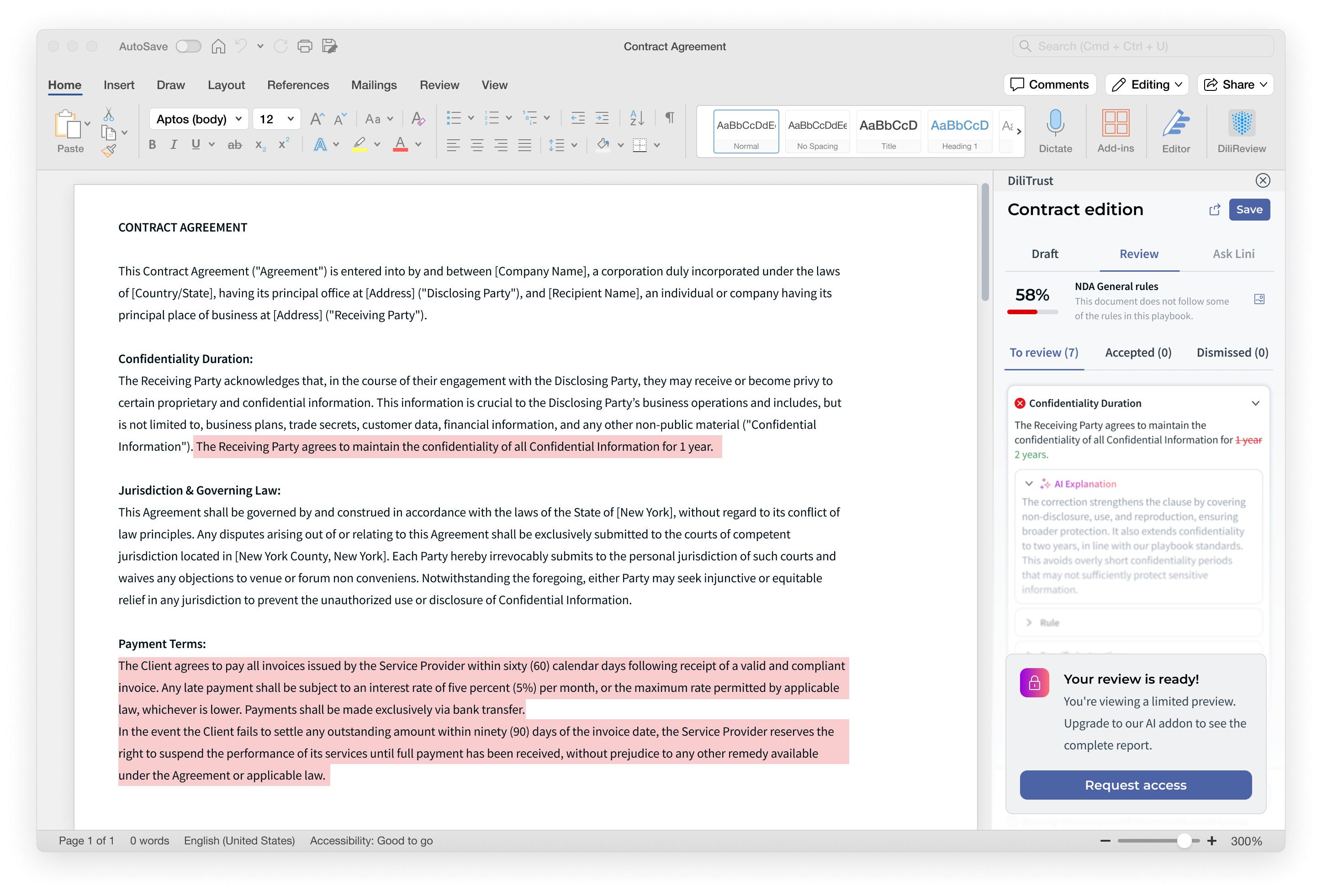
If your organisation does not have the DiliTrust AI add-on activated, you can still discover Risk Detector in a limited preview. The review runs on your contract and the result is displayed, but only part of it is visible — just enough to see what the feature delivers before upgrading.
If your organisation already has the AI add-on activated, nothing changes: Risk Detector keeps working exactly as described above, with all suggestions and actions available.
What you see in the limited preview
- ☝ A message confirms that your review is ready and explains that you are viewing a limited preview
- ❗ Only one suggestion from the review is visible — the rest of the list is blurred
- ❗ The visible suggestion is read-only: no action is available on it (you cannot apply or dismiss it)
- ❗ The suggestion list cannot be scrolled
- ⭐ A Request access button lets you ask for the full feature
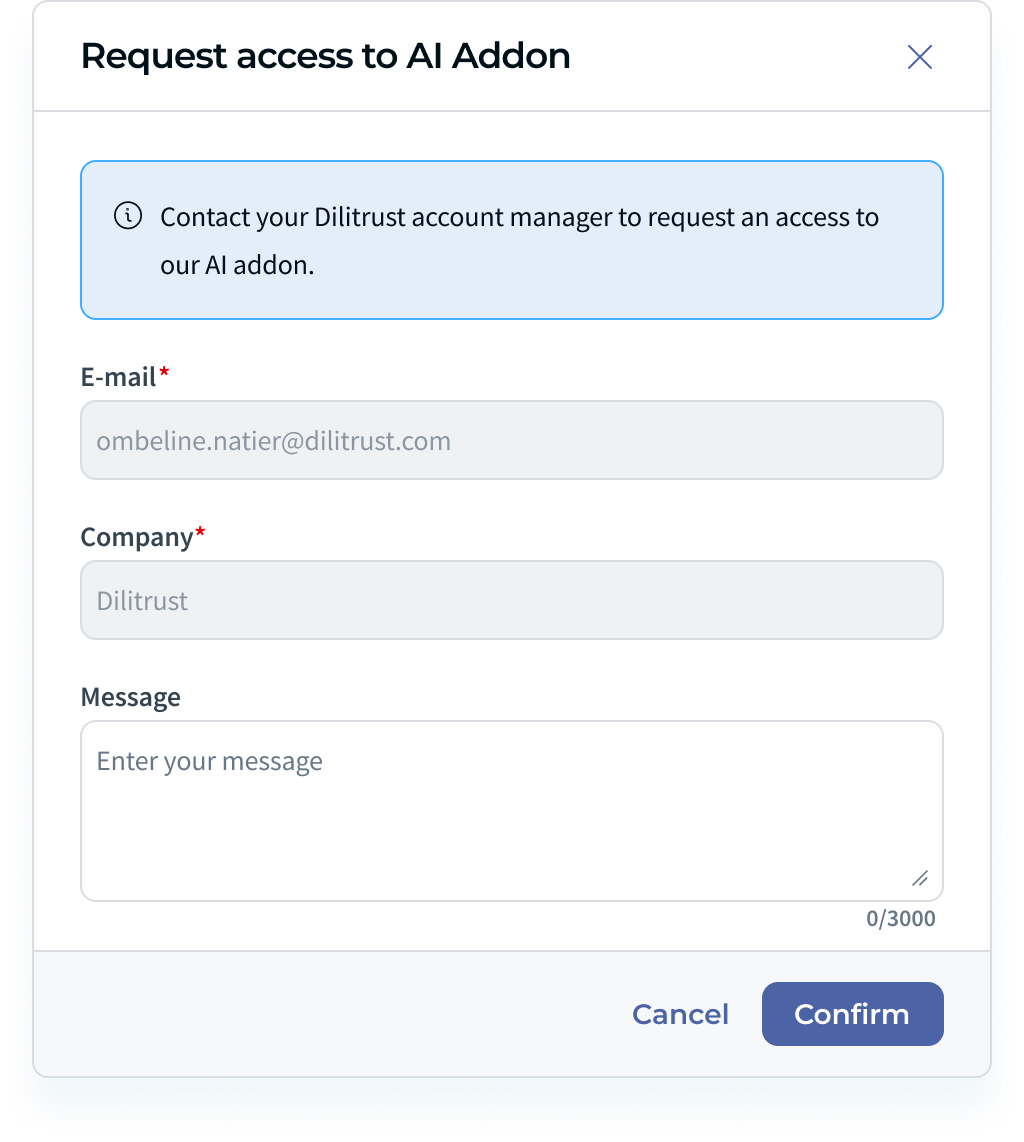
How to request full access
- Open your contract and launch the Risk Detector review as usual.
- In the Risk Detector panel, select Request access.
- A request form opens. Your E-mail and Company are pre-filled and cannot be edited.
- Optionally, add a Message (up to 3,000 characters) to explain what you need.
- Select Confirm to send your request, or Cancel to close the form without sending.
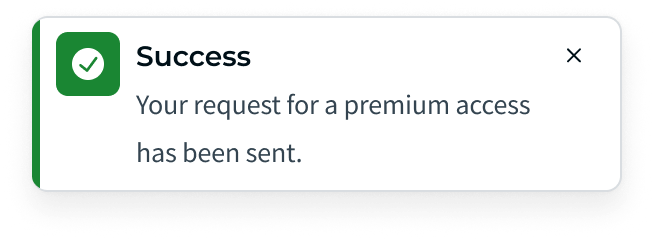
Once your request is sent, a confirmation message is displayed to confirm that your request for premium access has been sent. Your DiliTrust account manager is then contacted about activating the AI add-on.
Where the limited preview appears
The limited preview is shown wherever Risk Detector review results are displayed: the Risk Detector panel in CLM, and the DiliTrust add-ins you use to review contracts.
❔ FAQ — Limited Preview and Access Requests
Why can I only see one suggestion?
Because your organisation does not have the AI add-on activated yet. The limited preview intentionally shows a single suggestion so you can judge the quality of the review before upgrading.
Can I apply or dismiss a suggestion in the limited preview?
No. In the limited preview the suggestion is read-only, so the apply and dismiss actions are not available. They become available once the AI add-on is activated.
What happens after I select Request access?
Your request is sent and you get an on-screen confirmation. Your DiliTrust account manager is then contacted to discuss activating the AI add-on for your organisation.
Do I need to re-run the review after the AI add-on is activated?
Once the AI add-on is activated, Risk Detector is no longer restricted and the full review is available, with every suggestion and all actions.
❓ Need Help?
If you have questions or feedback, reach out to the Customer Care team at support@dilitrust.com.
Let’s close deals faster—together with Risk Detector! ✨
Was this article helpful?
That’s Great!
Thank you for your feedback
Sorry! We couldn't be helpful
Thank you for your feedback
Feedback sent
We appreciate your effort and will try to fix the article