✅Introduction
The DiliTrust CLM Salesforce connector lets Salesforce users create DiliTrust CLM contracts directly from Opportunity records.
This article explains how to install the connector, configure the Opportunity action, connect a CLM template, map Salesforce data, configure status updates, and run an initial validation test.
This guide is intended for Salesforce administrators and DiliTrust CLM administrators. Complete the remaining mappings and callback validation before using the integration for operational contracts.
✋ Before you begin
- Use a Salesforce System Administrator account.
- Confirm that you are working in the correct Production org.
- Prepare the CLM tenant name, template, and log recipient.
- Use a dedicated test Opportunity for the first validation.
⭐ Scope and environment
This configuration uses the HyperlexSF managed package in a Salesforce Production org. The connector is configured to create CLM contracts from Salesforce Opportunities.
- Salesforce environment: Production flow via login.salesforce.com.
- Salesforce My Domain: connect-efficiency-8102.my.salesforce.com.
- Salesforce package: HyperlexSF (Managed), version 1.18, version name V118R05.
- Primary Salesforce object: Opportunity.
- CLM launch URL: https://app.hyperlex.fr/crm/salesforce?payload=.
- CLM template: Software License Contract.
- CLM template UUID / Hyperlex code: 508b547a-0a70-41f1-ac3d-8144fc449db0.
- Configured language: English.
Item | Value |
Salesforce environment | Production flow via login.salesforce.com |
Salesforce My Domain | connect-efficiency-8102.my.salesforce.com |
Salesforce package | HyperlexSF (Managed), version 1.18, version name V118R05 |
Primary Salesforce object | Opportunity |
CLM launch URL | https://app.hyperlex.fr/crm/salesforce?payload= |
CLM template | Software License Contract |
CLM template UUID / Hyperlex code | 508b547a-0a70-41f1-ac3d-8144fc449db0 |
Configured language | Anglais (English) |
✈️ Install the Salesforce package
The HyperlexSF package is installed in the Production org with access granted to all users. Salesforce may display a warning for a non-AppExchange application; acknowledge the warning to continue.
- Open the Production package installation link while signed in with the Salesforce administrator account.
- Select Install for All Users.
- Acknowledge the Salesforce warning and select Install.
- Wait for Salesforce to complete the installation.
- In Salesforce Setup, open Installed Packages and verify that HyperlexSF is installed.
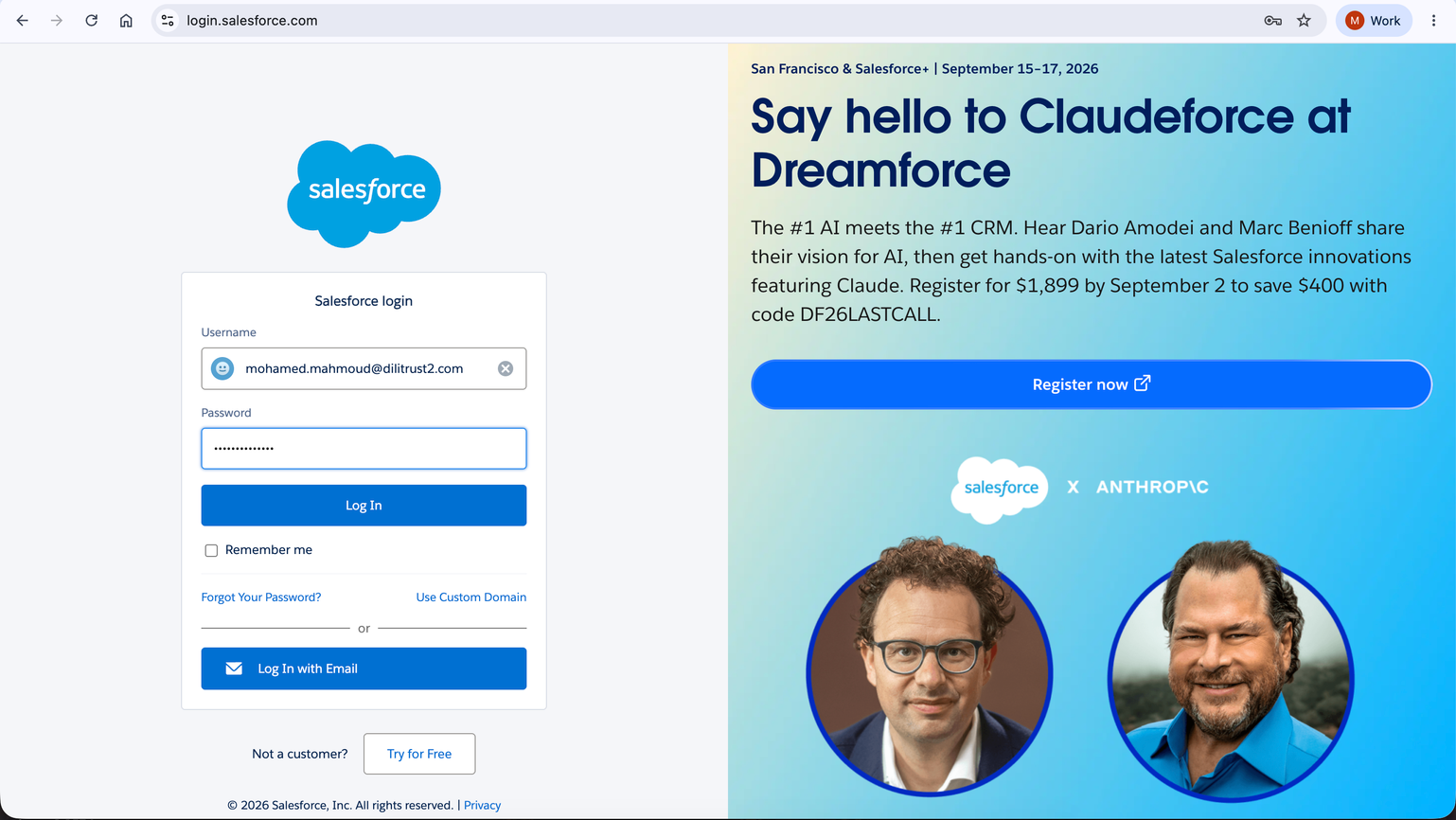
Screenshot 1 — Salesforce Production login screen used to start the installation.
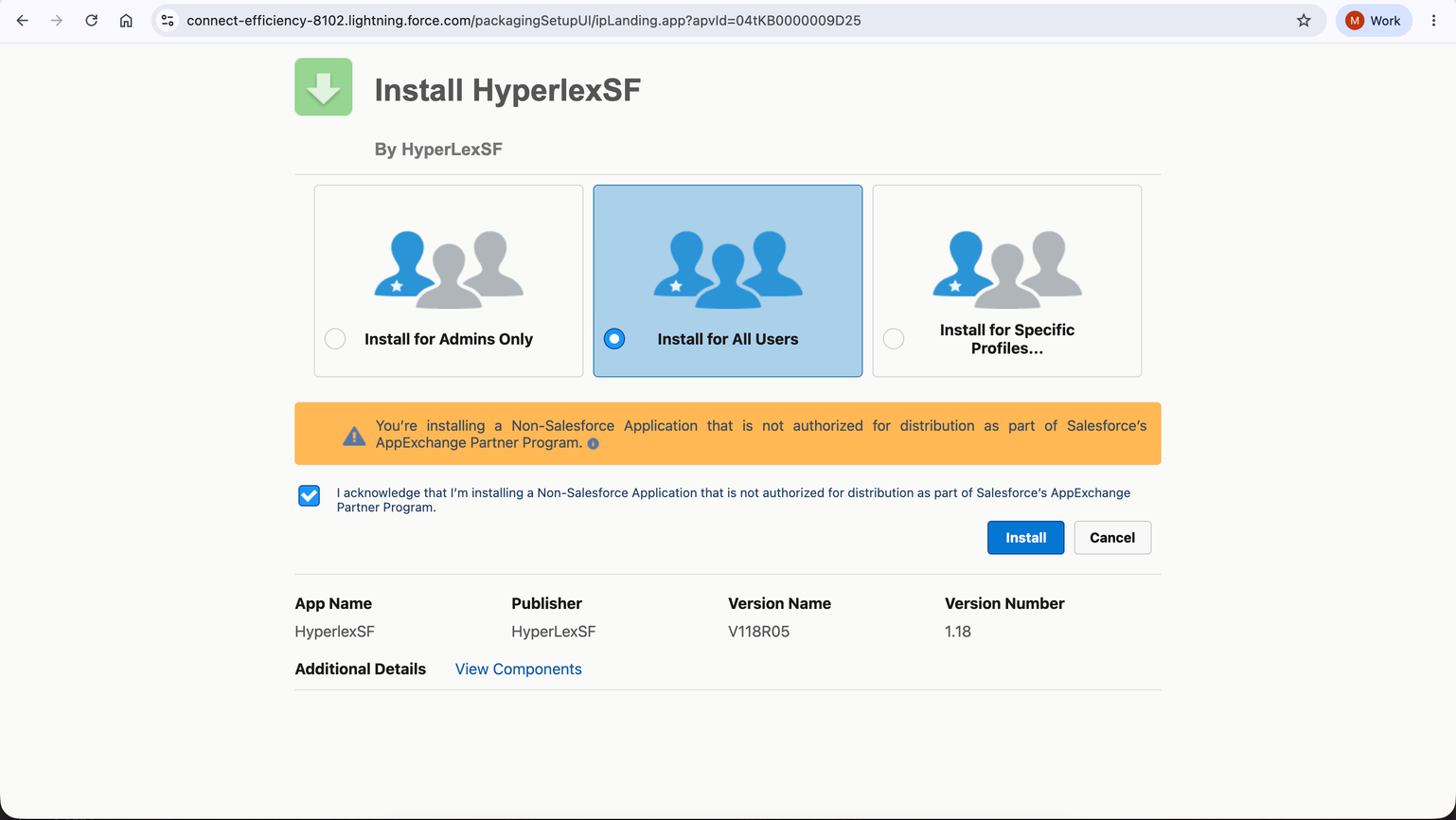
Screenshot 2 — HyperlexSF installation page: Install for All Users selected; package version 1.18 / V118R05.
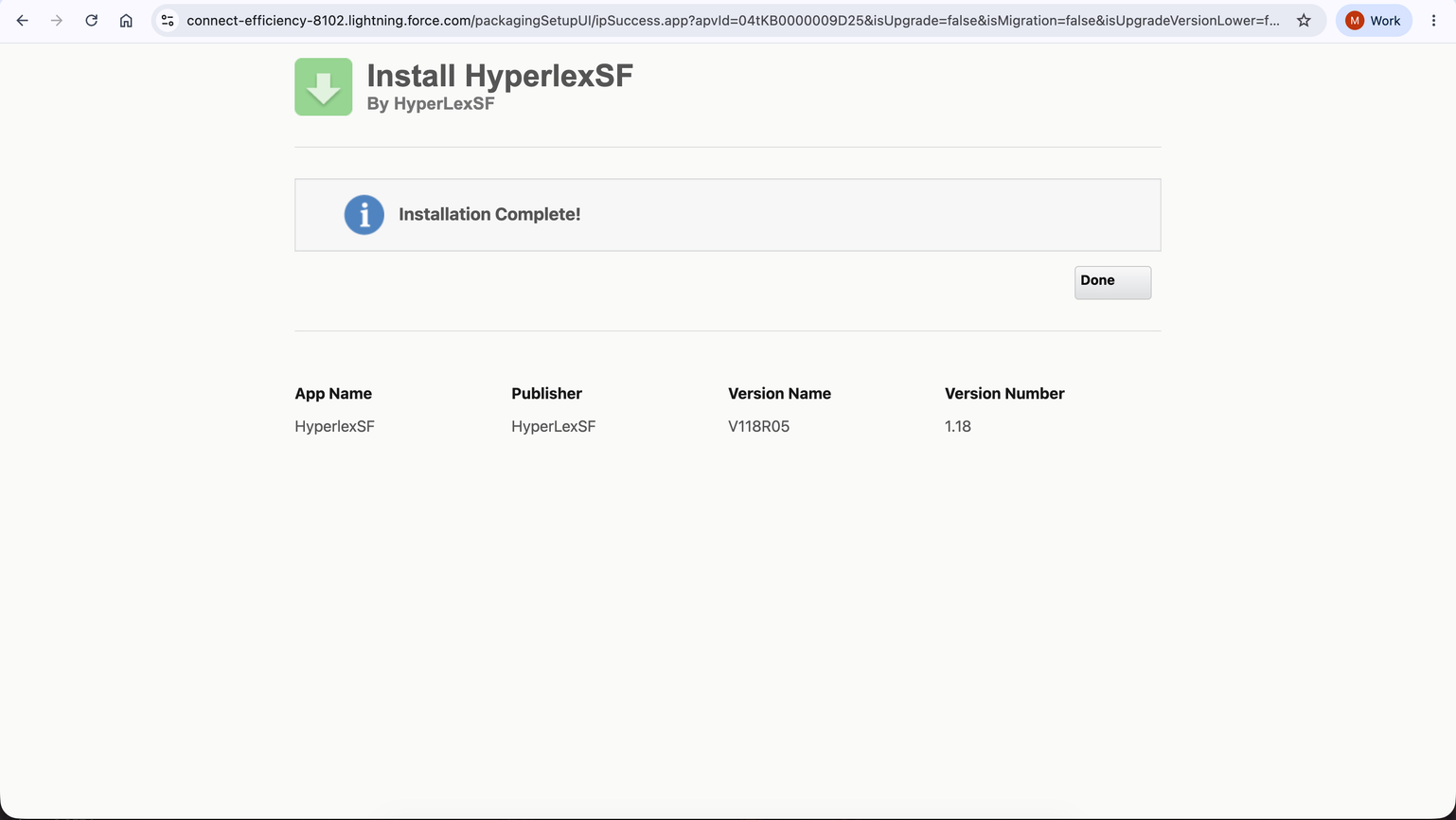
Screenshot 3 — Salesforce confirmation: Installation Complete.
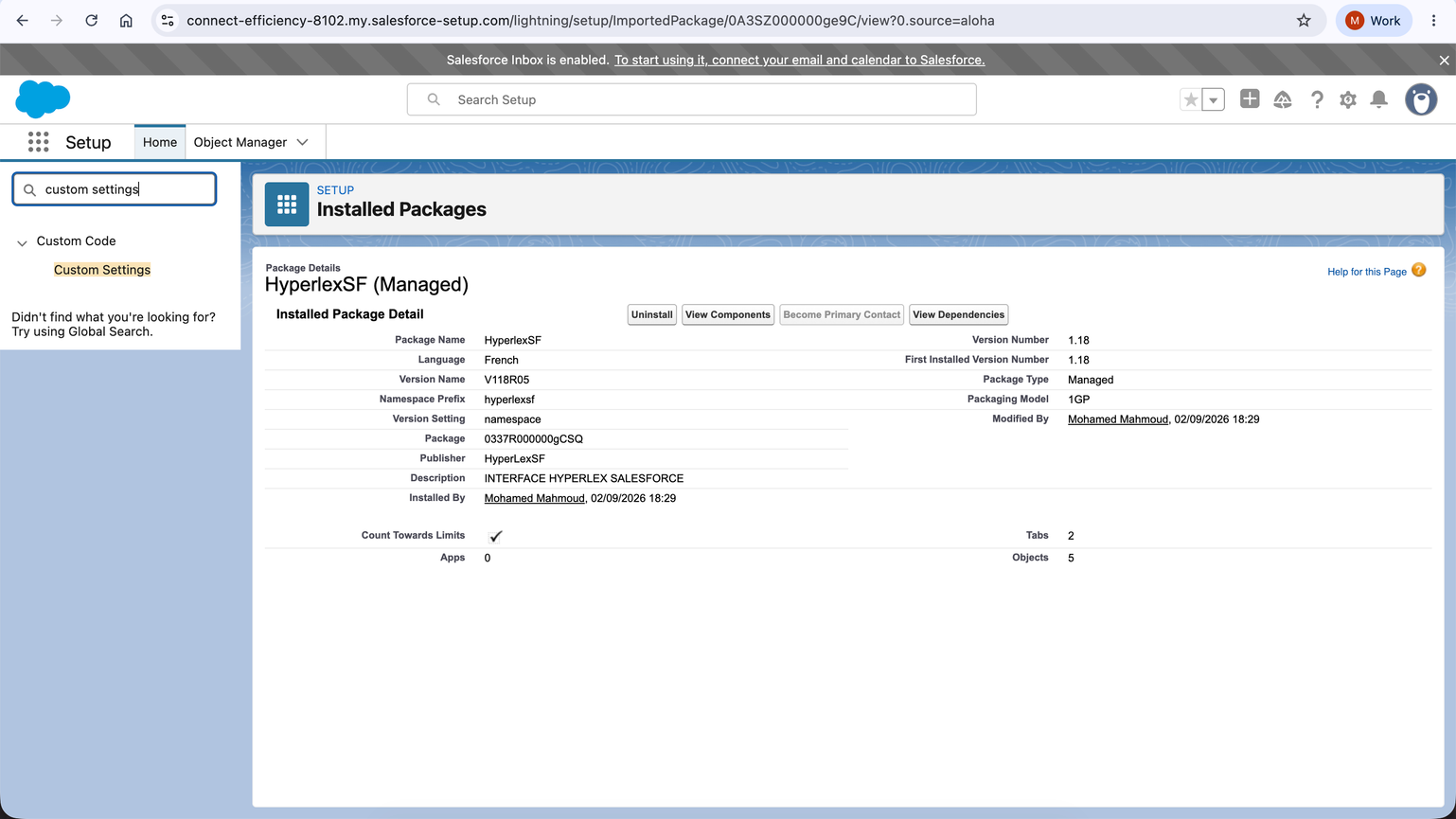
Screenshot 4 — Installed package visible in Salesforce Setup; HyperlexSF is installed as a managed package
✍ Configure HyperlexCustomSettings
Create or review the organization-level HyperlexCustomSettings record for the Production org. The lowercase url field is used by the Salesforce action to build the CLM launch redirect.
- Location: DiliTrust, organization level.
- url: https://clm-app-eu.dilitrust.com/crm/salesforce?payload=.
- isDevOrg: unchecked for Production.
- CLMUrl and other client-specific fields: retain the configured values unless DiliTrust provides different values.
- Customer, logging options, and log recipient: configure them according to the target tenant and support process.
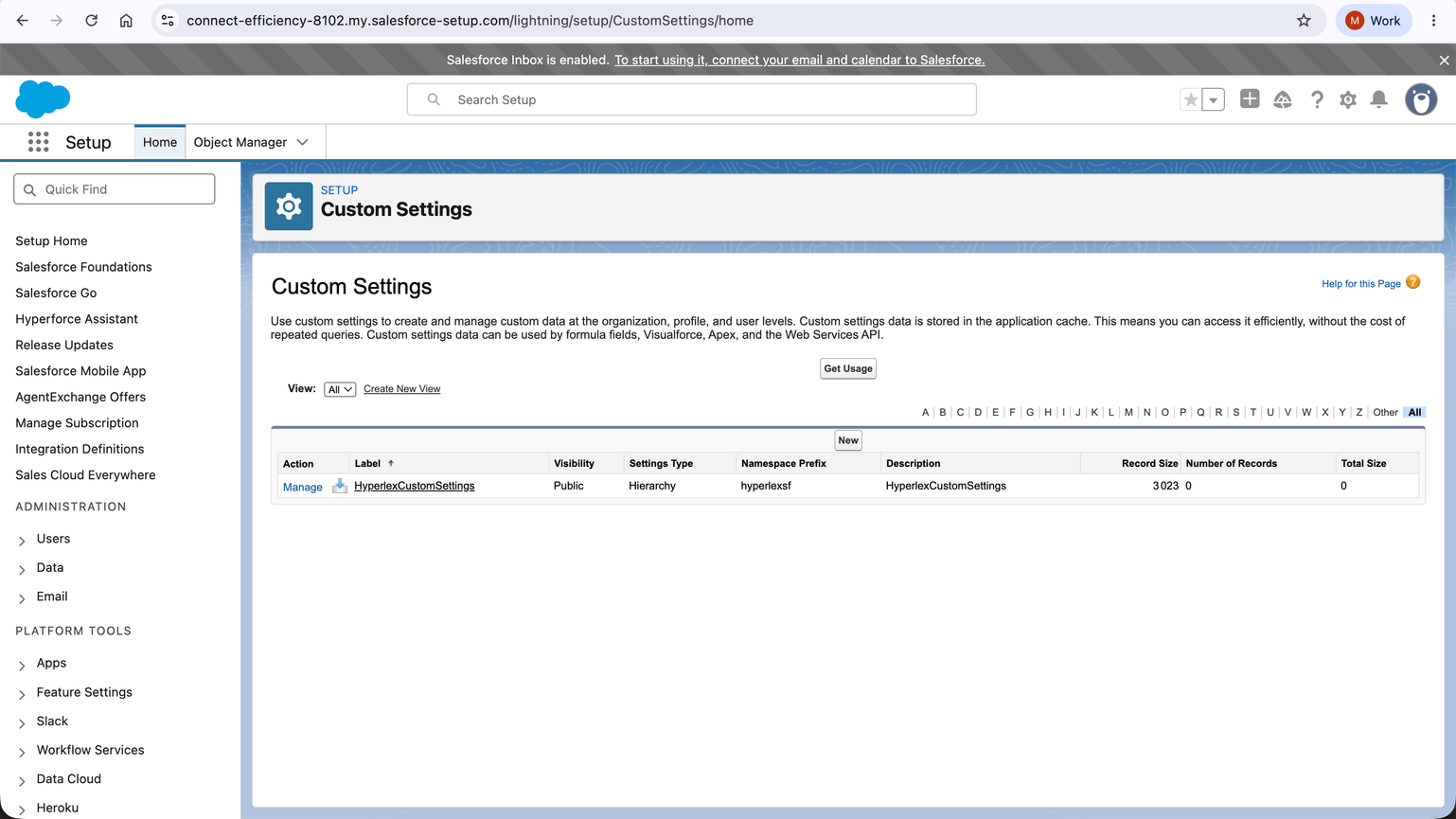
Screenshot 5 — Salesforce Custom Settings page showing HyperlexCustomSettings.
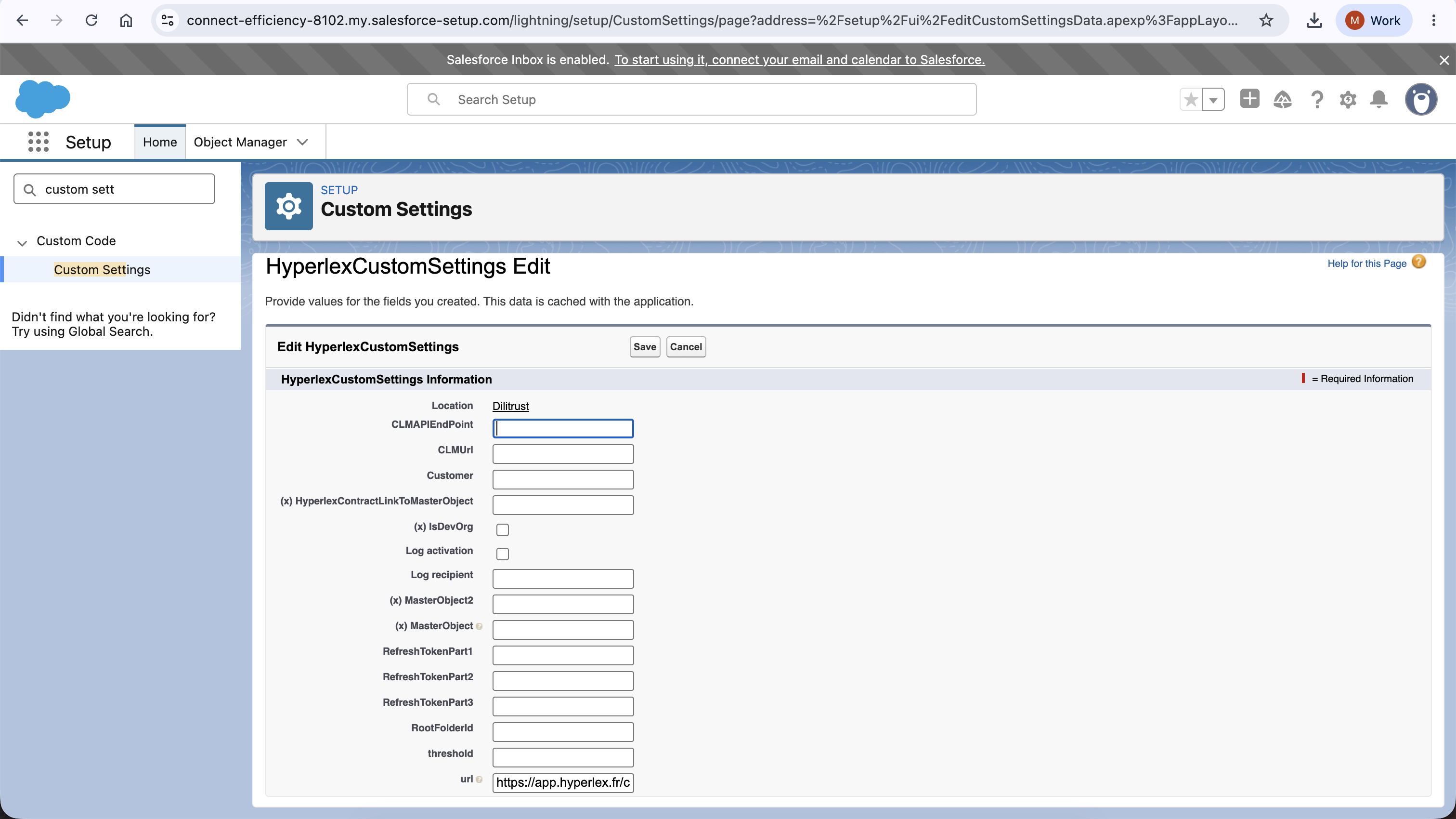
Screenshot 6 — HyperlexCustomSettings edit screen reviewed while diagnosing the missing launch URL.
⛳ Add the Opportunity contract action
Configure the Opportunity Lightning Record Page so users can launch the contract action from the Highlights Panel.
- Open a Salesforce Opportunity and select Setup → Edit Page.
- Select the top Highlights Panel component.
- Upgrade the component to Dynamic Actions. In the walkthrough, Start from Scratch was selected.
- Select Add Action and search for Create DiliTrust Contract.
- Select the object-specific action Create DiliTrust Contract V2.
- Save the Lightning page and assign it as the desktop org default for the Opportunity Record Page.
- Return to the Opportunity and refresh the page to confirm that the action is visible.
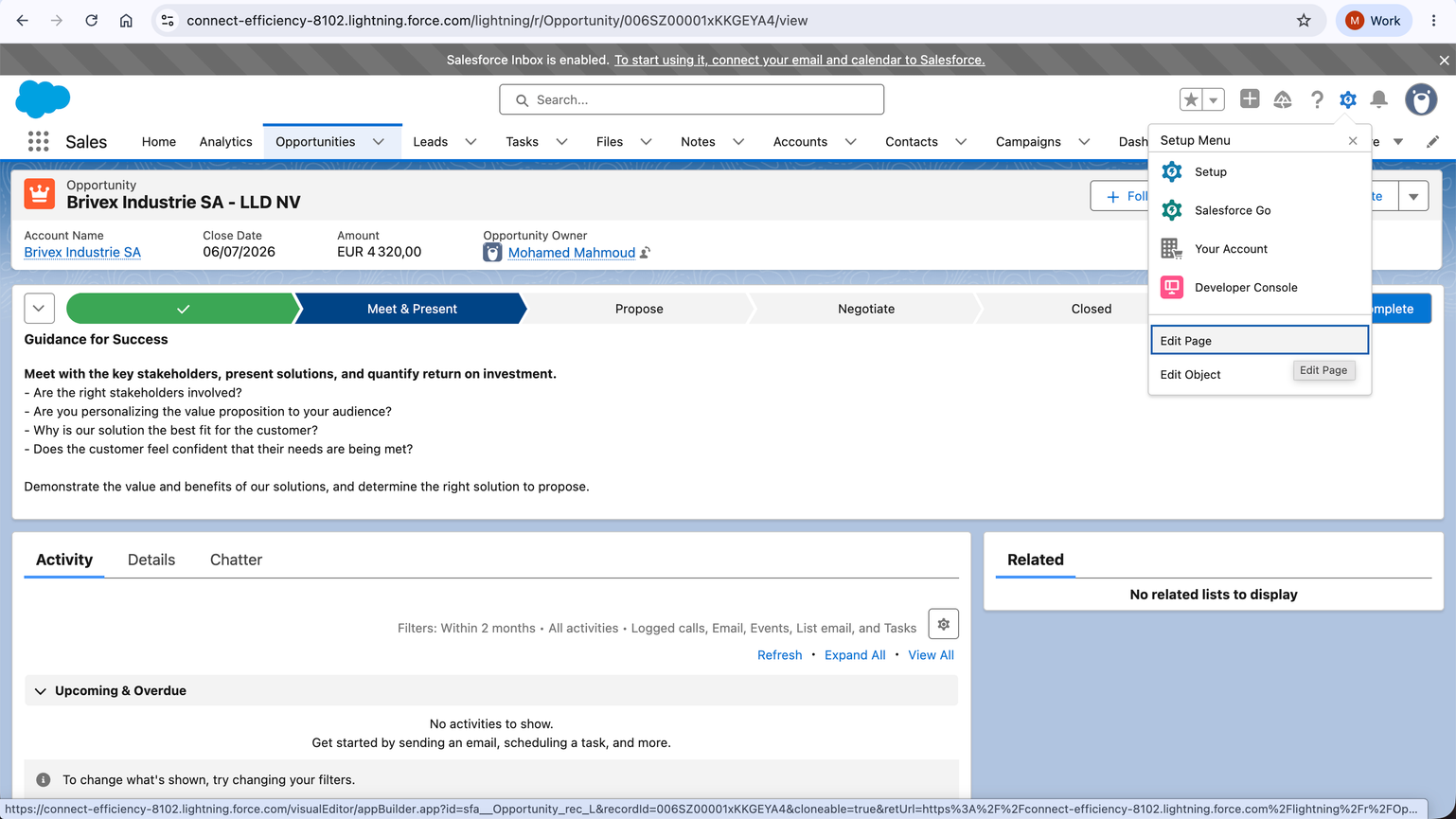
Screenshot 7 — Opportunity record Setup Menu with Edit Page available.
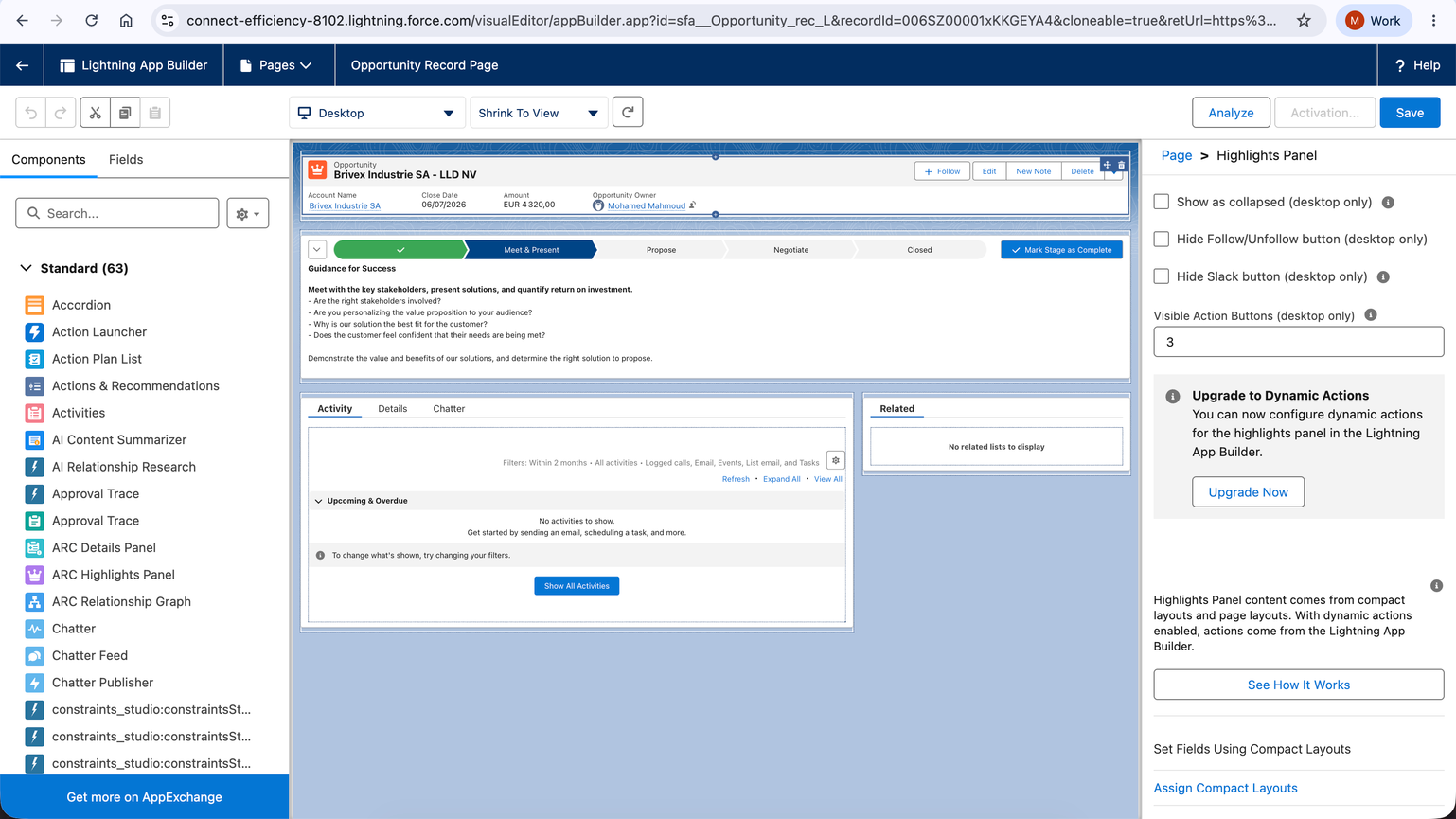
Screenshot 8 — Lightning App Builder Highlights Panel before Dynamic Actions are enabled.
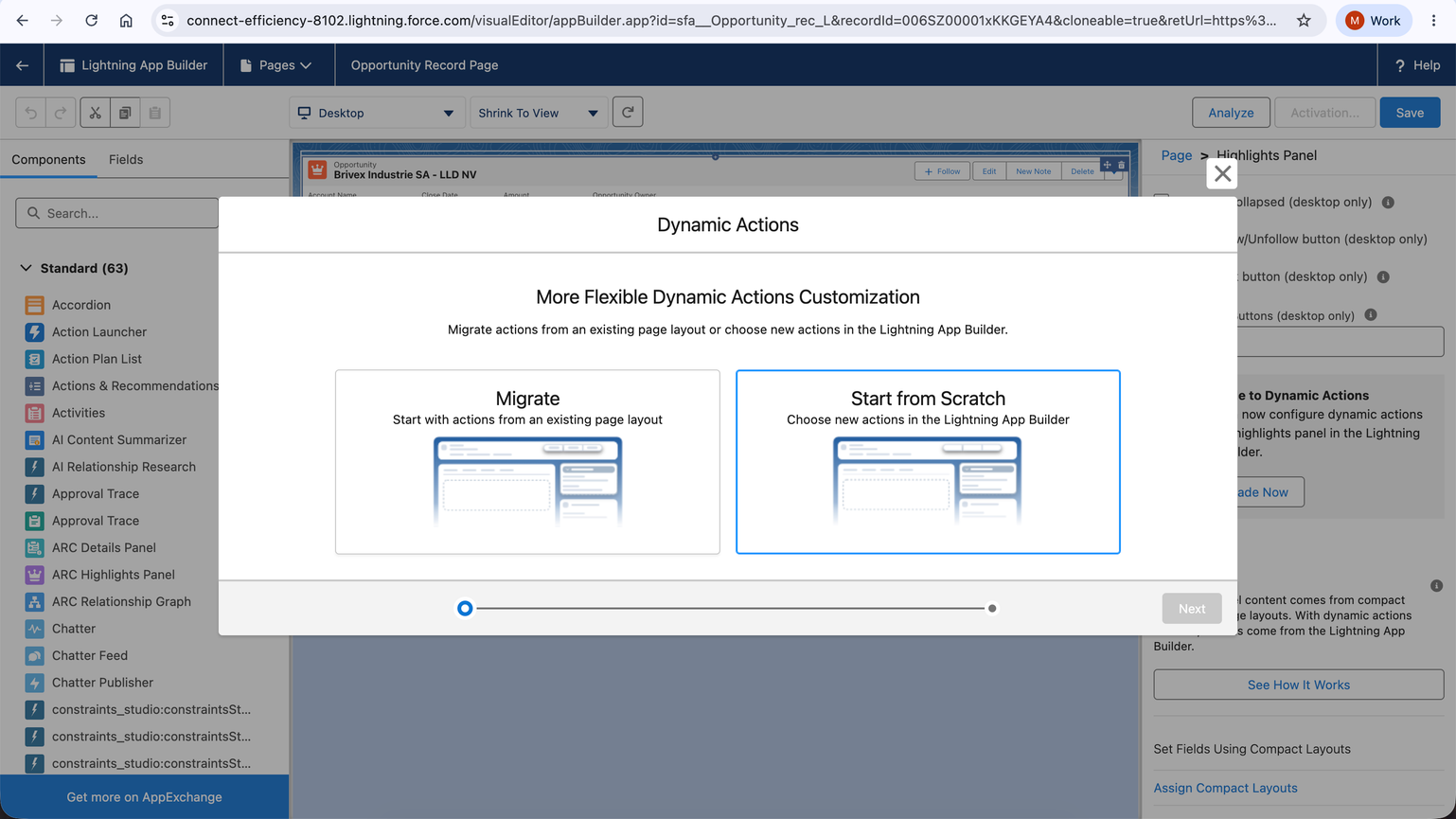
Screenshot 9 — Dynamic Actions wizard with Start from Scratch selected.
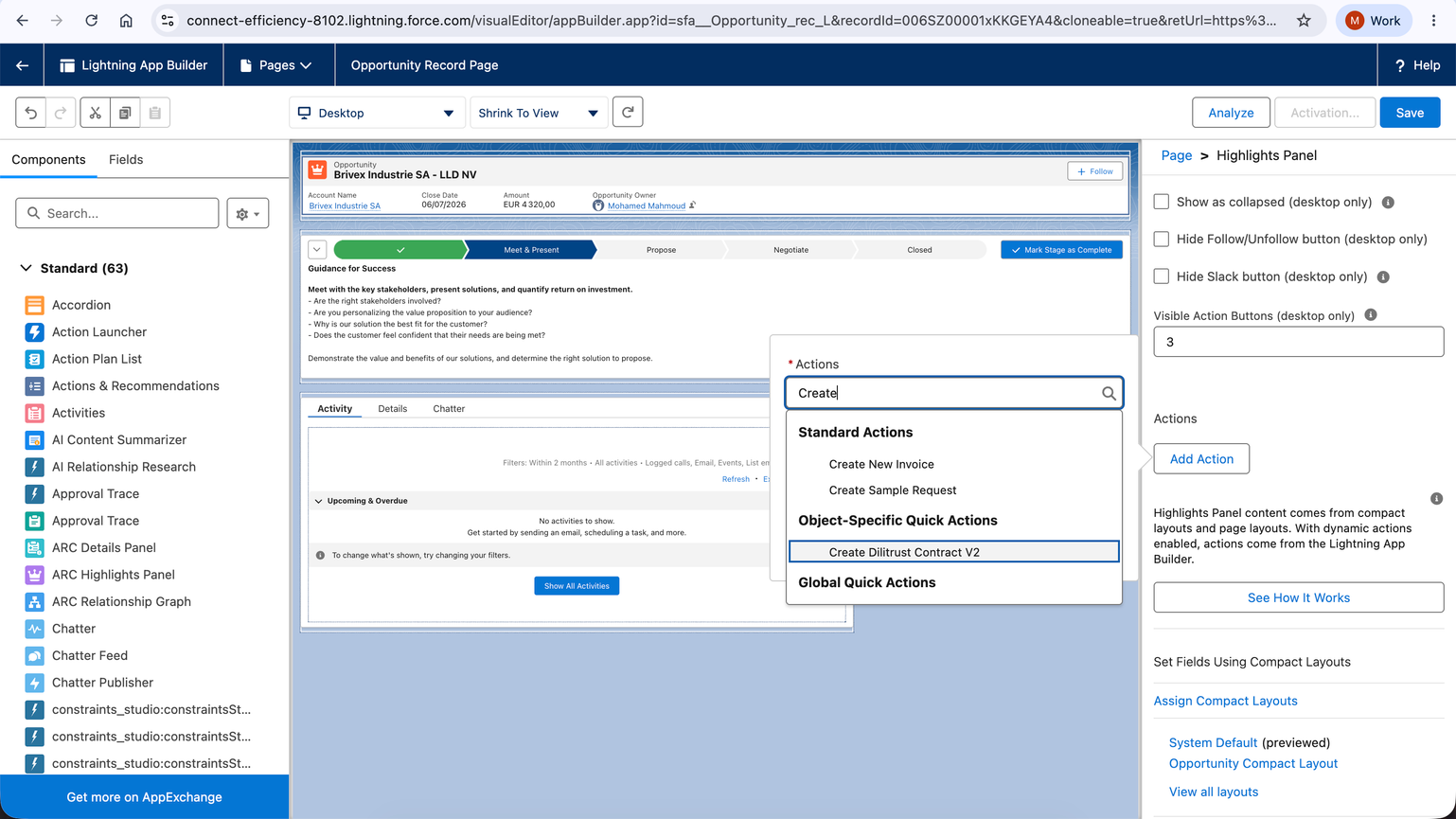
Screenshot 10 — Add Action search showing Create DiliTrust Contract V2 under Object-Specific Quick Actions.
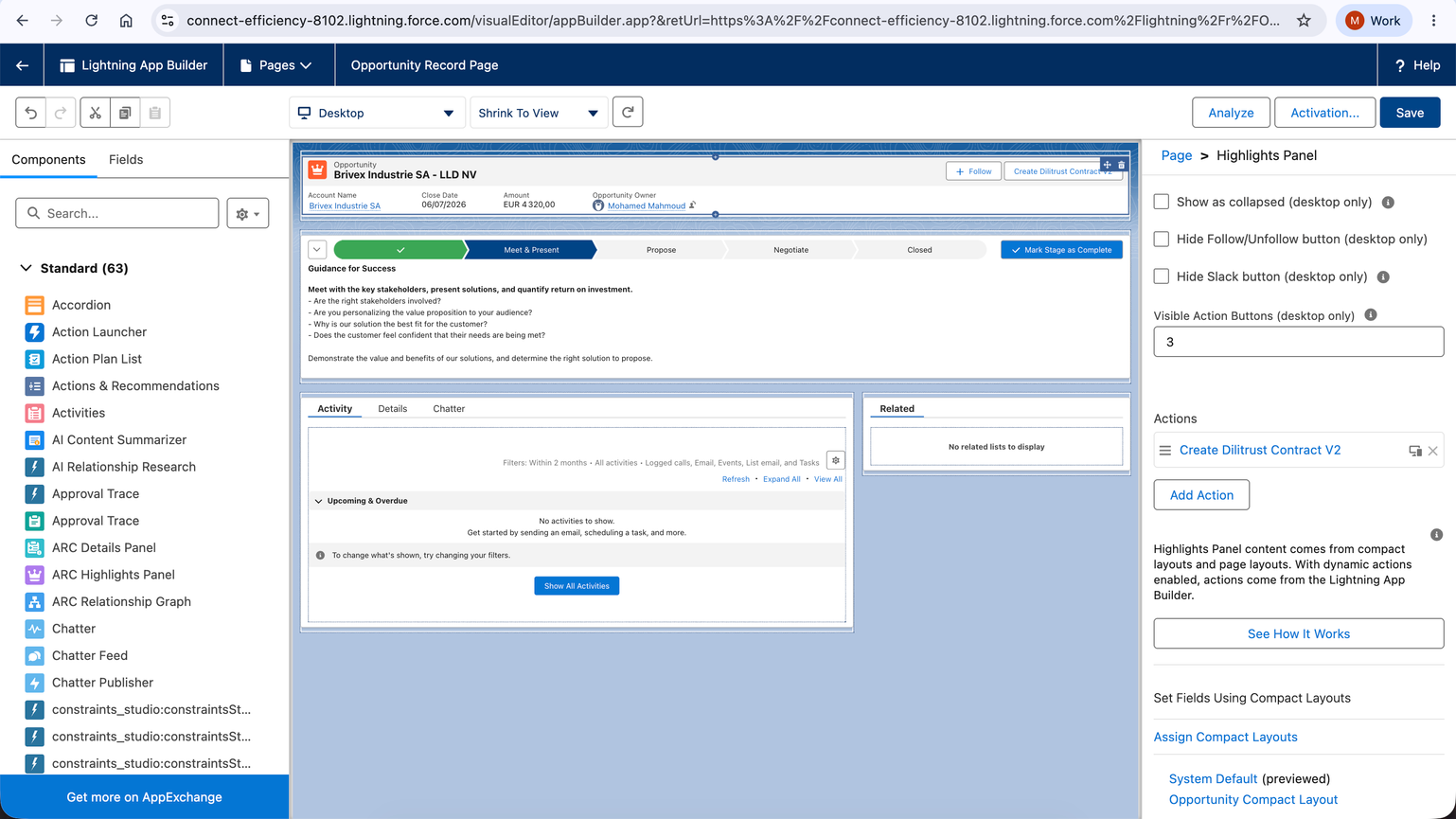
Screenshot 11 — Create DiliTrust Contract V2 added to the Highlights Panel actions.
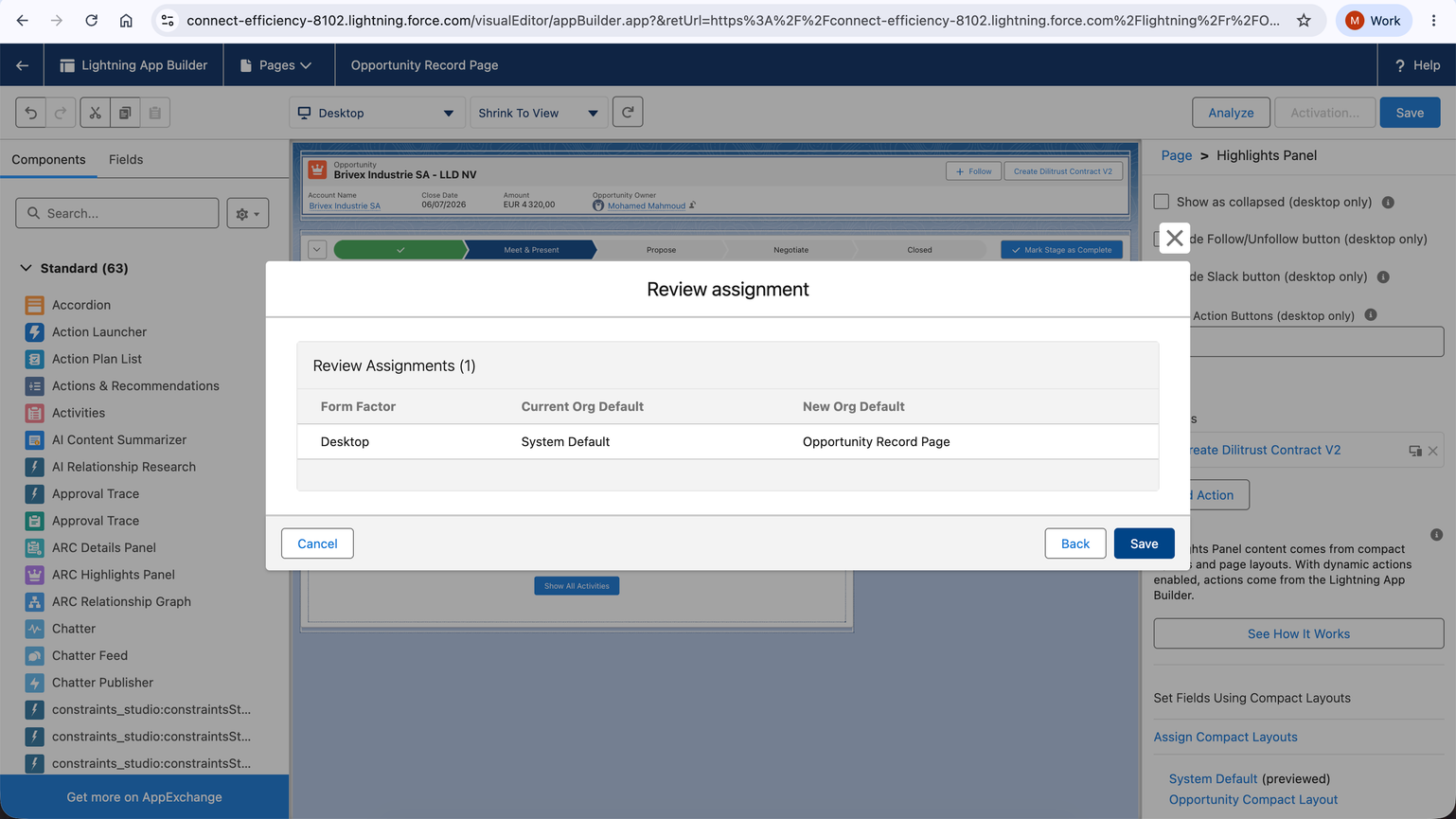
Screenshot 12 — Review assignment for the Opportunity Record Page as the desktop org default.
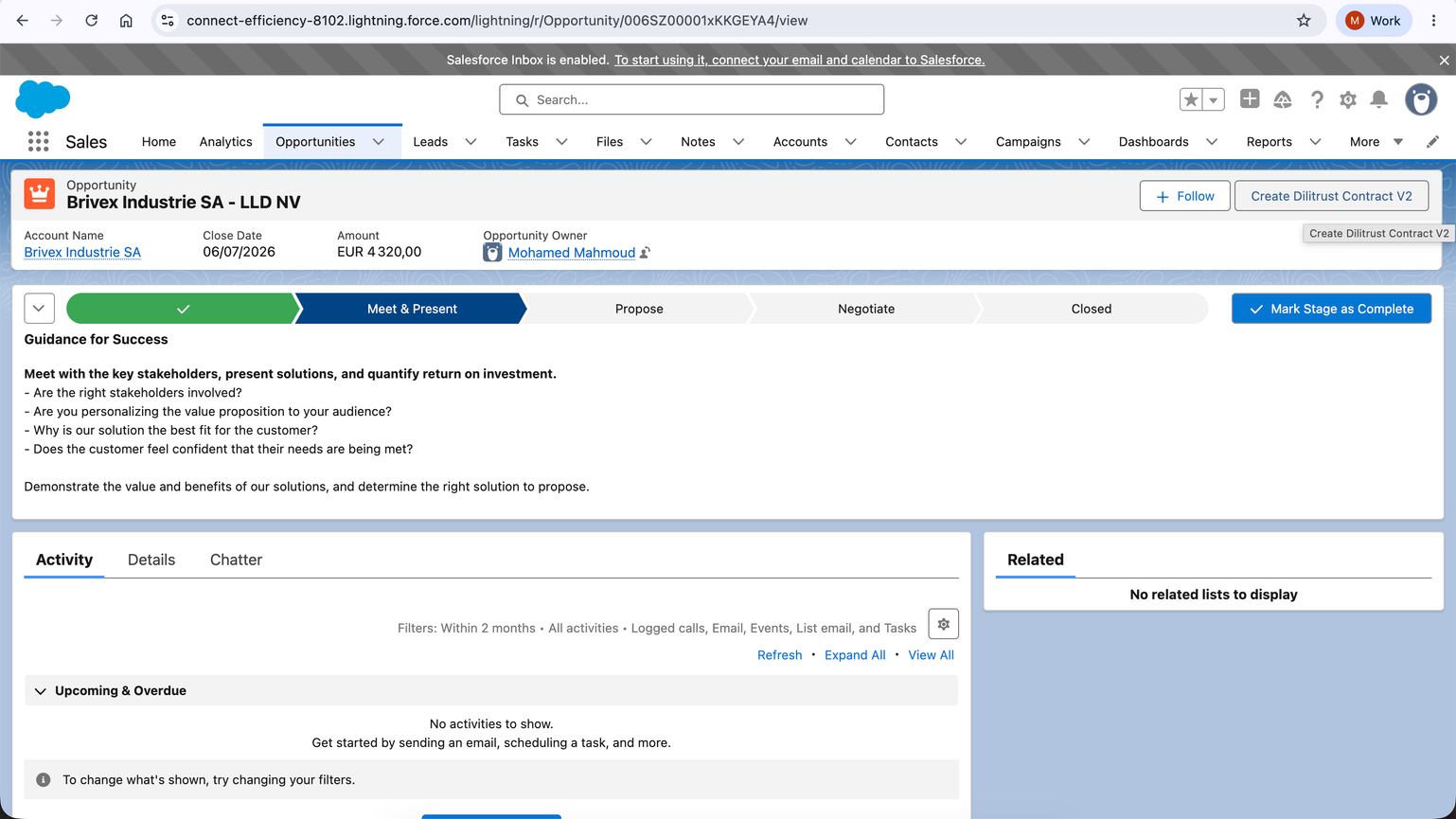
Screenshot 13 — Final Opportunity page showing Create DiliTrust Contract V2.
✍ Connect the CLM template and Salesforce Doc Type
Create a test template in DiliTrust CLM and link it to a Salesforce Hyperlex Config Doc Type.
- Template name: Software License Contract.
- Template UUID / Hyperlex code: 508b547a-0a70-41f1-ac3d-8144fc449db0.
- Salesforce Doc Type: Software License Contract.
- Main Object: Opportunity.
- Currency: EUR — Euro.
- Change Status Trigger: checked.
- Active: checked.
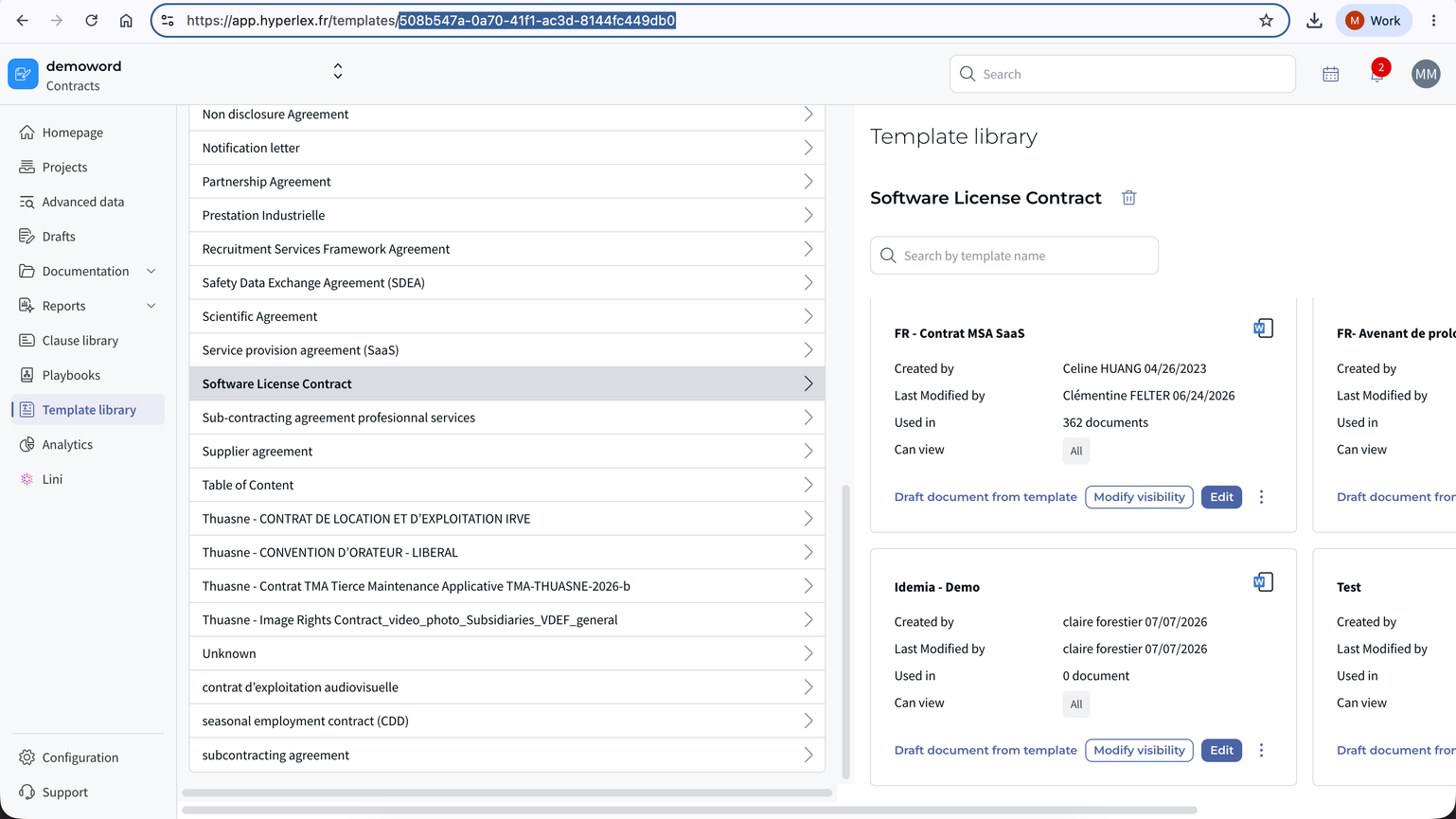
Screenshot 14 — DiliTrust CLM Template library with the template URL visible.
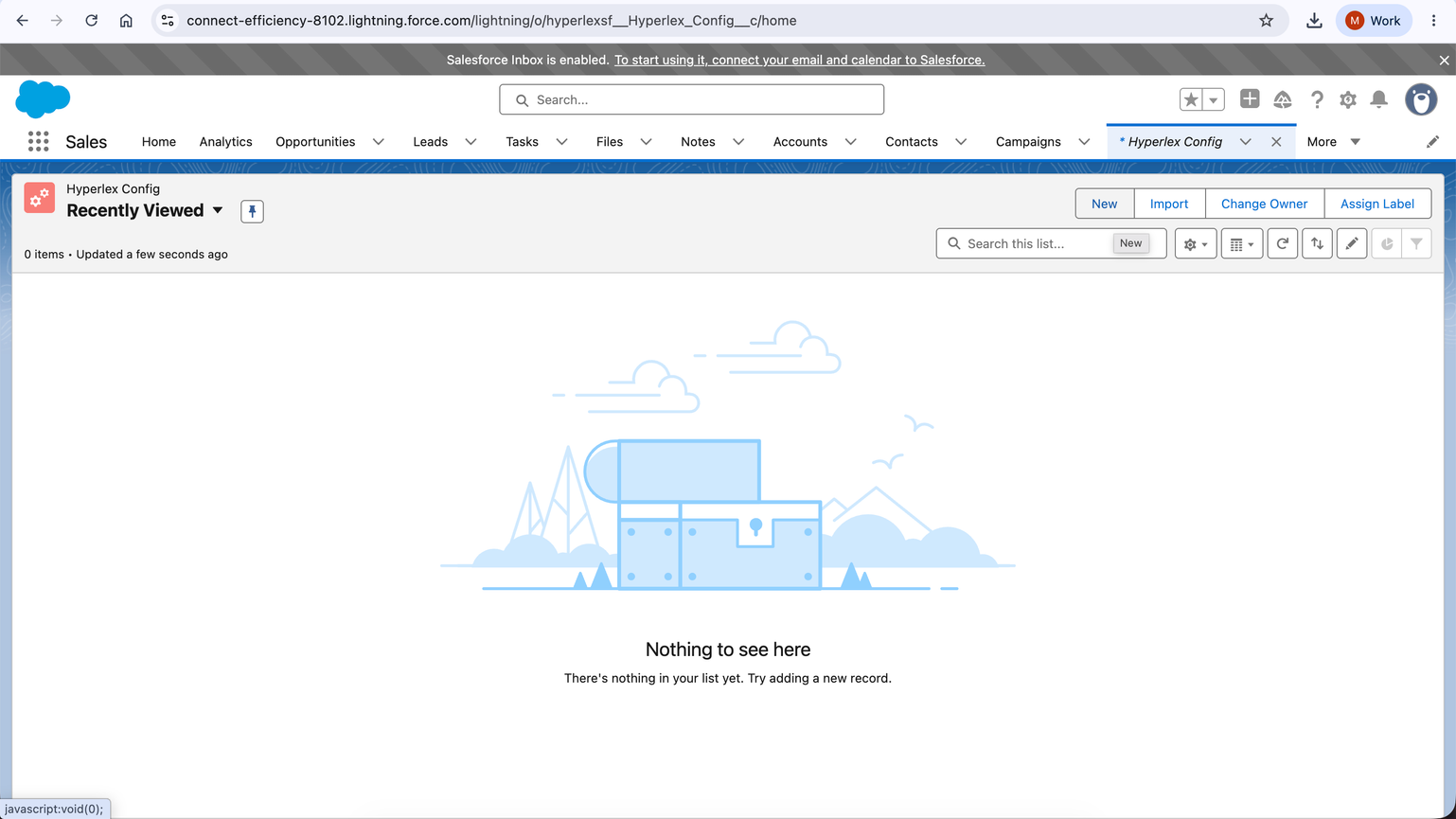
Screenshot 15 — Hyperlex Config application before the first configuration record was created.
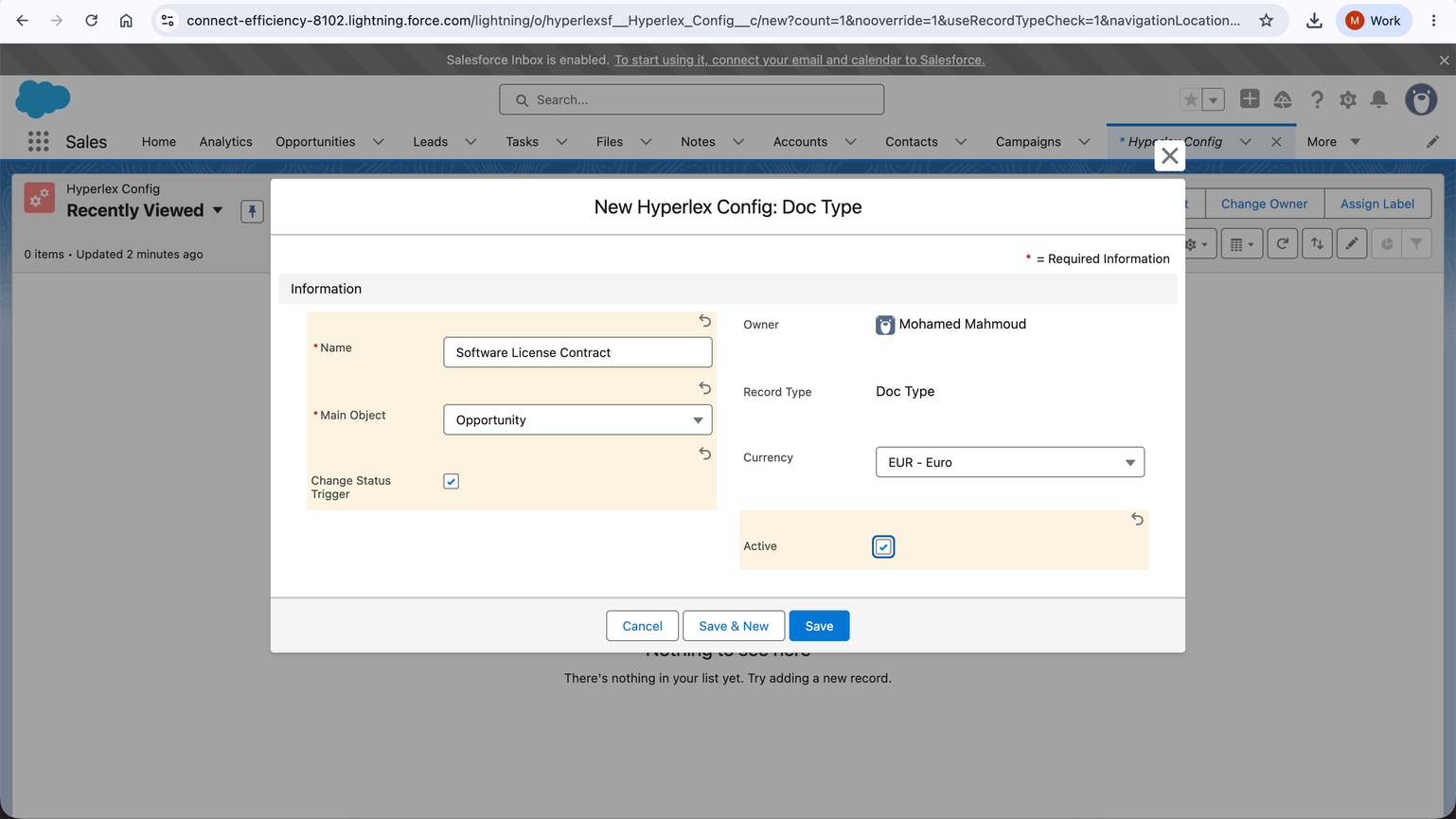
Screenshot 16 — New Hyperlex Config: Doc Type form configured for Opportunity and EUR.
✍ Configure the template translation
Create an active translation record under the Doc Type to connect the Salesforce configuration to the appropriate CLM template language version.
- Doc Type: Software License Contract.
- Translation name: Software License Contract — English.
- Language selected in Salesforce: English.
- Hyperlex code: 508b547a-0a70-41f1-ac3d-8144fc449db0.
- Active: checked.
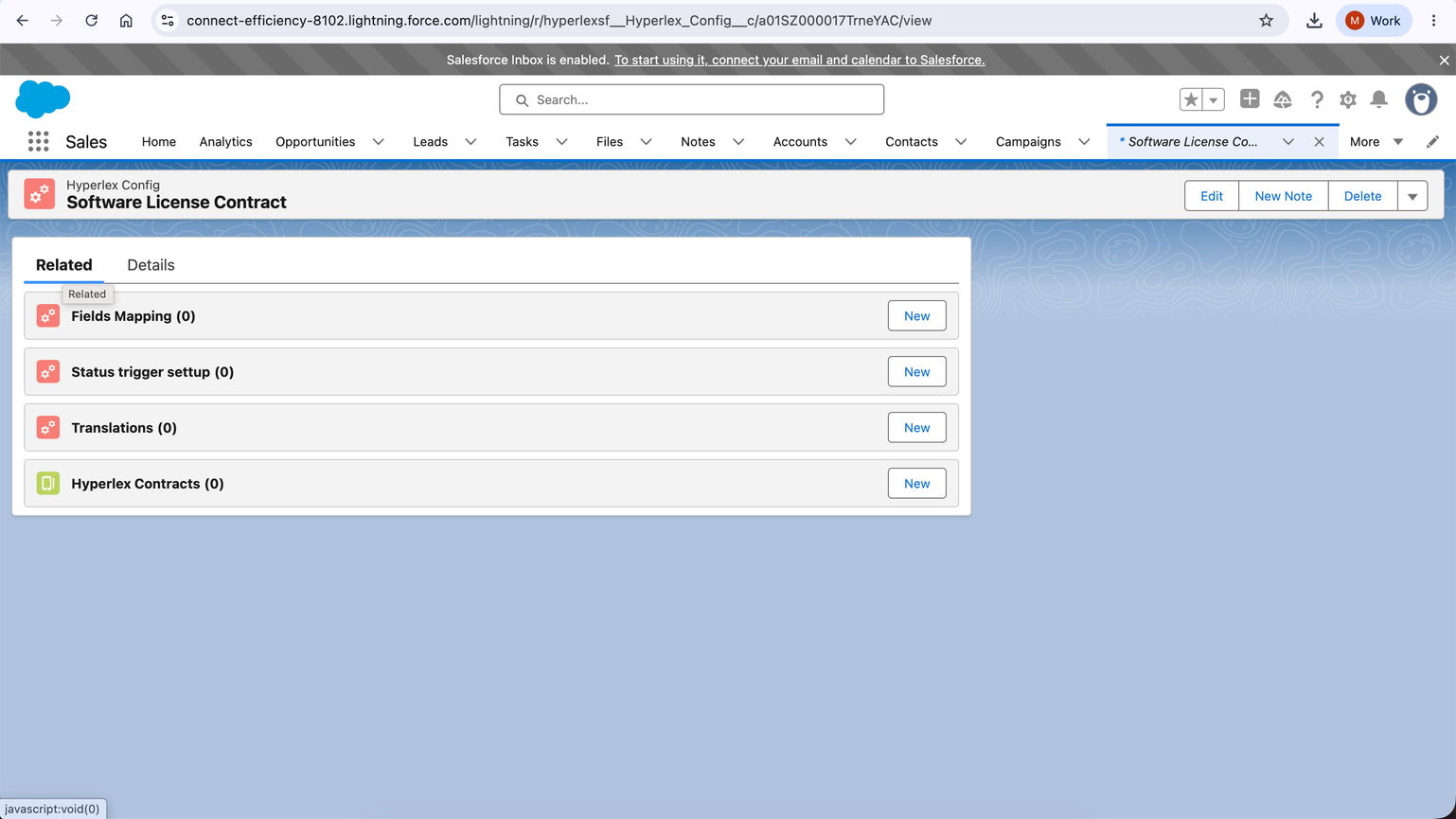
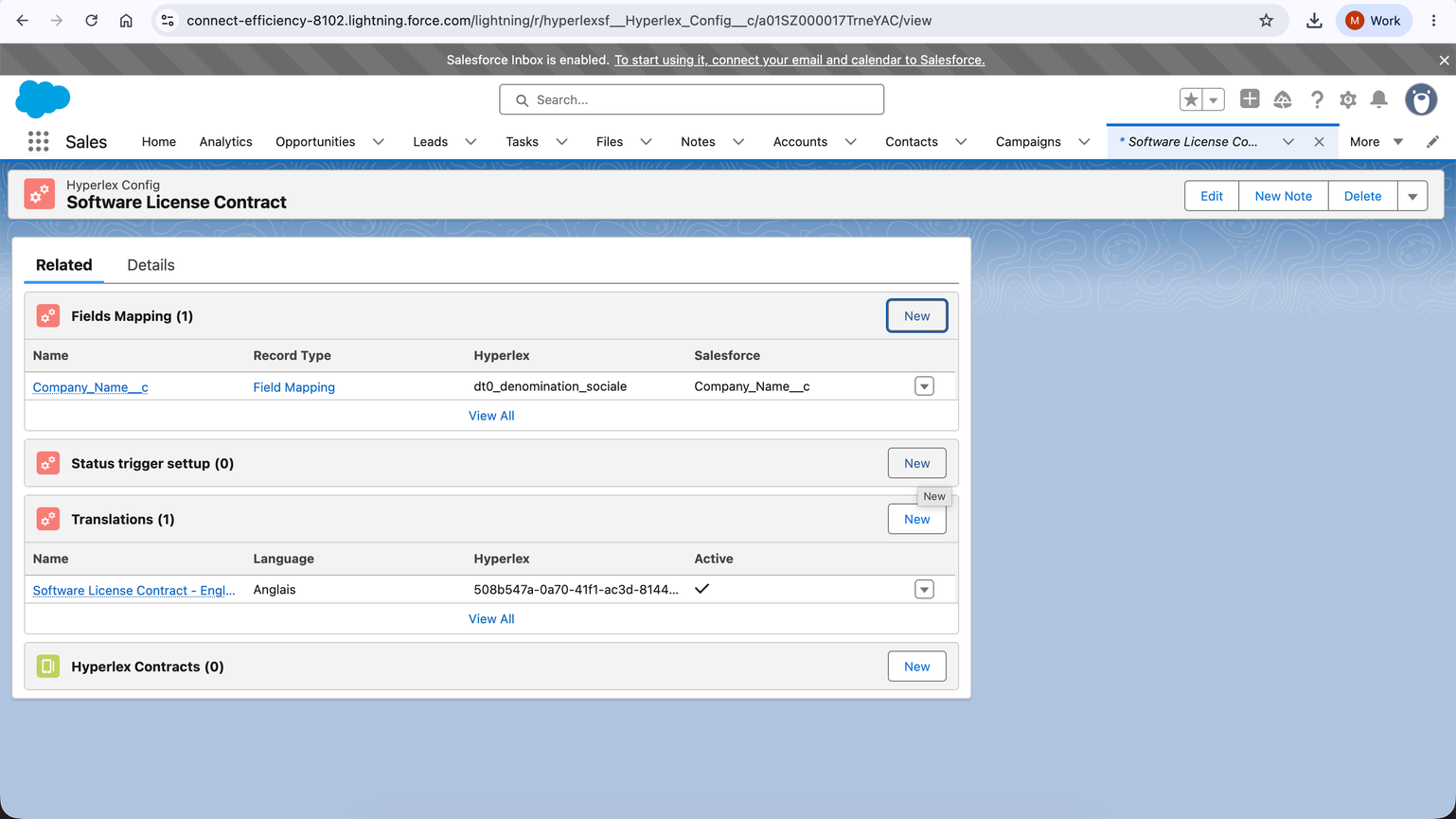
Screenshot 17 — Doc Type Related tab showing Fields Mapping, Status trigger setup, Translations, and Hyperlex Contracts related lists.
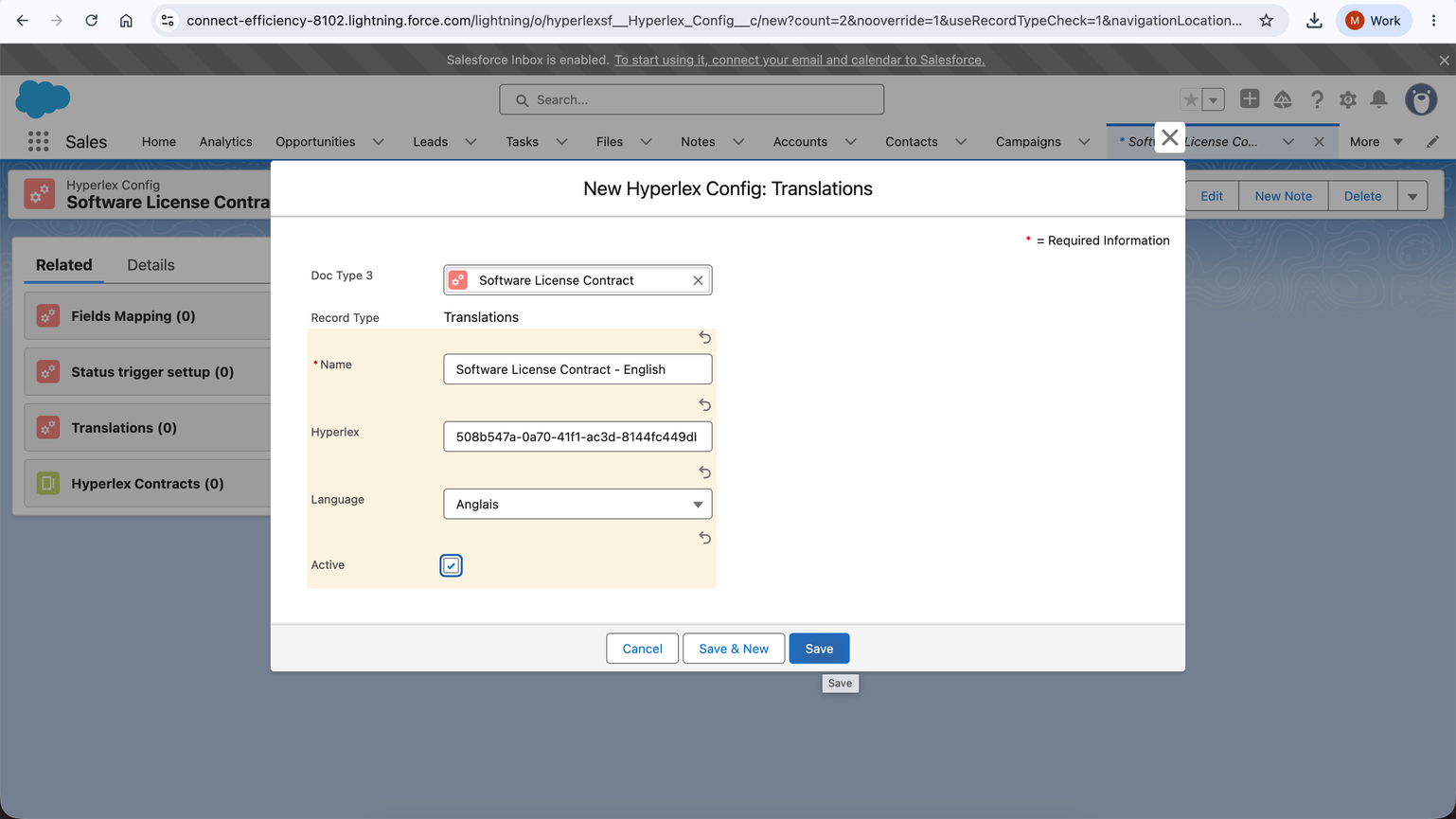
Screenshot 18 — Translation form with the Doc Type, language, Hyperlex code, and Active flag.
⚖️ Configure Salesforce-to-CLM field mapping
Field mappings use the Salesforce → Hyperlex direction. Enter the Salesforce field API name, not a Salesforce record ID.
The successful company-name mapping uses an Opportunity formula field named Company_Name__c. The formula returns Account.Name.
- Salesforce field API name: Company_Name__c.
- CLM attribute: corporate_usual_name.
- Mapping Type: Salesforce → Hyperlex.
- Currency: EUR — Euro.
- Active: checked.
The first test used an Account ID value, such as 001…, instead of the company name. Replace the Account ID with Company_Name__c so the actual company name is transferred to CLM.
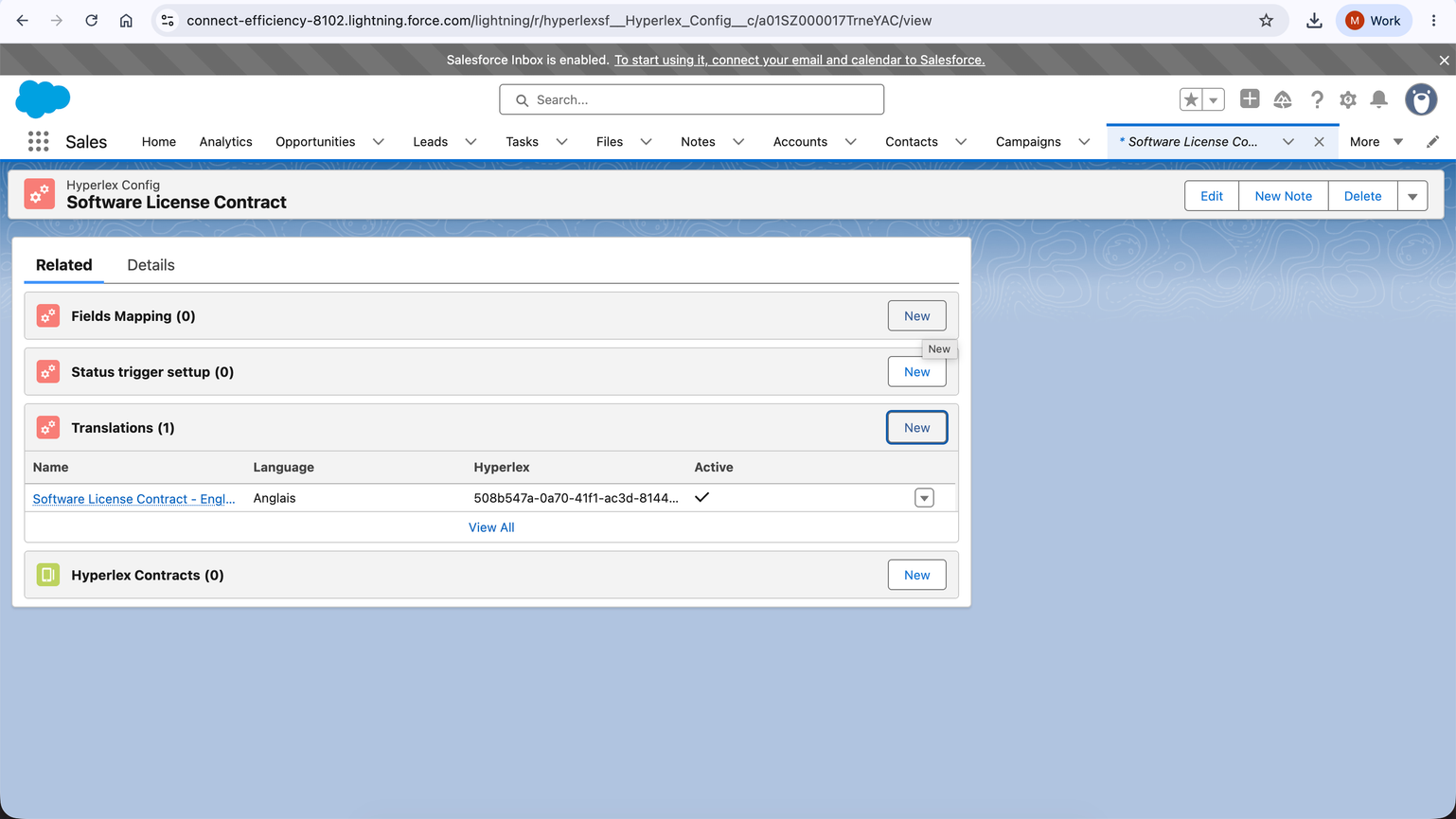
Screenshot 19 — Field Mapping related list after the first mapping was created.
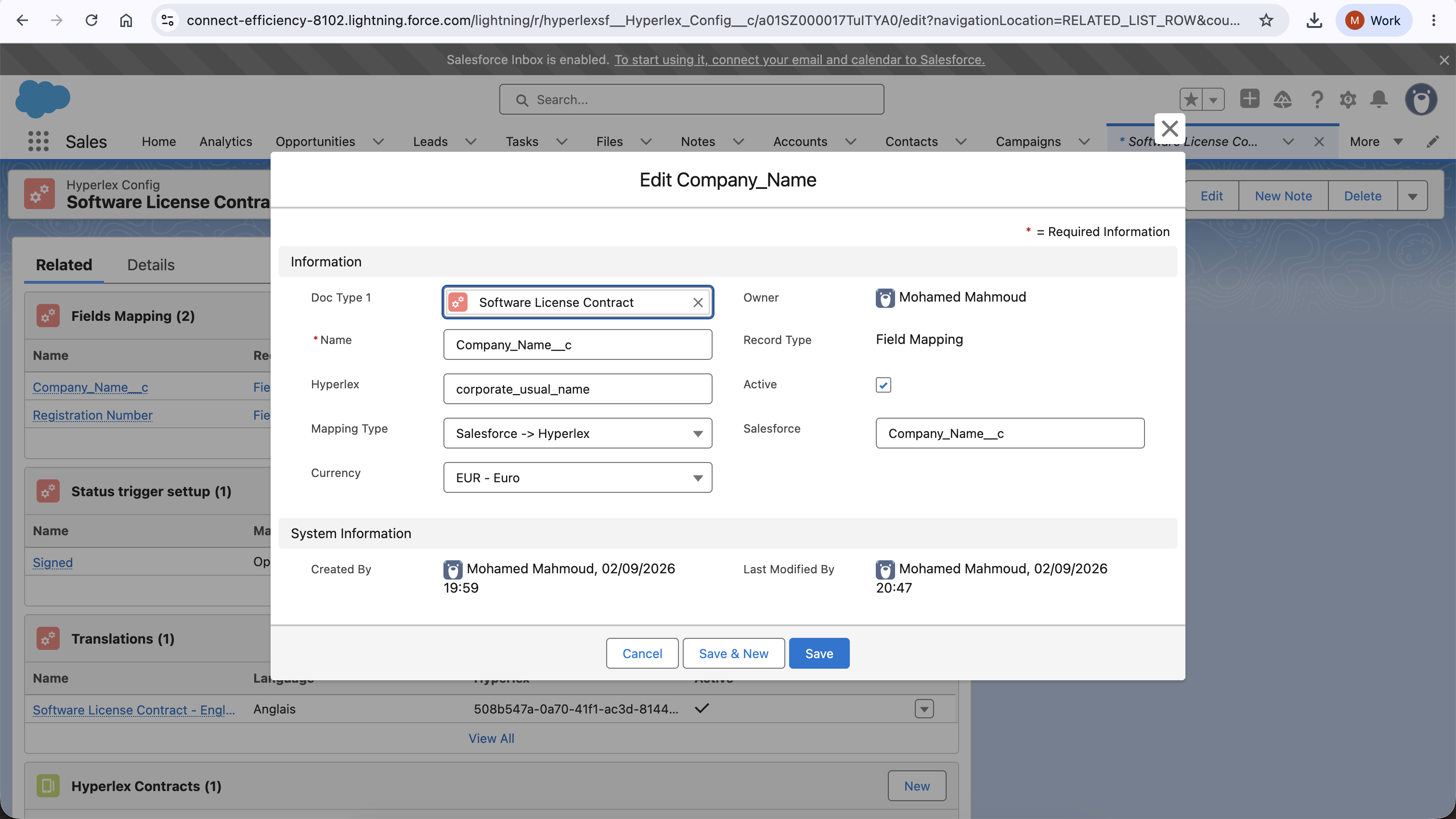
Screenshot 20 — Field Mapping form showing the Salesforce → Hyperlex configuration pattern.
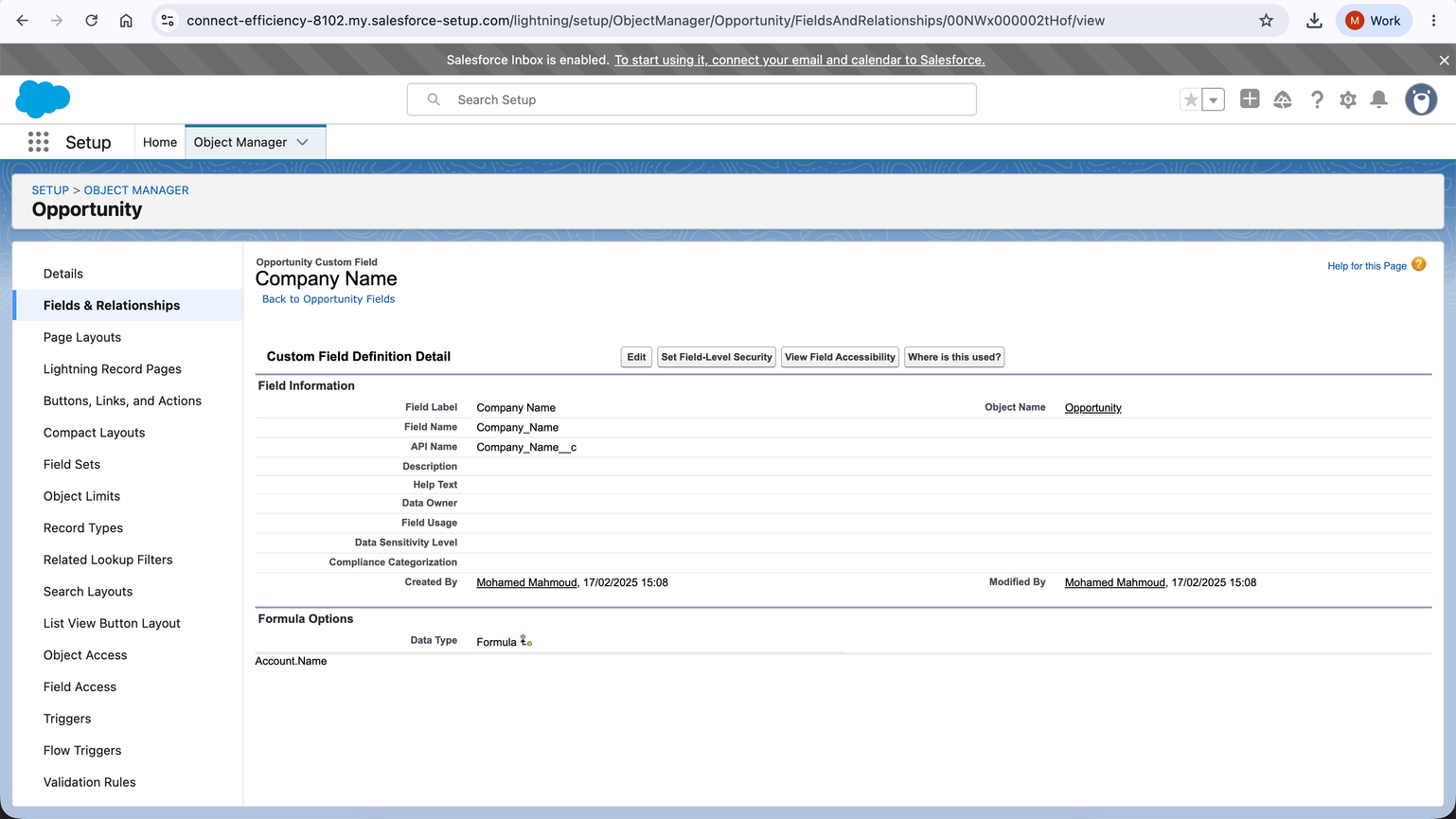
Screenshot 21 — Salesforce Object Manager confirming the Company_Name__c API name and formula Account.Name.
⏩ Configure status updates from CLM to Salesforce
Create a Status Transcode record to define the status update sent from CLM back to Salesforce. Verify the Salesforce stage field API name in Object Manager before saving.
- Doc Type: Software License Contract.
- Name: Signed.
- Main Object: Opportunity.
- Stage Field Name: StageName.
- Hyperlex status: signed.
- Salesforce status: Closed Won.
- Currency: EUR — Euro.
- Active: checked.
Field | Configured value |
Doc Type | Software License Contract |
Name | Signed |
Main Object | Opportunity |
Stage Field Name | StageName |
Hyperlex | signed |
Salesforce | Closed Won |
Currency | EUR – Euro |
Active | Checked |
This configuration represents the intended relationship: when the CLM status is signed, the related Salesforce Opportunity can be updated to the Closed Won stage. The callback still requires a complete end-to-end validation.
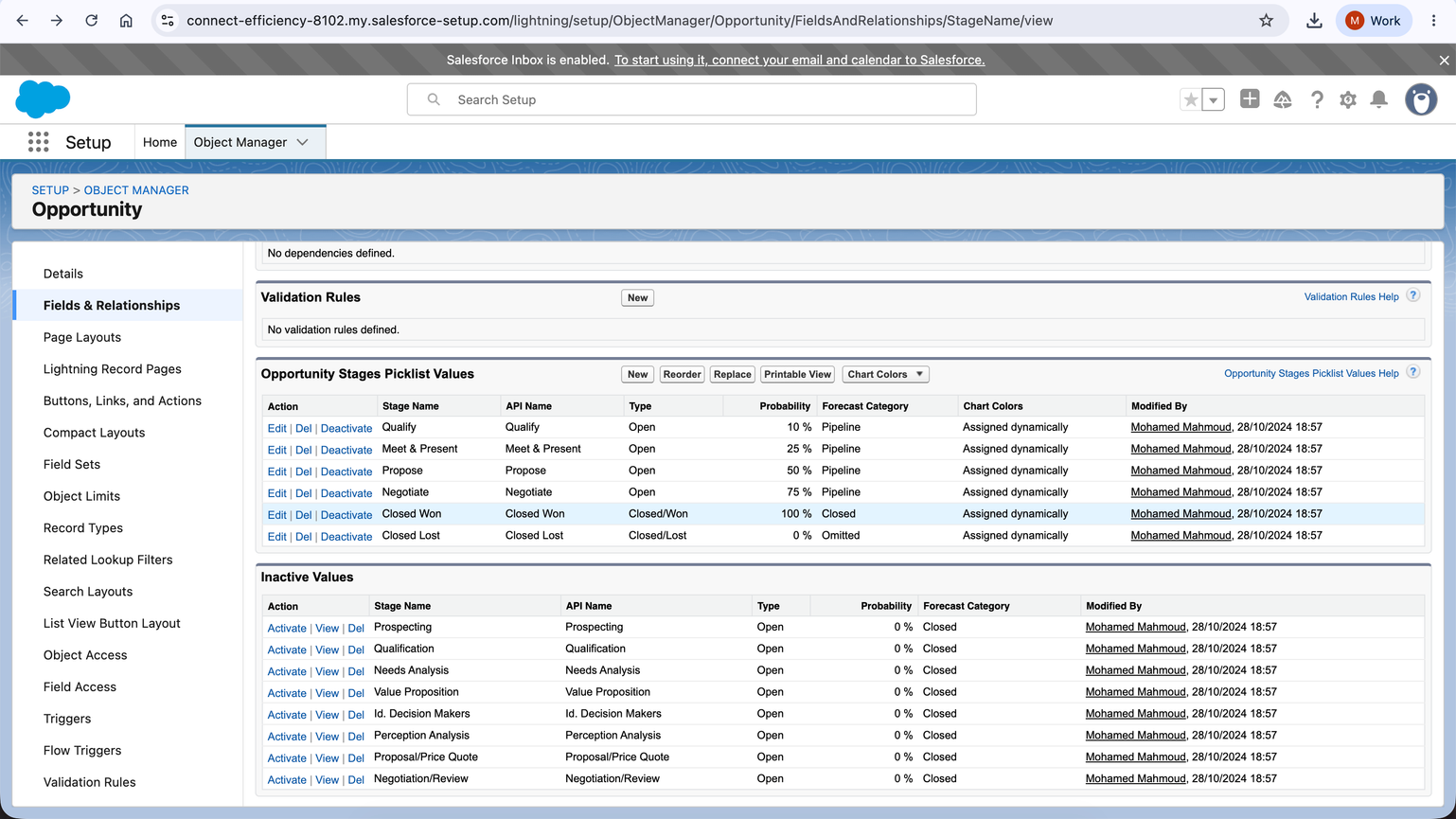
Screenshot 23 — Opportunity stage values and API names reviewed in Salesforce Object Manager.
Screenshot 24 — Status Transcode form with StageName, Closed Won, and signed configured.
? SalesForce callback
The Salesforce callback URL was entered in DiliTrust CLM under Configuration → CRM settings using the Salesforce My Domain rather than the Lightning or Salesforce Setup domain.
- Callback URL: https://connect-efficiency-8102.my.salesforce.com/services/apexrest/hyperlexsf/HyperlexToSalesforceX/
- Use the Salesforce API token field in CLM for the token required by the integration.
- Do not place credentials or tokens in screenshots or in this document.
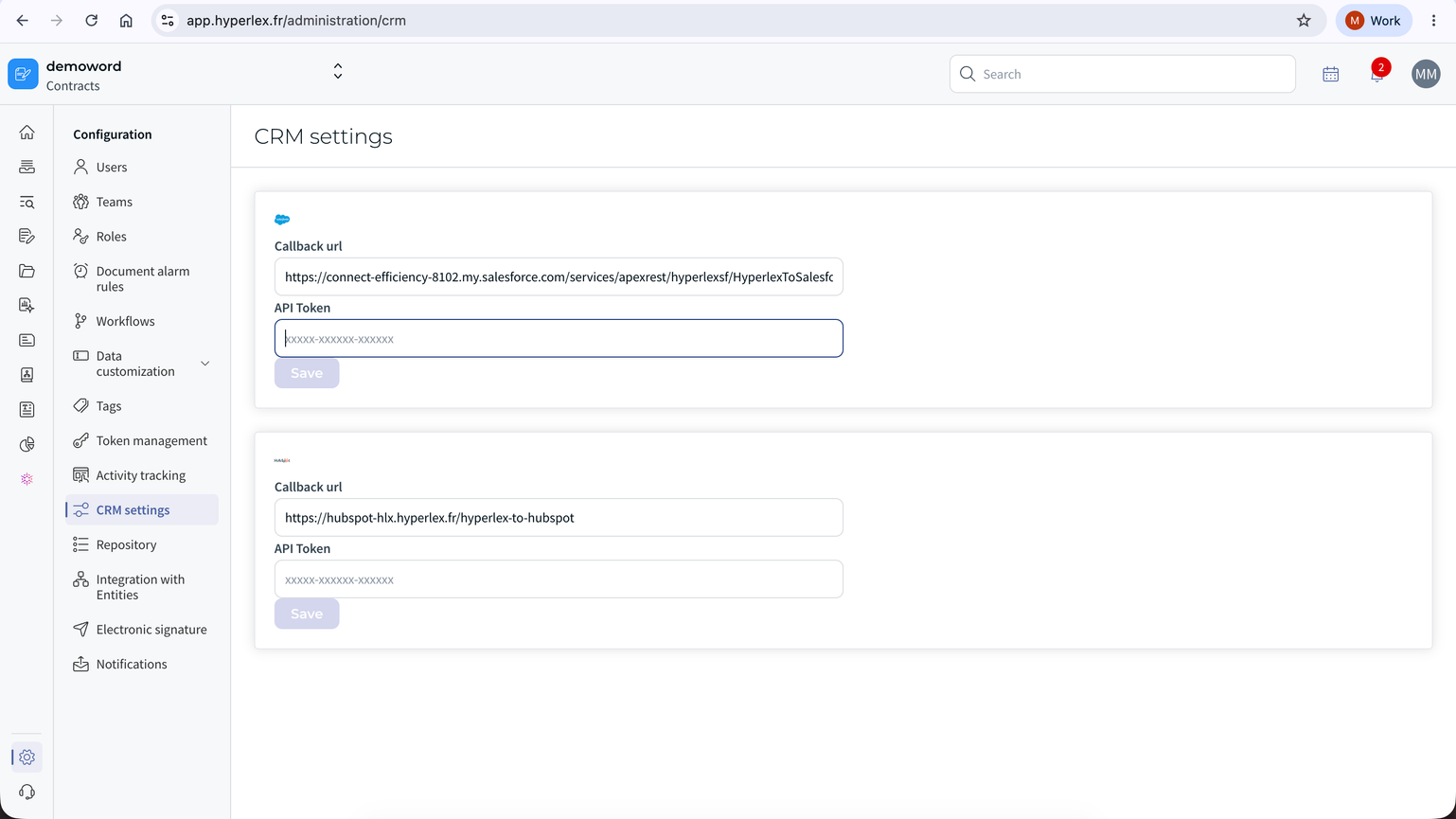
Screenshot 25 — DiliTrust CLM CRM settings page showing the Salesforce callback URL field.
At the time of this interim record, the API Token field was still blank in the captured screen. Therefore, the callback configuration should be treated as pending until the token is entered, saved, and tested with a real status update.
? Initial end to end
The basic contract-launch test was completed using only two values. The Salesforce Opportunity action opened the CLM flow and the company name was transferred correctly after the field mapping was corrected.
- Salesforce package installation: successful.
- Opportunity action: visible and selectable.
- CLM launch URL: corrected; the /null redirect issue was resolved.
- Template translation: found successfully.
- Company name transfer: passed; the real company name was received instead of the Salesforce Account ID.
- Scope of test: basic installation and data-transfer validation only, not full production readiness.
✨ Tips and best practices
- Use a dedicated test Opportunity before enabling the process for operational contracts.
- Check the lowercase url field if the action redirects to a URL containing /null.
- Use Salesforce field API names in mappings and confirm them in Object Manager.
- Use a formula field that returns Account.Name when the CLM template requires the company name.
- Verify that the Doc Type, translation, mapping, status transcode, and template are all active before testing.
- Complete callback validation and any remaining field mappings before operational use.
⛔ Limitations and known constraints
- This configuration guide covers the Opportunity object and the Software License Contract test template.
- Additional templates, languages, objects, currencies, and field mappings require their own configuration.
- The Salesforce package version and configuration values may differ between environments.
- The initial validation does not replace end-to-end callback testing or operational acceptance testing.
- Only users with the required Salesforce permissions and access to the configured action can create contracts.
❓ FAQ
Why does the contract action redirect to a URL containing /null?
Check the organization-level HyperlexCustomSettings record and make sure the lowercase url field contains the correct CLM launch URL.
Why is the company name not transferred to CLM?
Make sure the field mapping uses the Salesforce API name Company_Name__c, not the Account record ID. The formula field should return Account.Name.
Which Salesforce object is used in this configuration?
The configuration uses the Opportunity object as the main Salesforce object.
Which template was used for the validation?
The validation used the Software License Contract template with Hyperlex code 508b547a-0a70-41f1-ac3d-8144fc449db0.
What status is sent back to Salesforce after signing?
The example Status Transcode maps the CLM status signed to the Salesforce Opportunity stage Closed Won.
Was this article helpful?
That’s Great!
Thank you for your feedback
Sorry! We couldn't be helpful
Thank you for your feedback
Feedback sent
We appreciate your effort and will try to fix the article