LINI, DiliTrust's AI assistant, is now embedded directly in Matter Management. Legal professionals can instantly query and analyze their matter portfolio using natural language, surface key document insights, and leverage past case knowledge — all without manual searching or review.
✅ Introduction
Matter Management contains a wealth of legal data, but finding and making sense of it has traditionally required time-consuming manual navigation. With LINI integrated into Matter Management, you can simply ask a question and get an immediate, intelligent response. Whether you need to prioritize your workload, understand a complex document, or find similar past cases, LINI is here to help.
LINI works at two levels. Across several matters, it helps you see what needs your attention, what has changed, and where risks or delays are emerging, without opening each matter one by one. Within a single matter, it helps you understand the case, triage a long document list, read a complex document quickly, and connect the situation to comparable past matters.
✋ Prerequisites / Getting Started
- LINI must be enabled for your organization. Contact your DiliTrust administrator if you do not see the LINI option in Matter Management.
- You must have a contributor or legal manager role in Matter Management.
- The more data (matters, documents, requests) is available in the system, the more useful LINI's answers will be.
⭐ Step-by-Step Guide
Accessing LINI
- Log in to DiliTrust and navigate to Matter Management.
- Click on the LINI icon or menu entry. You can access LINI in two ways: as a full-screen workspace or as a pop-over from within any matter page.
Asking your first question
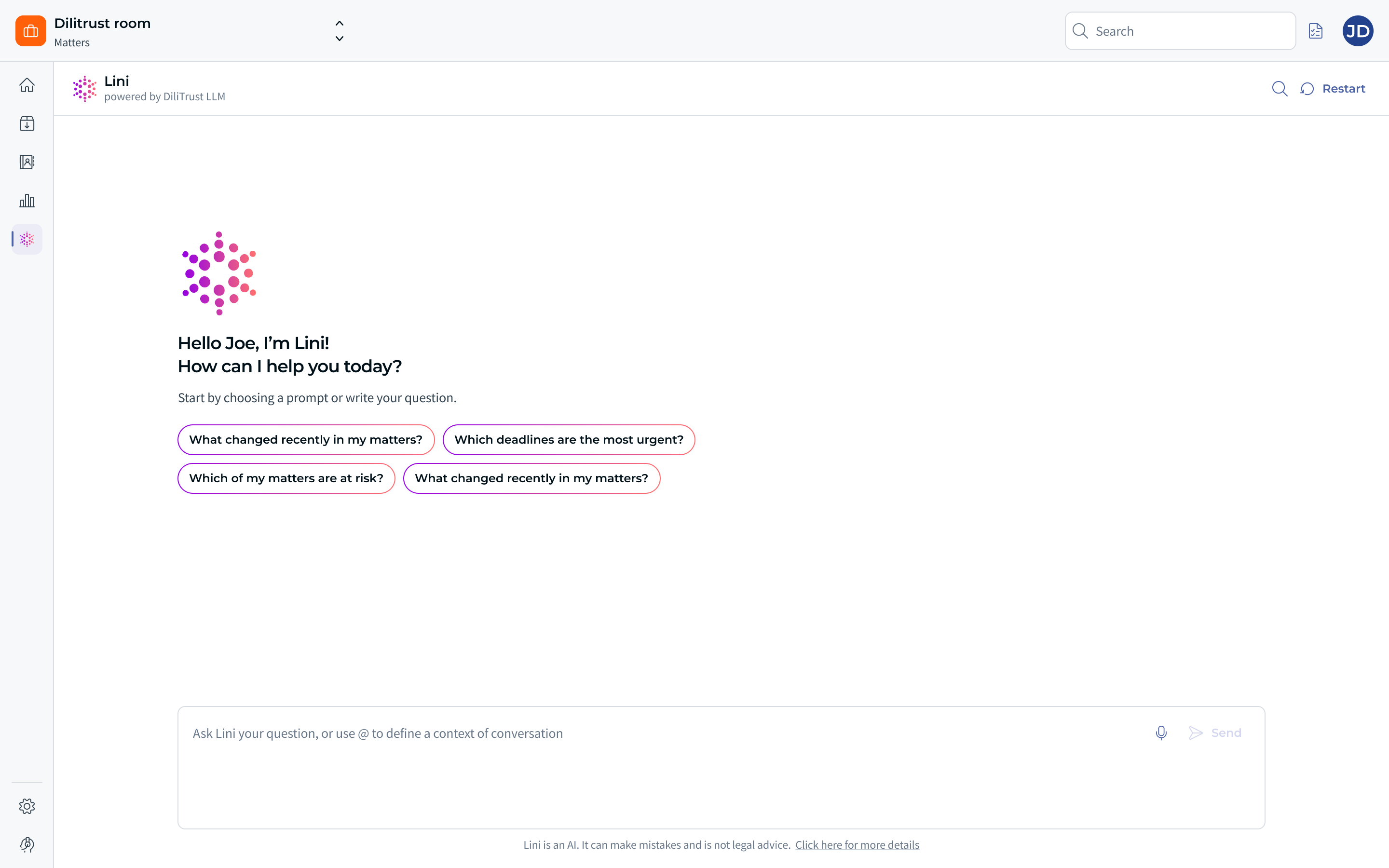
- Open LINI. The start screen greets you and invites you to start by choosing a prompt or write your question.
- Either select one of the suggested prompts, or type your own question in the input field.
- The suggested prompts on the start screen are:
- "What changed recently in my matters?"
- "Which deadlines are the most urgent?"
- "Which of my matters are at risk?"
- Click Send. The Send button stays inactive until you have typed something or picked a prompt.
- Use Restart in the header when you want to clear the exchange and begin a new conversation.
Choosing which matters LINI should look at
- By default, LINI answers on the matters visible in your current context — the matters you have filtered in the list, or your own matters if you have not narrowed the list down.
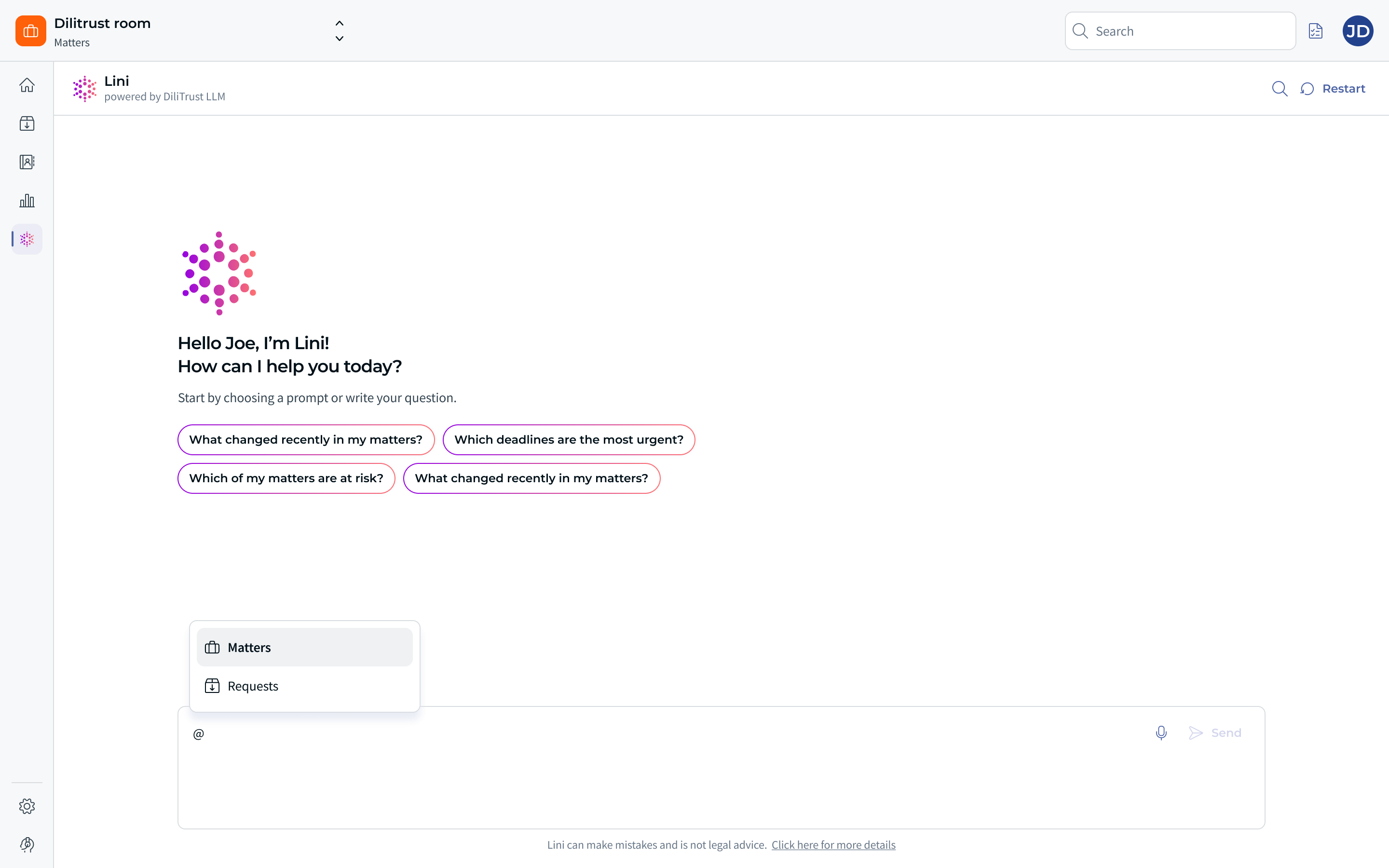
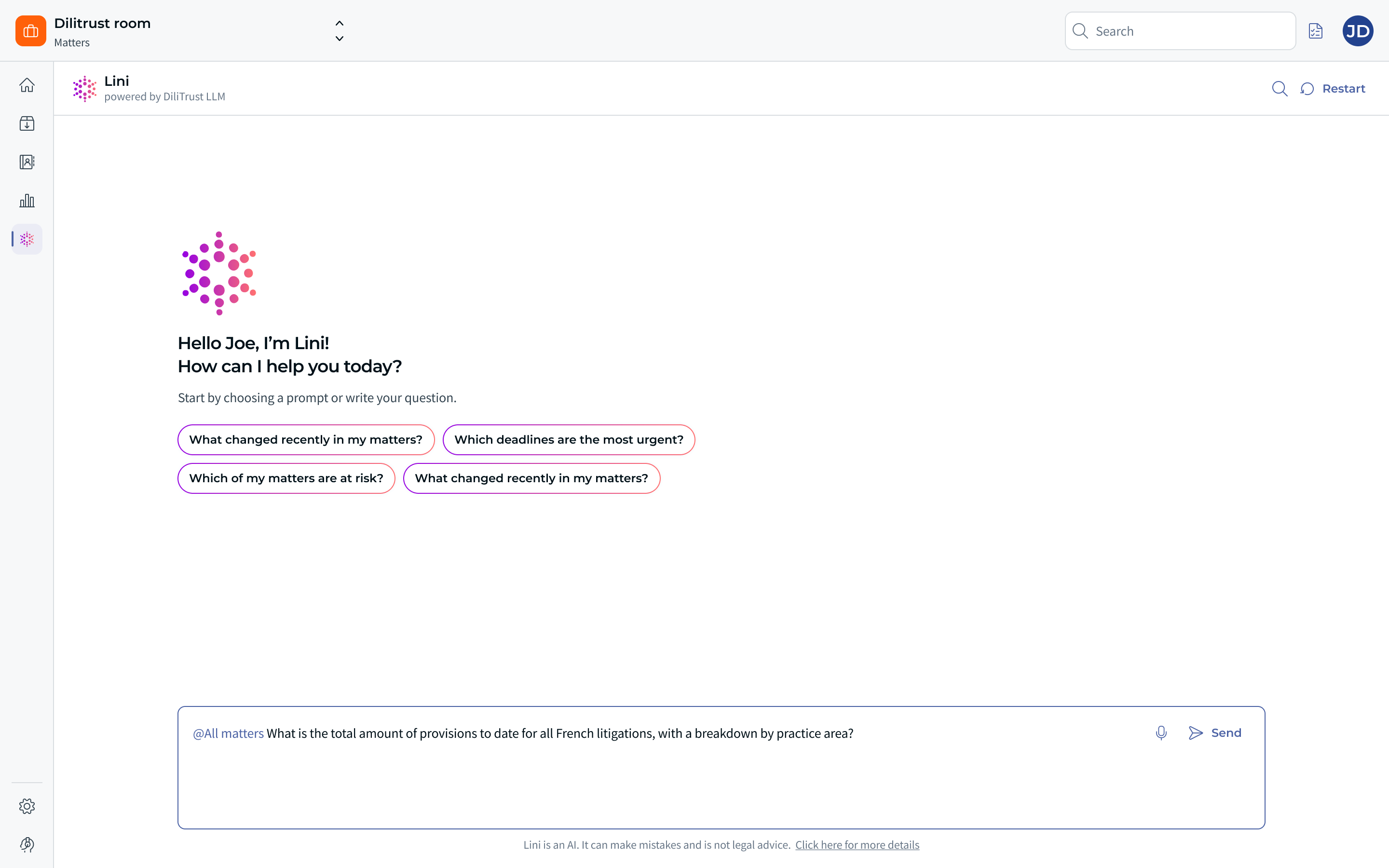
- To focus the conversation on specific matters, type @ in the input field and select the matter or matters you want. The input field reminds you of this: "Ask Lini your question, or use @ to define a context of conversation".
- When you mention one or more matters with @, LINI restricts its answer to those matters only and ignores the rest of the scope.
Reading the answer
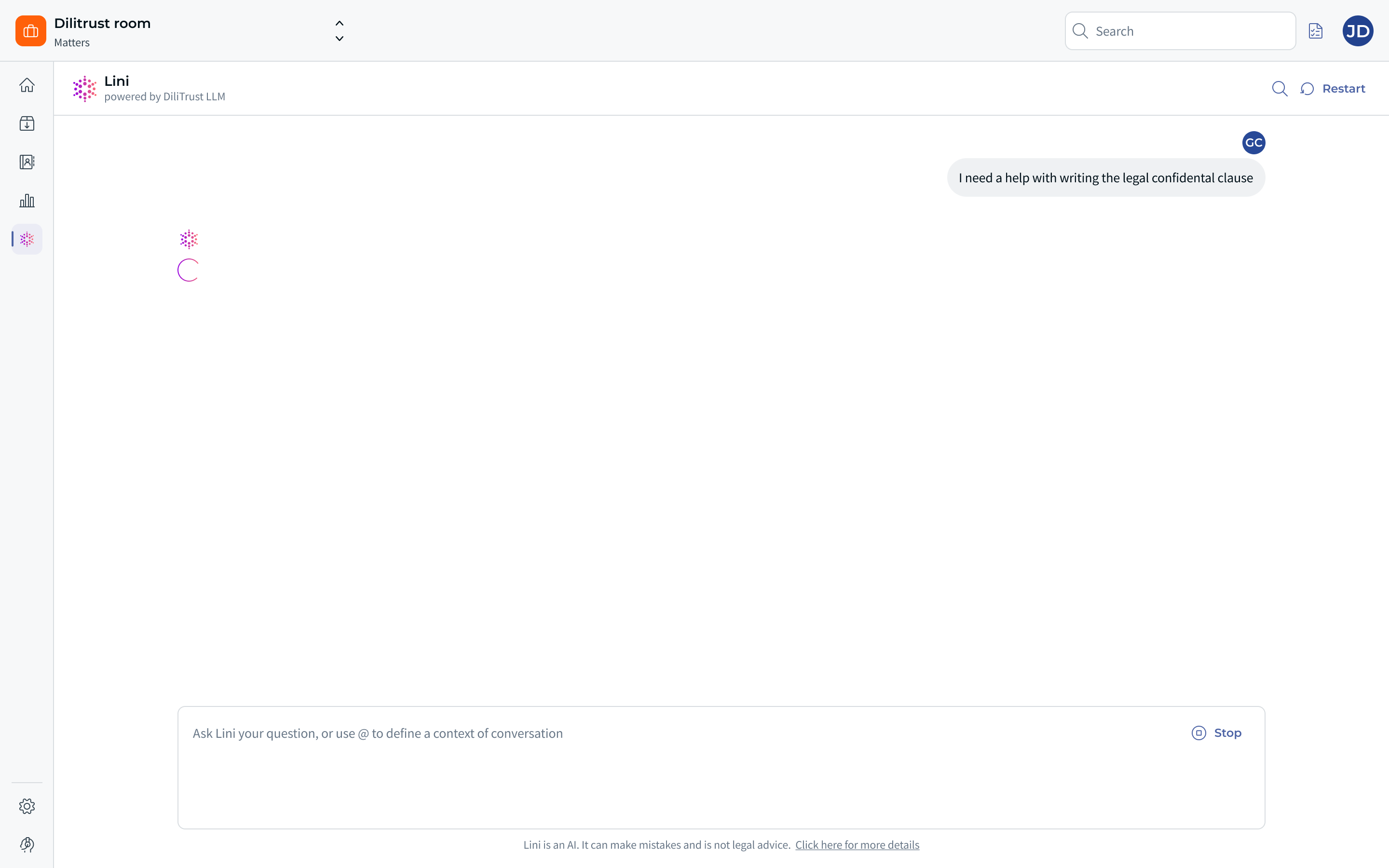
- LINI shows you that it is searching your data, then builds the answer progressively.
- Answers can include tables when the question calls for structured figures or lists.
- A reminder is displayed under the conversation: LINI is an AI, it can make mistakes and it is not legal advice.
Giving feedback or asking for a better answer
- Under each answer you can mark it as helpful or not helpful. Once you have chosen, the rating is recorded and cannot be changed for that answer.
- If the answer is not quite right, ask LINI to rewrite it. LINI regenerates the answer and replaces the previous one.
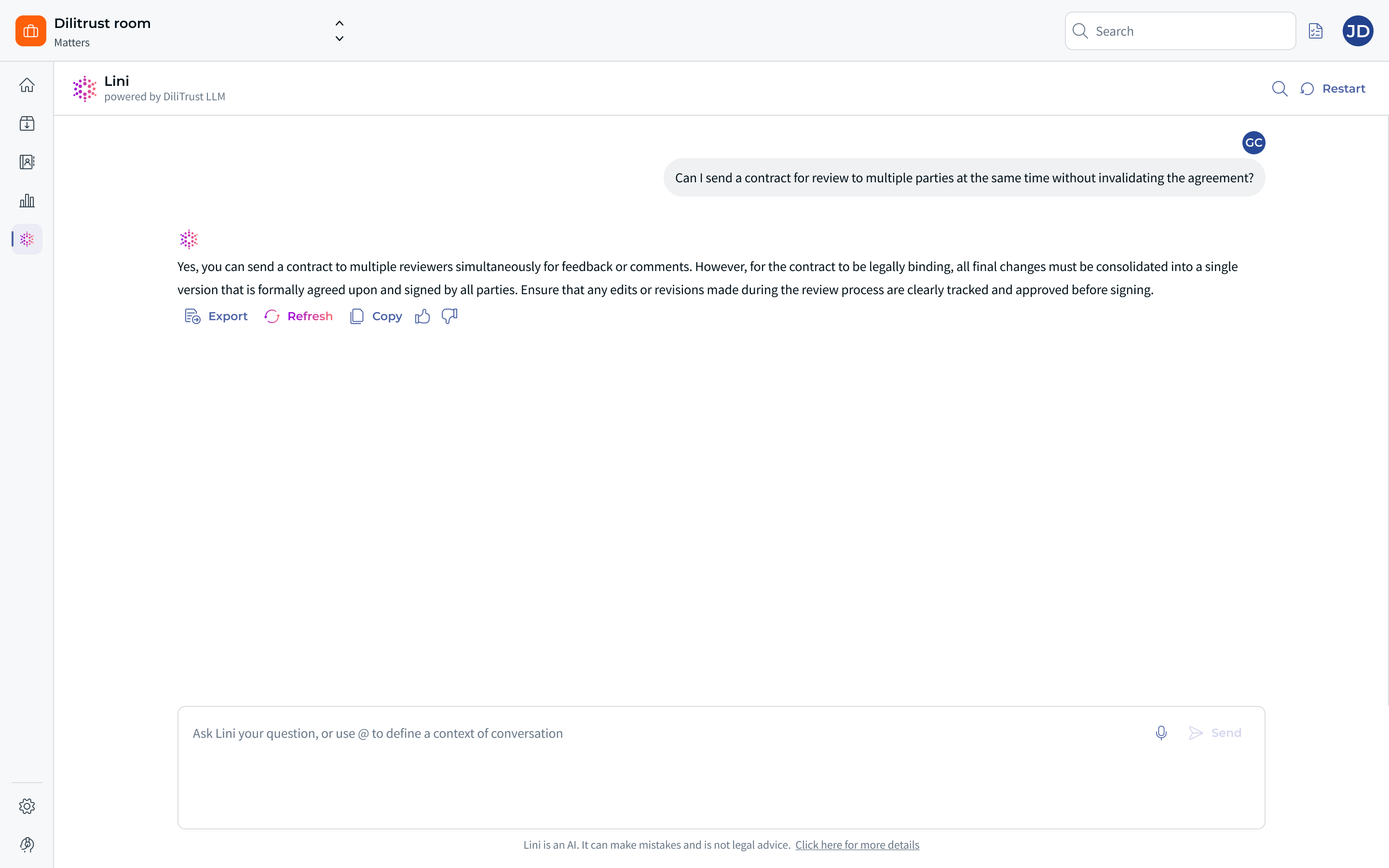
Using LINI in Full-Screen Mode
- Open LINI in full screen for extended analysis sessions.
- Type your question in plain language. Examples include:
- "What are my highest-priority open matters?"
- "Summarize the key points of this contract document."
- "Find matters similar to the ACME supplier dispute from 2023."
- Review and act on LINI's response directly from the full-screen workspace.
Using LINI in Pop-Over Mode
- While viewing a specific matter, click the LINI icon to open the pop-over assistant.
- Ask a contextual question about the current matter or its documents.
- LINI provides in-context insights without you leaving the matter page.
⏰ Knowing what to focus on across your matters
Ask LINI something like "What matters need my attention today?" and it returns your matters ranked by urgency, one block per matter, each explaining why the matter is flagged and suggesting an action to take.
LINI groups matters into readable urgency levels, such as urgent, at risk, on track, and dormant, so you can see at a glance where to start.
What LINI uses to judge urgency
- Deadlines in Matter Details. Any date-type field that represents a key milestone or deadline, whether standard or custom. For example: next hearing date, filing deadline, appeal deadline, response deadline, contract expiry date, statute of limitations date, or next review date.
- Custom tables used as a chronological timeline. Tables your organization has set up to track procedural steps or key dates, for example a procedure timeline, a key dates table, a hearings log, or contract milestones.
- Activity and engagement. Recent activity or the absence of updates in the activity feed, and the number of days since the matter was last updated or created.
- Matter metadata. Status and priority. A risk level is used only when a dedicated risk field has been configured in the matter type; if there is none, LINI relies on priority, date fields and activity data instead.
- Ownership. The matters you own, which is the default scope when you do not specify anything.
Other questions that work well here
- "Which matters have an upcoming deadline in the next 2 weeks?" — LINI lists each matter with the date and tells you which field or timeline entry the date came from.
- "Which matters have had no activity recently?" — LINI shows how long each matter has been dormant and flags inactivity as a risk when a deadline is approaching.
What happens in edge cases
- If nothing needs attention, LINI tells you that your matters appear to be on track, with no overdue deadlines or stalled cases detected.
- If no date fields are populated, LINI works from activity feed data only and says so, so you know the ranking is based on recent activity rather than deadlines.
- If a large number of matters have upcoming deadlines, LINI surfaces the most urgent ones first and invites you to narrow the scope.
⏩ Getting a status update across several matters
Ask something like "Give me a status update on my 2 most active matters" and LINI produces a short, summarised Quickview for each matter, one after the other in the conversation, separated by a horizontal line.
What each block contains
- The matter ID and matter name.
- A two-line summary of the current situation.
- Recent Developments — the key events that have happened.
- Next Steps — the upcoming actions or deadlines.
Good to know
- "Recent" means since the last saved Quickview, or the last two months if there is none.
- LINI builds each block from the matter description, status, activity, document names, detail fields, tasks, and the last saved Quickview.
- Matters are listed most recently updated first, unless you ask for a different order.
- LINI answers in the language you used. Ask in English and the Quickviews come back in English; ask in French and they come back in French.
- The tone is concise and suited to an executive update, so each block is deliberately shorter than a Quickview generated inside a single matter.
- If a saved Quickview already exists on a matter, LINI uses it as background context but generates an up-to-date version from the current data.
- If a matter does not hold enough information, LINI tells you that no Quickview can be generated for it rather than guessing.
- LINI can process up to 10 matters in one request. Beyond that, it tells you so and takes the 10 most recently updated.
✍ Making sense of a long document list
When a matter holds a large number of documents, ask LINI which ones actually matter. LINI picks the most useful response format based on what you asked.
- Grouped by topic — the default, used for general questions such as "What are the most important documents in this matter?". LINI groups the documents by subject, for example legal strategy and risk, financial exposure, evidence, or correspondence, and tells you which one to read first.
- Purpose and importance — used when you ask about relevance to a specific event or decision, such as "Which documents should I read before the hearing?". LINI ranks them from the ones you must read now, through important context and background documents, down to purely administrative items.
- Timeline view — used when you ask for a chronological or historical view, such as "Show me the document history for this matter". LINI lists the documents by date and flags the most recent one.
What LINI reads to do this
- The document name, including draft or version indicators. A name containing "v2", "v3" or "Draft" tells LINI the document is probably not the final version. This is read from the filename as you uploaded it, so clear naming pays off.
- Dates found inside the document text, such as the date of a ruling or a signed contract. If no date can be read from the content, LINI falls back on the date the document was added.
- References to dates and events mentioned in the text, for example a hearing scheduled for a given day or a request to respond by the end of the week.
- Links to key events such as filings, decisions and hearings.
- Logical groupings inferred from filename patterns and document content, for example documents relating to the same hearing, the same counterparty, or the same type of evidence.
- Emails added through the Gmail or Outlook add-in with the "Email thread" option. Several documents attached to the same thread are grouped and analysed together.
☝ Understanding a single document quickly
Ask LINI to summarize a specific document, for example "Summarize the Expert Opinion Report", and you get a short briefing instead of having to read the whole file.
For a document that changes the picture, LINI tells you the document name, the matter, its date and who uploaded it, then explains why this document matters, lists the key findings, and sets out the action required and the suggested next step.
For a routine document, LINI gives you a short summary and states plainly that no immediate action is required and that the legal or financial position of the matter has not changed.
What LINI treats as important
- Changes to the matter status.
- An impact on the legal strategy or position, such as a new recommendation, a revised risk or exposure assessment, or a court ruling.
- Changes to risk or financial exposure.
- New deadlines or blocking points.
- Required actions: deadlines, responses to send, decisions to make, or tasks that are triggered.
LINI looks at the most recent documents first, using the date found in the document content and falling back on the date it was added.
⚖️ Finding similar past matters
LINI can connect the matter you are working on to comparable matters already handled by your organization, so you stay consistent with past decisions instead of starting from scratch.
- Ask about a comparable situation, for example "Do we have similar litigation cases involving a supplier and personal injury?". LINI returns the matters it found, explains why they are similar, gives the outcome, states what was decisive, and points out what is directly reusable for your current matter.
- Ask about a party, for example "Have we worked with this power supplier in other matters before?". LINI returns the past matters involving that counterparty with the context, the outcome, what is different this time, and a recommendation.
To find these matters, LINI compares the matter description, the practice area, the matter type and the activity feed, together with the client or internal client and the contacts involved.
⚓ What LINI can read in a matter
LINI answers from the data already recorded in Matter Management. The better that data is filled in, the sharper the answers. LINI can read and reason over:
- The matter itself — ID, name, matter type, matter owner, description, start and end date, status, creation date and last update date.
- Matter details — standard fields such as practice area, priority, region, court, case docket number, case name, plaintiff, defendant, main contact, parties involved, reporter, estimated closing date, estimated resolution date and status summary, plus any custom field your organization has added.
- Custom tables — the table name, its columns and all of its rows, for example hearings, patents or entities involved.
- Documents — name, file type, who added it, when it was added, and the text extracted from the document by OCR.
- Contacts — name, email, phone number and any custom contact fields.
- Tasks — title, assignee, due date and status.
- Activity feed — the description of each event and its date.
- Spend — description, amount, currency, cost type (fee, taxes, expenses or accruals), date, legal service provider and any custom fields.
- Provisions — date of each movement, amounts allocated and reversed, the running provision amount, the supporting document and the comment.
- Quick View — the saved status summary, recent developments, next steps and the generation date.
✨ Tips & Best Practices
- Use LINI to prioritize: Start your day by asking LINI which matters need your attention most urgently.
- Leverage document summaries: Instead of reading lengthy documents, ask LINI to summarize the key points or extract specific clauses.
- Find precedents: Ask LINI to surface similar past cases to inform your current approach and avoid reinventing the wheel.
- Use the pop-over for quick lookups: When you need a fast answer while working on a matter, the pop-over is faster than navigating away.
- Filter the list first, then ask. LINI works on the matters visible in your current context, so filtering the matter list by stakeholder, external counsel or cost is an easy way to target the question.
- Use @ when you know exactly which matters you mean. Mentioning matters with @ keeps the answer strictly on those matters.
- Fill in your date fields. Deadlines in Matter Details and dates in timeline-style custom tables are what let LINI rank matters by real urgency.
- Name documents clearly. Version markers such as "v2" or "Draft" in a filename help LINI tell a working draft from a final version.
- Ask in your own language. LINI replies, and generates multi-matter Quickviews, in the language of your question.
- Ask for a rewrite instead of rephrasing from scratch. If an answer misses the mark, asking LINI to rewrite it is usually quicker than typing a new question.
❌ Limitations & Known Constraints
- LINI operates within the perimeter of your legal department's data — it only accesses matters and documents you are authorized to view.
- LINI's answers are as good as the data available in the system. Incomplete matter records will lead to less precise responses.
- LINI is an AI assistant and may occasionally make mistakes. Always verify critical information before acting on it.
- Quickviews generated by LINI across several matters are displayed in the conversation only. They are not saved to the matter records and they do not update the Quickview column in the matter list.
- LINI handles up to 10 matters in a single multi-matter request.
- When LINI ranks matters by urgency, urgency comes from date fields in Matter Details and from date columns in timeline-style custom tables. Task due dates are not used as a prioritization signal.
- A risk level is only taken into account when a dedicated risk field has been configured in the matter type.
- Document importance is inferred from the document name and the text extracted by OCR. There is no record of who opened which document, so reading history is not used as a signal.
- Draft and version detection relies on the filename, so a final document named "v3" may still be presented as a non-final version.
❓ FAQ
Can LINI access all matters in the organization?
LINI respects your access permissions. It only surfaces matters and documents within your authorized perimeter.
Which matters does LINI look at when I ask a question?
By default, the matters visible in your current context — the matters you have filtered in the list, or your own matters if you have not filtered anything. To restrict the answer to specific matters, mention them with @ in the input field.
Can LINI answer in French or another language?
Yes. LINI answers in the language of your question, and the multi-matter Quickviews it generates follow that same language.
Are the Quickviews LINI generates saved to my matters?
No. They are displayed inside the LINI conversation only. They do not replace the Quickview saved on a matter and they do not update the Quickview column in the matter list.
How many matters can LINI summarize at once?
Up to 10 in a single request. If your scope contains more, LINI tells you and takes the 10 most recently updated.
What does "recent" mean in a Quickview?
Since the last saved Quickview on that matter, or the last two months if no Quickview has been saved.
What happens if my matters have no deadline fields filled in?
LINI falls back on activity feed data and tells you explicitly that the prioritization is based on recent activity only.
Is LINI available on mobile?
LINI is available wherever you can access DiliTrust Matter Management. Check with your administrator for mobile compatibility details.
Can LINI summarize PDF documents?
Yes. LINI can analyze and summarize document content attached to matters, helping you quickly understand key information without reading every page.
Can I tell LINI whether an answer was useful?
Yes. You can mark each answer as helpful or not helpful. The choice is recorded once per answer and cannot be changed afterwards. If the answer is not right, you can also ask LINI to rewrite it.
Does LINI learn from my usage?
LINI's AI capabilities are continuously improved by DiliTrust. It does not store or learn from individual user conversations in a way that would compromise data privacy.
Was this article helpful?
That’s Great!
Thank you for your feedback
Sorry! We couldn't be helpful
Thank you for your feedback
Feedback sent
We appreciate your effort and will try to fix the article