This article explains how to create a meeting in Board Portal, build its agenda, and then publish it or ask for a review. You can start from a blank page, from a template, or from an existing document with Lini, the Board Portal AI assistant.
✋ Who can do what
- Administrators create meetings, build the agenda, add documents, tasks, votes and questionnaires, publish meetings or ask for a review. Creating a meeting from a document with Lini is also available to administrators.
- Board members see the meeting once it is published. They do not create meetings.
✍ Administrators: create a meeting from a blank page
- Click Meetings in the sidebar of the home page.
- Click Create a meeting.

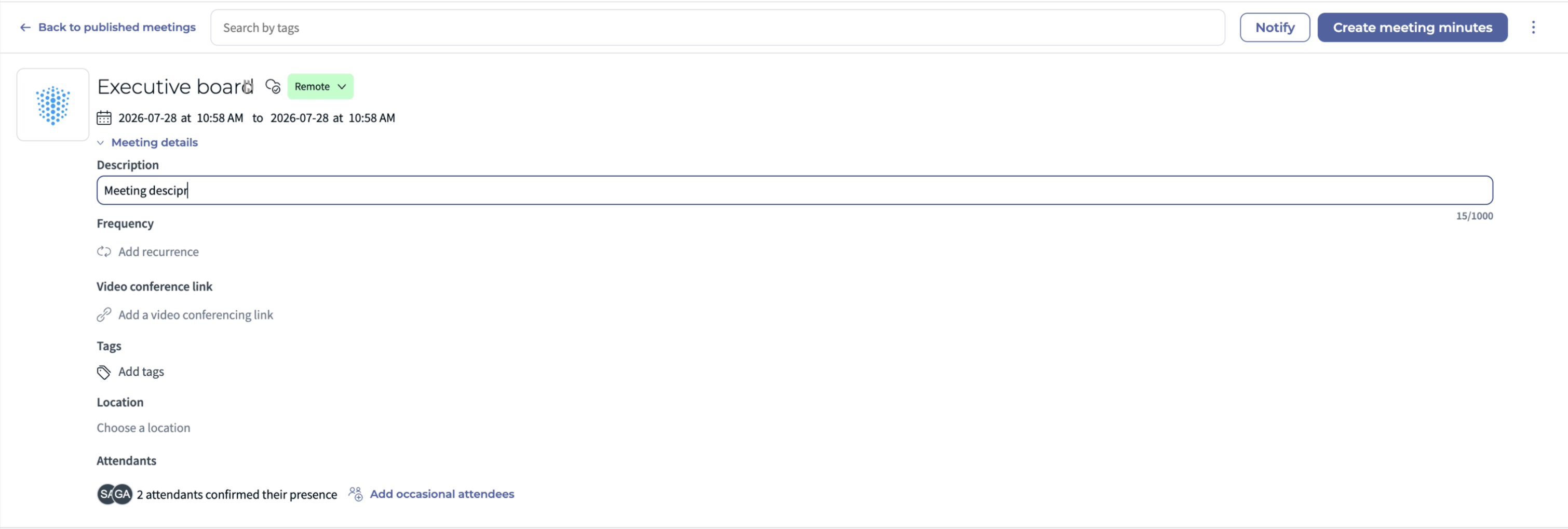
- In the window that opens, enter the meeting title (required) and a description (optional).
- Set the start and end dates (required).
- If needed, add a recurrence, a video conference link and a location.
- Click Create a meeting. The meeting summary opens, with the information you entered and the agenda builder.
⭐ Administrators: create a meeting from a template

- Choose an existing meeting and select the template to apply. All its details are recreated in the new meeting.
- Edit the information that changes, such as the date and location.
- Click Create a meeting.
✨ Administrators: create a meeting from a document with Lini
If you already have a document that describes your next meeting, such as a convocation letter, Lini can prepare a draft meeting from it. You do not need to type the agenda, participants and date again.
- Upload or select one supported source document.
- Lini proposes a draft meeting with suggested agenda, participants and date.
- Check the proposed information, correct it if needed, and confirm every change.
- Publish the meeting once you have confirmed the information.
Lini never publishes a meeting on its own. It works from one document at a time, and not all document formats are supported.
✌ Administrators: build the agenda
- In the Agenda section, click Add an item to add a topic.
- Format the text as in a text editor: highlight, add comments and tables. The formatting is kept in all views.
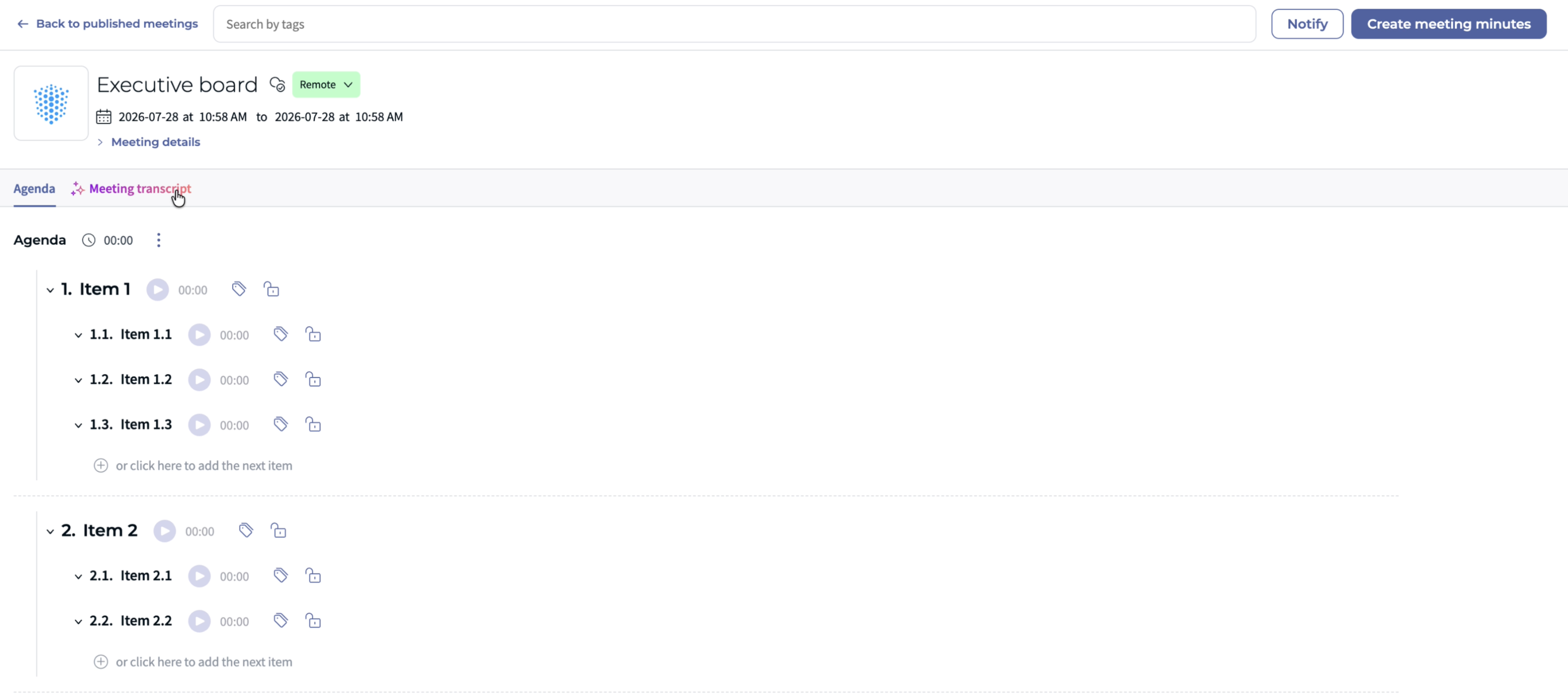
- Hover over the icons on the right of a category to find the action you need:
- Add a document
- Add a task
- Delete the category. This also deletes the items under it.
- Click the three dots on the right of the icons for more options:
- Create a vote associated with this category
- Add a questionnaire
- Remove numbering. You can undo this.
Above the agenda, click Print to print its key information, or Generate meeting bundle to create one PDF file with all agenda items and their documents.
✅ Administrators: publish or ask for a review
- When your meeting is ready, go to the top right of the page.
- Click Publish to make the meeting visible to its participants, or Ask for review to have other users check it first.
You can only ask for a review while the meeting is unpublished. Once it is published, a review is no longer possible. See How to Request or Complete a Review.
❓ FAQ
Which fields are required?
The title and the start and end dates. Everything else is optional.
Can Lini publish the meeting for me?
No. Nothing is published until you have checked and confirmed the proposed information.
Was this article helpful?
That’s Great!
Thank you for your feedback
Sorry! We couldn't be helpful
Thank you for your feedback
Feedback sent
We appreciate your effort and will try to fix the article