If you are part of multiple Board Portal instances or if you have access to other modules part of the DiliTrust Governance Suite, you can easily navigate and move between instances and tools with our instance selector. You can also mark Rooms as favorites so the ones you use most appear at the top of the list.
In this article, we will learn how to:
Navigate between instances
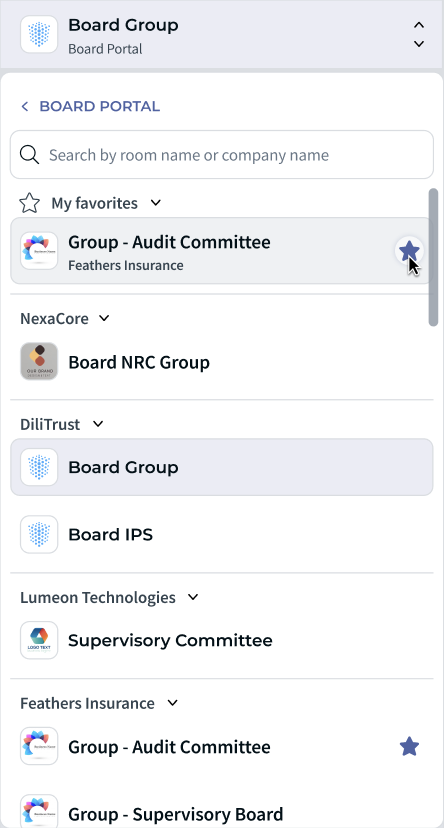
From the top left corner of your environment, click on your environment's name. A drop-down list will appear with all the Board Portal instances you have access to, gathered by company and in alphabetical order.
Using the search bar, you can look up a room name or a company name for quick access. The search bar will save your last searches.
Once you have found your instance, click on it to access the environment.

⭐ Add Rooms to My favorites
If you frequently switch between the same Rooms, you no longer need to scroll through the full list to find them. You can mark any Room as a favorite so it appears in a dedicated My favorites section at the top of the selector.
- Open the instance selector from the top left corner of your environment.
- Find the Room you want, then click the star icon on the right of its name.
- The Room is added to the My favorites section at the top of the list.
- To remove a Room from your favorites, click the star icon again so it is no longer highlighted.
You can expand or collapse the My favorites section, like any company group, using the arrow next to its title. Your favorites are saved to your account, so they remain available each time you open the selector.
Navigate between modules
To access another module, follow the same process:
- Click on the instance selector.
- Click on the name of the module, here Board Portal.
- Select the module you wish to access.

⚡ Open a default Room when you log in
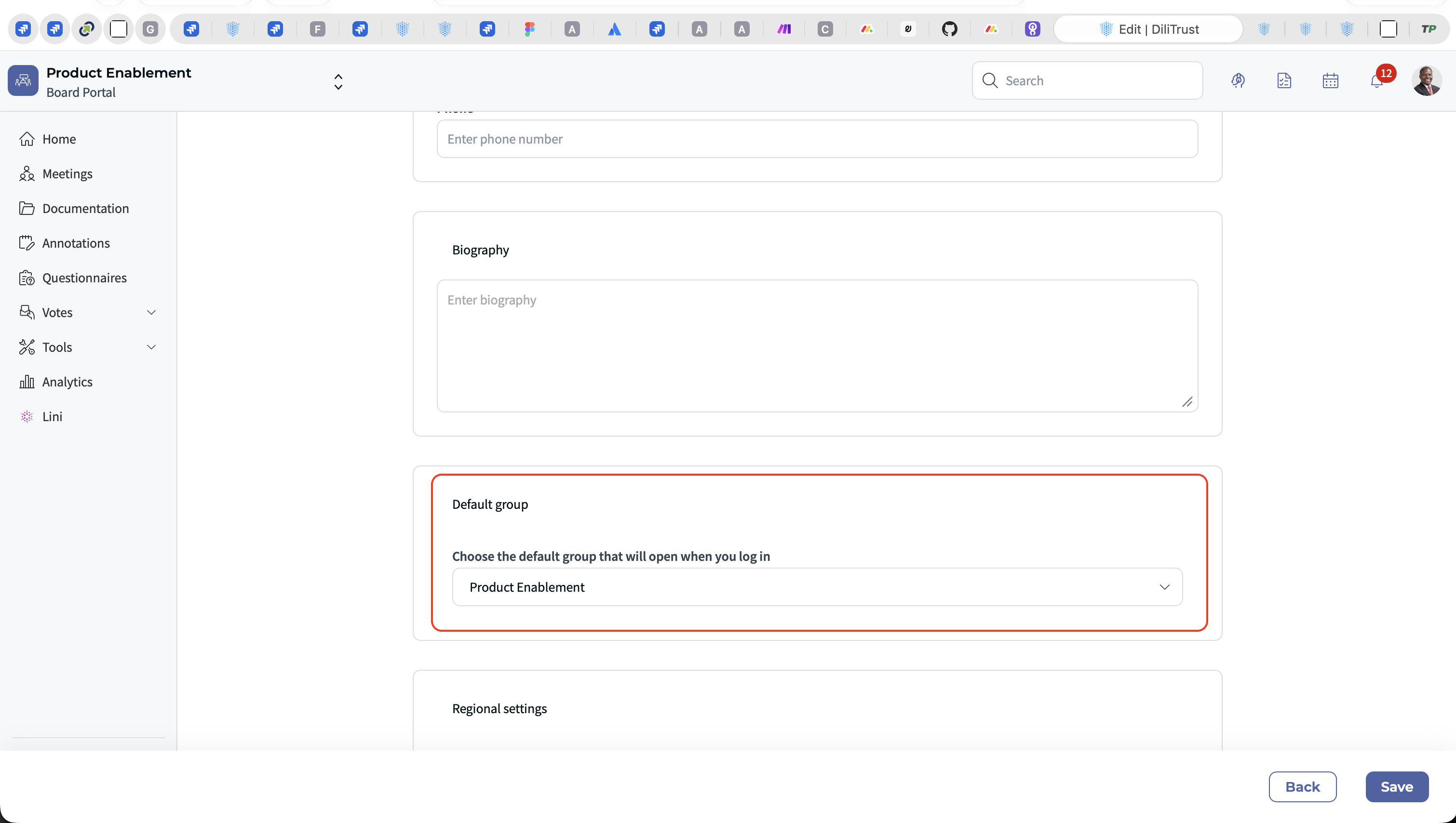
If you always start in the same Room, you do not have to pick it from the instance selector every time. In your profile settings, you can choose a default Room, and you are taken straight to that Room when you log in.
This option is available on Board Portal and Legal Entity Management.
Was this article helpful?
That’s Great!
Thank you for your feedback
Sorry! We couldn't be helpful
Thank you for your feedback
Feedback sent
We appreciate your effort and will try to fix the article