Meeting minutes are the official written record of a board meeting. In the Board Portal (BP), you can write them yourself from a template, or let AI prepare a first draft from the information already collected for the meeting.
✋ Who can do what
- Secretaries and administrators (users authorized to create and validate minutes) can create minutes manually or with AI, edit them, then save and validate them.
☝ What do minutes contain?
- The meeting date, time and participants.
- The agenda items discussed.
- The resolutions adopted and the votes taken.
- The documents reviewed.
- The key discussion points.

✍ Secretaries and administrators: create minutes manually
This option gives you full control over the format and wording.
- Open the meeting.
- Click Create meeting minute.
- Choose your template.
- Fill in the information you need.
- Save and validate the minutes.
⚡ Secretaries and administrators: generate a draft with AI
AI uses your audio transcripts, meeting notes, agenda items, votes and documents to write a draft, organized by agenda item, in easy-to-edit bullet points. It also detects tasks mentioned out loud during the meeting, even if nobody wrote them down. When the transcript mentions them, deadlines and the people responsible are identified too.
- Open the meeting, then click Create meeting minute.
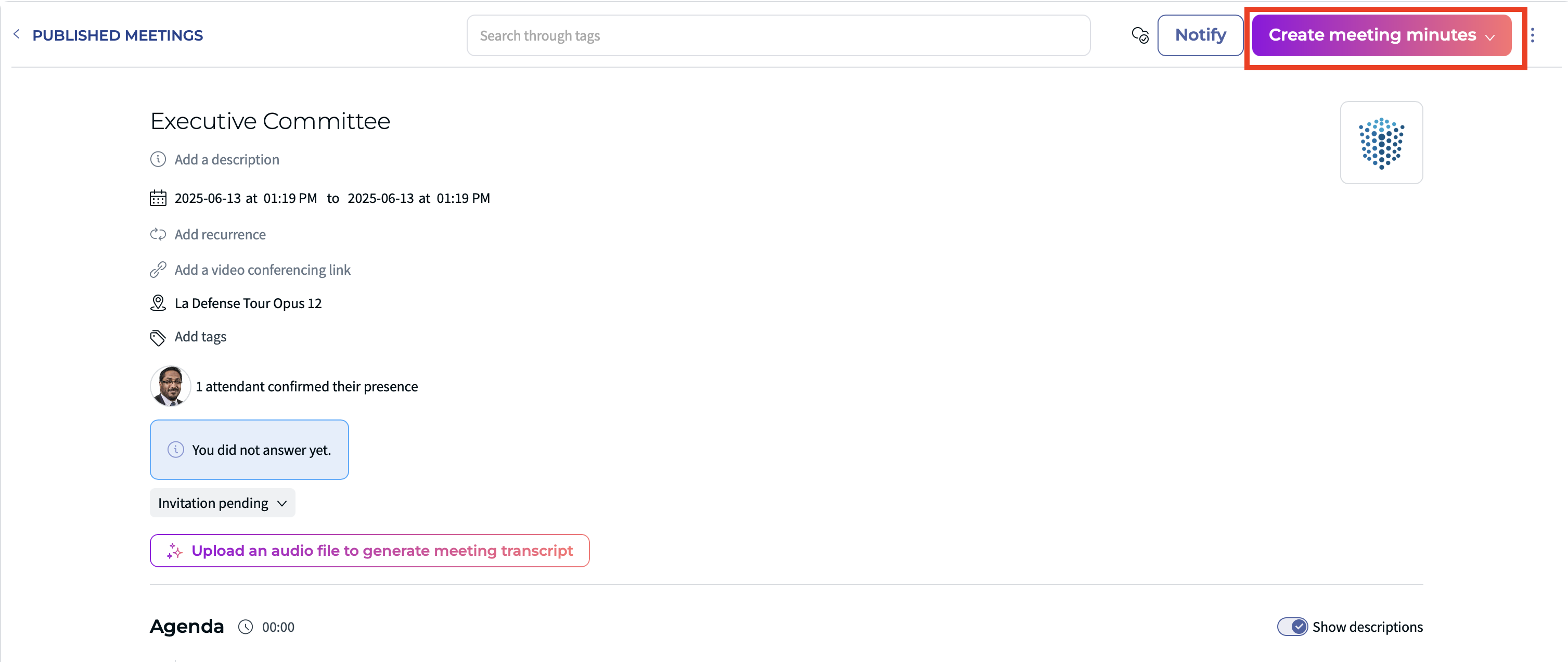
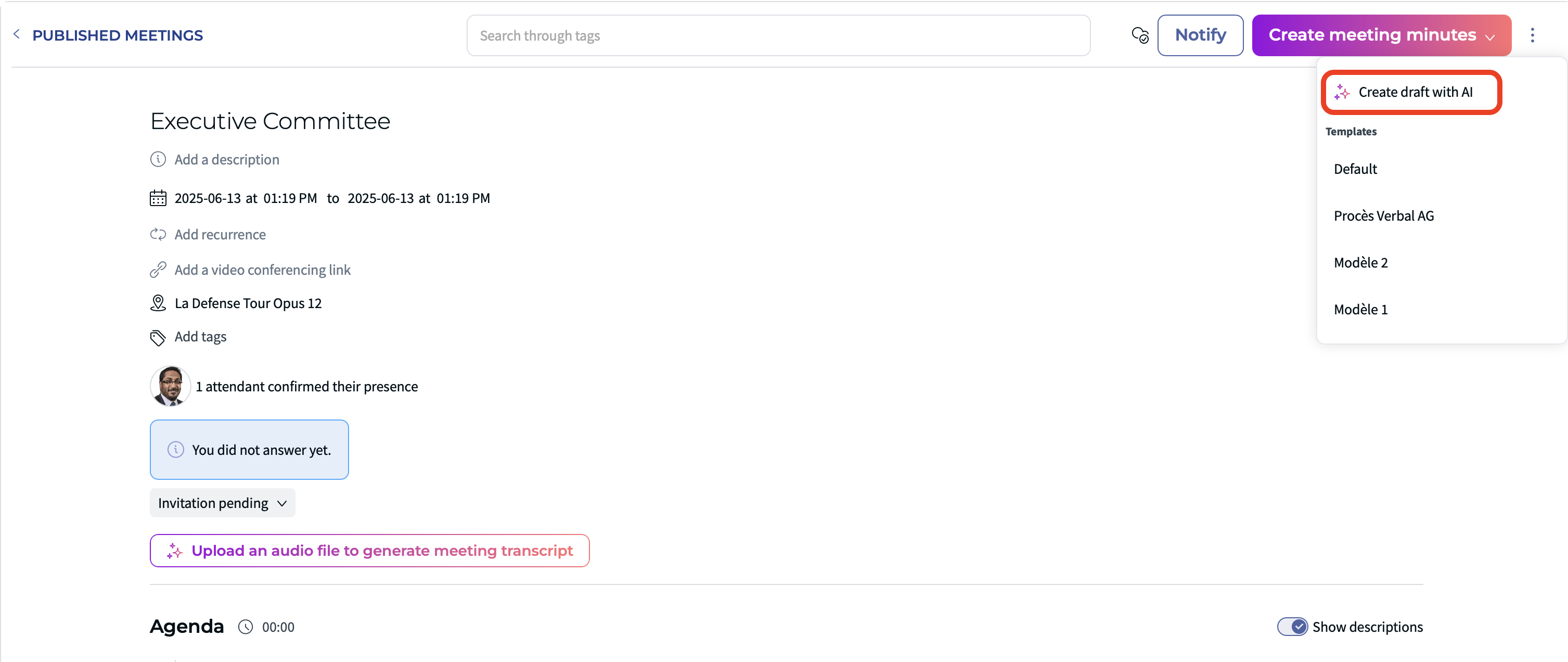
- Click Create draft with AI.
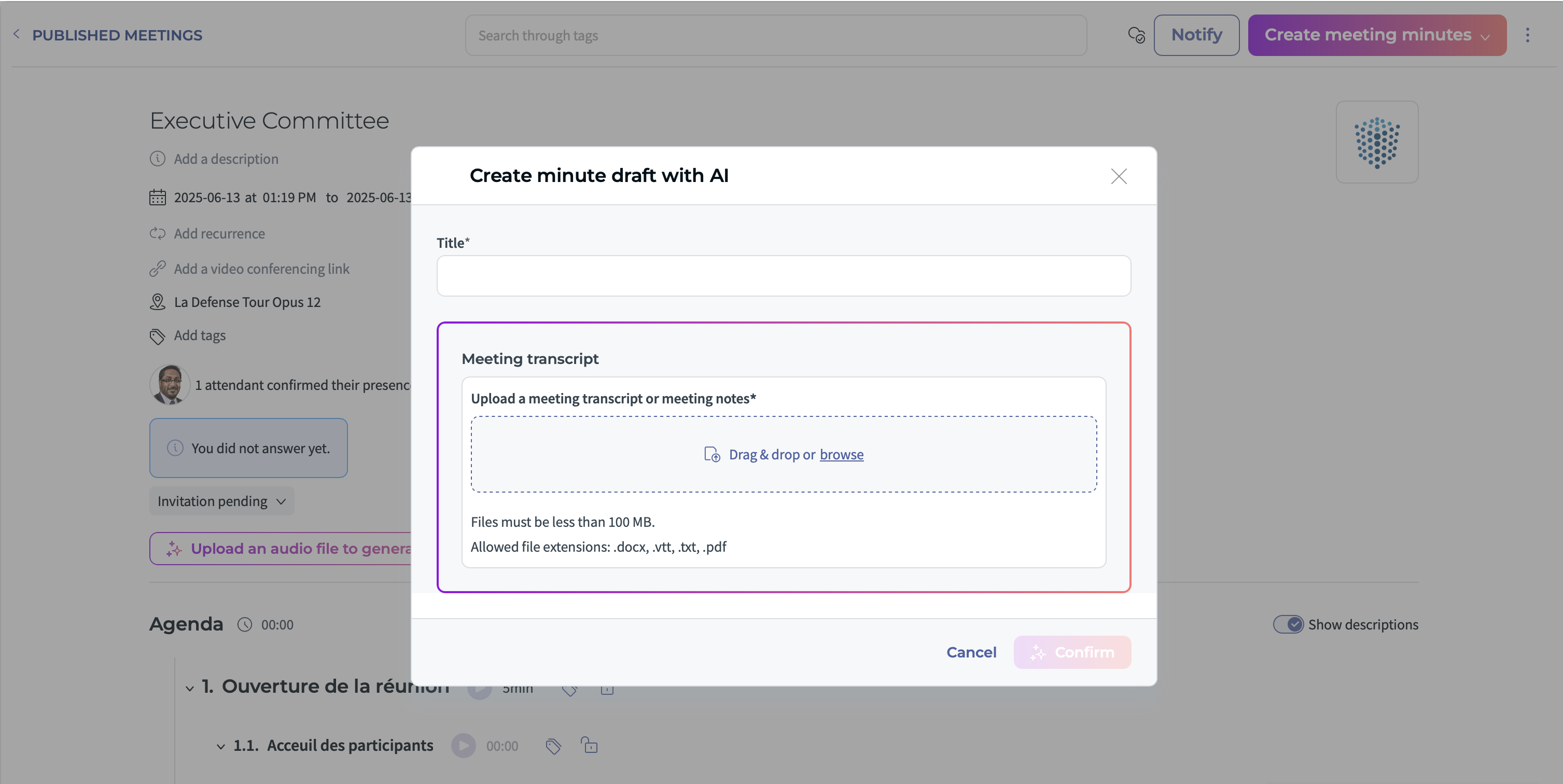
- Add the information. You must add at least one transcript file.
- Review the draft that AI prepared.
- Edit the sections that need it.
- Save and validate the minutes when they are final.
To get AI minutes that follow your own format, see Board Portal – AI-Powered Meeting Minutes Adapted to Your Format. To transcribe the audio of your meeting, see BP - Audio Transcription for Board Meetings.
⭐ Tips
- Always review the AI draft before validating it, to make sure it is accurate and compliant.
- Use AI to save time, then adjust the wording to your board's style.
- Keep resolutions and votes up to date in the platform during the meeting: the AI draft will be better.
- You can combine both options: generate a draft with AI, then edit it manually.
⛔ Limitations
- You can generate a draft only after the meeting has been published.
- AI minutes are drafts. A person must review and validate them before they become official.
- To include the audio in the AI draft, audio transcription must have been enabled during the meeting.
- Only authorized users can create and validate minutes.
❓ FAQ
Is a transcript required to generate a draft with AI?
Yes. You must add at least one transcript file.
Can I edit the AI draft?
Yes. Review and edit any section, then save and validate.
Why can't I generate a draft?
The meeting must be published first, and you must be authorized to create minutes.
Was this article helpful?
That’s Great!
Thank you for your feedback
Sorry! We couldn't be helpful
Thank you for your feedback
Feedback sent
We appreciate your effort and will try to fix the article