Collaboration mode lets you write and format meeting minutes together, live, during the meeting. You can highlight key points, add colors, insert images and tables, and everyone editing sees changes instantly.
✋ Who can do what
Administrators and participants can personalize the minutes and edit them in real time. Several administrators can edit at the same time. The steps below are the same for all of them.
Track changes and version history are available only if your administrator has turned them on.
✍ Administrators and participants: edit the minutes together
- Open your meeting in Board Portal.
- Open the Minutes tab. The collaborative editor appears.
- Select some text, then choose a highlight or a color in the toolbar.
- To add a table or an image, click the table icon or the image icon.
- To reuse content from Word or Google Docs, paste it directly. The formatting is kept.
- Keep writing while others edit. Changes are synchronized instantly, so everyone works on the latest version.
- To apply your styles to the whole meeting, use the customization options. They apply to the agenda sections and all meeting content.
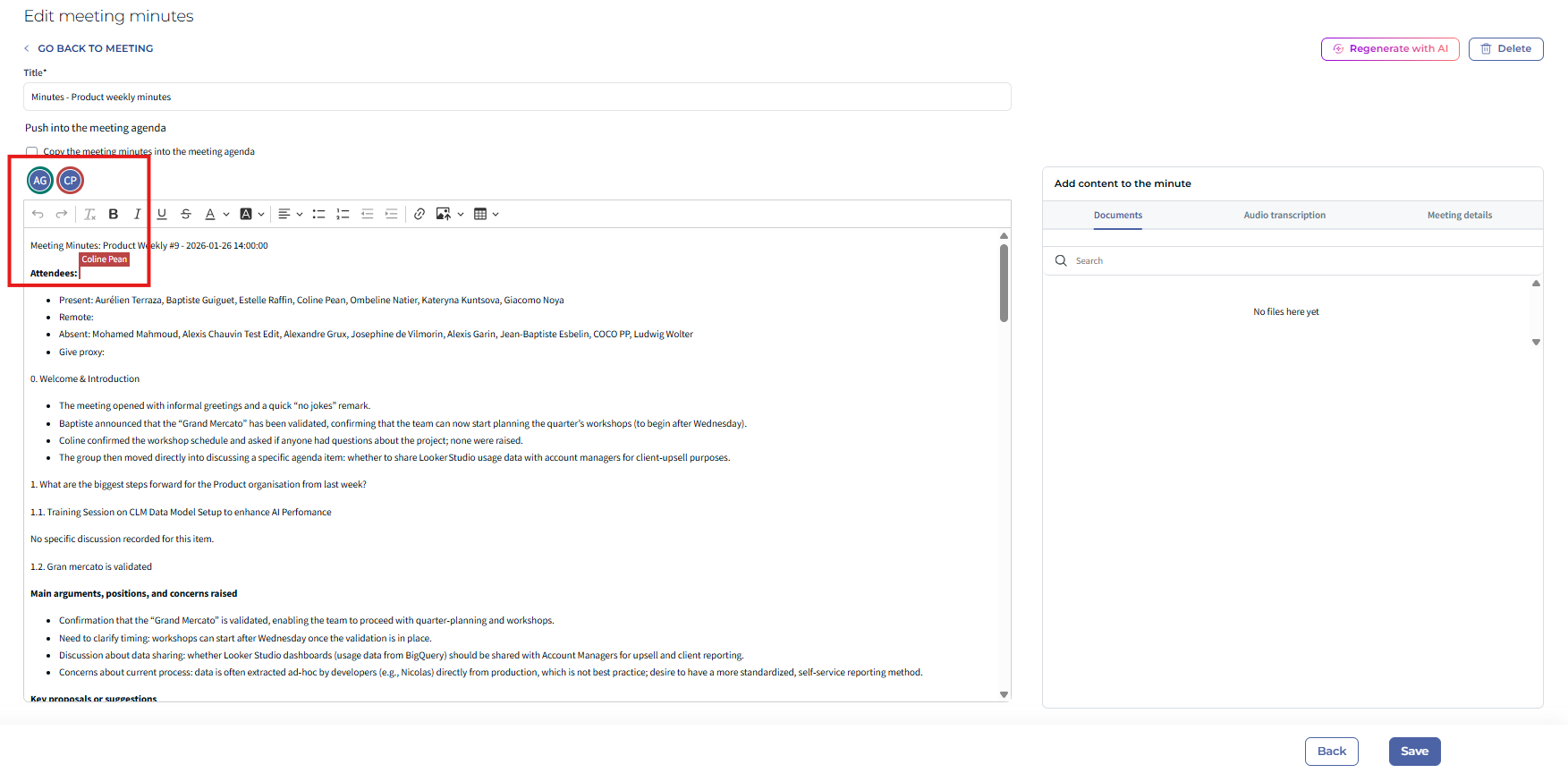
You can undo and redo your actions. When enabled, you can also view previous versions.
⭐ Tips
- Use color highlights sparingly so they stand out.
- Keep tables simple so they are easy to read.
- Review the minutes together at the end of the meeting to finalize them right away.
◻ Limitations
- Some advanced formatting may look different when you export the minutes to Word or PDF.
- Use an up-to-date browser for the best experience: Chrome, Edge, Firefox or Safari.
❓ FAQ
Can several people edit at the same time?
Yes. Changes appear instantly for everyone editing.
I cannot see the version history. Why?
Track changes and version history must be turned on by your administrator.
Was this article helpful?
That’s Great!
Thank you for your feedback
Sorry! We couldn't be helpful
Thank you for your feedback
Feedback sent
We appreciate your effort and will try to fix the article