What is it ❓
The Mandate Renewal Mechanism helps you renew mandates, keep a clear history of Renewal dates and Expiry dates, and make corrections when needed. It replaces the one-value "last renewal" approach with a proper, auditable history so you can track every renewal over time.
Why it matters: Some organizations need to renew before expiry and still keep every past renewal on record — now you can, with a simple UI and structured history.
What's new ⭐
- Single pop-in to manage both Renewal and Expiry dates together.
- Full history of renewal entries; each renewal entry is paired with an associated expiry value.
- Delete a renewal value and its associated expiry in one action.
- Rectify wrong expiry for a given historized entry (with existing constraints).
- Renew before expiry is supported.
Before you start ☝
- Ensure you have permission to edit mandates in LEM.
- If migrating from older data, note that legacy entries will appear with a proper history (see Migrated data below).
Renew a mandate ✍
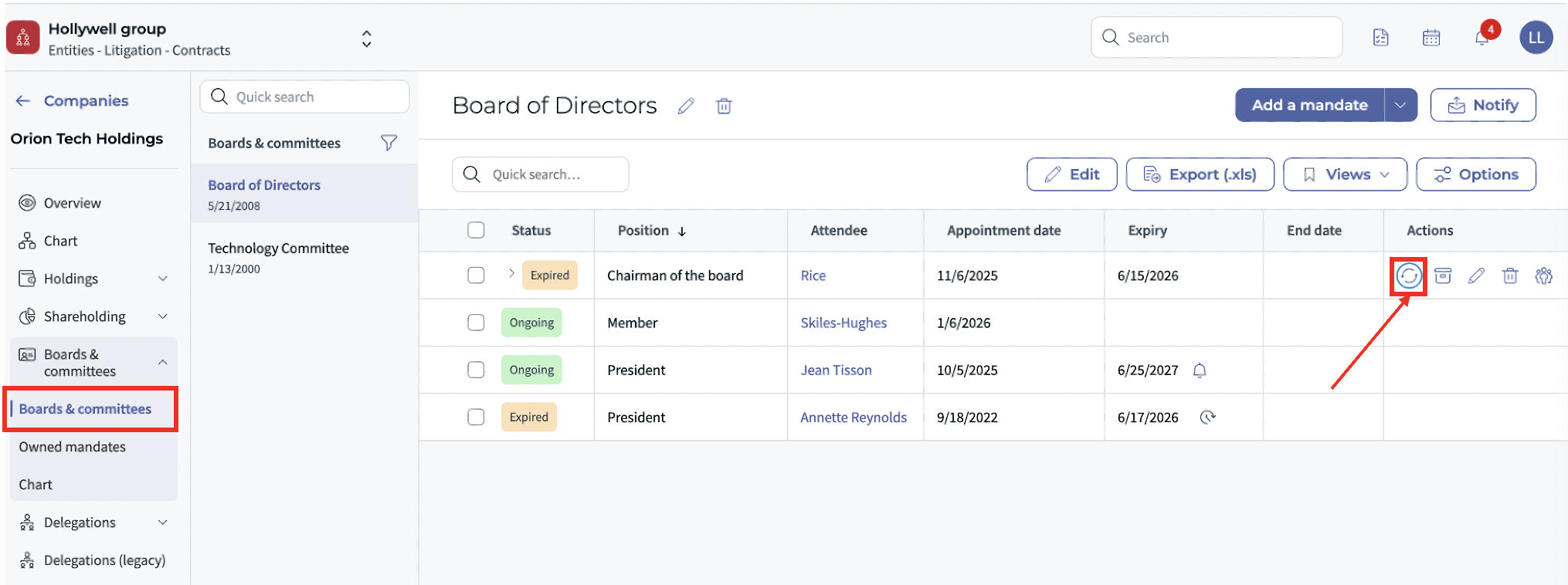
- Go to the "Board & committees" section on the left panel.
- Find the Mandate you want to renew.
- Click Renew to open the unified pop-in (Renewal + Expiry).
- Enter the Renewal date and the new Expiry date:
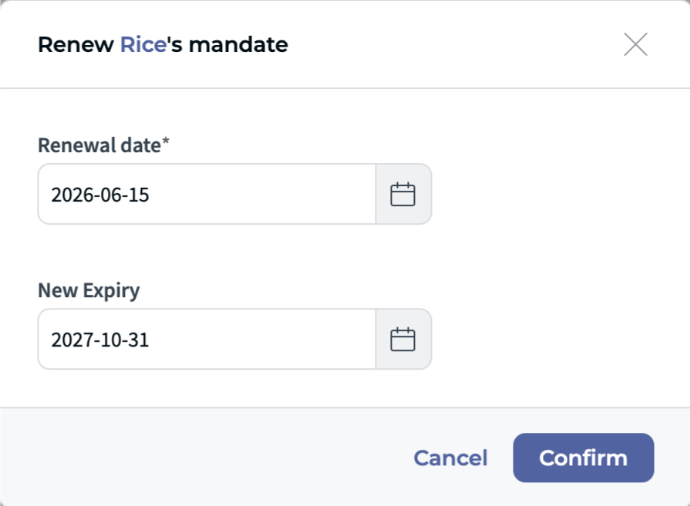
- You may renew even if the current mandate hasn't expired yet.
- Dates must follow your organization's format/policy. ☝
- Click Confirm. Your renewal is added to the history with its associated expiry.
Tip: Keep internal guidelines handy for how far in advance to renew. ✅
View renewal & expiry history ✨
Each renewal creates a new line in the history, pairing:
- Renewal date
- Associated expiry date (can be empty for older migrated items; see migration note below).
You can review the full list of historized values in the history view.
Edit an expiry date ✂️
If an expiry value is wrong for a given entry, you can rectify the expiry (subject to existing constraints).
- Open the mandate's history.
- Select the entry and choose Edit expiry.
- Set the correct date and Save.
Note: In v1, rectifying the renewal date itself is not supported. ❗
Delete a renewal + its expiry ❌
Use this when a renewal was recorded by mistake and you need to remove both values:
- Open the mandate's history.
- Choose the target entry and click Delete.
- Confirm to remove the renewal value and its associated expiry in one action.
Limitations (v1) ⛔
- No rectification of renewal date in v1 (expiry rectification only).
Workaround: If you need to correct a renewal date, you can delete the incorrect entry and re-add the renewal with the right date and expiry. See Delete a renewal + its expiry above.
- The interface may be updated in future versions.
Migrated data: what you may notice ?
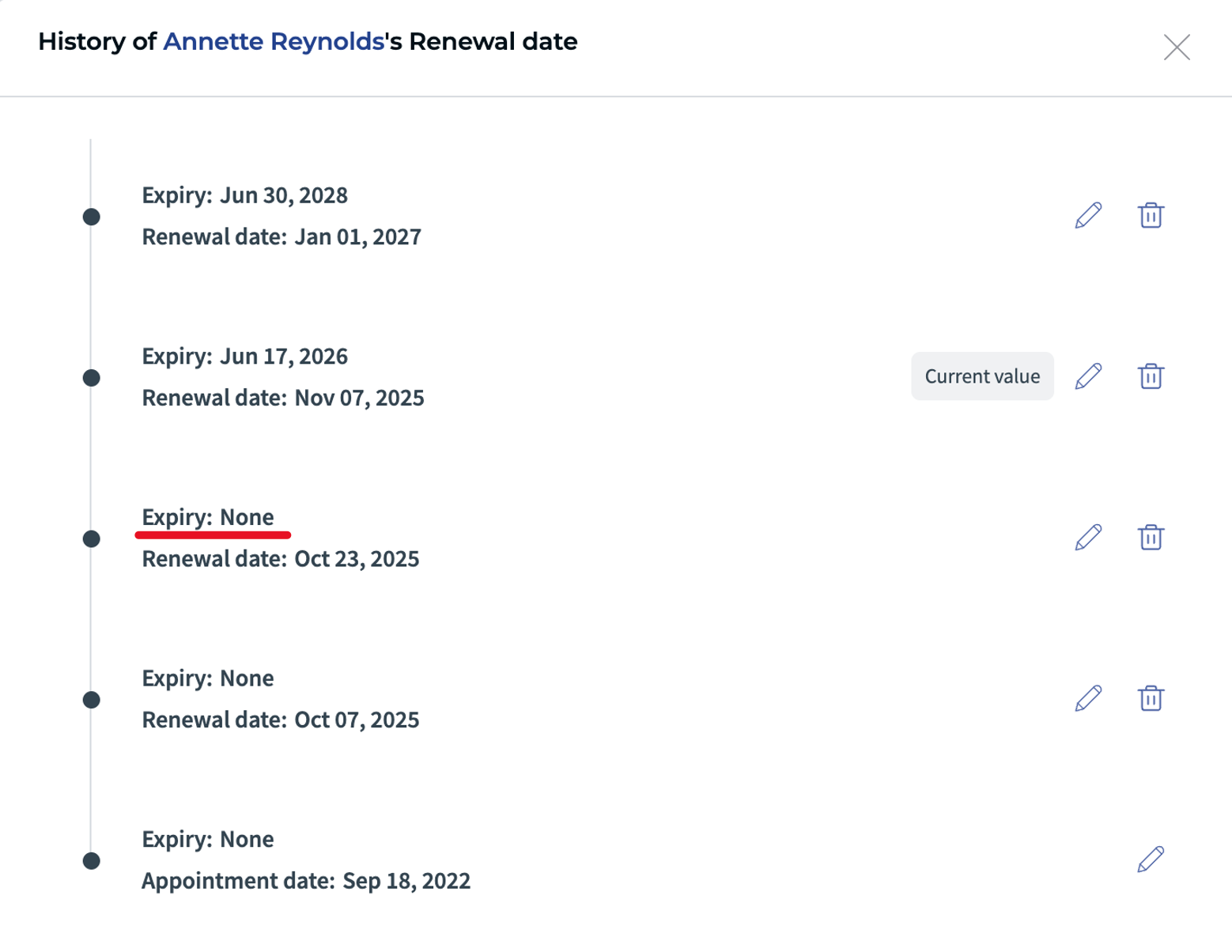
During migration, all existing renewal data was carried over. The new system now displays the full history of renewals including future dates and associated expiry dates — which wasn't possible before: the legacy system only stored one single expiry value (the most recent one), with no history. As part of the migration strategy, expiry dates were therefore left empty for all legacy renewal entries; only that last known value was populated. You can edit or delete any incorrect or missing entry directly from the history view.
You may observe the following expected behaviours:
- Missing expiry date in the form: When a future renewal entry exists, the expiry date is attached to that future entry and will only appear once its renewal date is reached. This is because the legacy system did not store expiry dates for past renewals — only the most recent value was carried over.
- "No expiry date" in the history: Legacy entries intentionally show no expiry — that data was not tracked in the previous system and could not be recovered.
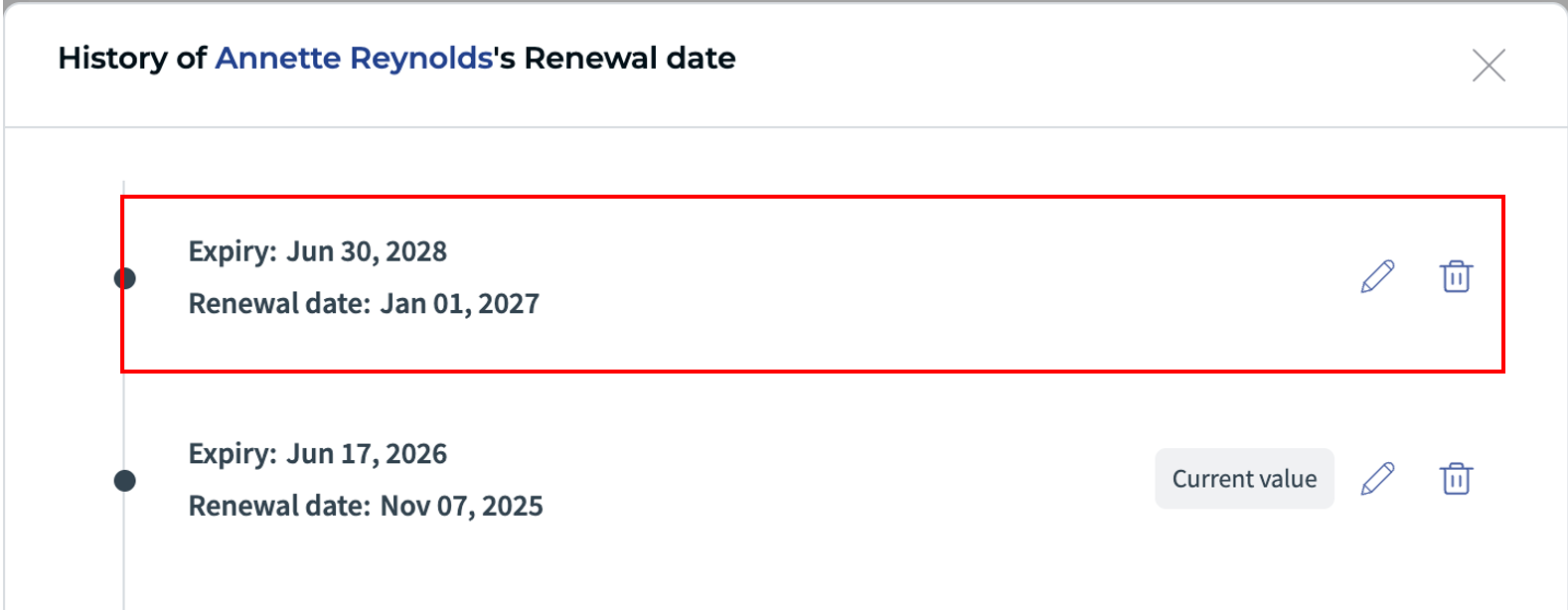
- An unexpected future renewal entry in the history: Some future renewal entries existed in the legacy database but were invisible in the old interface. The new system now displays them — you can delete any unwanted entry directly from the history view.
FAQ ❔
Can I renew before the current mandate expires?
Yes. Early renewal is supported and recorded as a new entry in the history. ✅
Where do I see past renewals?
In the history view for the mandate. Each entry shows a renewal date with its linked expiry.
Can I fix a wrong entry?
You can edit the expiry on an entry. In v1 you cannot edit the renewal date itself. ❗
Was this article helpful?
That’s Great!
Thank you for your feedback
Sorry! We couldn't be helpful
Thank you for your feedback
Feedback sent
We appreciate your effort and will try to fix the article