Welcome to your upgraded AI experience in DiliTrust CLM ✨
The AI Chat is now available as a standalone, full-width feature directly from the side panel. You can ask general legal questions, attach and compare multiple contracts, and even search the web — all without leaving CLM.
⭐ What Is the AI Chat?
Lini is your intelligent legal assistant built directly into CLM.
It allows you to:
- Ask general legal questions
- Chat about one or multiple contracts
- Compare documents automatically
- Search the web for verified references
- Export, copy, regenerate, and manage answers
No document is required to start. You can simply open the chat and begin.
1️⃣ How to Access Lini
Step 1 – Open from the Side Panel
- Go to the CLM side navigation panel
- Click on Lini
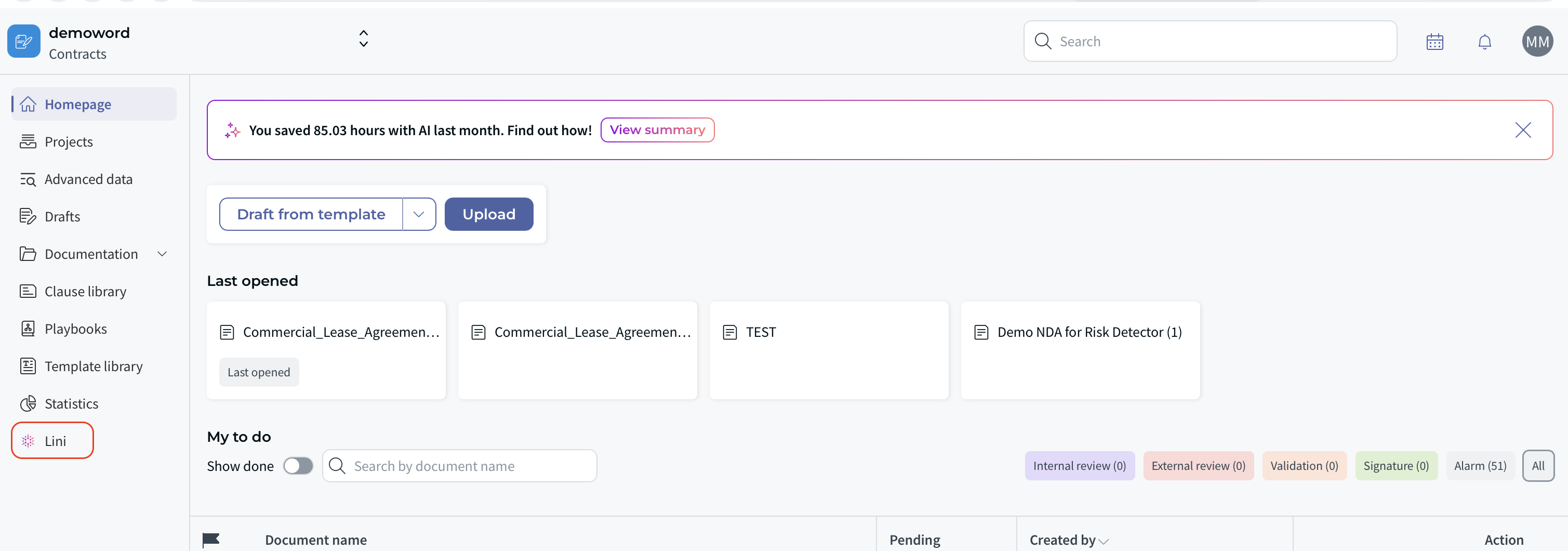
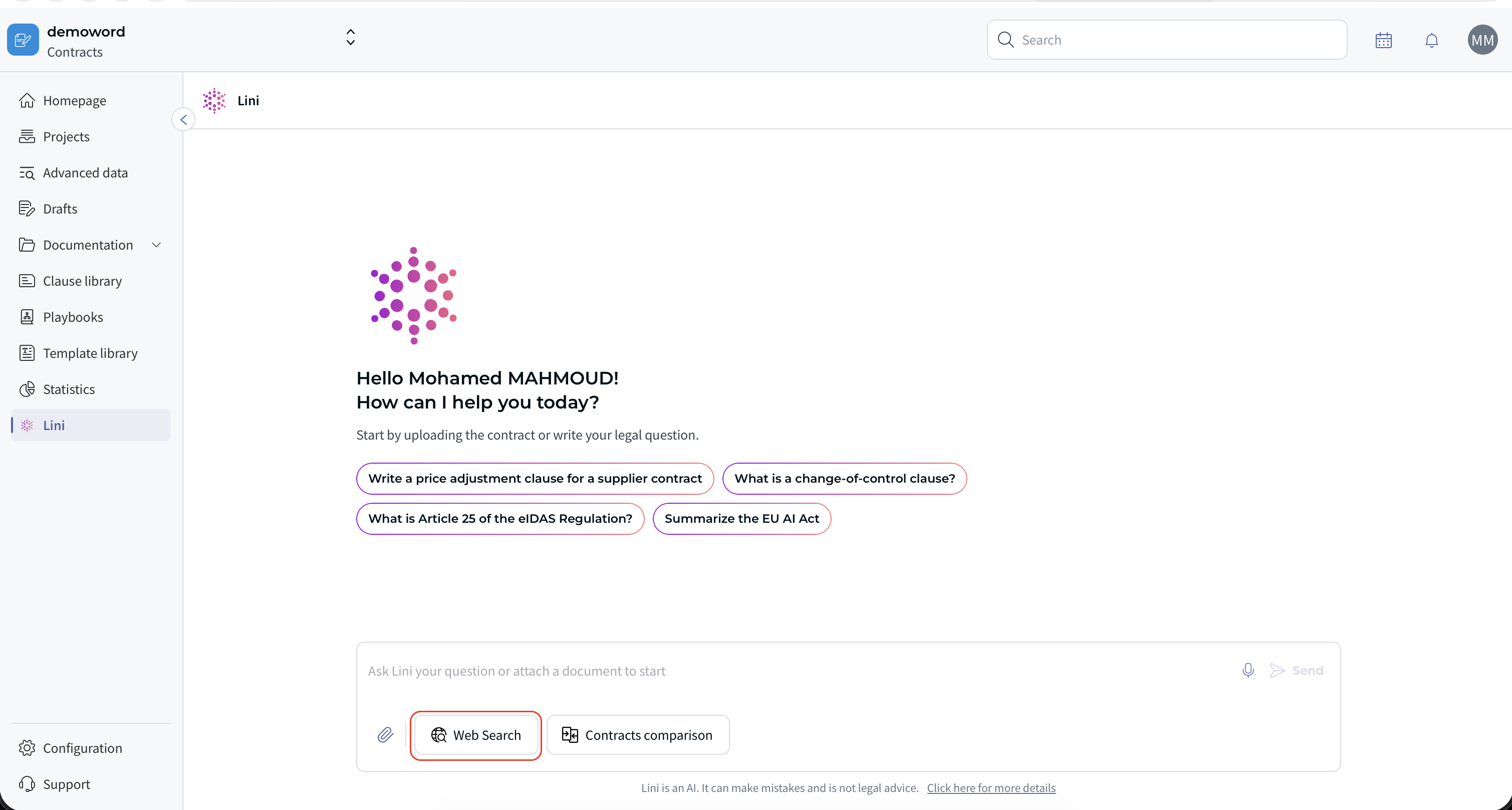
You will land on the Start screen with:
- Welcome message
- Suggested prompts
- Input field to type your question
From here, you can start immediately ⏩
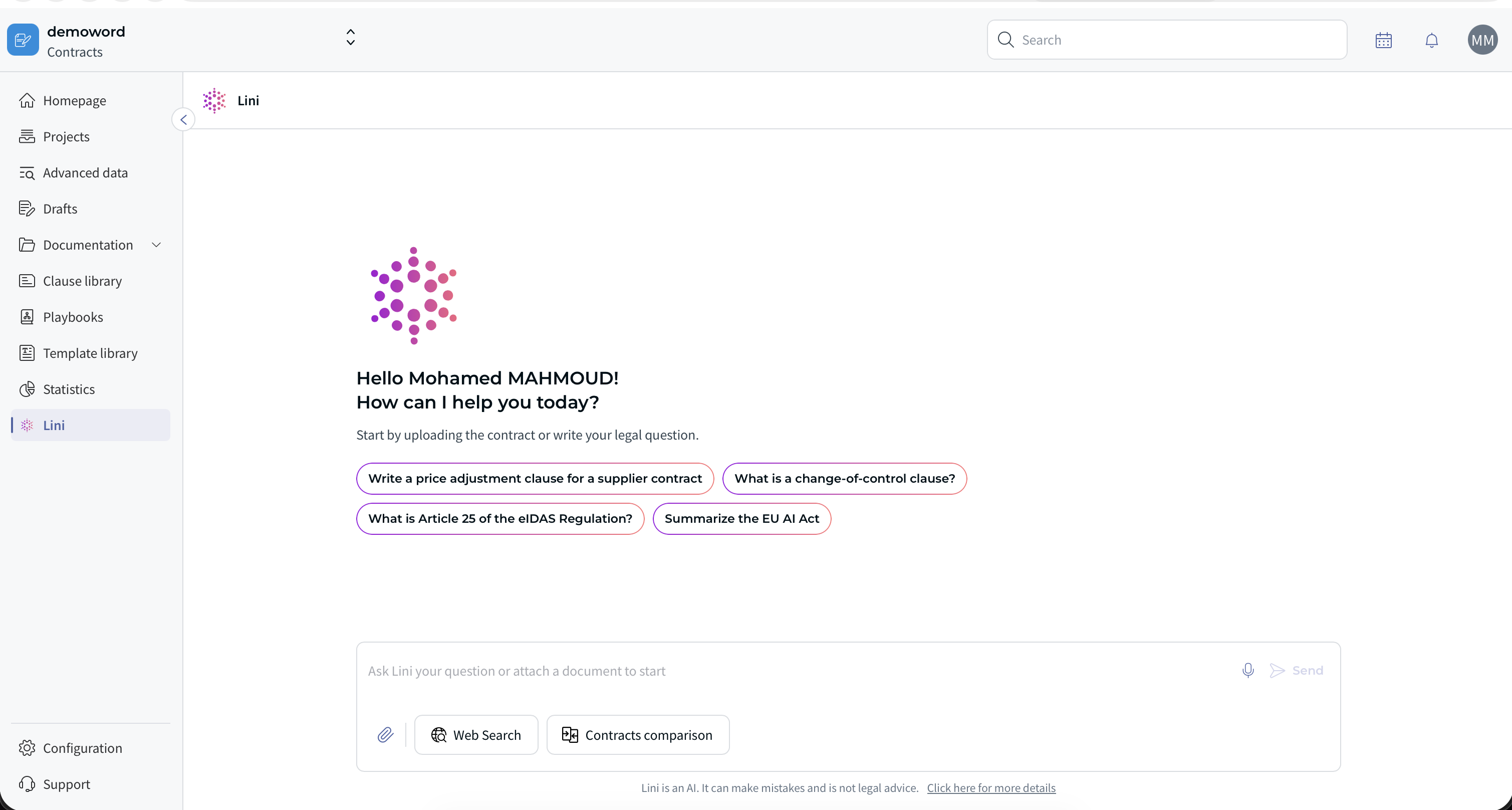
2️⃣ How to Start a Conversation
You have multiple ways to begin:
- Click one of the suggested prompts
- Type your own legal question
- Attach one or more documents before asking
Example questions:
- “Summarize termination clauses in this contract”
- “Compare liability clauses between these agreements”
- “What is the latest German case law on non-compete clauses?”
3️⃣ Attaching Documents to the Chat
How to Attach a Document
- Type the paperclip icon
- Search for the document name
- Select the document from the list
- Click Send to confirm
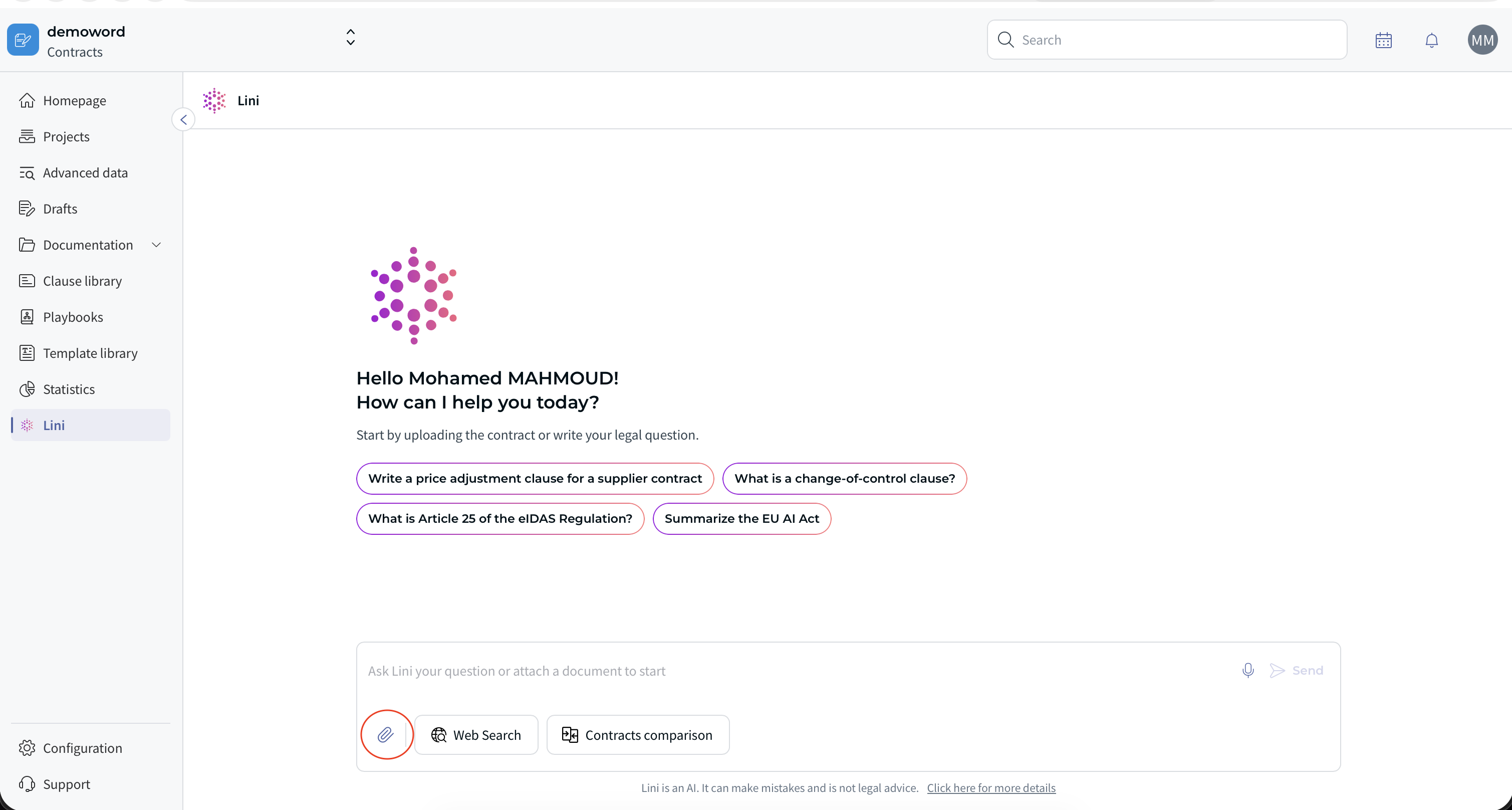
The selected document appears in a small box above the input field.
You can remove a document anytime by clicking [X] ❌
Important Notes
- You can attach documents at any moment during the conversation
- There is currently no fixed limit on the number of documents (subject to system performance)
4️⃣ Comparing Multiple Contracts
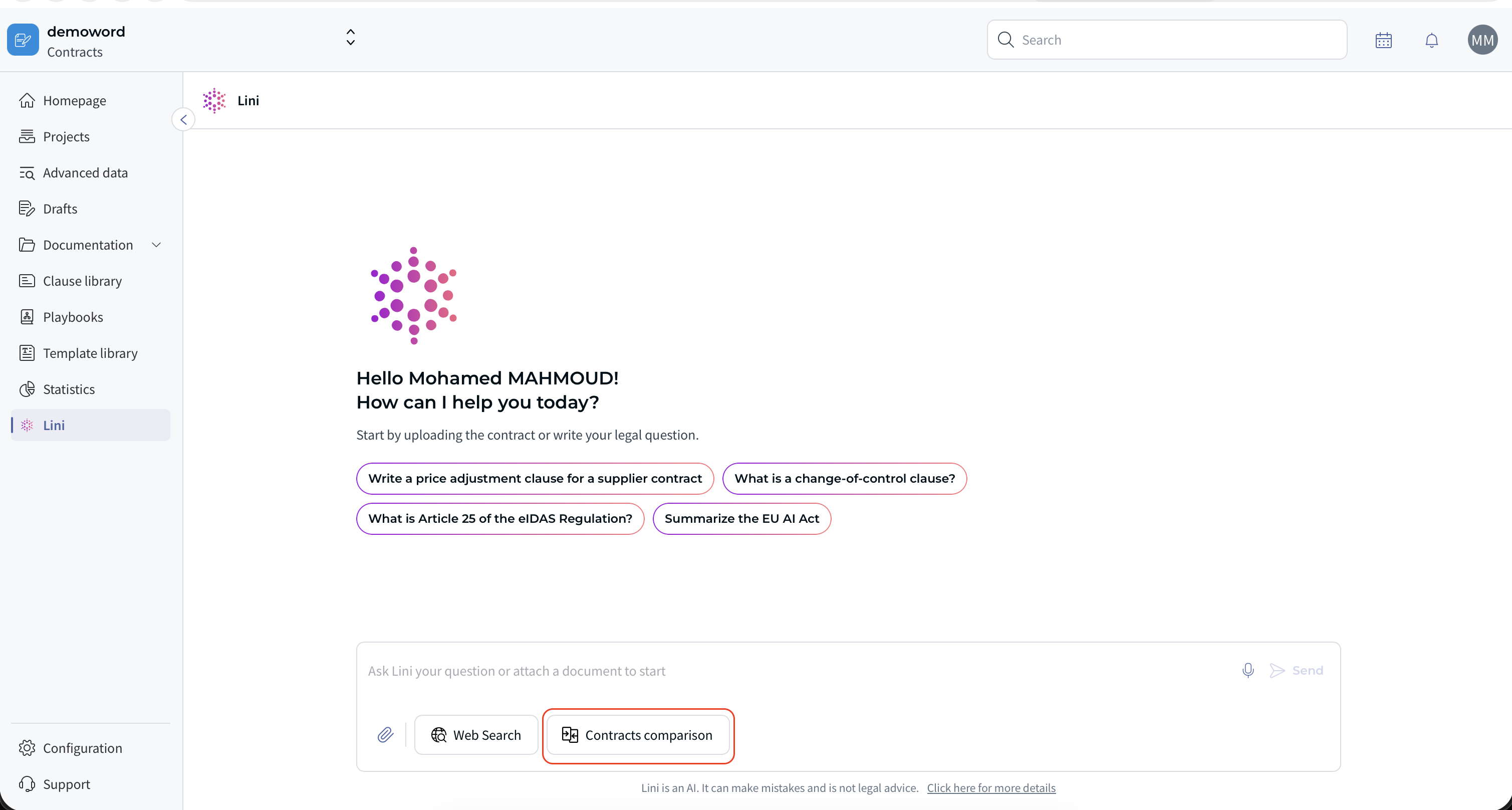
When you attach 2 documents, the AI proposes:
“Compare these documents”
What Happens Next?
- The AI generates a structured comparison
- Results are organized by topics (e.g., Liability, Termination, Confidentiality)
- Each contract is analyzed under each topic
Viewing the Source
Under each comparison result, click [Show source].
This opens the original contract in a new tab with the relevant section highlighted ☝
✅ This ensures transparency and avoids guesswork.
5️⃣ Using Web Search
You can enhance answers with live web references.
How to Activate Web Search
- Click the Web Search toggle at the bottom of the input
What the Result Looks Like
- Top section: list of referenced websites (with icons and numbering)
- Text body: answers with numbered references (1, 2, 3…)
- Each reference includes a [See source] option
⚖️ This helps reduce hallucinations and provides verifiable legal information.
To deactivate Web Search, click the [X] in the Web Search container.
6️⃣ Message Actions
Message actions are available on AI responses (hover over a message).
- Like ❤️ – Give positive feedback
- Dislike ❗ – Provide improvement feedback
- Export – Download answer as .docx
- Copy – Copy text to clipboard
- Rewrite – Regenerate the answer
Usage tip ✨: If the answer is close but not perfect, try Rewrite before starting over.
7️⃣ Searching Within Lini
You can search inside your conversation history.
- Click the Search icon in the chat header
- Type your keyword
- Navigate results using arrows ⏫ ⏬
Matches are highlighted for easy scanning.
8️⃣ Restarting or Deleting a Chat
Restart the Chat
- Click Restart in the chat header
You return to the Start screen.
Previously attached documents are not kept.
Delete the Chat
- Click the three dots in the chat header
- Select Delete chat
- Confirm
After deletion:
- Chat history is permanently removed
- You return to the Start screen
9️⃣ Stop Generating an Answer
While the AI is generating a response, click Stop in the input area.
The message stops immediately ⛔
You can continue the conversation from that point.
❓ Frequently Asked Questions
Can I chat without attaching documents?
Yes. You can use AI Chat for general legal research anytime.
Is chat history stored?
Yes, until you manually delete the chat.
Can I attach documents during an ongoing conversation?
Yes. You can add documents at any time.
Does Web Search replace document analysis?
No. Web Search complements contract-based answers with external legal references.
⚡ Benefits for Legal Teams
- Faster contract reviews
- Smarter multi-document comparison
- Verified legal research with references
- One single workspace for AI-powered legal tasks
This feature transforms AI Chat from a simple document bot into a complete legal assistant.
⛔ Limitations to Be Aware Of
- Very large documents may take longer to process
- Web Search depends on publicly available sources
- AI answers should always be reviewed by a legal professional
☕ Tip: For best results, ask clear, focused questions and specify what you want (summary, comparison, risks, clauses, etc.).
Need help? Contact your administrator or reach out to our Support Team.
✨ Enjoy your smarter AI experience in CLM.
Was this article helpful?
That’s Great!
Thank you for your feedback
Sorry! We couldn't be helpful
Thank you for your feedback
Feedback sent
We appreciate your effort and will try to fix the article