The Signature Tracking view in Board Portal lets you follow the documents that require a signature and see where each one stands. This update brings two key improvements:
- Board members can now access Signature Tracking. Previously, only administrators could open this screen. Board members now have their own view, limited to the documents they personally need to sign.
- You can track signatures across all your rooms at once. If you belong to more than one room, a new room selector lets you switch between the room you are currently in and a single consolidated view of every room you can access — no more navigating room by room.
✅ Before you start
- You need to be a Board Portal user — either an administrator or a board member of at least one room.
- To use the consolidated All rooms view, you need active access to more than one room. If you only have access to a single room, the view will simply show that room.
- What you can see always follows your existing permissions in each room (see below). This feature does not grant any new access to documents.
☝ Accessing the Signature Tracking view
- Open your Board Portal room.
- Go to the Signature tracking screen from the navigation menu.
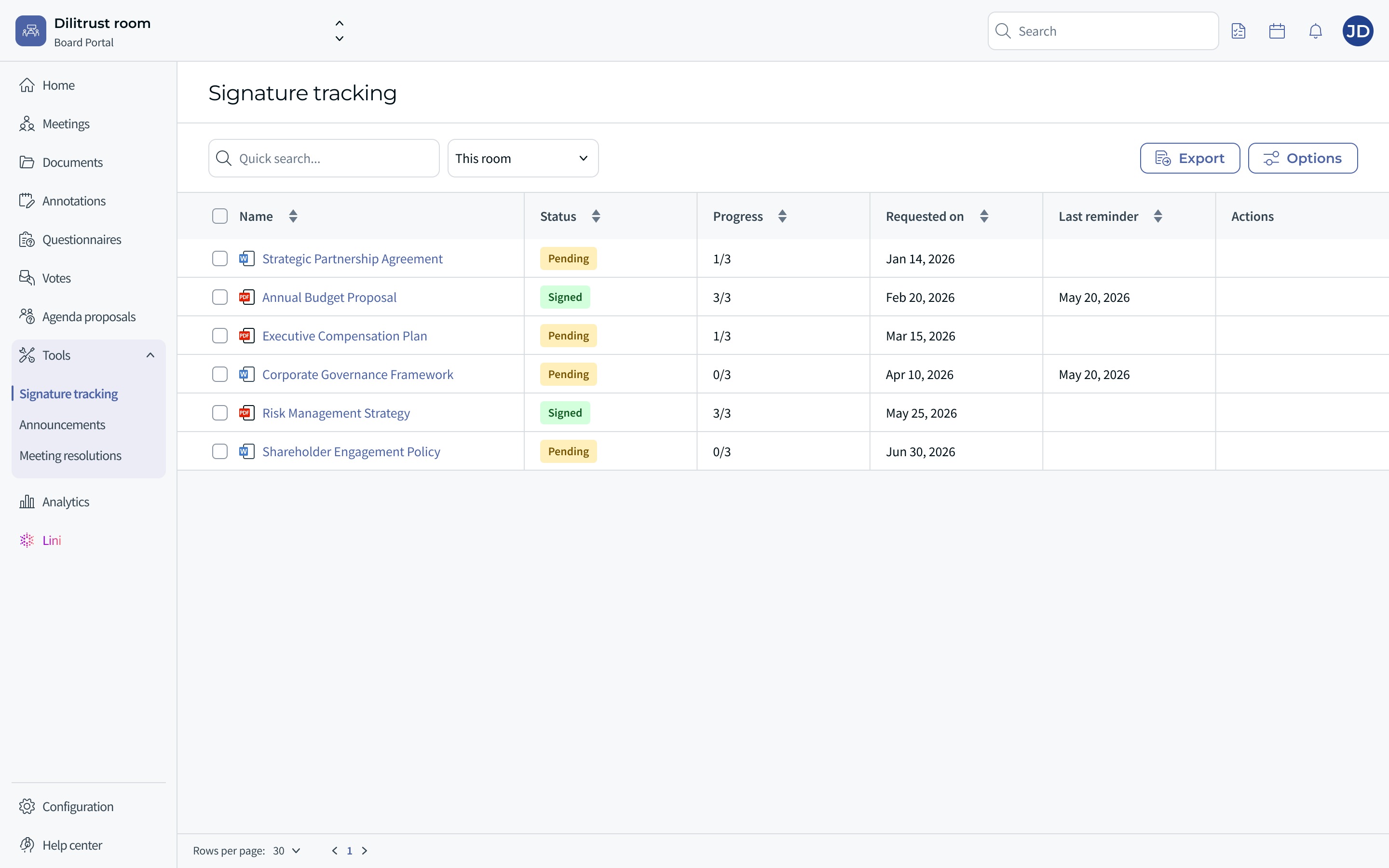
- You will see the list of documents involving a signature, with columns such as Name, Status (for example Pending or Signed), Progress, Requested on, Last reminder and Actions.
What you see depends on your role:
- Administrators see all signature requests in the room, exactly as before.
- Board members see only the rows where they are listed as a signatory — both documents still pending their signature and documents they have already signed. You will not see signature requests addressed to other people, even for documents you are otherwise able to open. Because of this, two board members in the same room may see completely different lists.
✌ Viewing signatures across one or all rooms
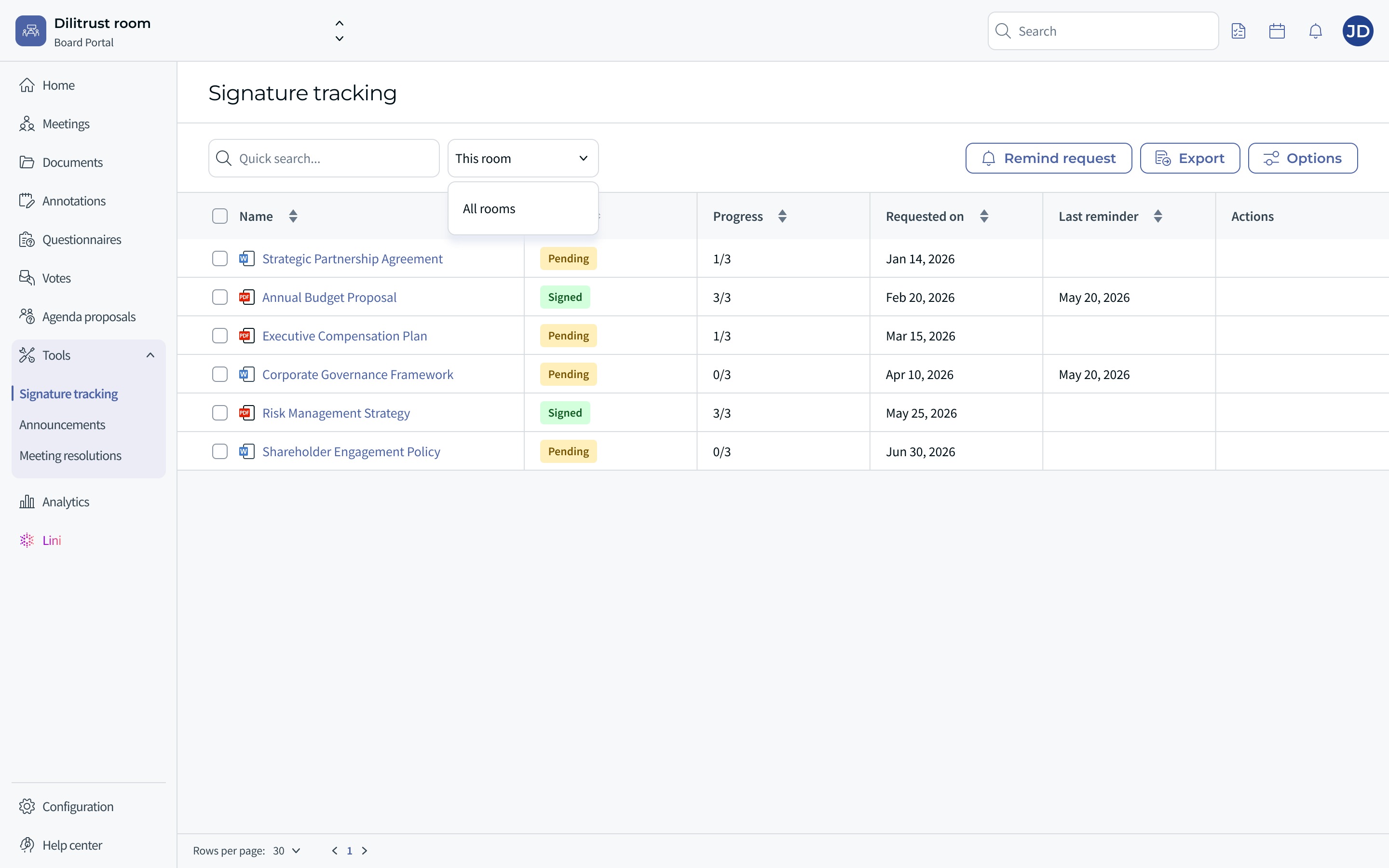
At the top of the Signature Tracking view, a room selector lets you choose the scope of what is displayed:
- This room (default): shows only the signature requests for the room you are currently in — identical to the previous behavior.
- All rooms: brings together, in a single table, the signature requests from every room you currently have access to.
In All rooms mode, your permissions are applied for each room individually:
- In a room where you are an administrator, you see all of that room's signature requests.
- In a room where you are a board member, you see only the requests where you are a signatory.
Switching the selector refreshes the table to match the scope you chose.
⭐ Understanding the columns (including Store name)
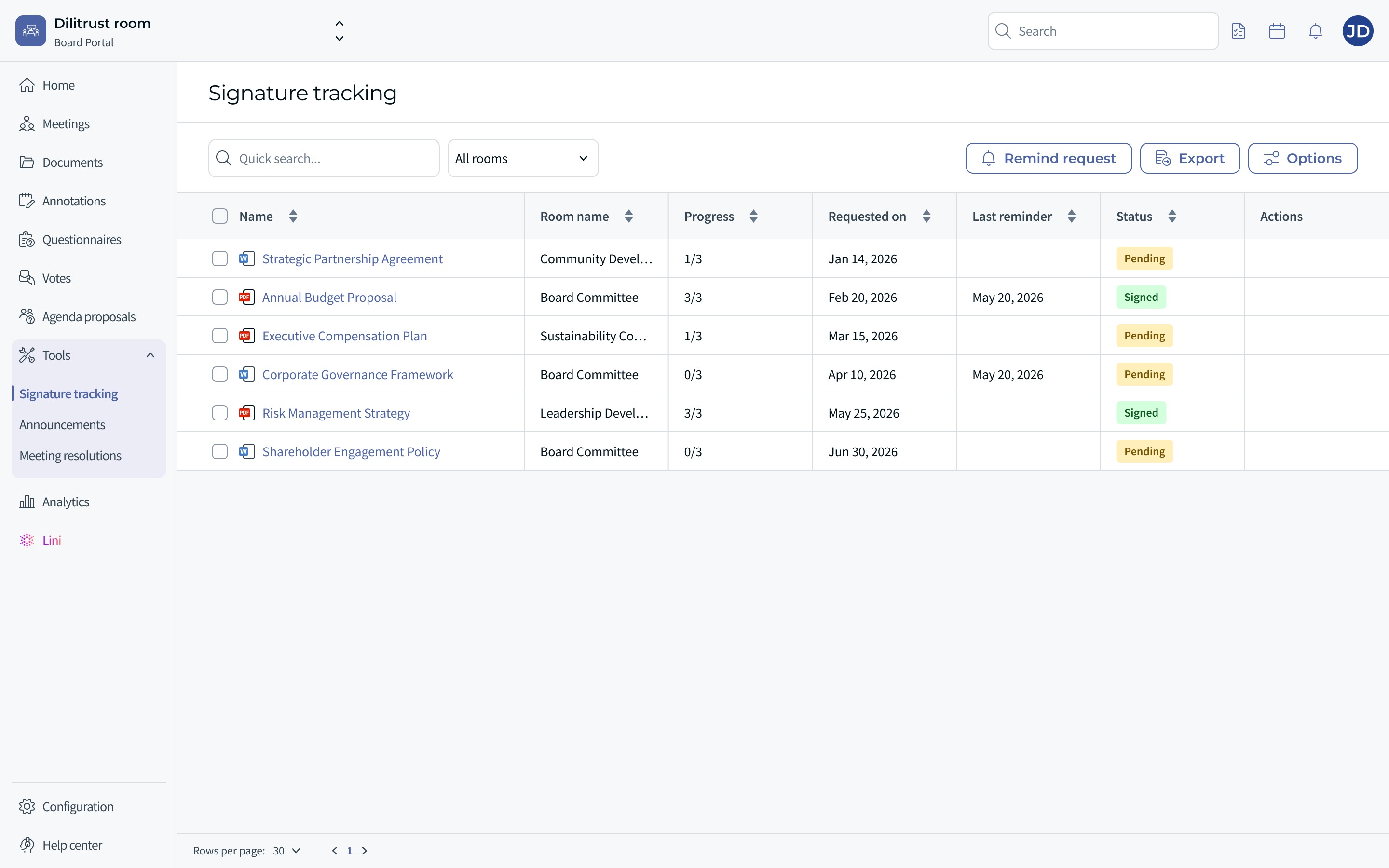
When you switch to All rooms, a new Room name column appears. It shows the name of the room each document belongs to, so you can tell at a glance where each signature request comes from.
- The Room name column is shown by default in All rooms mode and can be sorted alphabetically.
- Very long room names are shortened with an ellipsis; hover over the name to see it in full.
- You can show or hide columns from the Options panel, as with any other column.
Some columns are not available in "All rooms" mode. A few pieces of information are specific to a single room and cannot be shown when several rooms are combined. Known examples include the Created by column and free-text custom fields. When you switch to All rooms, these columns are hidden automatically and restored when you go back to a single room.
✍ Opening a document to sign
To act on a signature request, click the document name in the list:
- From the All rooms view, the document opens in a new browser tab, in the room it belongs to.
- When you close that tab, you return to the Signature Tracking view in the room you started from, which stays open.
- Note: using your browser's Back button from the document takes you to the document's parent location (its meeting or documentation), not back to Signature Tracking.
✨ Tips & best practices
- Use All rooms at the start of your day to see every document waiting for your signature in one place.
- Sort by Store name to group documents by room, or by Requested on to prioritize the oldest requests.
- If you expect a request that isn't showing, refresh the view — the list does not update in real time (see Limitations).
- Administrators can still use the Options panel filters (for example, filtering to their own documents) exactly as before.
⛔ Limitations & known constraints
- Board members cannot send reminders. The "Remind request" action is not available to board members. This is unchanged for administrators.
- No in-app signing from this view. You cannot sign directly from the Signature Tracking table; open the document to complete your signature.
- No real-time updates. If you are added to or removed from a signature request while the view is open, the change appears only after you refresh or reopen the view.
- Some columns are hidden in "All rooms" mode because their data is specific to a single room (see the columns section above).
- Browser Back button from an opened document does not return you to Signature Tracking.
- Board members cannot create signature requests — this is unchanged.
❓ Frequently asked questions
Why can't I see a signature request for a document I'm able to open?
As a board member, you only see the rows where you are listed as a signatory. Being able to open a document does not mean you will see its signature request.
Why do my colleague and I see different documents in the same room?
Each board member sees only their own signature rows, so two people in the same room can see different lists.
I was just added as a signatory but the document isn't in my list. What should I do?
Refresh the view or navigate away and back — the list does not update automatically.
Can I send a reminder?
Board members cannot send reminders. Administrators can, as before.
Can I sign a document directly from this screen?
Not at the moment. Click the document to open it and sign it there.
Why are some columns missing when I choose "All rooms"?
Some information is tied to a specific room and cannot be combined across rooms, so those columns are temporarily hidden. They come back when you switch to a single room.
Was this article helpful?
That’s Great!
Thank you for your feedback
Sorry! We couldn't be helpful
Thank you for your feedback
Feedback sent
We appreciate your effort and will try to fix the article