⭐ Introduction
⚠️ Restricted access — This feature is available exclusively to certain clients under a specific contractual agreement. If you believe you should have access and do not see it, contact your Customer Success Manager.
The Advanced Data module gives legal and contract teams a dedicated, cross-portfolio view in DiliTrust CLM. Contract bundles appear directly in the search results, attribute-based filters let you drill into large datasets in seconds, and saved views let you reuse your most common searches without re-entering criteria each time.
Managing a large contract portfolio means dealing with hundreds of documents — framework agreements, amendments, annexes, financial offers — all connected to each other. Advanced Data (formerly called Advanced Search) answers a concrete need: finding the right contract quickly and understanding how documents relate, without opening each one individually. It replaces folder-by-folder browsing with a single, filterable, exportable view of the whole portfolio. It was rolled out progressively across several scopes, described below in their current version.
Permissions and access
Advanced Data relies on the existing document and contract permissions, configured by the administrator. The screen never bypasses access rights:
- If you have no access to a contract or bundle, it is never shown in your results — even if it matches your search criteria.
- If you have partial access (you can see some documents in a bundle but not others), the bundle structure is displayed with placeholders where you do not have permission, so the hierarchy stays readable.
Key points:
- Any user with access to the Advanced Data screen can create, edit and delete their own views.
- Saved views are personal to the user who created them. Sharing a view with other users is not included in the current scope.
- Exported data is limited to the documents the user is allowed to see.
ℹ️ The feature itself remains subject to the restricted contractual access mentioned in the introduction. The activation modalities and the detail of authorised profiles will be specified soon.
⚙️ Module overview
Advanced Data is a single screen that consolidates your entire contract portfolio. It provides:
- A consolidated view of your portfolio, with contract bundles (a main/parent document and all its linked documents) visible directly in the results grid.
- Attribute-based filtering: filter by document type, workflow status, expiration date, owner, folder, nature of the link, and more.
- Saved views: name a filter configuration and return to it at any time.
- Column management: choose exactly which data columns appear in your results.
- Export: select documents and download their data to Excel.
It comprises several scopes:
| Scope | Availability | |
|---|---|---|
| 1️⃣ Scope 1: Portfolio view & export | Accessing Advanced Data, bundle display in the results grid (« Always show bundle » toggle), contract relationship display (« Nature of the link »), and export of selected documents. | ✅ Available |
| 2️⃣ Scope 2: Filtering, columns & saved views | Filter panel (attribute-based, real-time, include/exclude), quick actions on row hover, column management, and saved views. | ✅ Available |
| 3️⃣ Scope 3: Multi-select action toolbar | Action toolbar with multi-select and bulk actions (share selection, delete). | ⏳ Coming soon |
ℹ️ Out of scope: sharing a saved view with other users is not part of the current Advanced Data scope.
In this article:
- ? Permissions and access
- ✅ Accessing Advanced Data
- ✅ Bundle display in search results
- ✅ Contract relationship display
- ✅ Filter panel
- ✅ Quick actions on row hover
- ✅ Column management
- ✅ Saved views
- ✅ Exporting search results
- ⏳ Action toolbar (multi-select) — coming soon
- ✨ Tips & best practices
- ▪ Known limitations & constraints
- ❓ Frequently asked questions
✅ Accessing Advanced Data
There are two entry points to the Advanced Data screen in DiliTrust CLM.
Entry point 1 — From the search bar
- In the Contracts room, hover over the search area at the top of the page.
- Click on the search bar.
- The interface navigates directly to the Advanced Data screen.
Entry point 2 — From the sidebar
- In the left sidebar navigation, locate the Advanced data entry.
- Click it to open the Advanced Data screen directly.
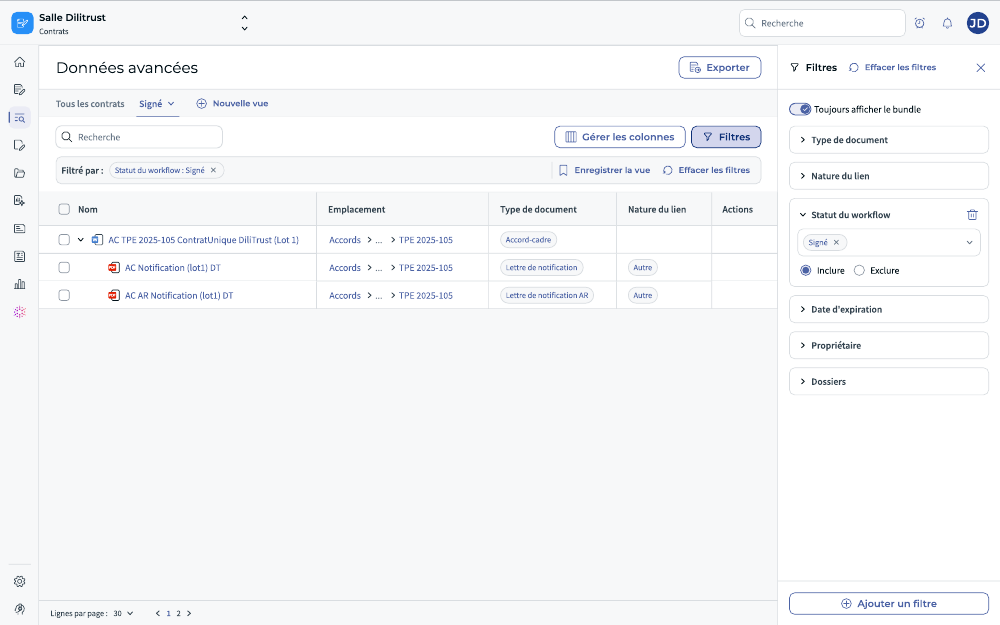
Figure 1 — The Advanced Data screen: the main results grid with the search area, the « Advanced data » sidebar entry, and the « Filters », « New view » and « Export » controls.
✅ Bundle display in search results
By default, the results grid shows contracts organised as contract bundles: each entry groups a main (parent) document with all its linked documents (amendments, annexes, and other linked documents). A toggle at the top of the grid controls this behaviour.
The « Always show bundle » toggle
| Toggle state | Behaviour |
|---|---|
| ON (default) | All contract bundles that contain at least one document matching the search criteria are displayed, collapsed. Click a bundle to expand it and see its linked documents. Bundles are never expanded by default. |
| OFF | Only documents that directly match the search criteria appear, in a flat alphabetical list. Bundles with no matching documents are excluded entirely. |
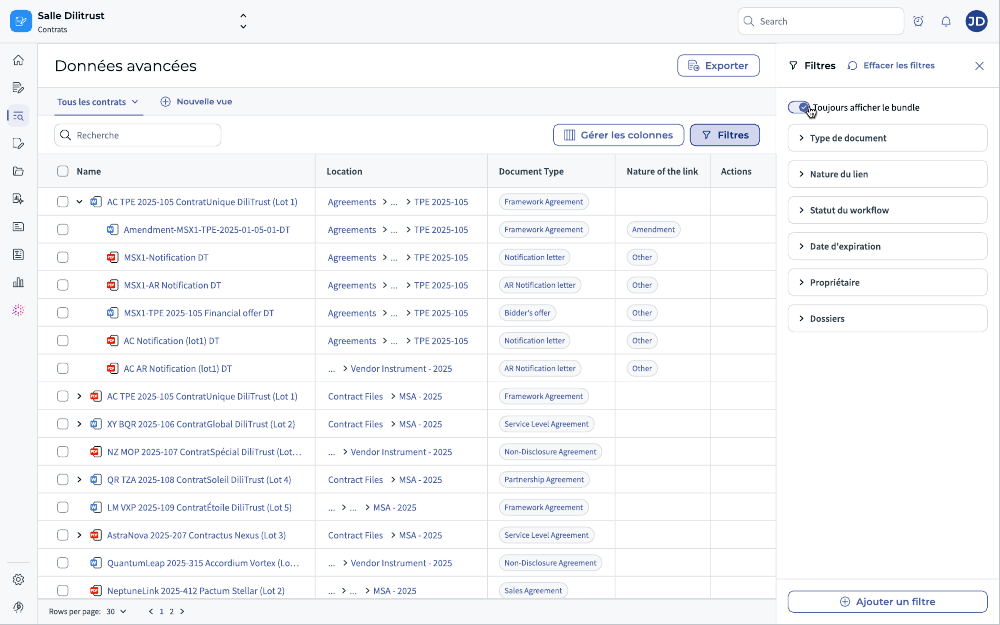
Figure 2 — The « Always show bundle » toggle: bundles are displayed collapsed, each grouping a parent document with its linked documents.
Sorting behaviour
- Toggle ON: results are sorted by parent document. Linked documents within a bundle are not independently sortable — they follow their parent.
- Toggle OFF: documents appear in a flat list sorted alphabetically.
Highlighted rows when a filter is active
When you apply a filter and the bundle toggle is ON, the matching document rows are highlighted in a distinct colour within their bundle. The full bundle remains visible, giving you the contractual context around the match.
- If a child document matches the filter but the parent does not, the collapsed bundle header is not highlighted — but the bundle is still displayed because it contains a matching document.
- When you switch the toggle to OFF with an active filter, the grid shows only the matching documents (flat list, no highlighting needed).
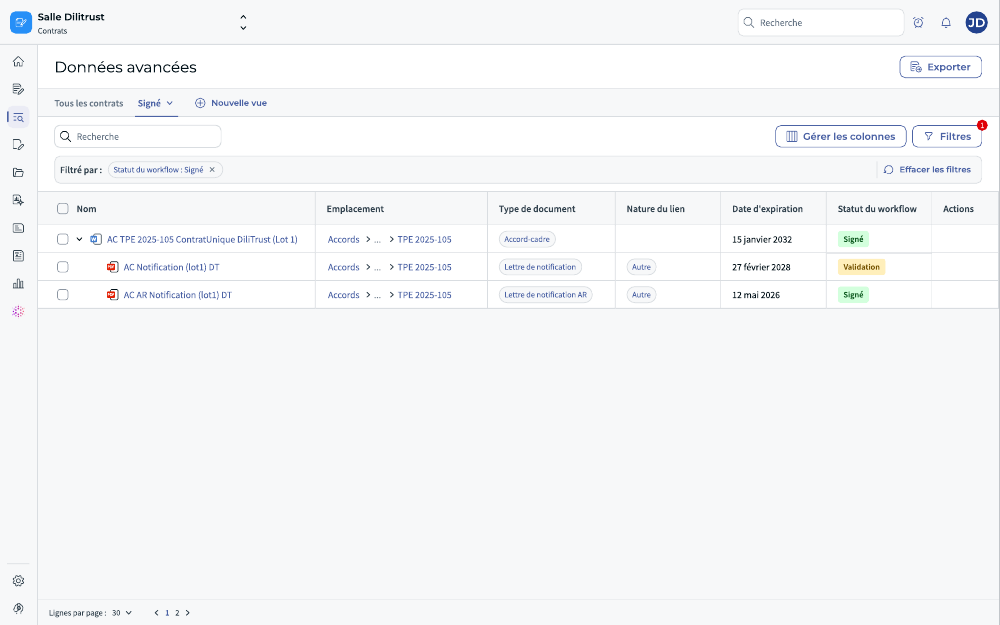
Figure 3 — Filter active with the bundle toggle ON: matching rows are highlighted within their bundle, keeping the surrounding contractual context visible.
How permissions affect bundle display
- If you have no access to a contract or bundle, it is never shown in your results, even if it matches your criteria.
- If you have partial access (you can see some documents in a bundle but not others), the bundle structure is displayed with placeholders where you do not have permission, so the hierarchy remains readable.
✅ Contract relationship display
The results grid includes a Nature of the link column that shows the type of relationship between each linked document and its parent in the bundle (for example: Amendment, Annex, Other).
This column gives you an at-a-glance understanding of the contractual hierarchy, without opening each document individually.
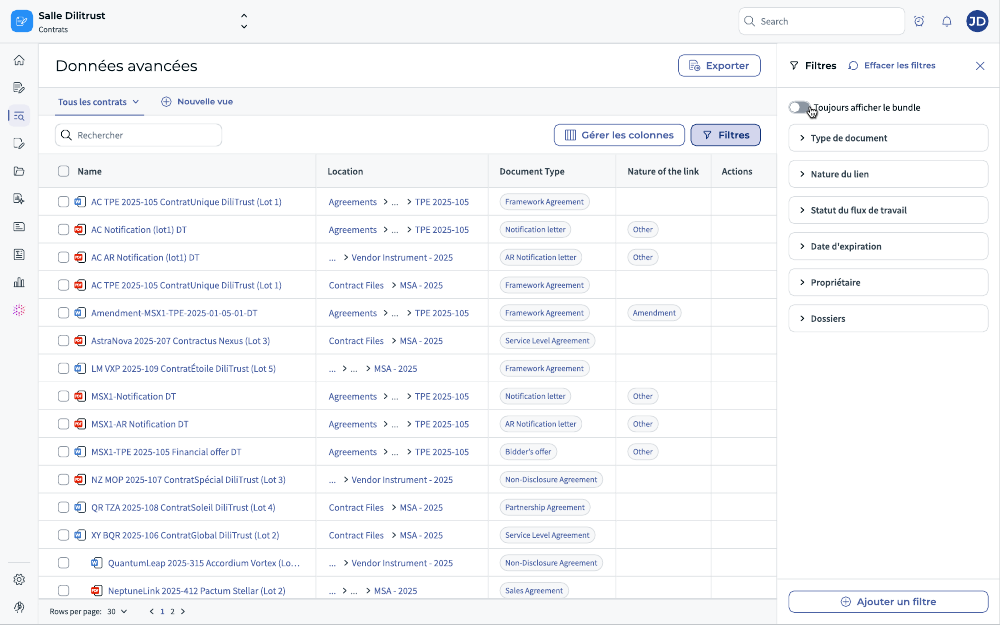
Figure 4 — The « Nature of the link » column showing the relationship type (Amendment, Annex, Other…) for each linked document within a bundle.
✅ Filter panel
The filter panel lets you narrow your contract search by applying one or more attribute-based filters. Filters update the results grid in real time as you configure them.
How to open the filter panel
- On the Advanced Data screen, click the Filters button in the toolbar.
- The filter panel slides open on the right side of the screen, pushing the results grid to the left.
- To close the panel, click Filters again or click outside the panel.
Available filter attributes (examples)
- Document type
- Nature of the link
- Workflow status
- Expiration date (with date range condition)
- Owner
- Folders
Click Add a filter to select additional attributes from the full list. Each attribute displays its name and type (attribute or clause).
How to apply a filter
- In the filter panel, select an attribute (for example, Workflow status).
- Choose an operator: Include or Exclude.
- Select or enter the value (for example, Signed).
- The results grid updates immediately.
- Repeat to add more filters. All active filters appear in the sub-header bar.
Switching between filter mode and keyword search
You can switch back to keyword search at any time without losing your current filter configuration. Your filters are preserved when you switch modes.
Clearing filters
Click Clear filters in the toolbar to remove all active filters at once and return to an unfiltered view.
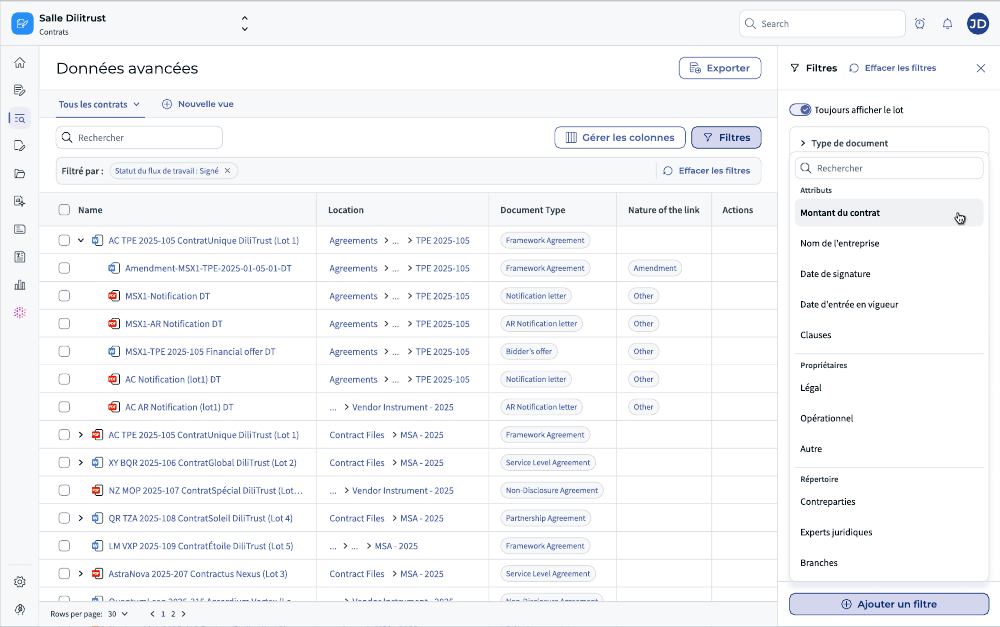
Figure 5 — The filter panel open on the right: attribute-based filters with Include/Exclude operators, applied in real time to the results grid.
✅ Quick actions on row hover
An Actions column is visible at the right edge of the results grid. When you hover over any document row, contextual quick-action buttons appear, letting you act on that document directly from the results list without opening it.
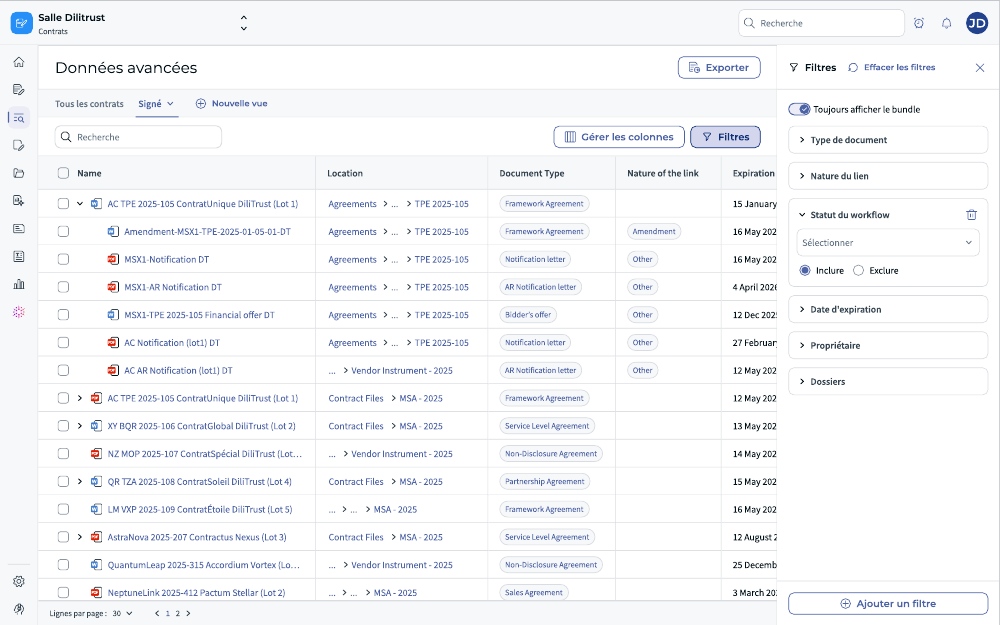
Figure 6 — Quick actions revealed on row hover in the « Actions » column, allowing you to act on a document without opening it.
✅ Column management
You can customise which columns appear in the Advanced Data results grid. Your column configuration is saved as part of any view you create.
How to manage columns
- Click Manage columns in the toolbar.
- A panel opens listing all available columns.
- Toggle columns on or off to show or hide them in the grid.
- Drag columns to reorder them.
- Close the panel — your configuration is applied immediately.
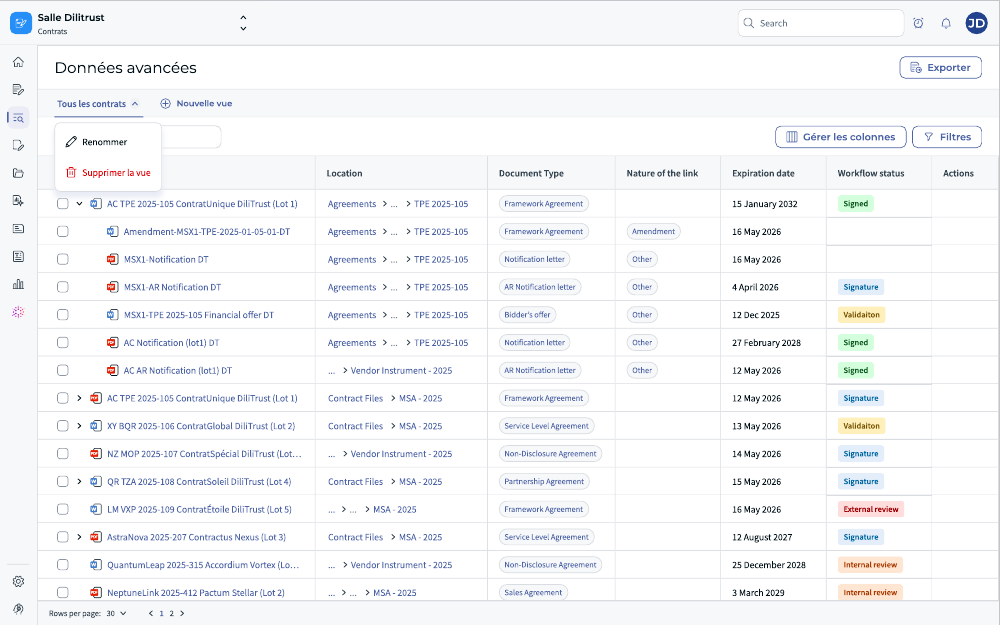
Figure 7 — The column management panel: toggle columns on/off and drag to reorder them. The selection is saved with the active view.
✅ Saved views
A view saves your current search configuration: active filters, column selection, and bundle toggle state. Saved views appear as tabs in the tab bar, so you can switch between them instantly.
By default, the screen opens on the All Contracts view, which shows all documents without any filter applied.
How to create a view
- Apply the filters, columns, and toggle state you want to save.
- Click New view in the tab bar.
- Enter a name for the view in the dialog that appears.
- Click Confirm. The new view appears as a tab.
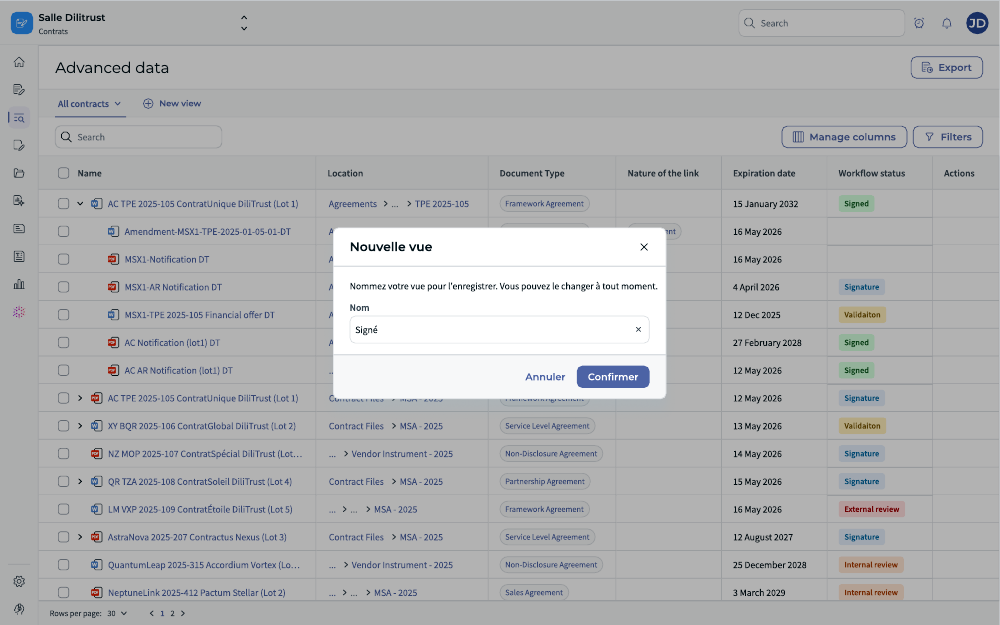
Figure 8 — Creating a view: the naming dialog. Click « Confirm » to save the current filters, columns and toggle state as a new view tab.
How to edit or delete a view
- Click on the view tab you want to modify.
- Use the tab options to:
- Rename: change the view name.
- Save view: overwrite the view with updated filters or columns.
- Delete view: permanently remove the view.
? Who can create and manage views? Any user with access to the Advanced Data screen can create, edit, and delete their own views. Views are personal and cannot be shared with other users in this version.
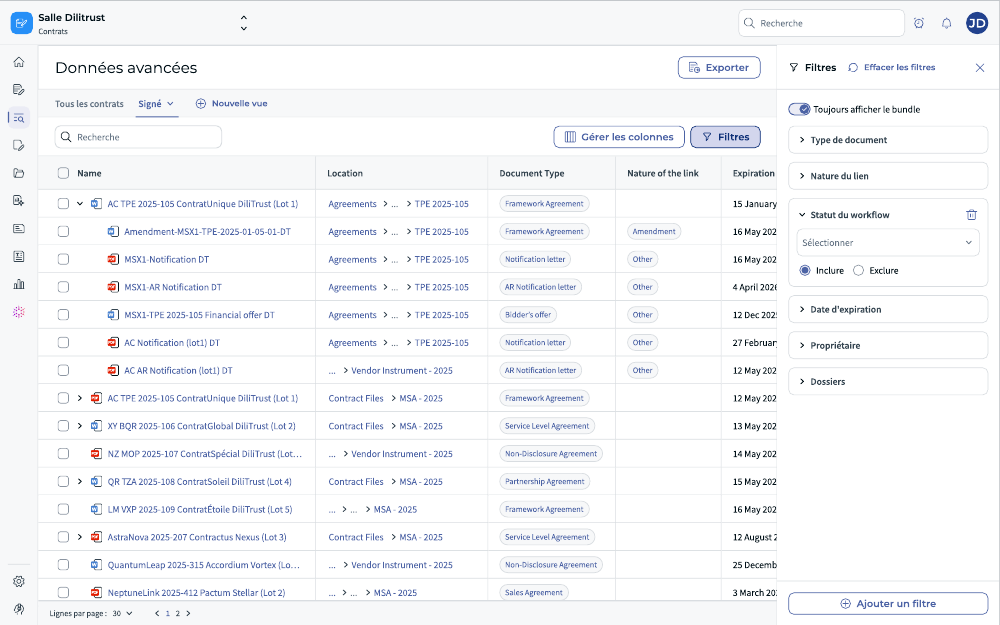
Figure 9 — View management: the tab options to rename, save (overwrite) or delete a saved view.
✅ Exporting search results
You can export contract data from the Advanced Data screen to an Excel file. Exports include the columns currently visible in your results grid.
How to export
- In the results grid, check the checkbox next to each document you want to export.
- The Export button becomes active as soon as at least one document is selected.
- Click Export to start the export process.
- Exports are processed asynchronously. You will receive an email notification when the file is ready to download.
▪ Note on bundle export: Export applies to individually selected documents only. When the Always show bundle toggle is ON, you must select individual document rows to export them. Exporting an entire bundle in one click is not supported in this version.
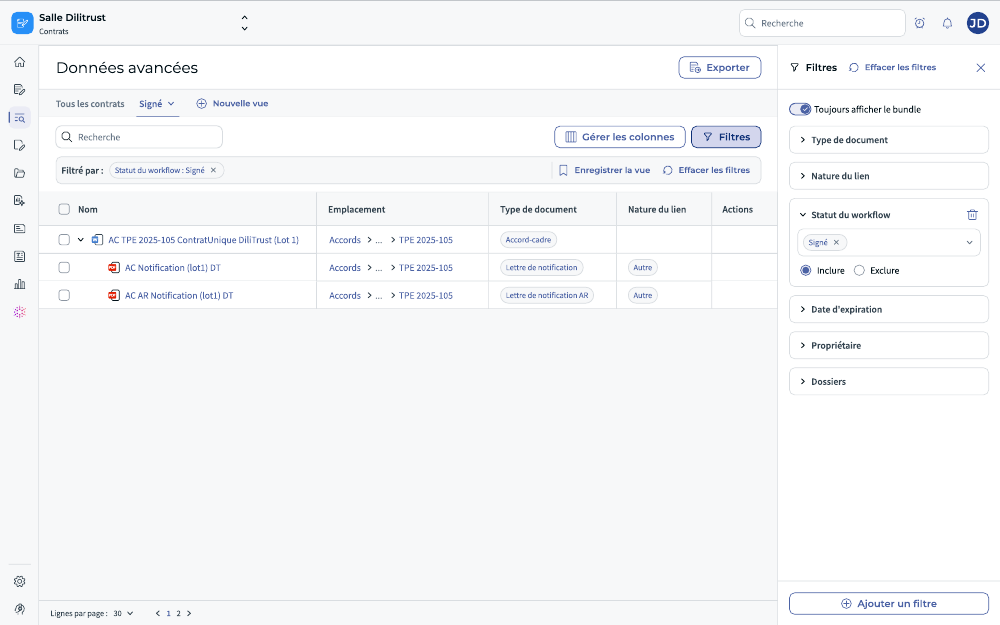
Figure 10 — Exporting search results: once at least one document is selected, the « Export » button activates; an email notification is sent when the file is ready.
⏳ Action toolbar (multi-select) — coming soon
An action toolbar will be added to the Advanced Data screen, enabling users to select multiple documents simultaneously and perform bulk actions, including:
- Share selection
- Delete
This capability is part of Scope 3 (coming soon).
✨ Tips & best practices
- Build shared vocabulary through saved views. Create views for the searches your team runs most often (for example: « Framework agreements expiring this quarter », « Contracts in signature workflow »).
- Add attribute columns before exporting. Columns enabled via Manage columns (e.g. expiration date, owner, contract amount) are included in the exported file, making the output immediately usable for reporting.
- Keep summary sheets complete. Advanced Data searches on attributes stored in summary sheets. The more complete your summary sheets, the more relevant and reliable your search results.
- Use the bundle toggle purposefully. Toggle ON for a full contractual overview (you see the entire document family). Toggle OFF when you only want the specific documents that match your criteria.
- Save the toggle state with your view. The « Always show bundle » toggle state is included when you save a view — your view always opens in the same toggle configuration.
▪ Known limitations & constraints
- Export in bundle view: Export applies to individually selected documents only. Exporting an entire bundle with one click is not supported in this version.
- Share view: The ability to share a saved view with other users is not included in the current scope of Advanced Data.
- Sorting with bundle toggle ON: When the bundle toggle is enabled, linked documents within a bundle are not independently sortable — they follow the order of their parent document.
- Bundle opens collapsed: When a search or filter returns a document that belongs to a bundle, the bundle is always displayed collapsed. You must manually expand it to see all linked documents. (This behaviour has been flagged as a potential improvement for a future iteration.)
- Action toolbar (multi-select): Bulk actions (Share selection, Delete) are not yet available. They are part of Scope 3 (coming soon).
❓ Frequently asked questions
What is the difference between Advanced Data and the standard Contracts list?
The standard Contracts list shows documents within a specific folder. Advanced Data is a cross-portfolio search tool: it searches your entire contract database, displays bundles, supports attribute-based filters, saved views and export — making it the right tool for any reporting or analysis use case that spans multiple folders or contract families.
What does « Advanced Data » replace?
Advanced Data is an evolution of the former Advanced Search screen. The rename reflects its expanded purpose: it is no longer just a search tool, but a full data exploration and analysis interface for your contract portfolio.
Can I save a view with the bundle toggle in a specific state?
Yes. The « Always show bundle » toggle state is part of the view configuration and is saved when you create or update a view.
Can I filter on attributes from summary sheets?
Yes. The filter panel lists all available attributes, including those from summary sheets. Each attribute shows its type (attribute or clause) so you can quickly identify its source.
I cannot see a contract I know exists — why?
Advanced Data respects your access permissions. If you have no access rights to a contract or bundle, it will never appear in your results — even if it matches your search criteria. Contact your Administrator if you believe you should have access to a specific contract.
Can I share a saved view with a colleague?
Not in this version. Saved views are personal to the user who created them. View sharing is not included in the current scope of Advanced Data.
How many filters can I apply at the same time?
There is no fixed limit on the number of simultaneous filters. You can add as many filter conditions as needed. All active filters are visible in the sub-header bar so you always know what is applied.
Was this article helpful?
That’s Great!
Thank you for your feedback
Sorry! We couldn't be helpful
Thank you for your feedback
Feedback sent
We appreciate your effort and will try to fix the article