Matters – Create a Summary Invoice with AI Autofill (Lini)
Recording an invoice used to mean re-reading the document you received and retyping every value into the form. With AI autofill, you hand the source document to Lini, DiliTrust's AI assistant, and Lini extracts the invoice data and prefills the summary invoice form for you. Your job becomes reviewing and approving instead of transcribing — which means faster billing, fewer typing errors, and a lot less friction when you process invoices in volume.
⭐ What AI autofill does
- Lini reads the invoice document you provide and prefills the summary invoice form automatically.
- All extracted fields are filled at once. You review the complete form and approve it in a single action — there is no field-by-field confirmation to click through.
- Extraction runs in the background, with progress feedback. You are not blocked waiting for a result and can carry on working.
- The document Lini analysed is automatically attached to the invoice, so the source stays with the record.
- You do not have to choose an invoice type up front: there is a single entry point.
✋ Before you start
- You need the standard "create invoice" permission on the matter. AI autofill does not introduce a new permission: it is simply another way to perform an action you can already perform. If you do not hold that permission on a matter, the Lini entry point is not available to you there.
- You need edit rights on the matter you want to create the invoice for. The invoice you create inherits that matter's existing access scope.
- Have your source document ready. You provide one document per extraction, and it cannot be swapped or edited once extraction has started.
- This flow covers summary invoices. Detailed invoices are recorded through their own flow.
✍ Step-by-step: create a summary invoice with AI autofill
- Open the matter you want to invoice and start the Lini assistant from it.
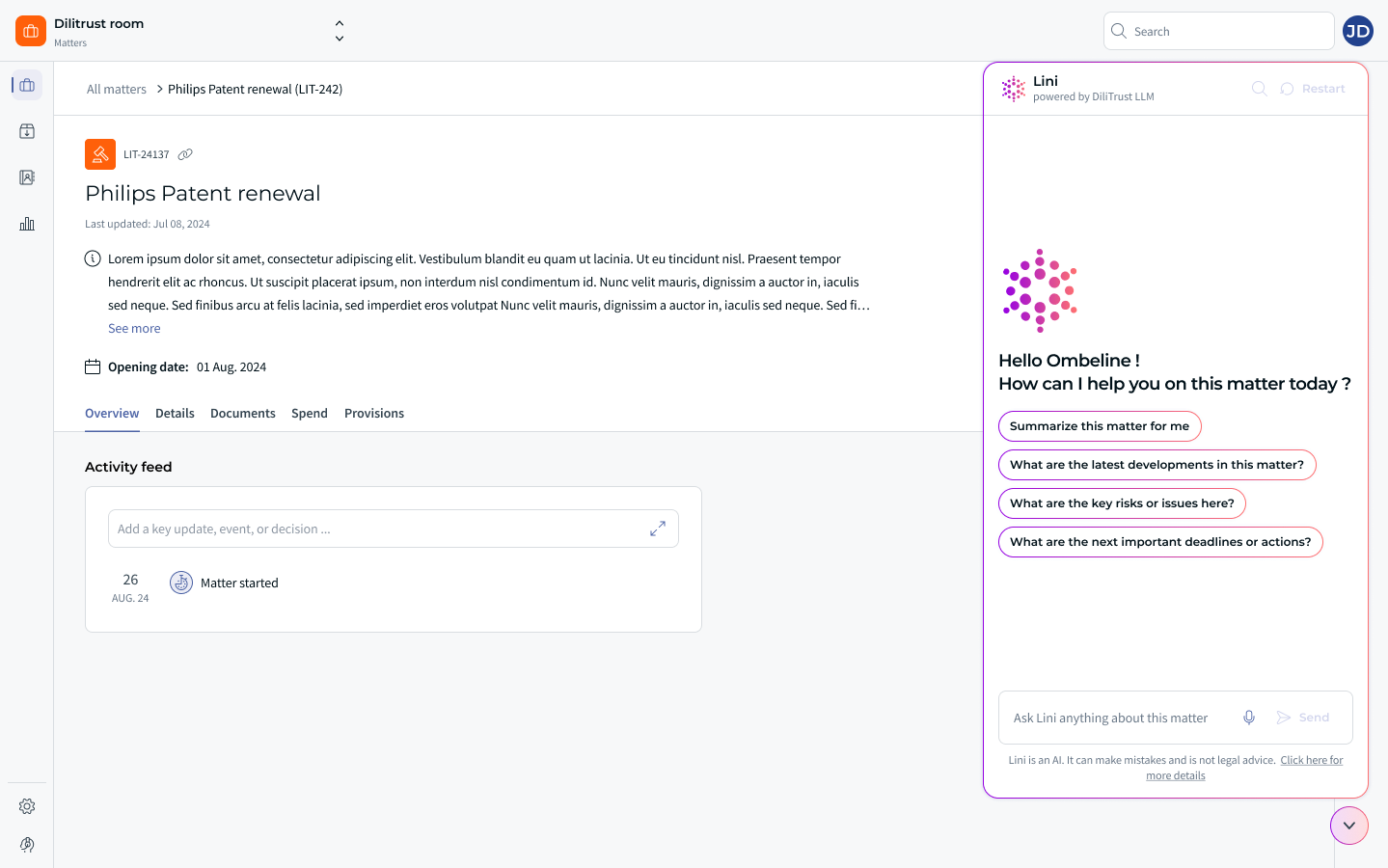
- Provide the invoice document to Lini. One document per extraction.
- Let Lini work. You do not need to select an invoice model beforehand. Extraction starts in the background and you get progress feedback, so you are not blocked waiting for a result.
- Wait for the invoice to reach "To review". While Lini is extracting, the invoice appears with the Processing status; once the data is prefilled, it moves to To review.
- Review the whole prefilled form. Check every value against the document and correct anything that needs correcting. The review is global: you validate the invoice as a whole rather than confirming each field individually.
- Submit the invoice once all required fields pass validation. The source document is attached to the invoice automatically, so you do not need to add it yourself. If required information is still missing, you can use Save as draft at any time and come back to the invoice later.
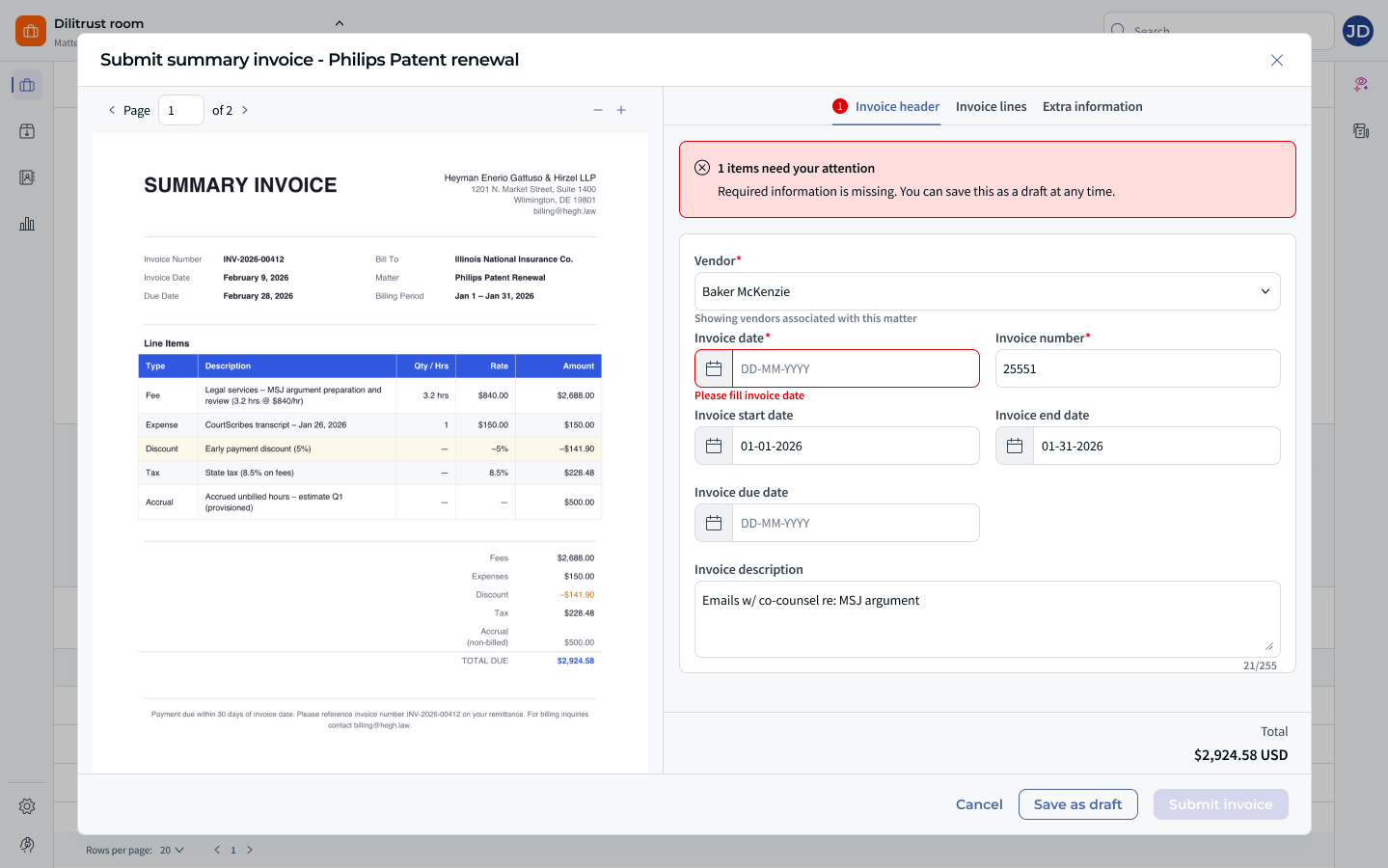
If extraction returns no usable values, you are not left stuck: the invoice still opens in the normal creation flow with empty fields, and you complete it manually.
⏳ Understanding the Processing and To review statuses
AI autofill adds a dedicated lifecycle to the invoice so you can always tell where it stands:
- Processing — Lini is still extracting data from your document. An invoice in this status cannot be finalised yet.
- To review — extraction is finished and the values are prefilled. The invoice is waiting for your review and approval.
✅ How your data is checked before you submit
Autofill speeds up data entry — it does not lower the bar on data quality. Prefilled values go through exactly the same checks as values you type yourself.
- Required fields still apply. The invoice cannot be submitted until all required standard fields pass validation. The required-field set is the same as for manual summary invoice creation.
- Format validation is identical for AI-filled and manually entered values (dates, currency, numeric amounts). AI-filled values are not trusted by default.
- The vendor is matched to your Vendor Management records. The vendor extracted from the document is resolved against the vendor referential and must correspond to an existing vendor record.
- Duplicates are flagged. If an invoice with the same vendor and invoice number already exists on the matter, you get a warning before the invoice is created. It is a warning, not a block.
- Model mismatches are flagged. If you had pre-selected an invoice model and the detected type is different, a warning is displayed — again without hard-blocking you.
✨ Tips & best practices
- Check the vendor exists in Vendor Management first. The extracted vendor has to be matched to an existing vendor record, so keeping your vendor referential up to date avoids a stop in the flow.
- Do not sit and wait. Extraction is a background job with progress feedback: you are not blocked while the invoice is in Processing, and you review it once it reaches To review.
- Review before approving, every time. Because approval is global, the review pass is your single quality gate on the whole invoice.
- Empty result? Keep going. If nothing usable is extracted, complete the form manually in the same flow instead of starting over.
❌ Limitations & known constraints
- Summary invoices only in this version. If a detailed invoice is detected, you are routed to manual creation.
- One document per extraction. Uploading several invoices at once is not available.
- Standard fields only. Custom client fields are not autofilled in this version.
- The source document is locked once extraction starts. To use a different document, restart the flow.
- Nothing is auto-trusted. Prefilled values remain subject to review and to all existing validation rules.
- Unsupported file formats are rejected before extraction, with a clear error rather than a silent failure.
- If Lini is unavailable, the autofill path is not usable and you create the invoice the standard manual way.
❓ FAQ
Do I need a new permission or licence to use AI autofill?
No. If you can already create an invoice on the matter, you can use AI autofill on it. It is an alternative entry path to an existing action, not a new permission scope.
What happens if Lini cannot extract anything from my document?
The invoice still opens in the creation flow, with empty fields, so you can enter everything manually. You will not be left stuck in Processing.
What happens if extraction fails?
The invoice leaves the Processing status, you are informed, and the manual creation path stays available.
What if Lini is temporarily unavailable?
The autofill path fails gracefully, with no data loss, and you fall back to standard manual invoice creation. The entry point tells you that the service is unavailable rather than leaving you waiting.
Can I process several invoices in one go?
Not in this version. Extraction handles a single document at a time.
Do I have to attach the invoice document separately?
No. The document Lini analysed is automatically added as an attachment to the invoice.
Can I replace the document once extraction has started?
No. The source document is immutable for that extraction session. To use another document, restart the flow.
What if my document is a detailed invoice?
Detailed invoice autofill is not part of this version. If a detailed invoice is detected, you are routed to manual creation.
Will I be warned if I am about to create a duplicate?
Yes. If an invoice with the same vendor and invoice number already exists on the matter, you get a warning before creation — it does not block you.
Was this article helpful?
That’s Great!
Thank you for your feedback
Sorry! We couldn't be helpful
Thank you for your feedback
Feedback sent
We appreciate your effort and will try to fix the article