The DiliTrust agent lets you work with DiliTrust from the tools you already use every day: Microsoft 365 Copilot and Microsoft Teams. Ask your questions in plain language and the agent:
- explains how to do things in DiliTrust, based on the DiliTrust Help Center;
- looks up your DiliTrust data for you, such as contracts (CLM) or legal entities (LEM), without you having to open the platform.
This article shows you where to find the agent, how to connect it to your DiliTrust account the first time, and how to ask it questions.
✋ Before you start
- Your organisation has set up and published the DiliTrust agent. This is done once by your administrator, following Setup a Microsoft Copilot Studio agent connected to DiliTrust.
- You have a DiliTrust user account.
- You have access to Microsoft 365 Copilot or Microsoft Teams.
The agent's name and icon are chosen by your organisation. If you are not sure which agent to use, ask your administrator.
⛳ Where to find the agent
Once the agent is installed, you can talk to it in two places:
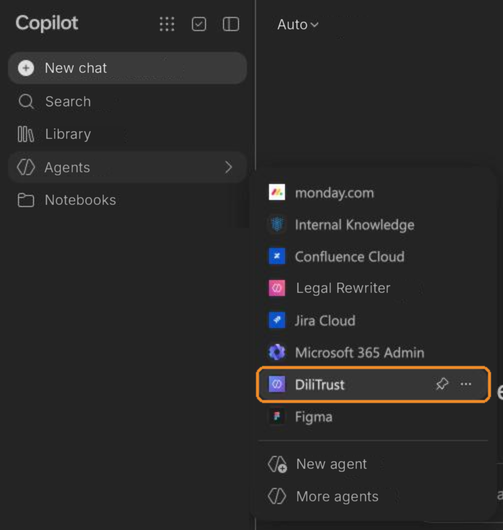
- Microsoft 365 Copilot: open Copilot and select the DiliTrust agent in the Agents section.
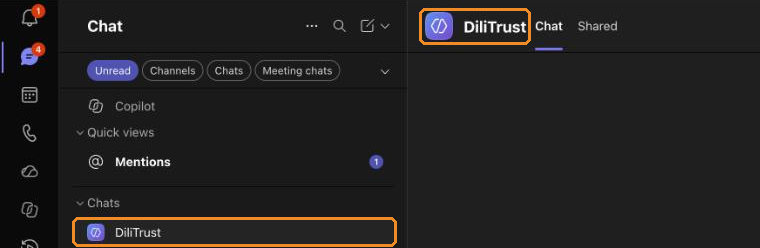
- Microsoft Teams: open your Chats. The DiliTrust agent appears as a one-to-one conversation, like a chat with a colleague.
The agent is not there yet?
A published agent is not added automatically for each user. To add it:
- Open the link shared by your administrator, or search for the agent in the Agent Store once your organisation has approved it.
- Select Add and accept the requested permissions.
The agent then appears in Microsoft 365 Copilot and in your Teams chats.
✍ Connect your DiliTrust account (first use only)
- Ask the agent a question about your DiliTrust data, for example "Which CLM workspace am I connected to?".
- A sign-in card appears in the conversation. Sign in with your own DiliTrust account.
- Accept the requested access.
Your connection is personal: the agent only sees what you can already see in DiliTrust with your own account.
✅ Ask your questions
Write your question as you would to a colleague. You do not need to know any technical term: the agent chooses the right source by itself.
Learn how to do something in DiliTrust
- "How do I connect to DiliTrust?"
- "How do I create a contract template?"
Look up your DiliTrust data
- "Which contracts expire between January and March 2027?"
- "Where does the workflow stand on the contract [contract name]?"
- "Who sits on the board of [company]?"
- "Summarise the articles of association of [company]."
To see everything the agent can do, module by module, with more example questions, read Suite – Use DiliTrust from your AI assistant.
✨ Tips for better answers
- Name the contract, company or person as precisely as possible.
- Give a date when it matters, for example "on 31 December 2025".
- If you have access to several DiliTrust tenants, say which one you are asking about.
- Always review the answer before sharing it externally or using it for a filing, an audit or a regulatory response.
⛔ Limitations
- Read-only: the agent can look up information, but cannot create, edit or delete anything, launch or advance a workflow, approve or sign. Make these changes directly in DiliTrust.
- Your DiliTrust rights apply: the agent only accesses the tenants, contracts, entities and documents you can already access.
- Covered modules: Contract Management (CLM) and Legal Entity Management (LEM). Board Portal and Matter Management are not available through the agent.
- Scanned PDFs without a text layer cannot be read, and the agent does not download files. Open the document in DiliTrust.
The full list of limitations is in Suite – Use DiliTrust from your AI assistant.
❓ FAQ
I cannot find the DiliTrust agent in Copilot or Teams. What should I do?
The agent must be added once per user. Open the link shared by your administrator or search for it in the Agent Store, then select Add. If it is not in the Agent Store, it may not be approved in your organisation's catalog yet: contact your administrator.
Why does the agent ask me to sign in?
The agent needs to connect to your own DiliTrust account to look up your data. Sign in once and accept the requested access.
Can the agent change my data in DiliTrust?
No. Access is read-only. The agent can look up information, but cannot create, edit or delete anything in DiliTrust.
Why can't the agent find a contract or a company?
Check that you can see it in DiliTrust with your own account, and that you are asking about the right tenant. For company or person searches, add details such as the country, city or full name if there are too many matches.
The agent says "This environment is out of credits". What should I do?
This is not linked to your DiliTrust account. Contact your administrator, who manages the agent's Microsoft environment.
Is this the same as Lini?
No. Lini is the AI assistant built into the DiliTrust platform. The DiliTrust agent is used from Microsoft 365 Copilot and Teams. See Suite – Ask Lini: Your AI Assistant in the DiliTrust Suite.
Was this article helpful?
That’s Great!
Thank you for your feedback
Sorry! We couldn't be helpful
Thank you for your feedback
Feedback sent
We appreciate your effort and will try to fix the article