Board Portal lets authorized users open a document directly in its native desktop application (Microsoft Word, Excel or PowerPoint) instead of viewing it only in the browser. You can edit the document in the application you already know and save your changes, and every saved change is recorded in the audit trail.
⭐ Why use it?
- Edit in a familiar tool: work on your documents with the full features of Word, Excel or PowerPoint on your computer.
- Better accessibility: opening a document in its original format lets you use the accessibility features of your desktop application, for example to make documents easier to read if you have a visual impairment.
- Traceability: when you edit and save a document, your changes are tracked in the audit trail.
✅ Before you start
- The native document editing option must be activated for your tenant (your organization's group).
- Your role must include the edit any document permission. If you are not sure whether you have it, ask your Board Portal administrator.
- The corresponding application (Word, Excel or PowerPoint) must be installed on your desktop computer.
✍ How to open and edit a document
- In Board Portal, open the meeting that contains the document.
- Open the document you want to edit.
- Click the button that matches the document type: Open in Word, Open in Excel or Open in PowerPoint. The button is displayed in the document header, next to Sign document.
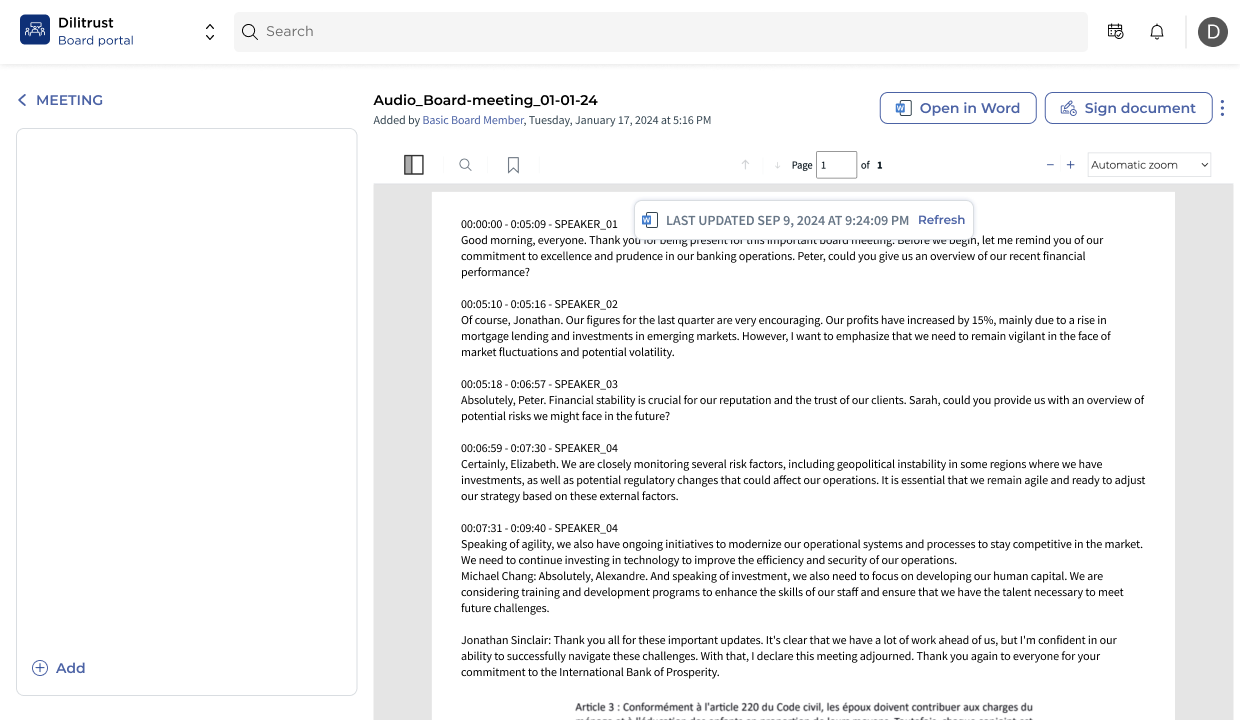
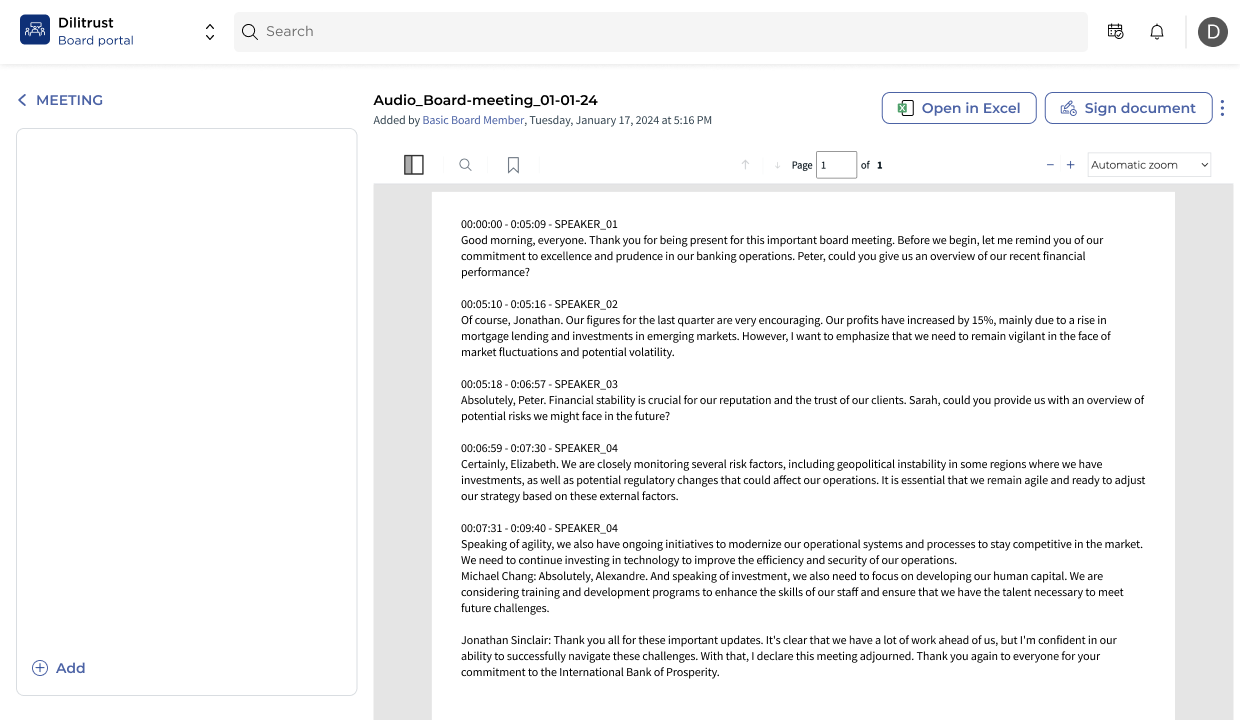
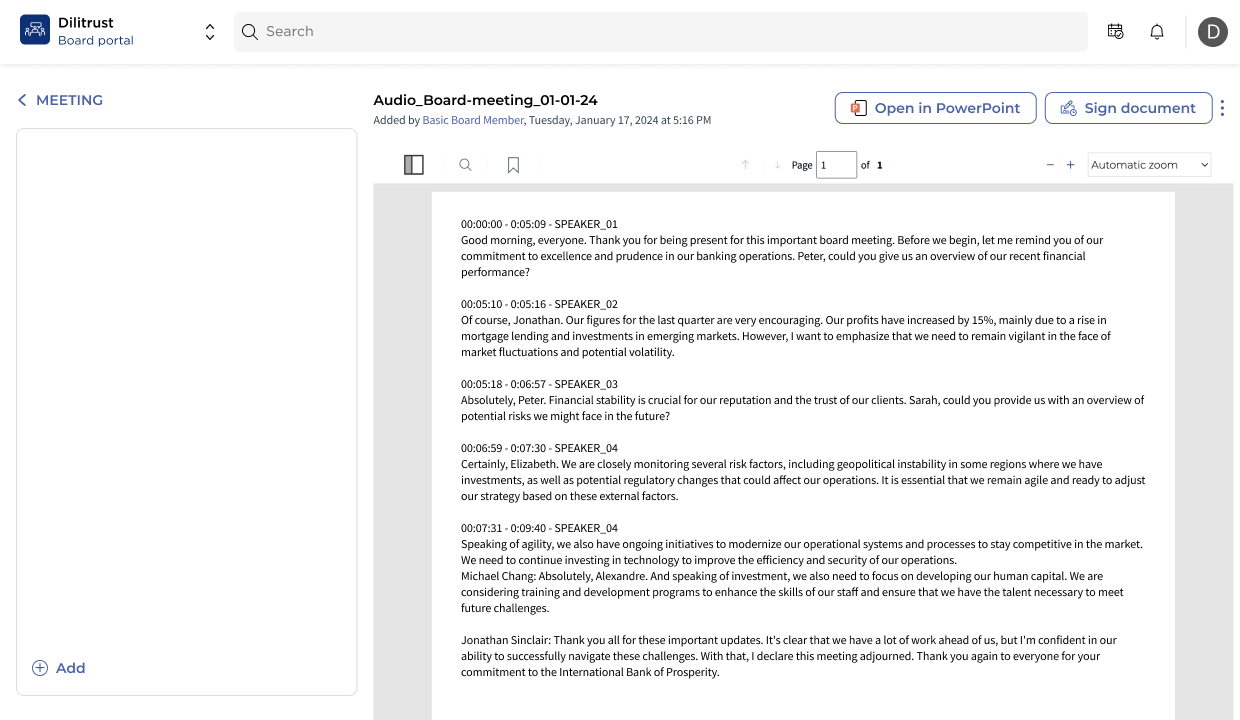
- The document opens in the desktop application on your computer. Make your changes.
- Save your changes in the application. The changes are recorded in the Board Portal audit trail.
✨ Tips
- Use the native application when you need advanced formatting or accessibility tools that are not available in the browser viewer.
- If you do not see the Open in… button, check with your administrator that the option is activated for your tenant and that your role includes the edit any document permission.
⛔ Limitations
- Only users whose role includes the edit any document permission can open documents in a native application.
- The option is available only on tenants where it has been activated.
- Editing happens in your desktop application, so the matching Microsoft Office application must be installed on your computer.
❓ FAQ
Who can open documents in Word, Excel or PowerPoint?
Users whose role includes the edit any document permission, on a tenant where the native document editing option is activated.
Are my changes tracked?
Yes. When you edit a document and save your changes, the changes are recorded in the audit trail.
Why don't I see the Open in Word, Excel or PowerPoint button?
Either the option is not activated for your tenant, or your role does not include the edit any document permission. Contact your Board Portal administrator.
Why would I open a document in its native application rather than in the browser?
The native application gives you its full editing features and its accessibility tools, which can make documents easier to read and work with.
Was this article helpful?
That’s Great!
Thank you for your feedback
Sorry! We couldn't be helpful
Thank you for your feedback
Feedback sent
We appreciate your effort and will try to fix the article