You can now choose to automatically include the creation year in your Matter and Request IDs.
This option helps you better organize, identify, and search your records — especially if you manage a high volume of matters across multiple years.
⭐ What’s New?
A new setting allows Administrators to include the creation year directly in:
- Matter IDs
- Request IDs
Example:
- Before: LIT-234553
- After: LIT-2025-234553
This setting applies automatically to newly created Matters and Requests once activated.
⚙️ How to Activate the Creation Year in IDs
1️⃣ Go to General Settings
- Click on Configuration
- Open General Settings
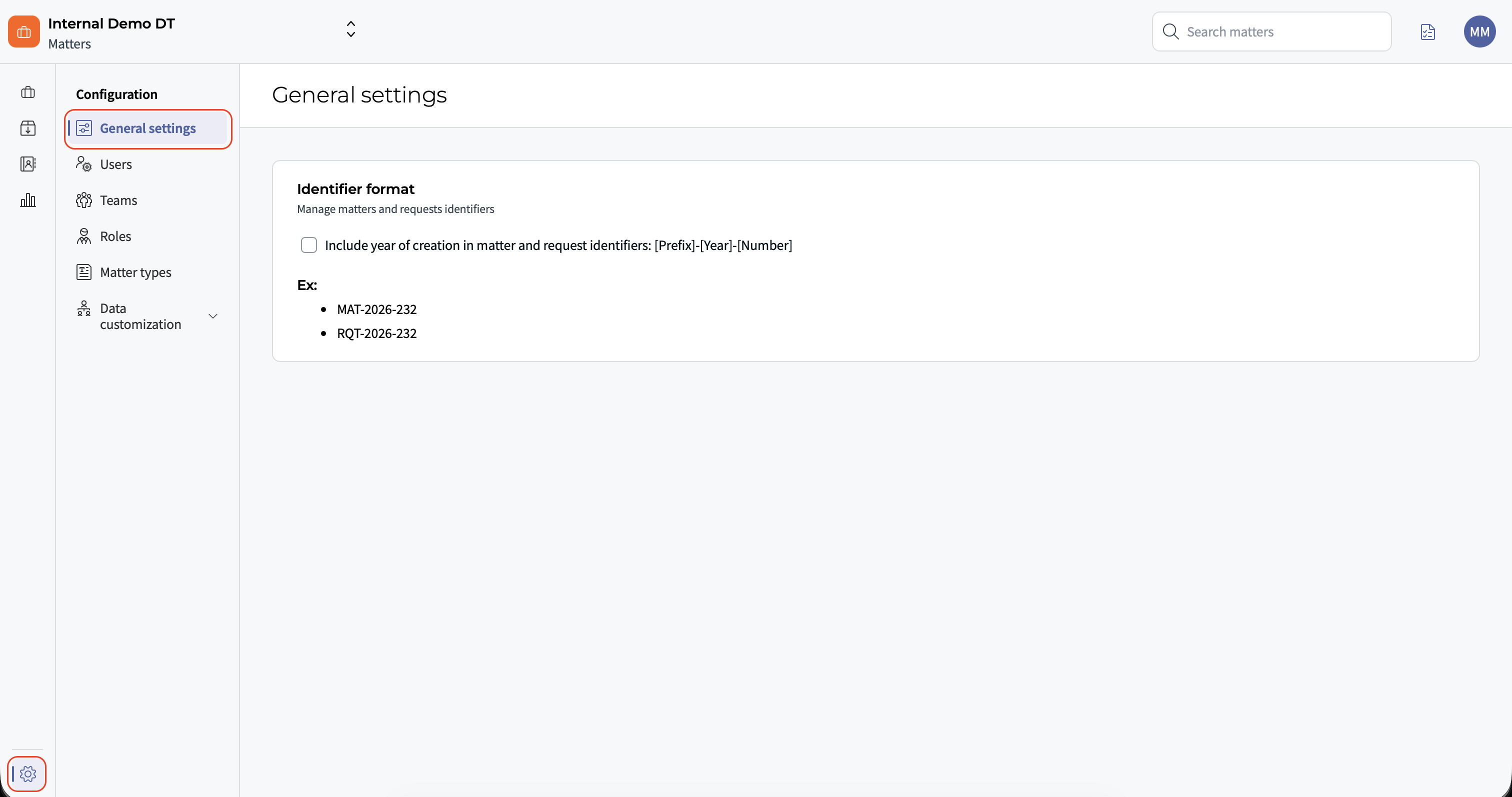
2️⃣ Enable the Option
- Locate the setting to include the creation year in Matter and Request IDs
- Activate the toggle
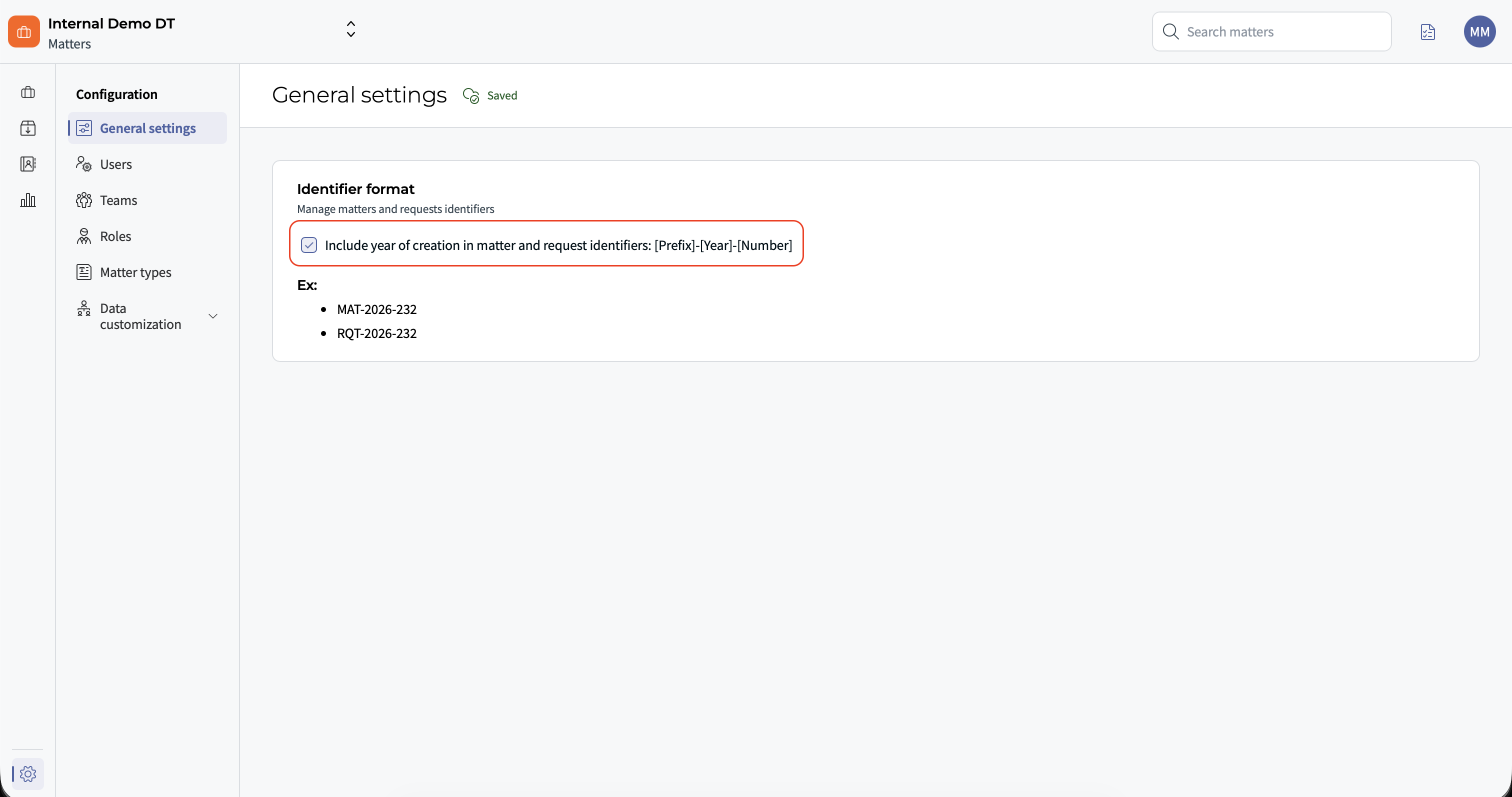
3️⃣ Save Your Changes
- Click Save
✅ The new format will apply to newly created Matters and Requests.
? Good to know: This setting is reversible at any time.
? Where the Updated ID Appears
Once enabled, the updated ID format will appear in:
- Matter list (ID column)
- Exports
- Matter page header
- Top search results
- Email notifications
- Activity feed (including when a Matter is created from a Request)
This ensures consistency across the platform.
? How Search Works with the New Format
The system uses exact search for Matter IDs.
Example:
- If you type: MAT-2025-12
- You will only retrieve: MAT-2025-12
- It will NOT return: MAT-2025-123
✅ This prevents confusion between similar IDs.
? Who Can Access This Setting?
To activate this option, users must:
- Have access to Configuration
- Have permission to access General Settings
Typically, this is available to Administrators.
✨ Benefits
- Clear identification of the year of creation
- Better organization for high-volume legal teams
- Easier archiving and reporting
- Improved clarity across multi-year projects
❗ Important Notes & Limitations
- The setting applies to newly created Matters and Requests.
- Existing IDs are not retroactively changed.
- The feature only affects the ID format — no data is modified.
- The setting can be turned on or off at any time.
❓ Need Help?
If you’re unsure whether activating this setting is right for your organization, we recommend:
- Aligning internally with your naming conventions
- Testing in a staging environment if available
- Contacting our support team for guidance
We’re here to help you keep your Matter management clear, structured, and efficient. ☕
Was this article helpful?
That’s Great!
Thank you for your feedback
Sorry! We couldn't be helpful
Thank you for your feedback
Feedback sent
We appreciate your effort and will try to fix the article