DiliTrust CLM allows you to customize the visual experience displayed to your signatories when they receive and sign documents. Instead of the signing provider's default interface, your signatories see your company or group's identity throughout the entire process.
Prerequisites:
- You must have Administrator rights on DiliTrust CLM
- A signing provider must already be configured on your instance
- The signing identity must first be created directly in your signing provider
What can be customized?
Depending on your signing provider, you can customize for instance:
- The logo displayed in the signing interface and emails
- The colors (background, buttons, text)
- The sender name displayed in signing notifications
- The email design sent to signatories (header, footer, content)
The exact customization options vary by signing provider. Refer to your provider's documentation for the full list of available settings.
Step 1 — Create the signing identity in your signing provider
Signing identities are configured directly in your signing provider's platform. Once created there, they automatically appear in the corresponding dropdown in DiliTrust — no manual import needed.
The feature name and terminology differ per provider:
| Signing provider | Feature name in the provider | Field name in DiliTrust | Documentation |
|---|---|---|---|
| DocuSign | Brands | Brand | DocuSign — Manage Brands |
| Yousign | Custom Experiences | Custom Experience | Yousign — Custom Experiences |
| Adobe Sign | Groups | Group | Adobe Sign — Groups |
| Universign | Issuing Entities | Issuing Entity | Universign — Manage Entities |
| SignatureIT | Brandings | Branding | SignatureIT — Brandings |
| Dropbox Sign | Clients | Client | Documentation not available |
| Box Sign | Signature Templates | Signature Template | Box Sign — Templates |
| Connective Sign | — | — | Not supported |
Step 2 — Associate a signing identity with a user in DiliTrust
Once the signing identity is created in your provider, it is automatically available in DiliTrust. The dropdown field name will match your provider's terminology (e.g. Brand for DocuSign, Custom Experience for Yousign, etc.).
You can assign it to a user:
- At user creation: select the signing identity in the corresponding dropdown of the "Add user" form
- On an existing user: double-click the user, update the field, and click Modify
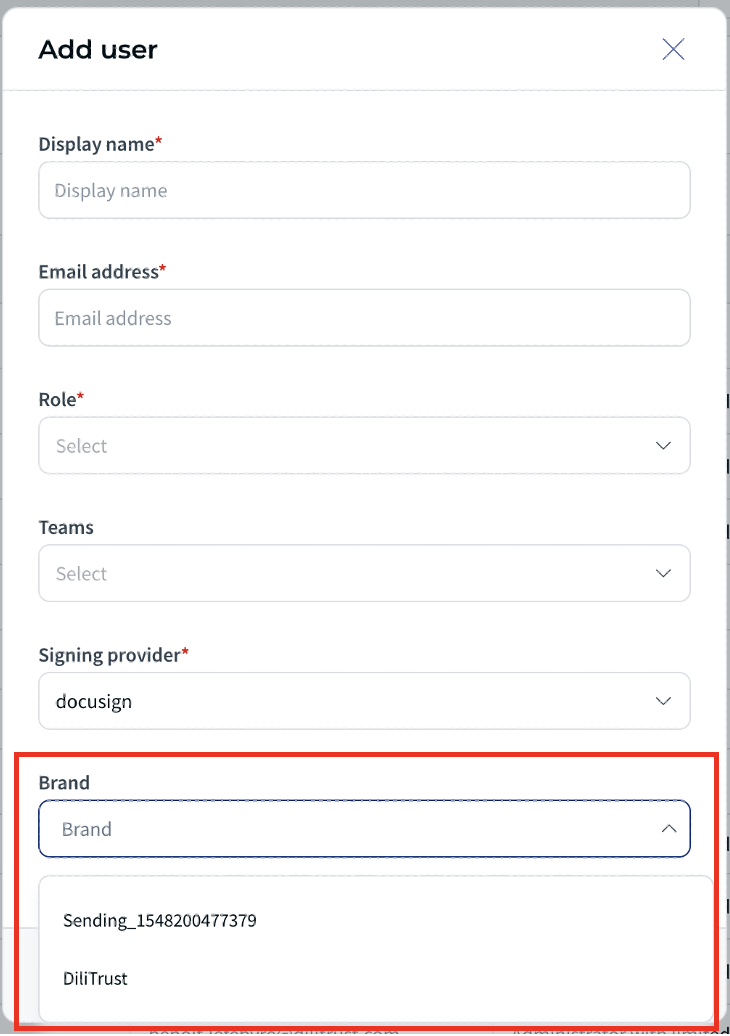
The dropdown is empty? This means no signing identity has been configured yet in your signing provider. Go back to Step 1 and create one directly in your provider's platform first.
The signing identity is applied at the user level: it is the user who triggers the signing request whose identity determines the signing experience displayed to the signatories. Make sure each user who sends signing requests has the appropriate signing identity assigned to their account.
To learn more about user creation, see the dedicated article.
Important notes
- More than one signing provider can be active on a DiliTrust instance.
- If no signing identity is assigned to a user, signing requests will use the signing provider's default interface.
- If a signing identity becomes invalid/unavailable (usually because of a change in the provider account), then the signing requests will use the signing provider's default interface.
Was this article helpful?
That’s Great!
Thank you for your feedback
Sorry! We couldn't be helpful
Thank you for your feedback
Feedback sent
We appreciate your effort and will try to fix the article