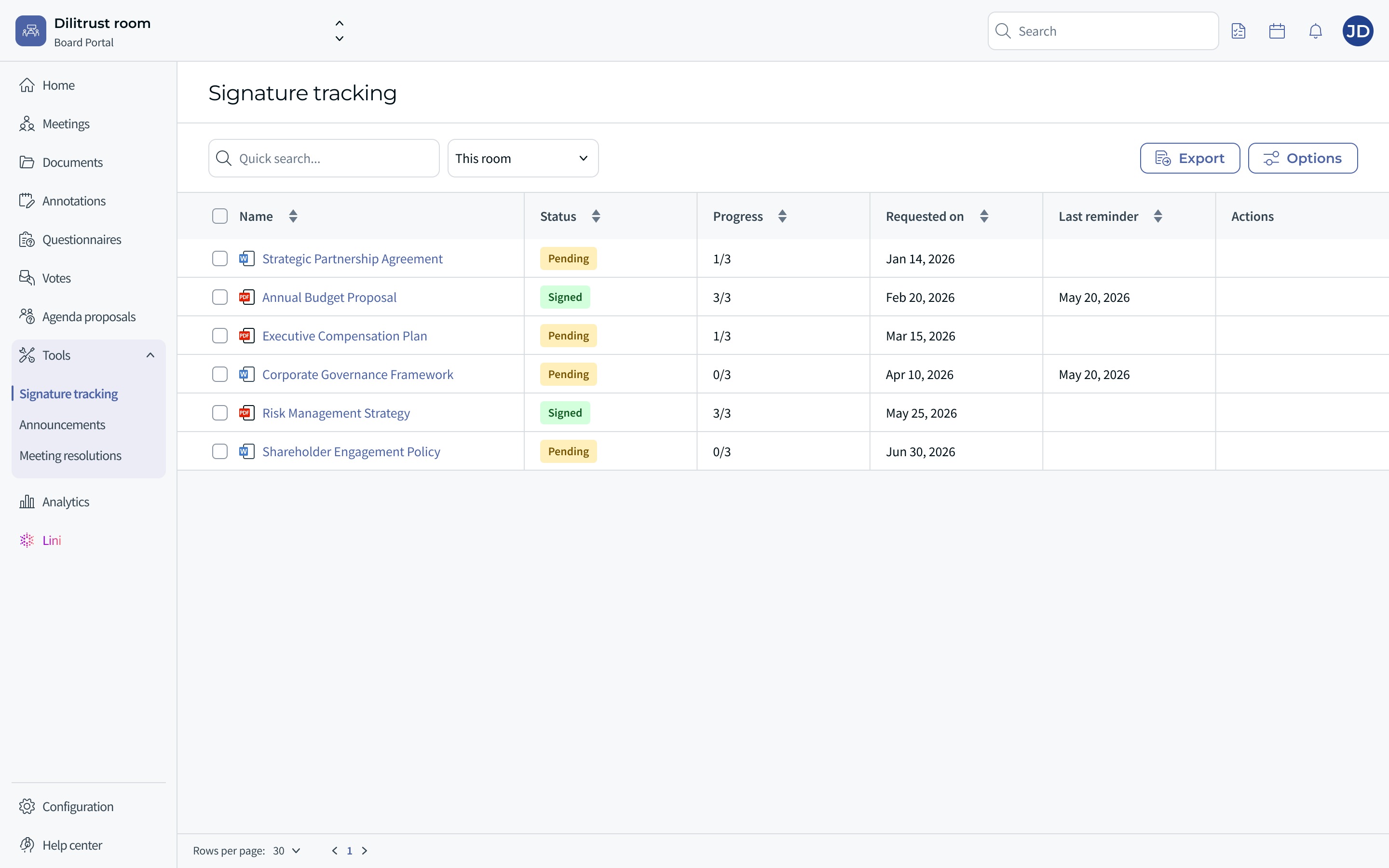
The Signature tracking screen shows the documents waiting for a signature and where each one stands. If you belong to several rooms, you can see all of them in one list. A room is a Board Portal space for one board or committee.
✋ Who can do what
- Administrators follow every signature request in their room, and can remind signatories who have not signed yet.
- Board members see only the documents they must sign themselves, the ones still Pending and the ones already Signed, and open them to sign.
This feature never gives you access to new documents.
✅ Admins and board members: see the documents to sign
Administrators and board members follow the same steps. Only the content of the list changes.
- Open your room.
- In the navigation menu, click Signature tracking.
- The list of documents appears. For each document, you see its Name, its Status (Pending or Signed), its Progress, the date it was requested (Requested on), the date of the Last reminder and the available Actions.
- Administrators see every signature request of the room.
- Board members see only their own requests. Two board members of the same room can therefore see different lists.
✌ Admins and board members: see the signatures of all your rooms at once
This option is useful if you belong to more than one room. The steps are the same for administrators and board members.
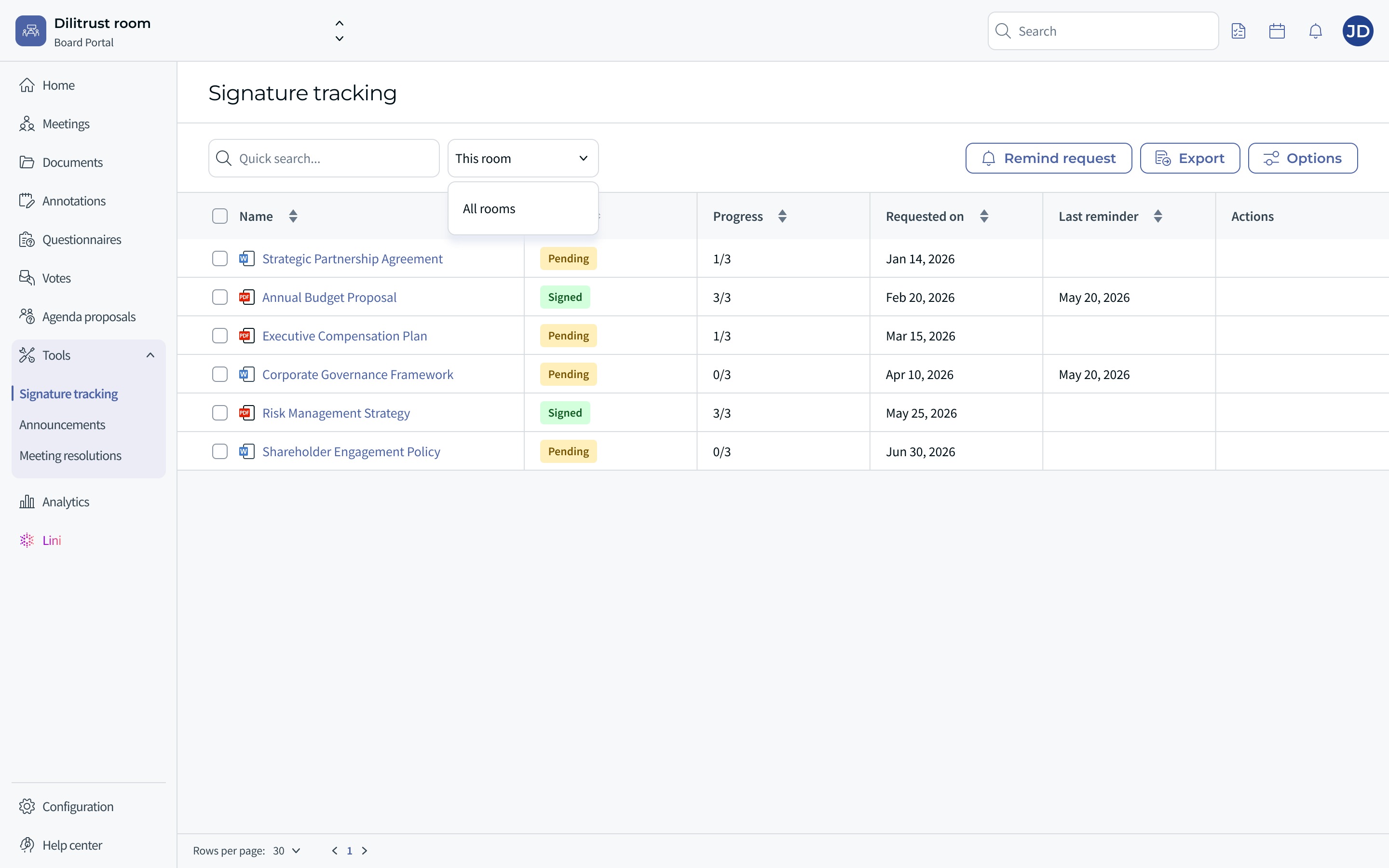
- At the top of the Signature tracking screen, find the selector. By default, it is set to This room.
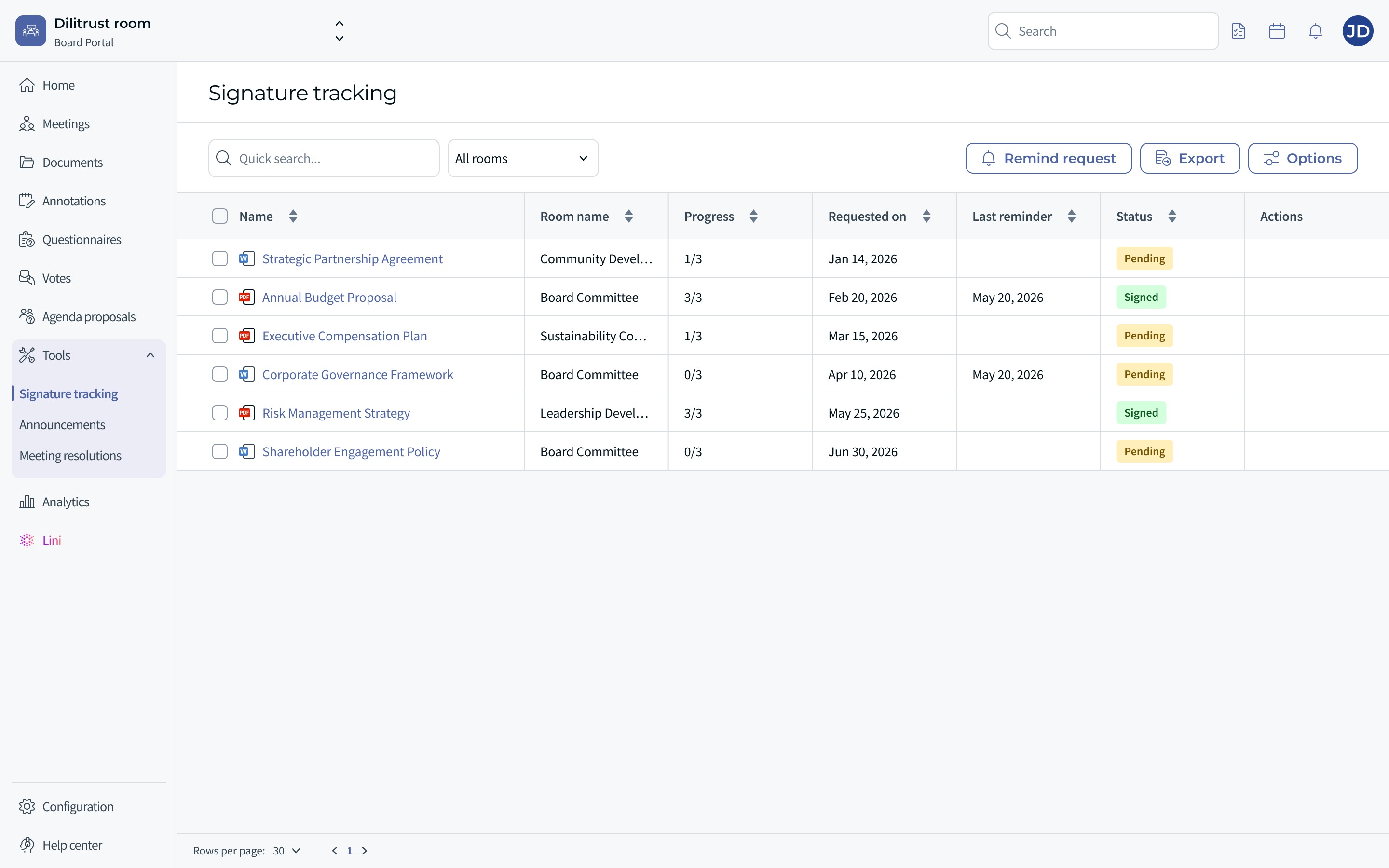
- Choose All rooms. The table now shows the signature requests of every room you have access to.
- Look at the new Room name column. It tells you which room each document comes from. Click the column title to sort the list by room.
- To go back to a single room, choose This room again.
Your rights still apply room by room. If you are an administrator in one room and a board member in another, you see every request of the first room, and only your own requests in the second.
Some columns, such as Created by, only make sense inside one room. They are hidden in All rooms and come back when you return to This room. You can show or hide the other columns from the Options panel.
✍ Board members: sign a document
- In the list, find a document with the status Pending.
- Click the name of the document. If you are in All rooms, the document opens in a new browser tab, inside the room it belongs to.
- Sign the document.
- Close the tab when you are done. The Signature tracking screen is still open in your first tab.
Do not use your browser's Back button from the document: it takes you to the document's meeting or documentation folder, not back to Signature tracking.
⏰ Administrators: follow up on signatures
- In the list, check the Progress and Last reminder columns to spot the documents that are not fully signed.
- To remind the signatories, use the Remind request action in the Actions column.
- To see only your own documents, use the filters of the Options panel.
⛔ Limitations
- You cannot sign directly from the Signature tracking screen. Open the document to sign it.
- Board members cannot send reminders or create signature requests.
- The list does not update in real time. If you were just added to or removed from a request, refresh the page to see the change.
❓ FAQ
Why can't I see the signature request of a document I can open?
As a board member, you only see the requests where you are a signatory. Being able to open a document does not mean you see its signature request.
I was just added as a signatory, but the document is not in my list. What should I do?
Refresh the page, or leave the screen and come back. The list does not update automatically.
Was this article helpful?
That’s Great!
Thank you for your feedback
Sorry! We couldn't be helpful
Thank you for your feedback
Feedback sent
We appreciate your effort and will try to fix the article