This guide helps you install and configure the DiliTrust integration for Salesforce so you can generate, manage, and synchronize contracts directly from Salesforce. It’s written for non-technical users and Salesforce administrators who want a smooth, reliable setup ✅
☕ What Is This Feature?
The Hyperlex Salesforce Integration allows you to:
- Generate contracts directly from Salesforce records (Opportunities, Contracts, etc.)
- Send data automatically to DiliTrust for document creation
- Receive contract status updates back into Salesforce
- Keep your CRM and CLM perfectly in sync ⚡
Once installed, users can create contracts in just a few clicks—without leaving Salesforce ✨
✋ Before You Start
Make sure you have the following before proceeding:
- Salesforce System Administrator access
- Access to your Salesforce Production or Sandbox environment
- Your DiliTrust account credentials
⚠️ If you are unsure about admin access, contact your Salesforce administrator before continuing.
✈️ Step 1 – Install the DiliTrust Package
Follow these steps to install the Hyperlex package in Salesforce:
- Log in to Salesforce as a System Administrator
- Open the following link in your browser:
- Production: https://login.salesforce.com/packaging/installPackage.apexp?p0=04tKB0000009D25
- Sandbox: https://test.salesforce.com/packaging/installPackage.apexp?p0=04tKB0000009CUy
- If prompted, log in again
- Select Install for All Users
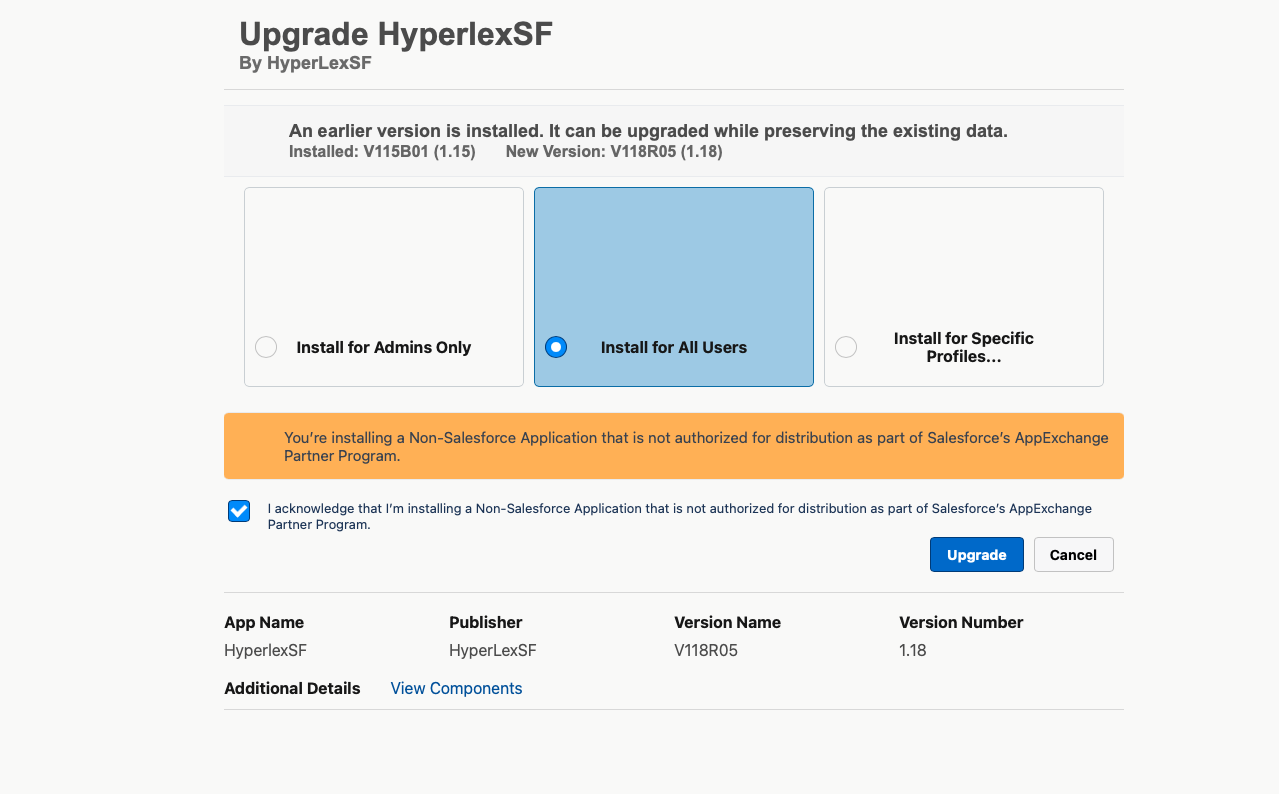
- Approve permissions and confirm installation
⏳ Installation time may vary depending on Salesforce server load. You’ll receive a confirmation email once it’s complete.
✍ Step 2 – Configure Hyperlex Settings
After installation, you need to connect Salesforce to Hyperlex.
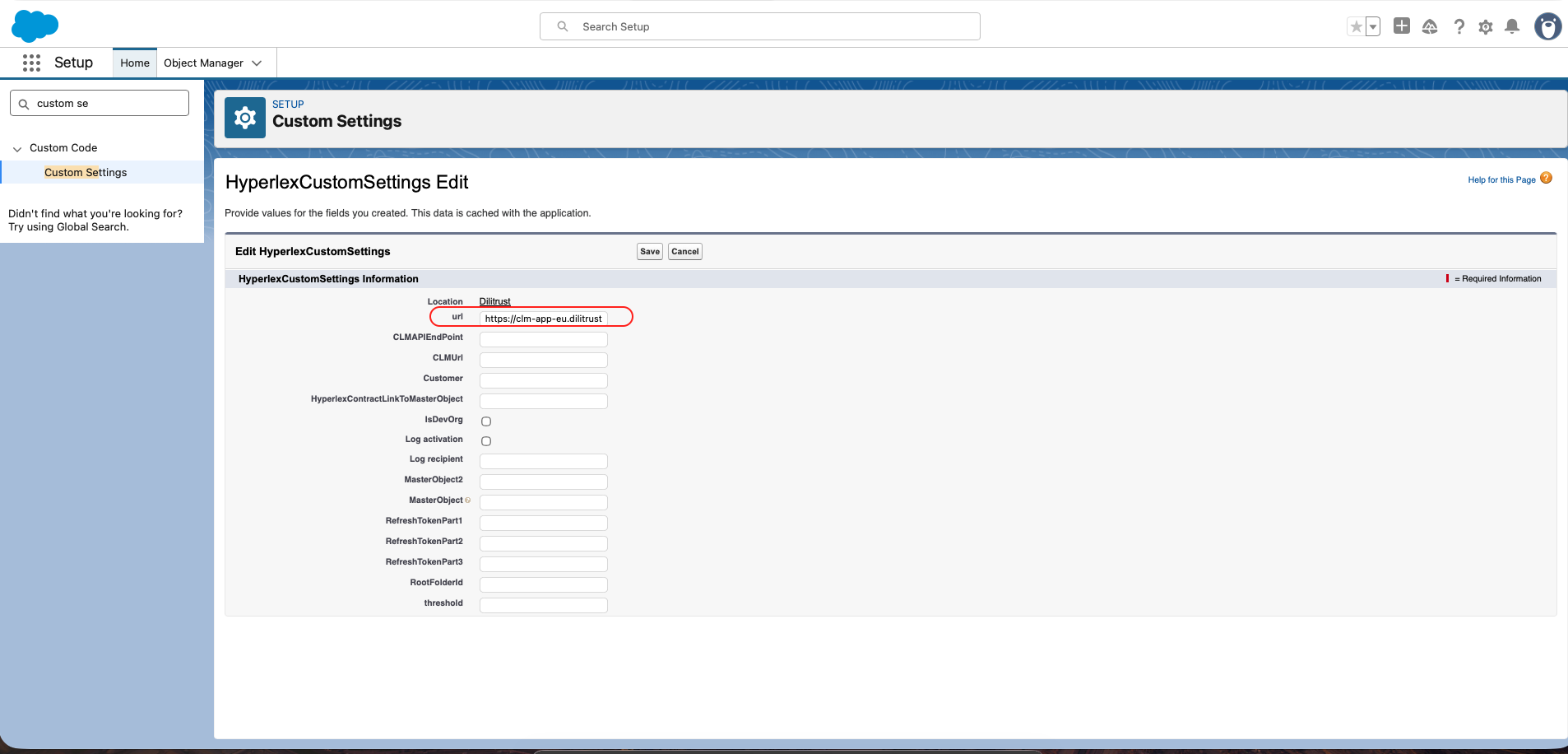
Update Custom Settings
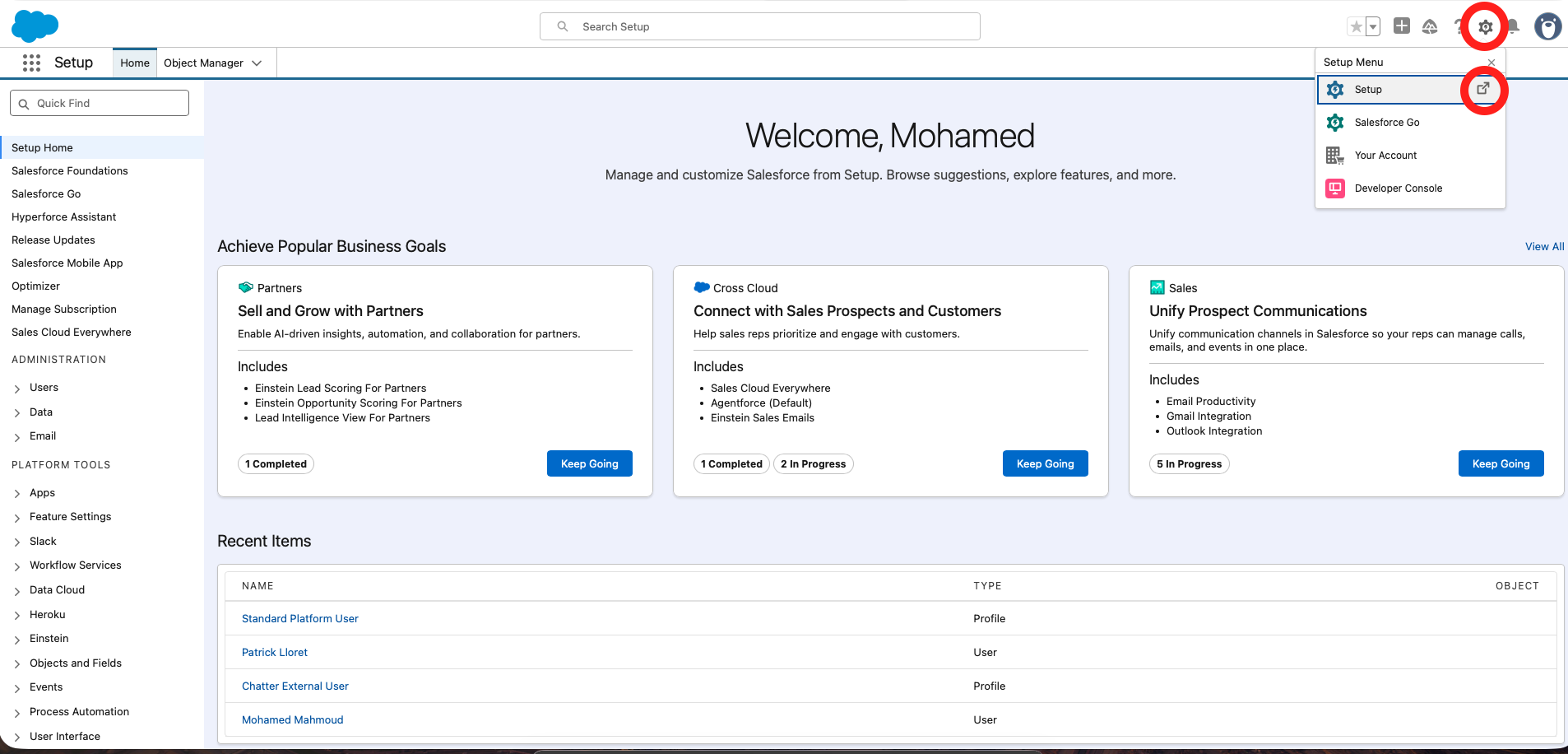
- Go to Setup
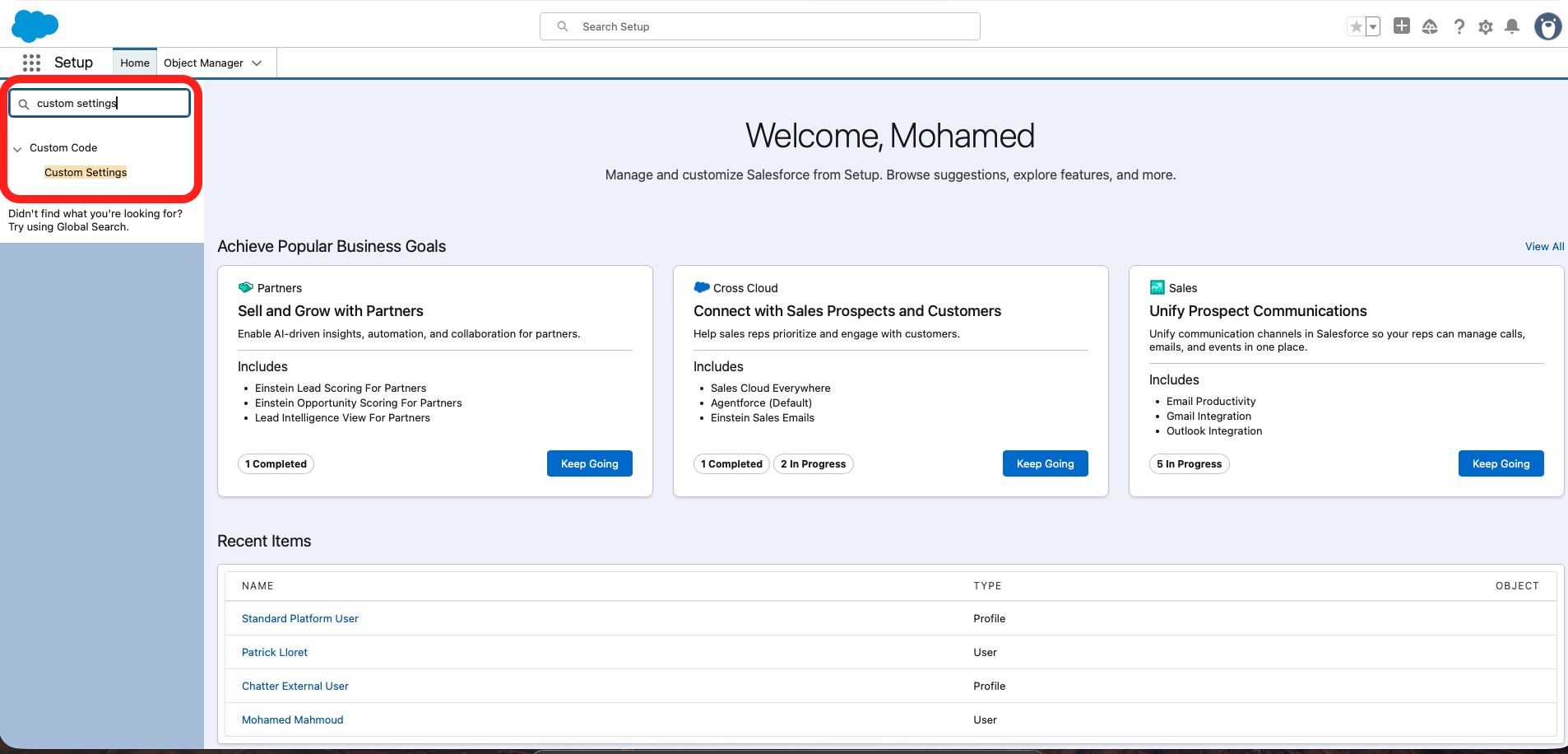
- Navigate to Develop → Custom Settings
- Open HyperlexCustomSettings
- Click Manage → Edit
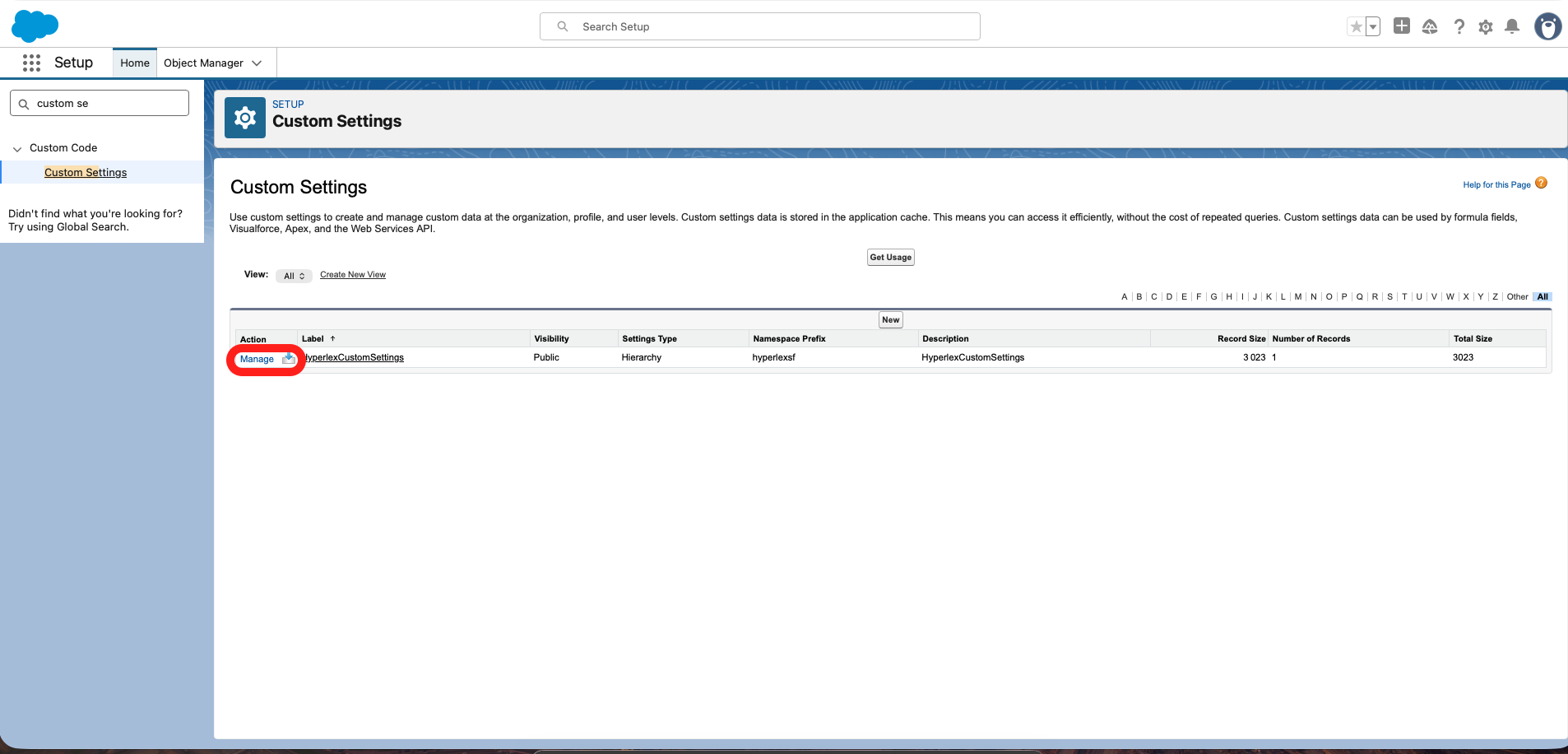
Enter the following URL:
https://clm-app-eu.dilitrust.com/crm/salesforce?payload=
Click Save ✅
✌ Step 3 – Enable Contract Creation Buttons
To allow users to create contracts, action buttons must be added to Salesforce pages.
- Opportunities: already configured automatically ⭐
- Contracts and Addendums: manual setup required
When configuring the button:
- Button label can be customized
- Component must be set to Hyperlexsf:HyperlexContratV2
Once added, users will see a Create Contract button directly on records ✨
☝ Step 4 – Link Contracts and Addendums
To display related DiliTrust contracts in Salesforce:
- Add a Lookup field to link Hyperlex Contracts → Contracts
- Add a Lookup field to link Hyperlex Contracts → Addendums
This ensures full visibility of generated contracts from Salesforce records ☕
⚖️ Step 5 – Configure Contract Templates
DiliTrust templates must be linked to Salesforce objects so users see the right contracts.
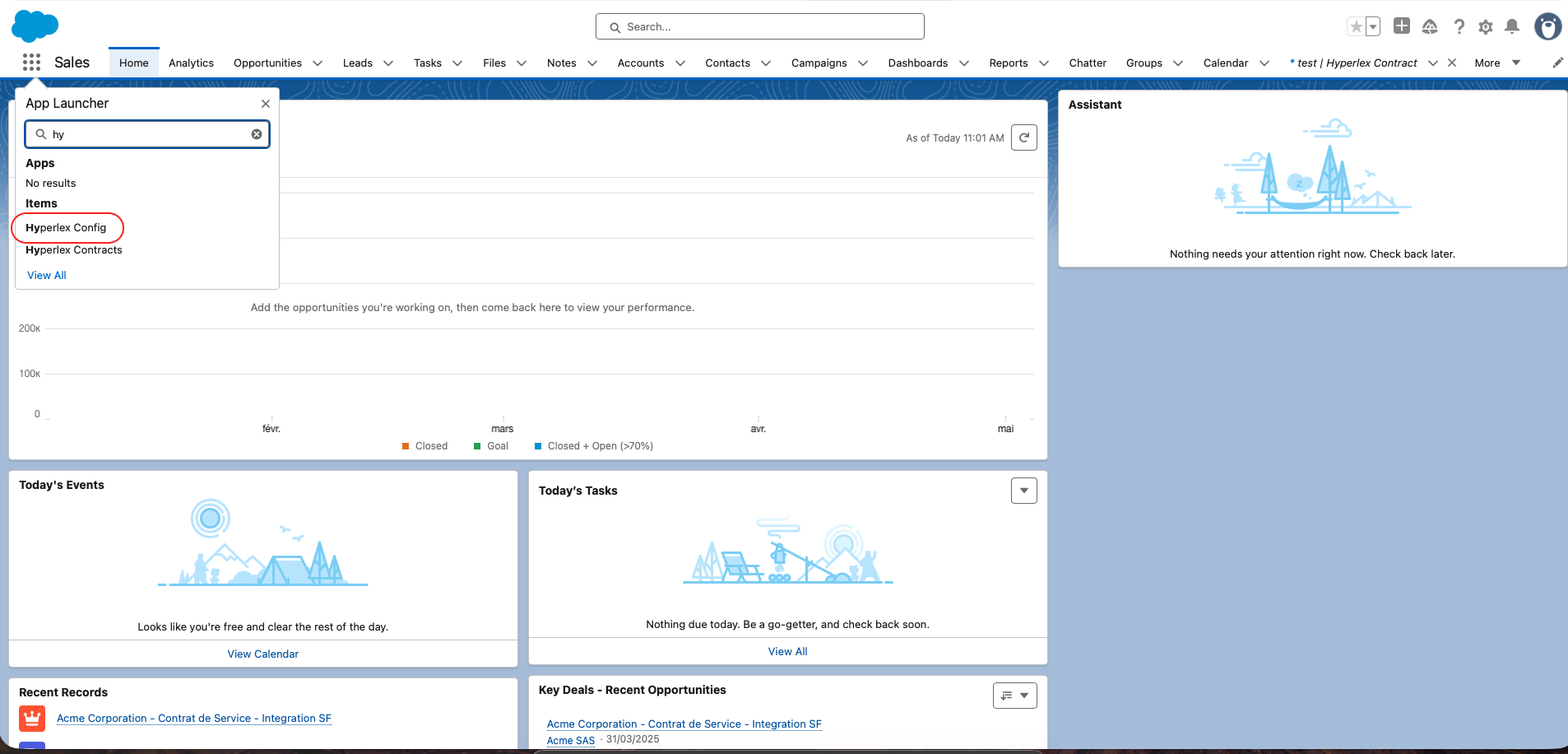
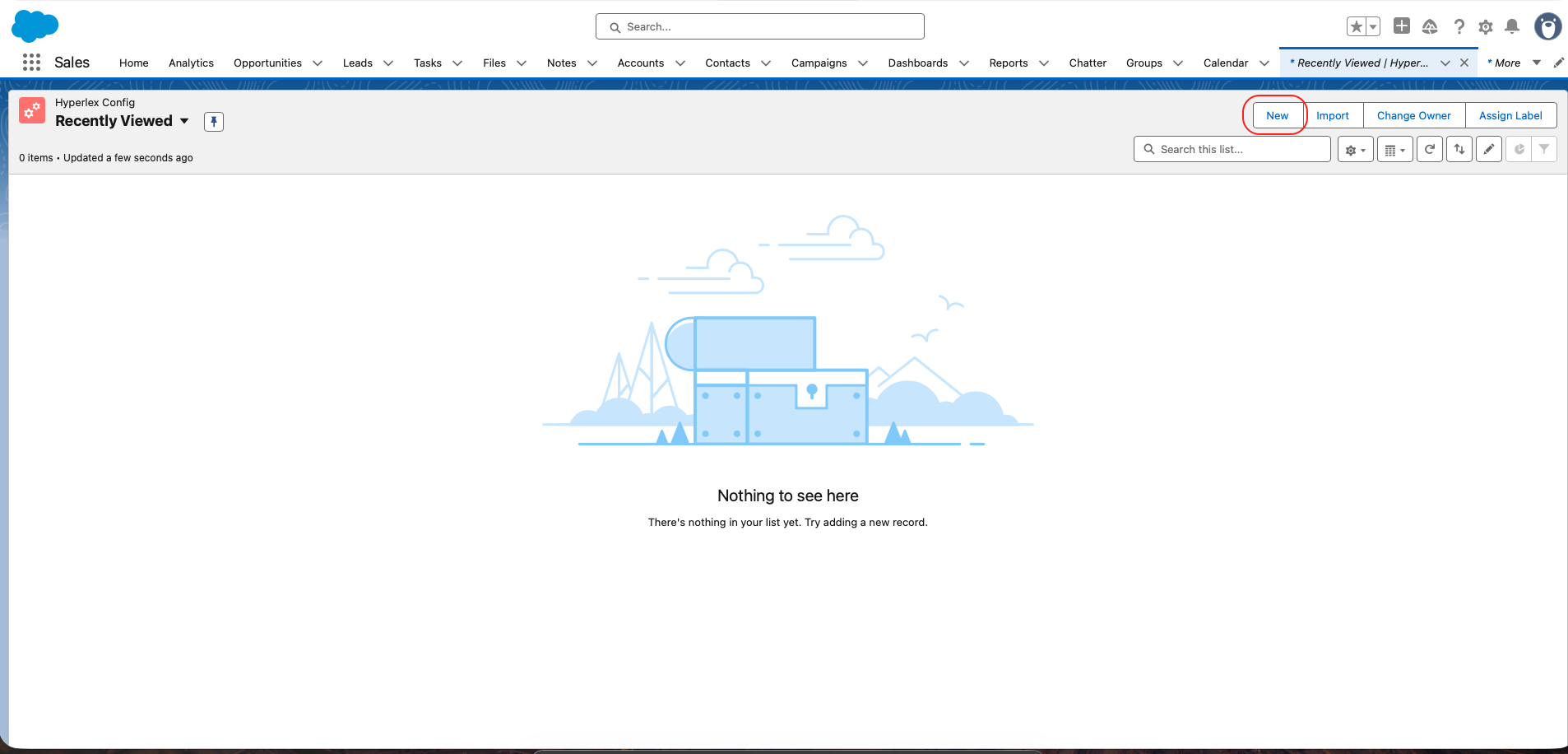
- Create a Document Type for each contract
- Select the main Salesforce object (Opportunity, Contract, or Addendum)
- Activate Status Change Triggers for automation
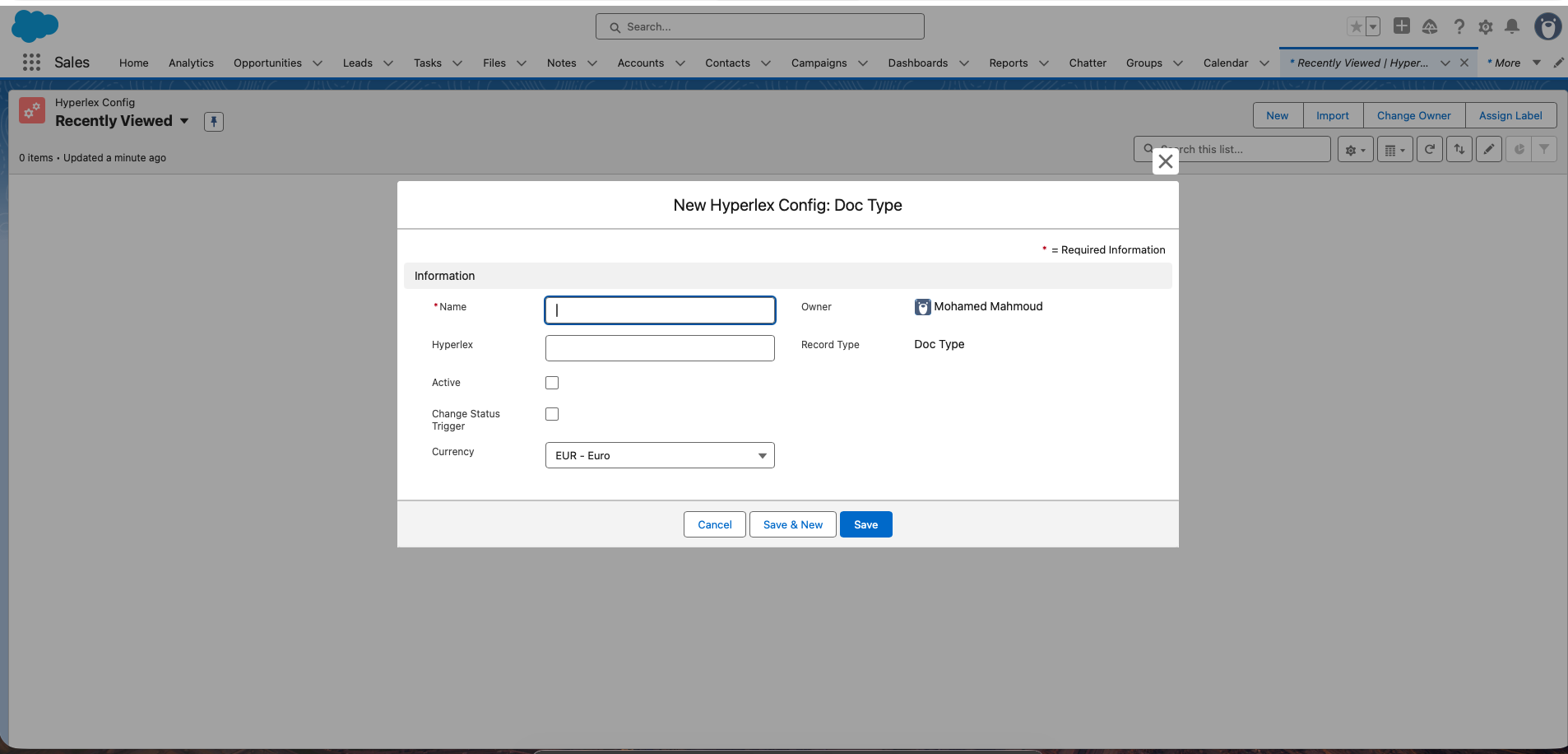
❓Tip: This controls which templates appear when users click “Create Contract”.
✍ Step 6 – Configure Fields Mapping
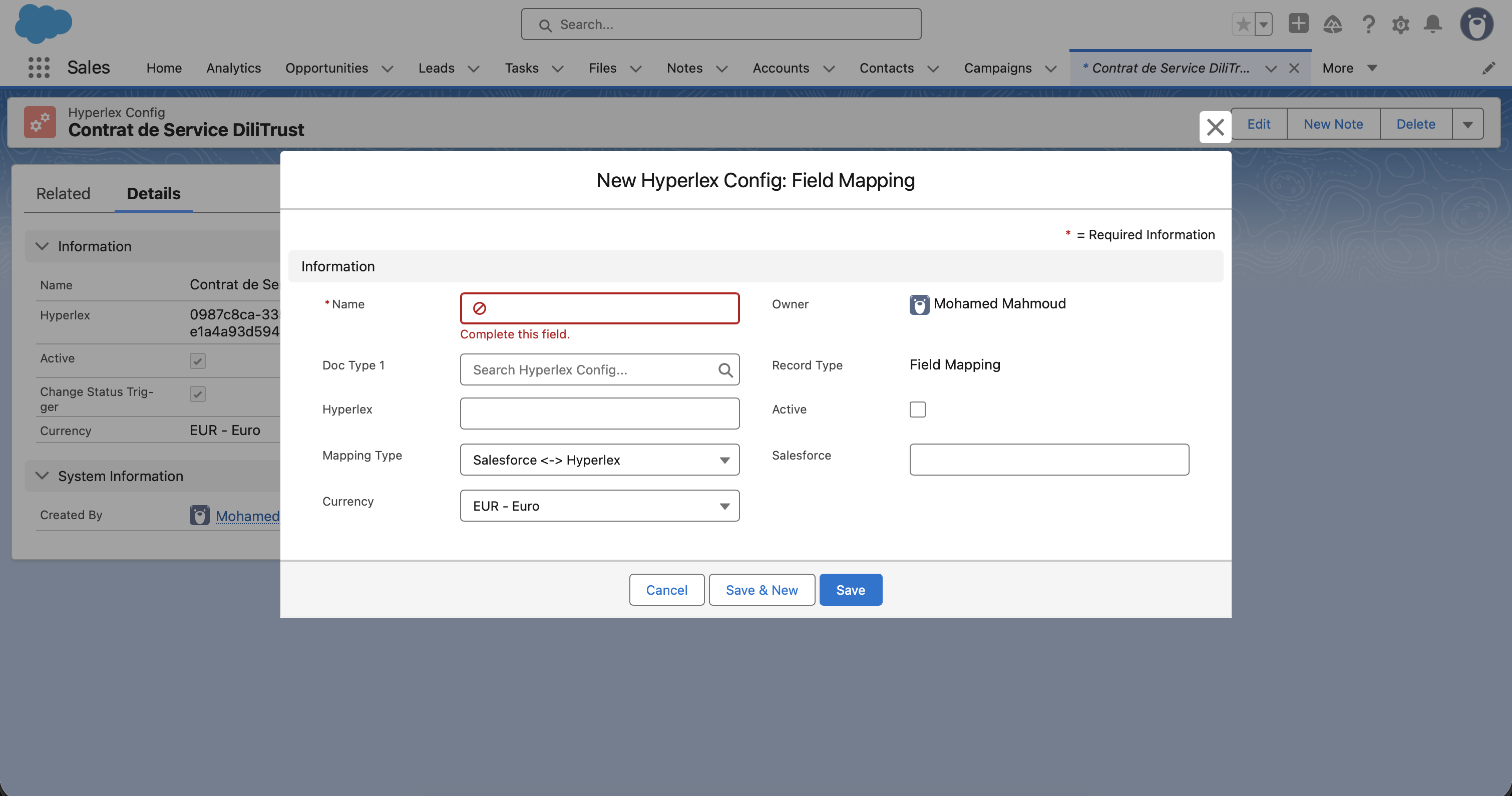
- Name: Field Name
- Doc Type 1: Choose the related doc type from the list
- Hyperlex: Attribute ID
- Mapping Type: SF -> Hyperlex
- Active: Yes
- Salesforce: Field Id
- Currency: Keep it as it is
And do that for all the fields you want to map for each document type.
⛳ Step 7 – Enable Status Sync (Callback)
To keep contract statuses synchronized:
- Enter your Salesforce callback URL in Hyperlex
- Provide API credentials securely
Example callback URL:
https://client.my.salesforce.com/services/apexrest/hyperlexsf/HyperlexToSalesforceX/
This allows Hyperlex to update Salesforce automatically when a contract changes status ⚡
⭐ Benefits for End Users
- Create contracts in a few clicks—no manual copying ✂️
- Always see the latest contract status in Salesforce
- Work faster with fewer errors
- No need to leave Salesforce to manage contracts ✨
❓ Common Questions
Do I need technical knowledge?
No. Once installed, everyday users simply click a button to create contracts.
Can I use this in Sandbox?
Yes—but you must uninstall the package before reinstalling or upgrading.
What happens if something fails?
Your admin can review logs and settings. DiliTrust support can also assist ❤️
✊ Need Help?
If you have questions or need assistance:
- Contact your Salesforce administrator
- Reach out to DiliTrust Support via your customer portal
You’re now ready to create contracts faster and smarter with DiliTrust and Salesforce ✨
Was this article helpful?
That’s Great!
Thank you for your feedback
Sorry! We couldn't be helpful
Thank you for your feedback
Feedback sent
We appreciate your effort and will try to fix the article