⭐ Introduction
Restricted access — Contract Relationships is available only to selected clients under a specific contractual agreement. If you believe you should have access but cannot see the feature, contact your Customer Success Manager.
The Contract Relationships module lets you formalize links between related documents directly in DiliTrust CLM. Documents can be organized into a contract bundle, displayed as a hierarchy, and linked Summary Sheet attributes can be shared between documents.
The feature is being rolled out progressively. The screens and behaviors available to you depend on the feature configuration and release enabled for your environment.
Permissions and access
Contract Relationships uses the existing document permissions and the configured permission for linking documents.
To link or unlink documents, your role must have the configured permission Link amendments, appendices or others to a document. This permission can be granted to any role, including Contributors, when configured by an administrator.
To view a relationship, you need read access to the relevant document. Read & write access to the source document is required to share one of its Summary Sheet attribute values.
- A document that you cannot access is represented by a placeholder row in the hierarchy or bundle panel. Its content is not exposed.
- Attribute sharing is permission-aware and can target any document you can access. The documents do not need to belong to the same bundle.
The feature remains subject to the restricted contractual access described above.
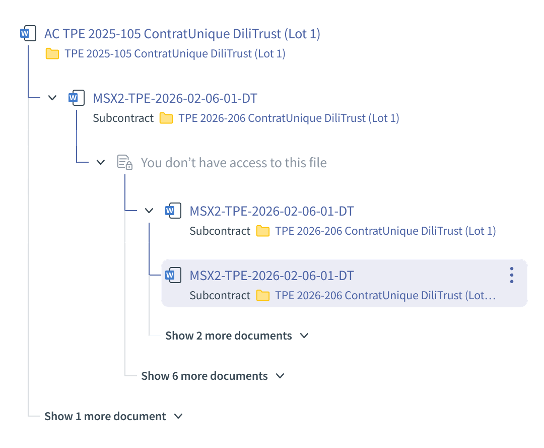
Figure 1: User does not have permission
Article contents:
- Permissions and access
- ⚙️ Module overview
- 1️⃣ Scope 1: Core relationships
- 2️⃣ Scope 2: Advanced properties
- 3️⃣ Scope 3: Multiselect linking and column management
- ⭐ Best practices
- ⚠️ Limitations and points of attention
- ❓ Frequently asked questions
⚙️ Module overview
The module is based on two concepts:
- Contract bundle — a parent/child hierarchy of related documents. The root document has no nature of link; each document linked beneath it is qualified with a nature of link.
- Attribute sharing — copying a populated Summary Sheet attribute value from a source document to a target document, one document at a time.
Any document type can be added to a bundle. The nature of link describes the relationship between the documents and is independent from the document type.
| Scope | Coverage and availability |
|---|---|
| 1️⃣ Scope 1: Core relationships | Link types, document linking, the bundle panel, the Linked documents panel, and attribute sharing and traceability. These capabilities are available when the feature is enabled for your environment. |
| 2️⃣ Scope 2: Advanced properties | Bundle panel, focused path display and permission-aware placeholders. |
| 3️⃣ Scope 3: Multiselect linking and column management | Linking several documents in one action, and managing the columns and toolbar of bundle lists. |
⚠️ Not available yet: linking a bundle to another bundle, automatic carry-over of an existing bundle's documents, and automatic linking of documents through the parent document.
1️⃣ Scope 1: Core relationships
Scope 1 covers how documents are qualified and linked, and how the hierarchy is displayed.
⭐ Link types (nature of link)
The root document has no nature of link. Every document linked beneath it is assigned one of the following values:
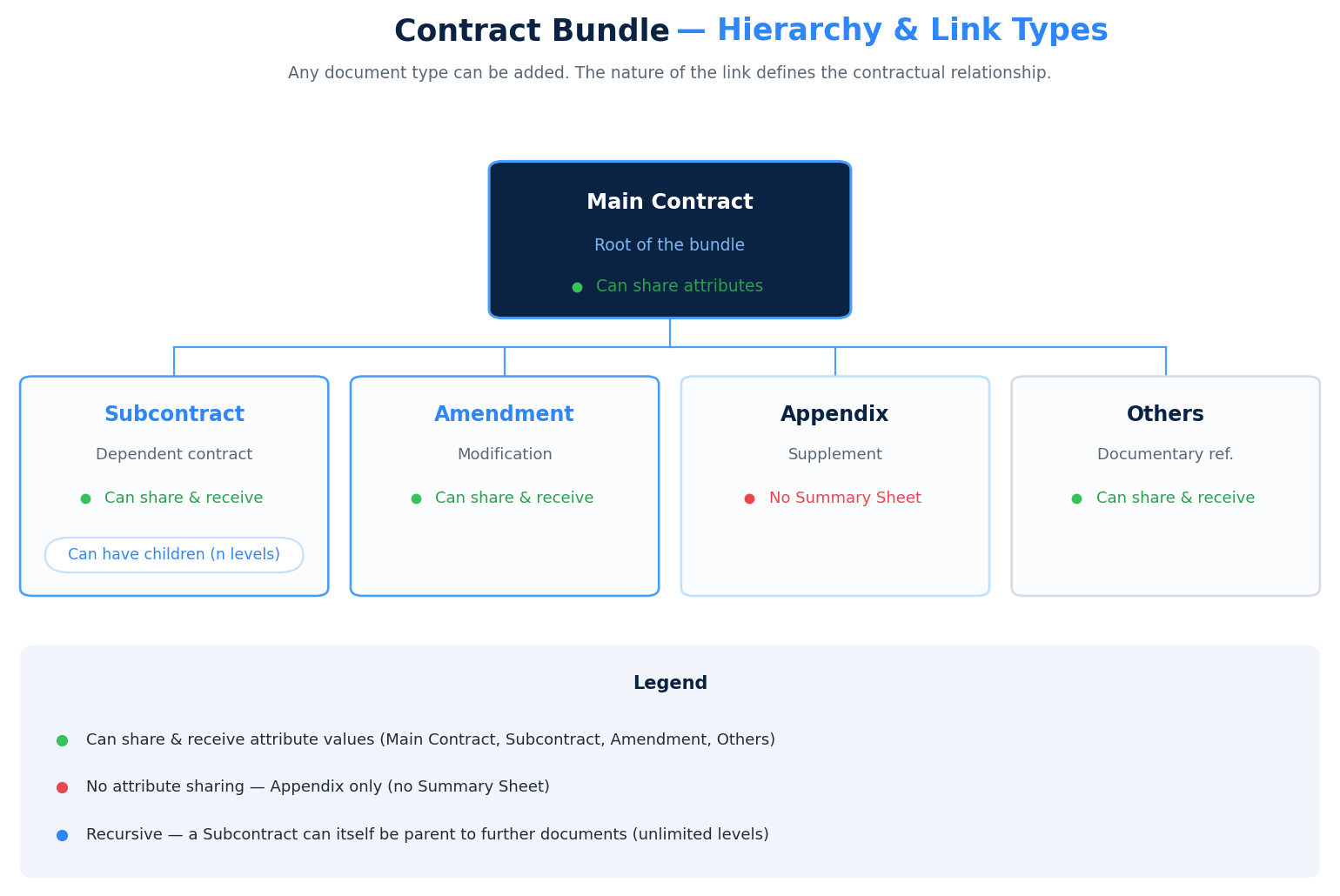
Figure 2: Contract bundle structure and available natures of link
| Nature of link | Purpose | Can share attribute values |
|---|---|---|
| Main Contract / Subcontract | A contract linked to another contract, such as an application contract linked to a framework agreement. | ✅ Yes |
| Amendment | A document that modifies or supplements an existing contract. | ✅ Yes |
| Appendix | A supplementary document attached to a contract, such as technical specifications or a financial offer. | ❌ No |
| Others | A generic or administrative document attached for documentary reference, such as a notification letter, acknowledgement of receipt or bidder's offer. | ✅ Yes |
A document can be a child of one document and a parent of another, so bundles can be nested over several levels.
⭐ Linking documents
Importing a document and linking it to another document are separate actions. To create or extend a bundle, use Link documents from the folder view, or start the same flow from the Linked documents panel on a document's Summary Sheet.
- Open the actions menu of the document that will be the main document, then select Link documents.
- In the selector, choose the documents to link. Documents already linked to another bundle may be disabled and display an explanation.
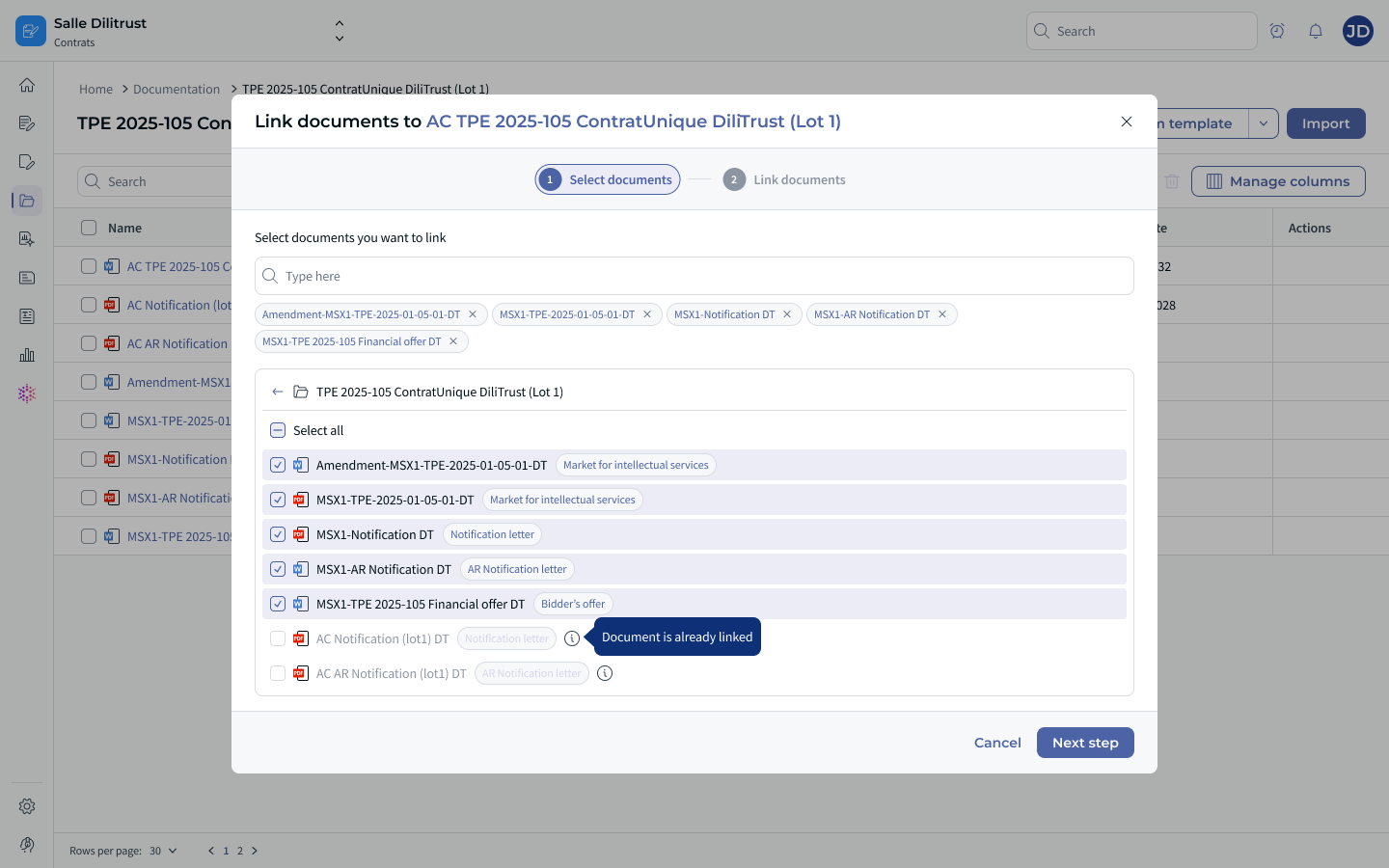
Figure 3: Selecting documents to link
- Assign a nature of link to each selected document: Main Contract / Subcontract, Amendment, Appendix or Others. The document type is displayed next to each item to help you choose the appropriate relationship.
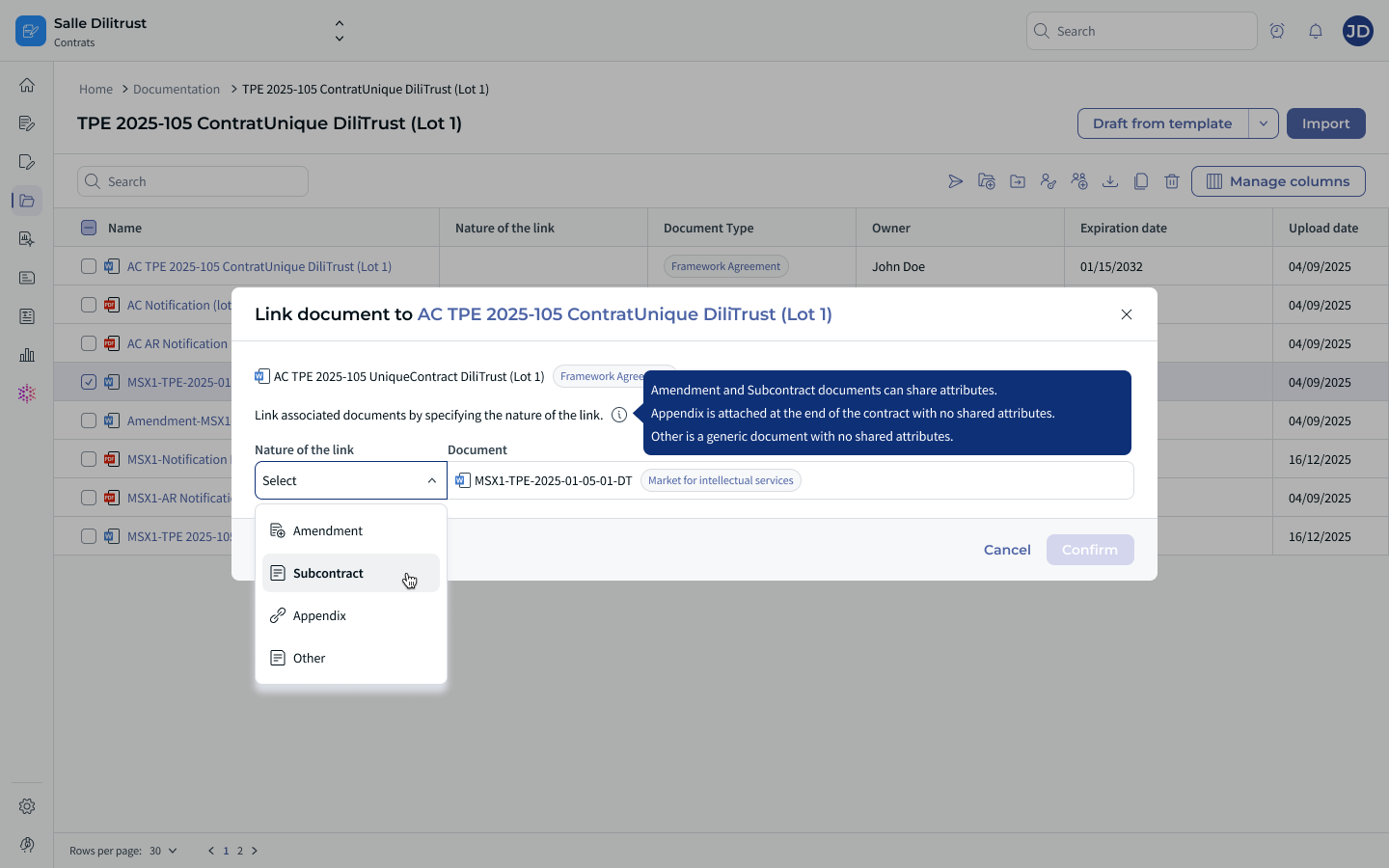
Figure 4: Assigning the nature of link
- Click Confirm. A success message confirms that the relationship was created.
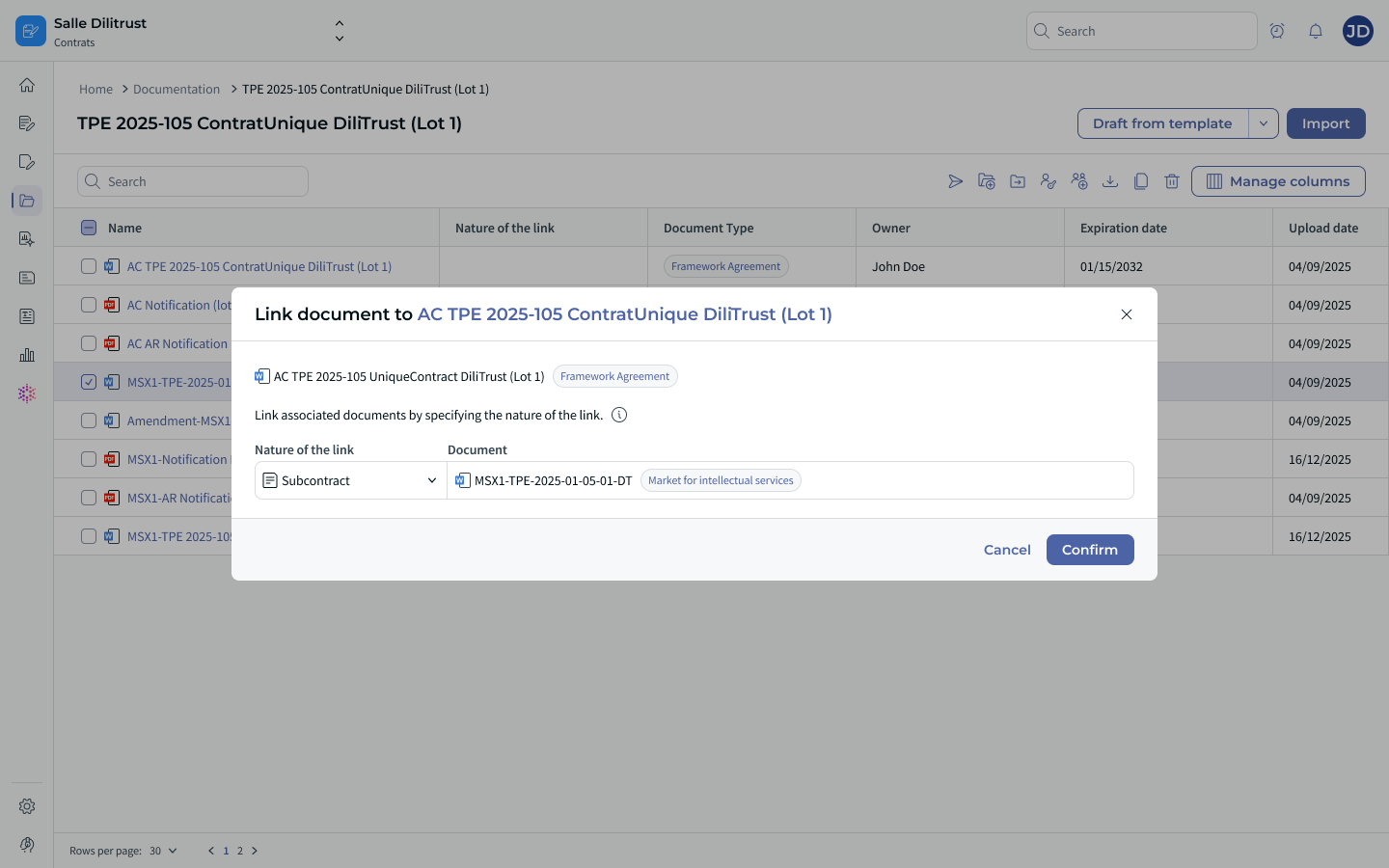
Figure 5: Confirming the relationship
If the platform is still resolving a document type, a loader may be displayed. The document can still be selected and the rest of the flow remains unchanged.
Bundle-to-bundle linking: selecting a document that is already the root of another bundle, and automatically carrying over its descendants, is release-dependent. Do not assume this behavior is enabled unless it is available in your environment.
⭐ Viewing a contract bundle
The Documentation grid no longer displays the full relationship tree directly in each row. When a document belongs to a bundle, it displays a tree-view icon.
- Click the tree-view icon to open the bundle panel.
- The bundle panel displays the full set of parent and child relationships.
- Documents that you cannot access remain represented without exposing their content.
This bundle panel is the current entry point for understanding the complete relationship structure.
Linking a document from the bundle panel
- Open the bundle panel from the tree-view icon.
- Take a document from the folder and drag it into the bundle panel.
- Drop it under the document to which it should be linked.
- Select the appropriate nature of link, then confirm.
Figure 6: Bundle panel opened from the tree-view icon.
⭐ The Linked documents panel
The Linked documents panel is available from a document's Summary Sheet when the relationship feature is enabled. It provides a contextual view of the related documents.
- Linked to / Main document, when the current document has a parent.
- Current document, the document being viewed.
- Amendment(s), when applicable.
- Subcontract(s), when applicable.
- Other(s), when applicable.
- Appendices, when applicable.
Select a document in the panel to navigate to it, or use the linking action to extend the relationship when you have the required permission.
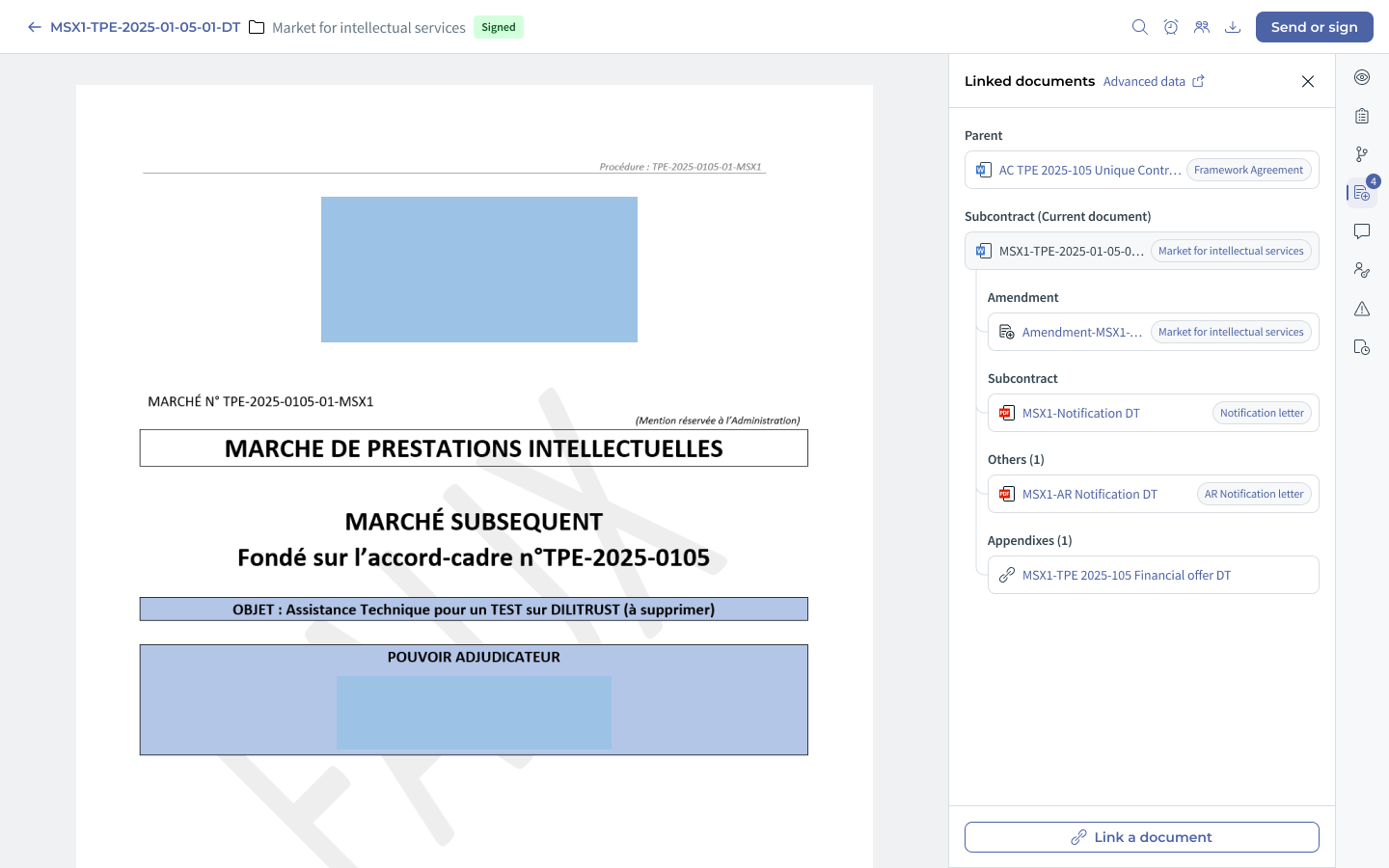
Figure 7: Linked documents panel
⭐ Sharing Summary Sheet attributes
A value entered in a document's Summary Sheet can be shared with one other document at a time, and the target document keeps a trace of where the value came from. If the target already holds a value for that attribute, the shared value replaces it and the previous content cannot be restored. Sharing does not depend on bundle membership or on the nature of link: a value can be shared with any document you can access. Documents linked as Appendix can neither share nor receive attribute values.
The full procedure is described in CLM – Attribute Sharing.
2️⃣ Scope 2: Advanced properties
When enabled for your environment, the Bundle panel opens from the bundle indicator on a document row and provides a focused view of the relationship structure.
- Bundle indicator: identifies that a document belongs to a bundle.
- Focused path: shows the path to the selected document while other branches can be collapsed.
- Permission-aware display: inaccessible documents appear as placeholders.
- Document type display: helps users qualify relationships.
⚠️ Linking a bundle to another bundle, and automatically carrying over the documents of an existing bundle, are not available yet.
3️⃣ Scope 3: Multiselect linking and column management
- Multiselect document linking — select and link several documents to a bundle in a single action.
- Bundle-list toolbar and column management — customize the columns and navigation controls of bundle lists.
⚠️ Not available yet: automatically linking documents through the parent document.
⭐ Best practices
- Choose the root document before creating the relationship.
- Assign the nature of link precisely when creating each relationship.
- Use attribute sharing for values that must remain consistent across related documents.
- Remember that documents linked as Appendix can neither share nor receive attribute values.
- For a public-procurement tender, include all the documents required by the process in the same bundle, such as the framework agreement, application contracts, amendments, appendices, bidder's offer, notification letter and acknowledgement of receipt.
⚠️ Limitations and points of attention
- Contract Relationships is available only to selected clients under a specific contractual agreement.
- Documents linked as Appendix can neither share nor receive attribute values.
- Editing a shared value on the source or on a target disconnects the share after confirmation; on the source, the target documents keep their previous value. See CLM – Attribute Sharing.
- Inaccessible documents are shown as placeholders, not as readable document content.
- Bundle-to-bundle linking, automatic carry-over of an existing bundle's documents, and automatic linking through the parent document are not available yet.
❓ Frequently asked questions
What is a contract bundle?
A contract bundle is a group of documents formally linked in CLM through parent/child relationships. Any document type can be included.
What are the available natures of link?
Main Contract / Subcontract, Amendment, Appendix and Others. The root document has no nature of link.
Does attribute sharing depend on the nature of link or on bundle membership?
No. A value can be shared with any document you can access, whether or not it belongs to the same bundle. Documents linked as Appendix are excluded. See CLM – Attribute Sharing.
Can a bundle have multiple levels?
The relationship model supports nested parent/child relationships. The depth displayed and the ability to create deeper or bundle-to-bundle relationships depend on the release enabled for your environment.
Is there a limit on the number of linked documents?
No product limit is documented in the relationship model. Practical availability and interface behavior can still depend on environment configuration and release.
What happens if I cannot access a document in the bundle?
A placeholder preserves the document's position in the hierarchy without exposing its content.
How do I find bundles for a tender?
Use the filters described in CLM – Contract Filter & Search when the relevant relationship filters are enabled for your environment.
Was this article helpful?
That’s Great!
Thank you for your feedback
Sorry! We couldn't be helpful
Thank you for your feedback
Feedback sent
We appreciate your effort and will try to fix the article