⭐ Introduction
Restricted access — the Contracts screen is available only to selected clients under a specific contractual agreement. If you believe you should have access but cannot see the feature, contact your Customer Success Manager.
The Contracts screen is DiliTrust CLM's main search and discovery screen for the documents you are allowed to access. It combines keyword search, attribute filters, configurable columns, saved searches, contract relationship display and export.
Open the screen from the Contracts entry in the left navigation. Not to be confused with Datasource, which provides charts and dashboards.
Permissions and access
The Contracts screen respects the document permissions configured by your administrator.
- A document to which you have no access does not appear in your results, even when it matches your search.
- When bundle display is enabled and you have only partial access to a bundle, inaccessible documents are represented by placeholders. Their content is not exposed.
- Share, Delete and Export operations are subject to the permissions required for the relevant action.
Article contents:
- Permissions and access
- ⚙️ Module overview
- 1️⃣ Scope 1: Portfolio view, bundles and export
- 2️⃣ Scope 2: Filtering, columns and saved searches
- 3️⃣ Scope 3: Selection actions
- ✨ Tips and best practices
- ⚠️ Limitations and points of attention
- ❓ Frequently asked questions
⚙️ Module overview
The Contracts screen provides:
- A cross-portfolio search over accessible documents.
- A top filter bar for keyword and scope-based searches.
- Additional attribute, clause, workflow, location and relationship filters.
- Optional contract bundle display for environments using contractual relationships.
- Configurable result columns.
- Personal saved searches.
- Selection-based Share, Delete and Export actions.
| Scope | Coverage | Availability |
|---|---|---|
| 1️⃣ Scope 1: Portfolio view, bundles and export | Accessing the Contracts screen, paginated results, optional contract bundle display, contract relationship information and export. | Available. |
| 2️⃣ Scope 2: Filtering, columns and saved searches | Top filters, attribute and clause filters, configurable columns and personal saved searches. | Available. |
| 3️⃣ Scope 3: Selection actions | Selection-based Share, Delete and Export actions. | Available, subject to document permissions. |
1️⃣ Scope 1: Portfolio view, bundles and export
✅ Accessing the Contracts screen
Use the Contracts entry in the left navigation to open the screen.
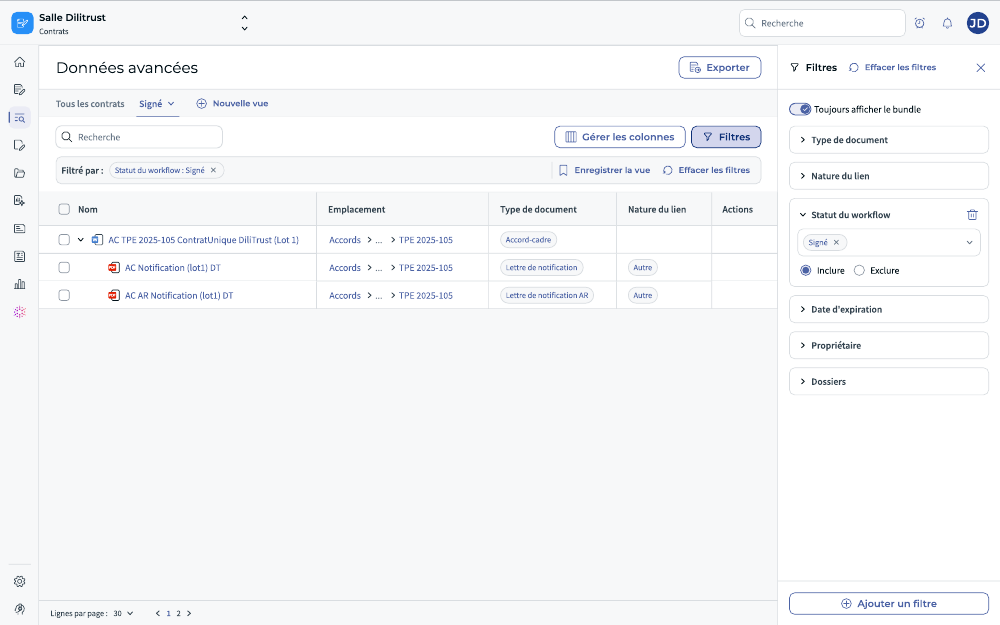
Figure 1 — The Contracts screen: search, filters, saved-search controls and export actions.
✅ Contract bundle display
In environments where bundle-based contractual relationships are enabled, results can be displayed as a contract hierarchy; child documents are loaded when you expand a bundle. Contract bundles are described in CLM – Contract Relationships.
The bundle view
- The bundle toggle changes between a flat result list and a relationship-aware hierarchy.
- The bundle view can be saved as part of the search state.
- When you load a saved search, the bundle view is restored as it was saved.
When the bundle view is enabled, sorting follows the parent-document structure. When it is disabled, results are displayed as individual documents using the selected sort order.
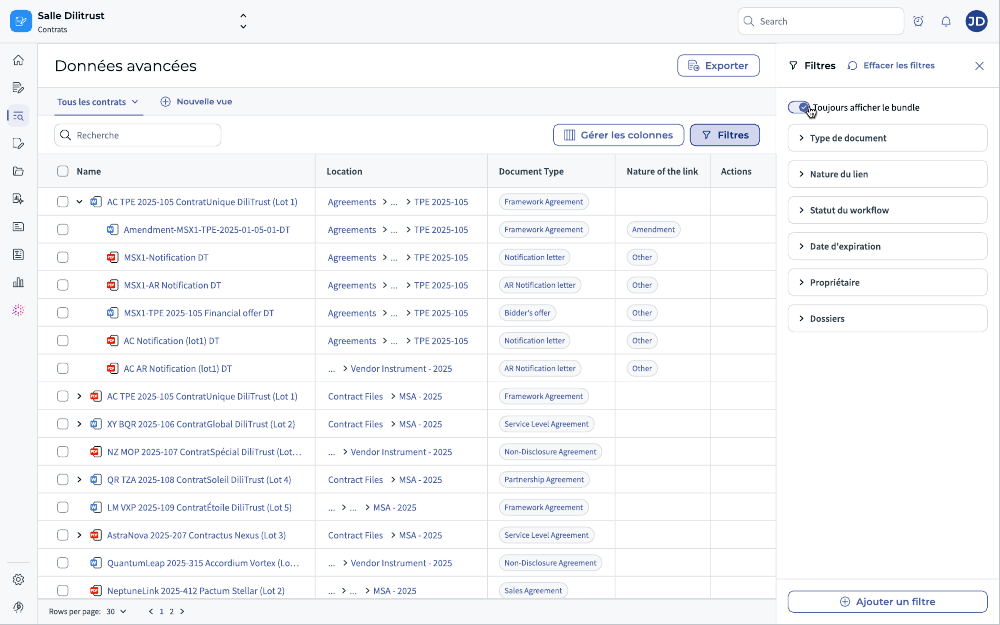
Figure 2 — Bundle display in the search results.
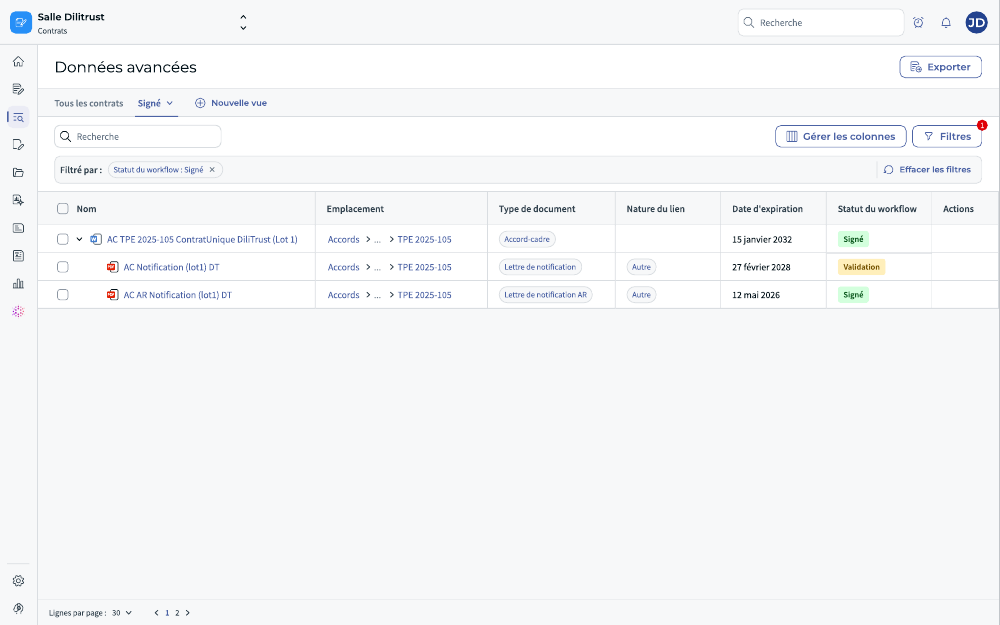
Figure 3 — A matching document shown in its bundle context.
Permission-aware display
If you cannot access one of the documents in a bundle, the hierarchy preserves its position with a placeholder. If you cannot access the bundle or matching document at all, it is excluded from your results.
✅ Contract relationship display
When bundle display is available, the results grid can show the relationship between a document and its parent through the Nature of the link field, for example Amendment, Appendix or Others.
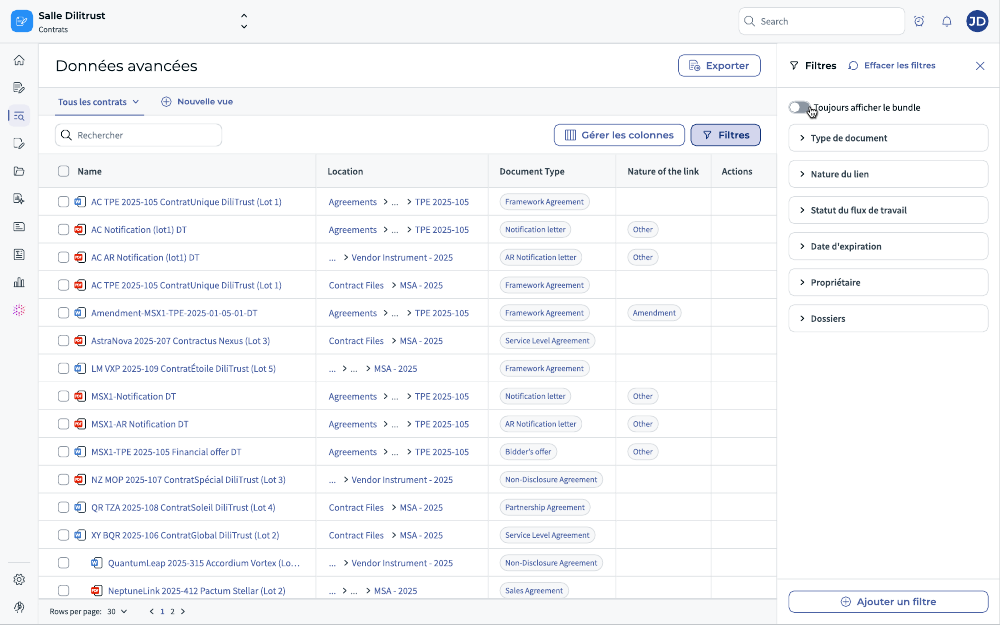
Figure 4 — Contract relationship information displayed in the results grid.
✅ Exporting search results
You can export selected search results to a spreadsheet. The export contains the columns currently displayed in the results grid.
- Select the documents to export.
- Click Export.
- Download the generated file when it is available.
Large exports (over 1,000 documents) are processed in batches.
⚠️ Bundles are not exported as a hierarchy. Bundle information appears only through the Nature of the link column; the file has no hierarchical structure. When bundle view is enabled, select the rows you want to export — exporting an entire bundle with one click is not supported.
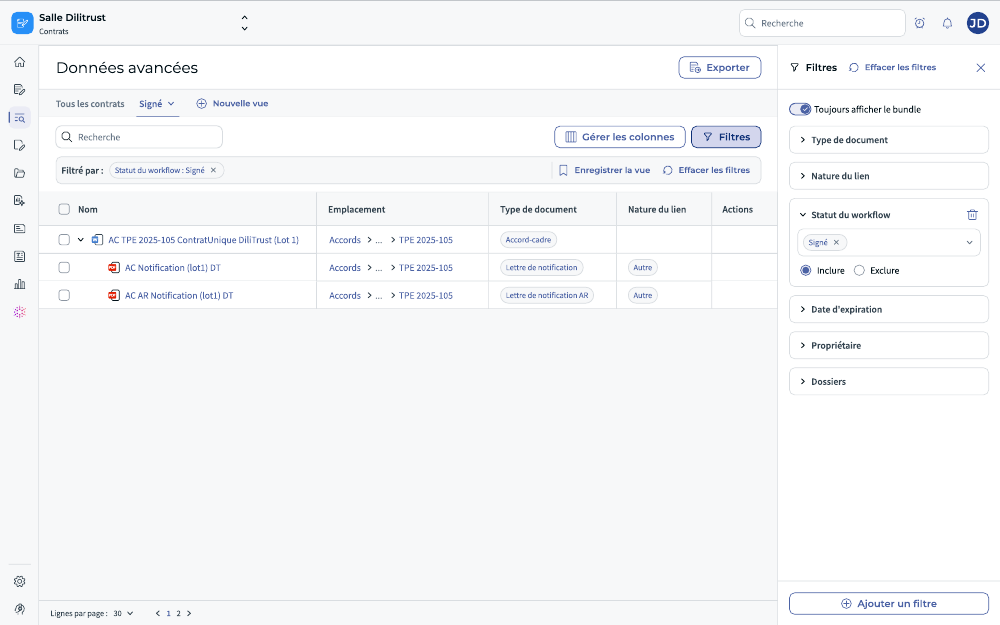
Figure 5 — Exporting selected search results.
2️⃣ Scope 2: Filtering, columns and saved searches
✅ Searching and filtering
The main search interface combines several criteria. You can search by:
- Document or folder.
- Title, content, document type, attribute or clause.
- Workflow or contract-execution state.
- Document owner, location and relationship with a parent document.
- Attributes such as contract amount, corporate name, effective date and expiration date.
Using the top filter bar
- Select the element you want to search, such as Document or Folder.
- Choose an operator; the available operators depend on the selected filter.
- Select the search scope, such as Title, Content, Document Type, Attribute or Clause.
- Enter a keyword and apply the filter.
Adding filters
Use Add filter to add type-specific criteria. Different filters are combined with AND; several values inside the same multi-select filter are combined with OR. There is no AND/OR toggle.
For example, an attribute filter on counterparty and an attribute filter on expiration date return only the documents matching both. Selecting two values in Document type returns documents matching either one.
You can add as many different filters as you need; the same attribute cannot be added twice.
For more detailed criteria, open the filter panel from the side of the screen. It offers explicit Include and Exclude operators, and is the standard way to build a filter. Filters added there appear as filter pills above the results, alongside those added from the top filter bar.
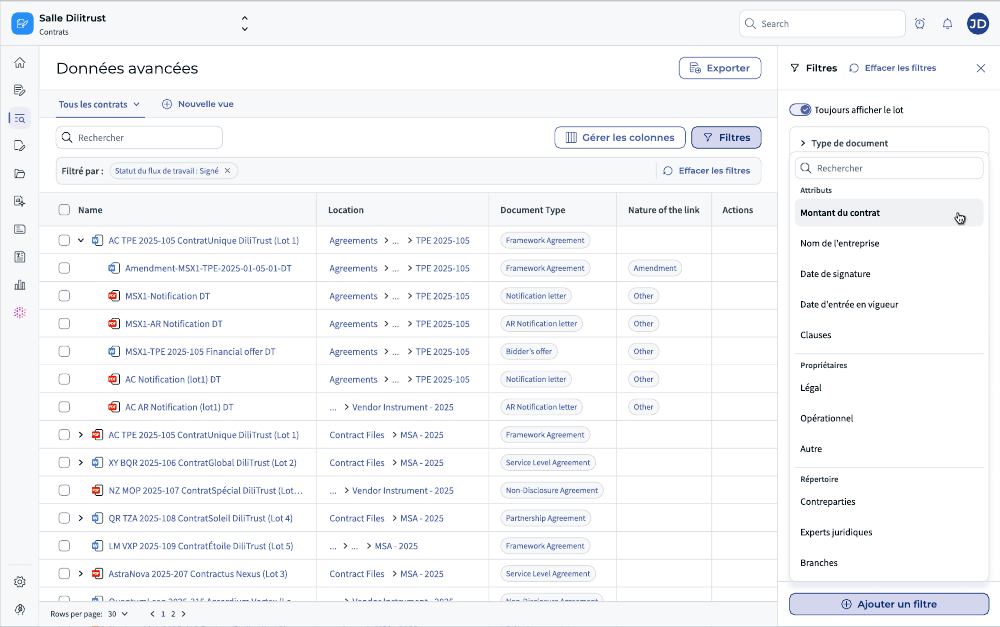
Figure 6 — The filter panel, with Include and Exclude operators.
Clearing filters
Click the × on a filter pill to remove it, or click Clear filters to remove all of them.
✅ Column management
Use Manage columns to choose which fields appear in the results grid. Column selection is remembered in your browser, so it does not follow you across devices. To keep it permanently, save it as part of a saved search.
Budget reporting columns are described in CLM – Contracts Budget Management.
The available fields depend on the data and configuration of your environment. They can include document fields, attributes, workflow information, owners, dates and contractual relationship data.
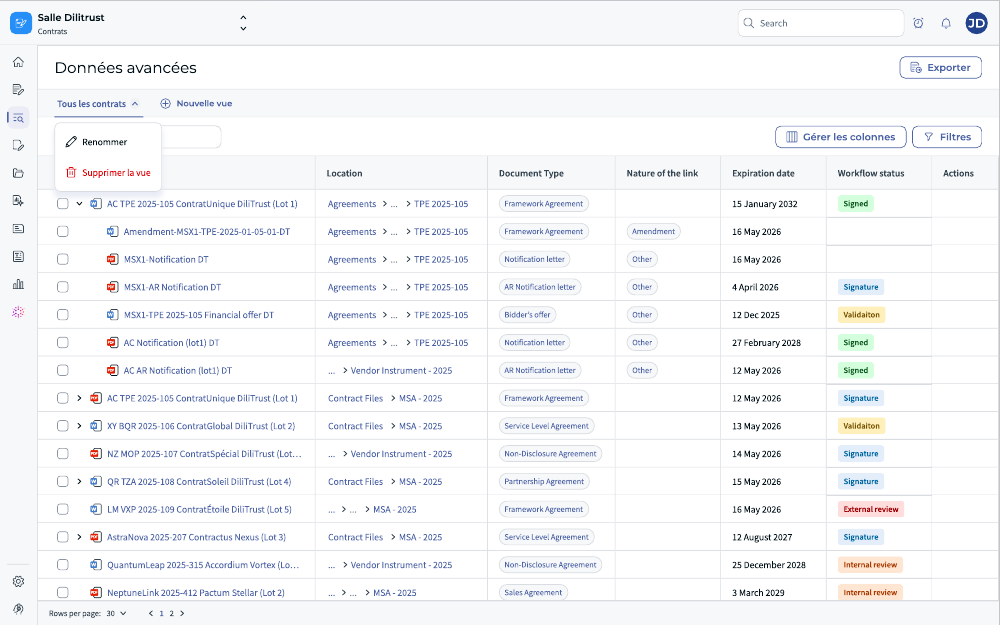
Figure 7 — Managing the columns displayed in the results grid.
✅ Saved searches
A saved search stores your search configuration, including filters, selected columns and sort settings. When bundle view is available, its state can also be saved.
Creating a saved search
- Configure your filters, columns and sorting.
- Click Save view.
- Enter a name and confirm.
The saved search can later be reloaded from the saved-search area.
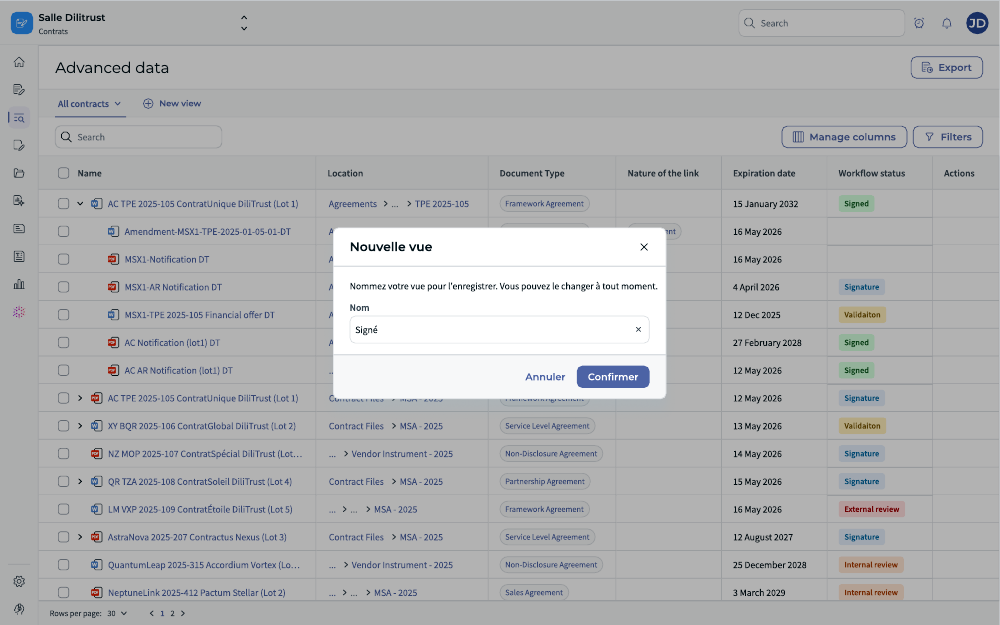
Figure 8 — Creating a saved search.
Updating or deleting a saved search
- Use Save view to overwrite the current saved search with updated criteria.
- Use the delete action in the saved-search area to remove a saved search permanently.
Saved searches cannot be renamed. To rename one, save the current view under the new name and delete the old one.
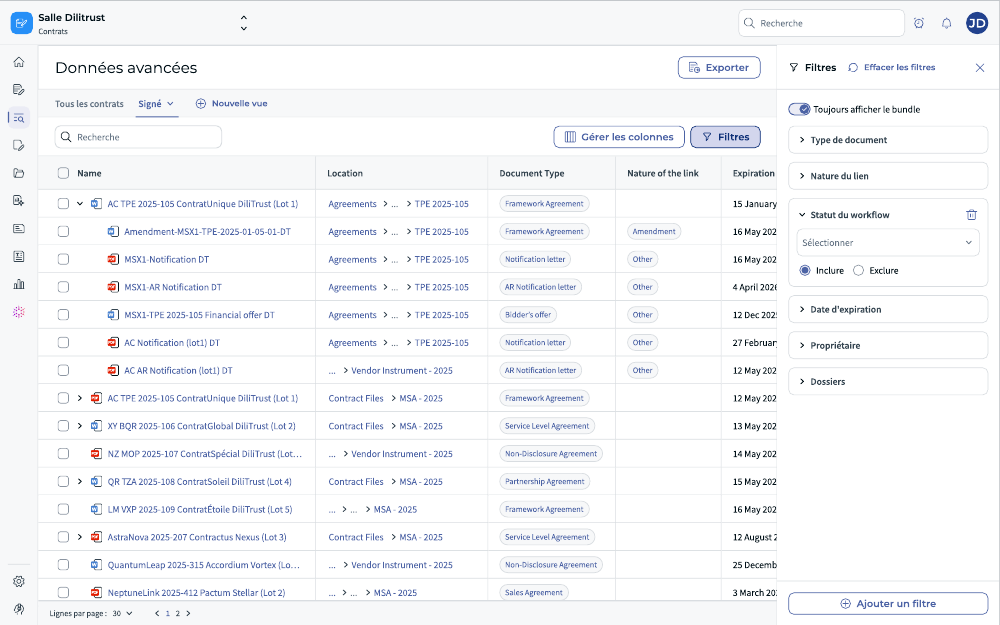
Figure 9 — Saved-search controls.
3️⃣ Scope 3: Selection actions
✅ Actions on selected rows
Select one or more rows to enable the actions available to you. These actions are permission-gated.
- Share the selected documents.
- Delete the selected documents.
- Export the selected search results to a spreadsheet.
Export access is checked again when the generated file is downloaded.
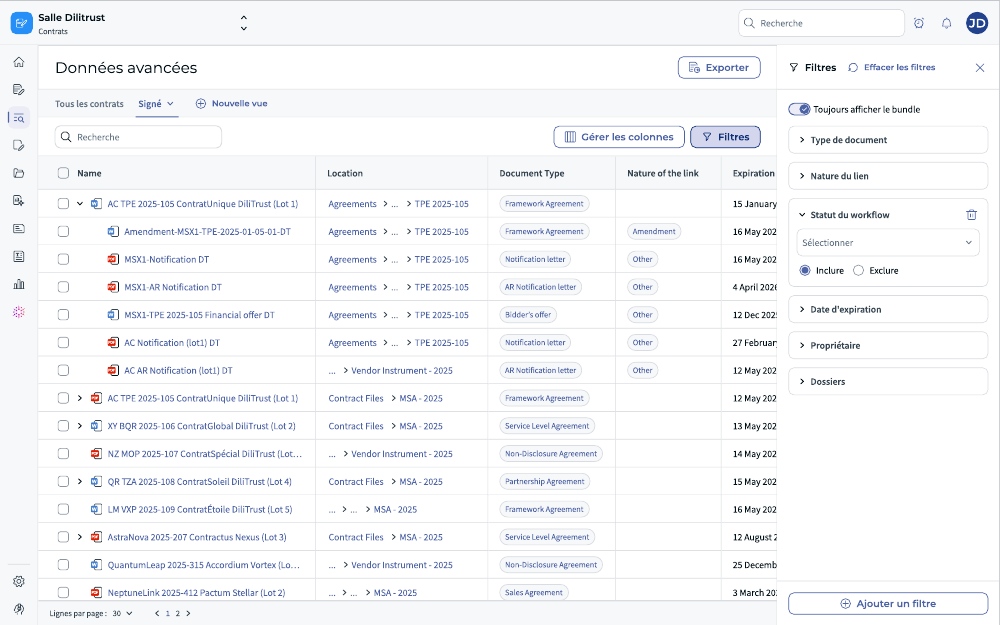
Figure 10 — Selection actions available from the results area.
✨ Tips and best practices
- Use precise scopes and attributes when searching a large portfolio.
- Save frequently used searches for recurring reviews and reporting.
- Configure the columns you need before exporting.
- Use bundle view when you need the surrounding contractual context.
- Use flat view when you want to work only with documents that directly match your criteria.
- Keep Summary Sheets complete so attribute-based searches return reliable results.
⚠️ Limitations and points of attention
- Saved searches are personal and cannot be shared.
- Results are limited to documents the user is allowed to access.
- Bundle children are loaded progressively and are not independently sortable when bundle view is enabled.
- Saved searches cannot be renamed.
- Bulk Share and Delete actions require the relevant document permissions.
- Export is selection-based. It does not export an entire bundle in one click, and the file carries bundle information only through the Nature of the link column.
- Results are displayed 20 per page.
- A content search term can be up to 4,096 characters long; a document ID search term up to 10 characters.
❓ Frequently asked questions
How is the Contracts screen different from browsing a folder?
Browsing a folder shows the documents it contains. The Contracts screen searches across your whole accessible portfolio and adds filters, configurable columns, saved searches, optional bundle display and export.
What does the Contracts screen replace?
The Contracts screen replaces the former Advanced Search / Advanced Data screen.
Can I filter on Summary Sheet attributes?
Yes. Add an attribute filter and provide the value or operator supported by that attribute type.
Can I combine several filters?
Yes. Different filters are combined with AND. Multiple values inside the same multi-select filter are combined with OR.
Can I share a saved search with a colleague?
No. Saved searches are personal to the user who creates them.
Why can't I see a document that I know exists?
The Contracts screen respects document-level access rights. A document to which you have no access is excluded from the results.
Can I export an entire contract bundle?
No. Select the individual rows you want to export. The exported file identifies relationships through the Nature of the link column, but it does not reproduce the bundle hierarchy.
Was this article helpful?
That’s Great!
Thank you for your feedback
Sorry! We couldn't be helpful
Thank you for your feedback
Feedback sent
We appreciate your effort and will try to fix the article