Lini is the AI assistant built into DiliTrust.
In Legal Entity Management (LEM), Lini acts as the guardian of your entity records. It can:
- read your live data: companies, people, governance bodies, mandates, shareholding and share capital,
- analyze this data,
- create files,
- prepare updates from your documents.
Updates are only carried out after you confirm them.
In this article, you will find:
- everything Lini can do in LEM,
- complete workflows and example requests,
- the limits to keep in mind.
Looking for concrete examples for your role? See LEM – Ask Lini: Use Cases & Prompts by Role.
⭐ Lini at a glance
Here is what Lini can do for you. Each item includes a request you can try.
- From signed minutes to up-to-date LEM: Lini reads the minutes and compares them with LEM. It flags the differences and prepares all the updates at once.
- Try: “Here are the signed board minutes. Update LEM.”
- Anticipate mandate deadlines: see the mandates expiring soon, sorted by date. Renew them in bulk after the general meeting.
- Try: “Which mandates expire in the next 6 months?”
- Manage departures and arrivals: Lini lists all the mandates of an executive, ends them and appoints the successor.
- Try: “Paul Martin leaves on December 31, 2026: end his mandates and appoint Sophie Leroy.”
- Map the shareholding: direct and indirect ownership, voting rights and consolidation scope.
- Try: “Who directly and indirectly owns company X?”
- Record share capital transactions: share transfers, capital increases and mergers, ready for you to confirm.
- Try: “Record the transfer of 500 shares of X from Holding A to Holding B as of October 1, 2026.”
- Make your data reliable: find outdated records, missing fields and duplicates. Update records in bulk.
- Try: “Which companies have not been updated in 90 days?”
- Trace and prove: audit trail, history of a field, and evidence packs for auditors.
- Try: “Who changed company X's address, and when?”
- Legal research: legislation, case law and legal commentary in more than 230 jurisdictions, with verified citations.
- Try: “Under Belgian law, what must be filed after a director is appointed?”
⚡ How Lini works
What Lini is
- An assistant that finds, analyzes and explains your LEM data: companies, individuals, governance bodies, mandates, shareholdings, share capital, registers and timelines.
- A tool that creates files when you ask: Word, PDF, Excel and PowerPoint.
- A tool that searches published law: legislation, case law and legal commentary in more than 230 jurisdictions.
- An assistant that prepares changes to your LEM data: creating, updating and deleting records. Changes are made only after you confirm.
What Lini is not
- Not a lawyer. Lini gives information, not legal advice. Anything about your specific situation must be confirmed by your legal team or a qualified advisor.
- Not the system of record. The data stored in LEM is the reference. Lini reads it. It never invents a missing value.
- Not a tool for drafting official corporate documents. Lini does not draft minutes, resolutions or delegations. It can create reports, summaries and overviews.
How changes are validated
Lini never changes your data on its own. Each change follows four steps:
- You ask. Write a message, or share a document such as minutes, a resolution or a register extract.
- Lini prepares. It finds the right records, checks the current values and prepares each change needed.
- You review. The full list of prepared changes, with all the values, appears at the end of Lini’s answer.
- You confirm. Lini carries out the changes only after you confirm in your next message.
Good to know: if one change fails, the next ones are not carried out.
☝ Opening and using Lini in Legal Entity Management
This section shows you how to open Lini in full screen, focus a question on one record, and check where an answer comes from.
Before you start
- Lini must be enabled for your organization. Don’t see the LINI option? Contact your DiliTrust administrator.
- You need access to the Legal Entity Management (LEM) module.
- Your data must be filled in for Lini to give useful answers.
Open Lini and ask a question
- Log in to DiliTrust.
- Go to the Legal Entity Management (LEM) module.
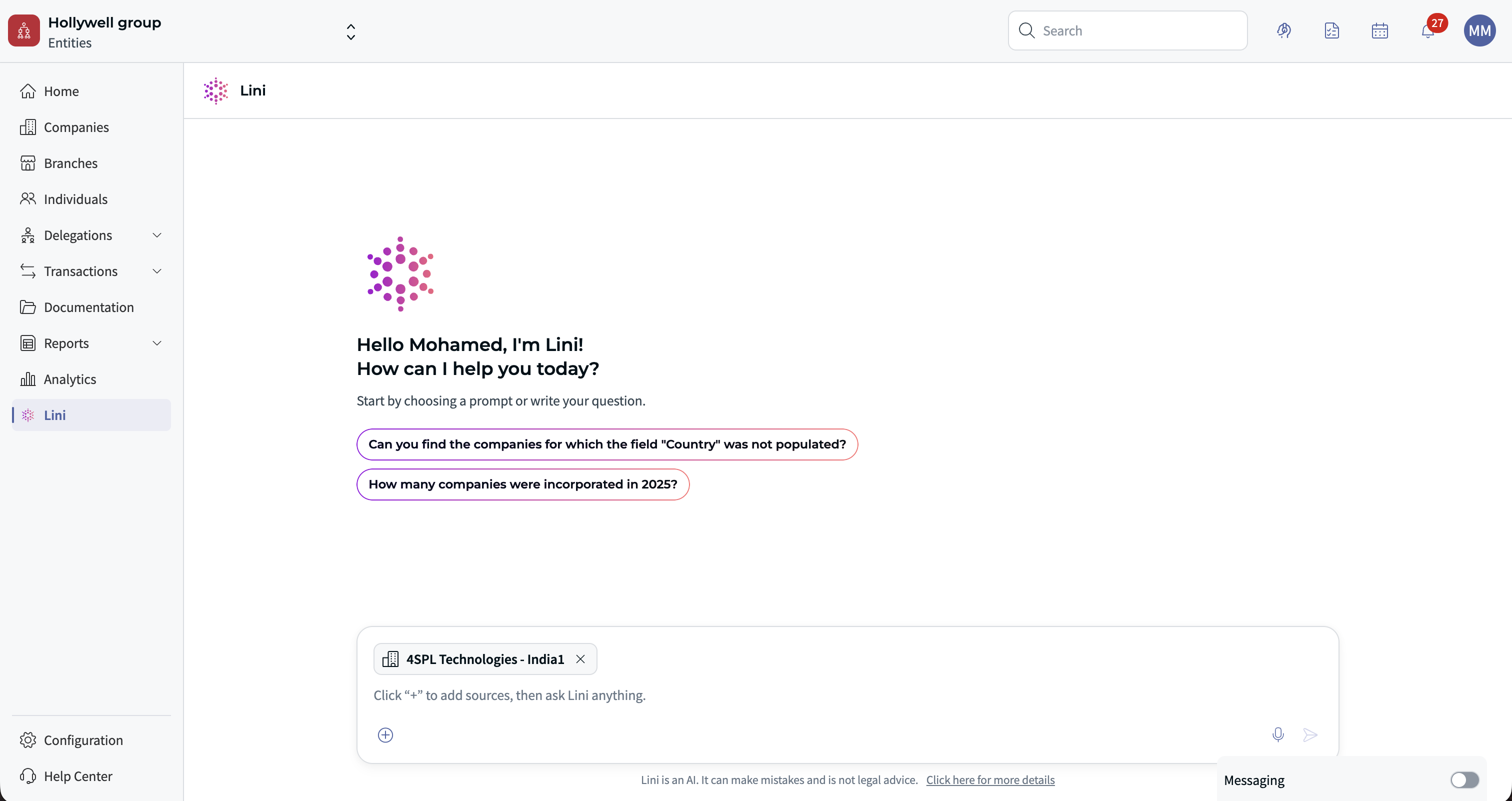
- In the main menu, click LINI. The assistant opens in full screen.
- The start screen welcomes you. Pick a suggested prompt, or write your own question.
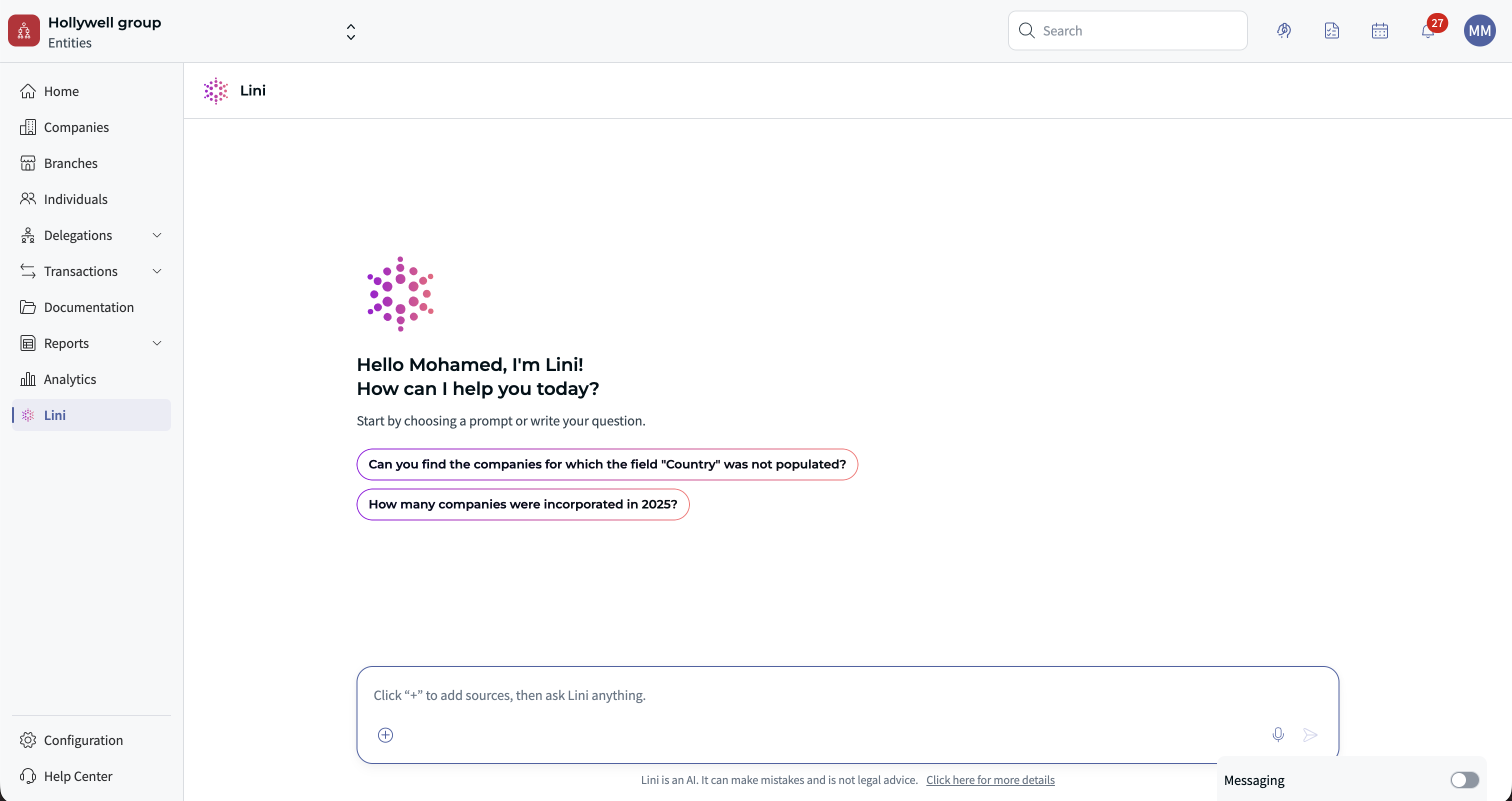
- Type your question in the chat input. You can ask about:
- Companies: name, legal form, country, capital.
- Individuals: contact information, linked mandates.
- Mandates: status, position, attendee, dates.
- Read Lini’s answer. Results are sorted like this:
- Companies and individuals: alphabetically.
- Mandates: by attendee, then position, then status (ongoing first, then expired, then ended).
- Too many results? Refine your question to narrow them down.
Focus a question on one specific record
You don’t need to describe the record in words. You can attach it to your question. Lini then knows exactly which company, individual or mandate you mean.
- In the chat input, click +.
- Click Explore sources. A panel opens.
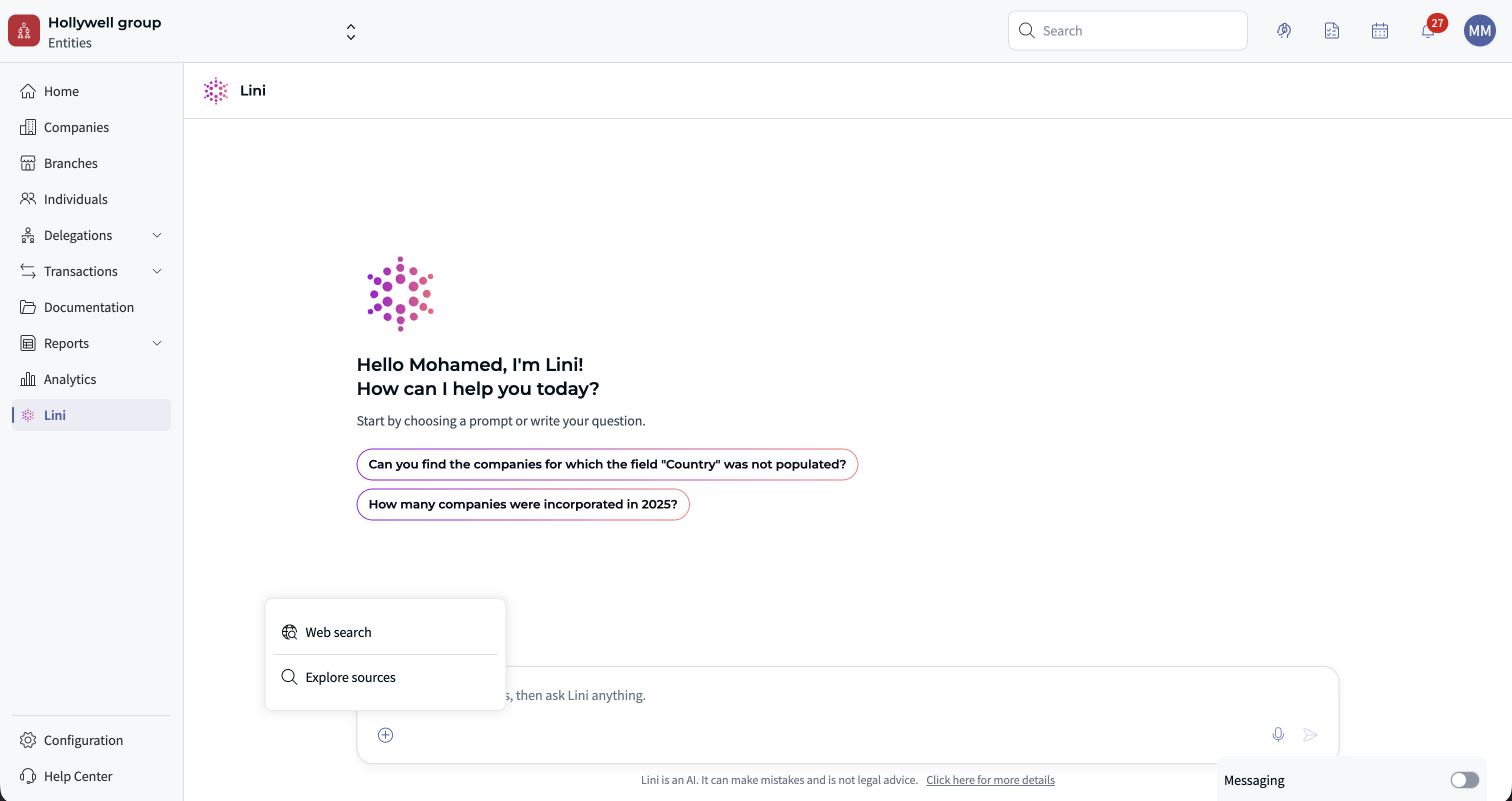
- Choose a category: Companies, Individuals or Mandates.
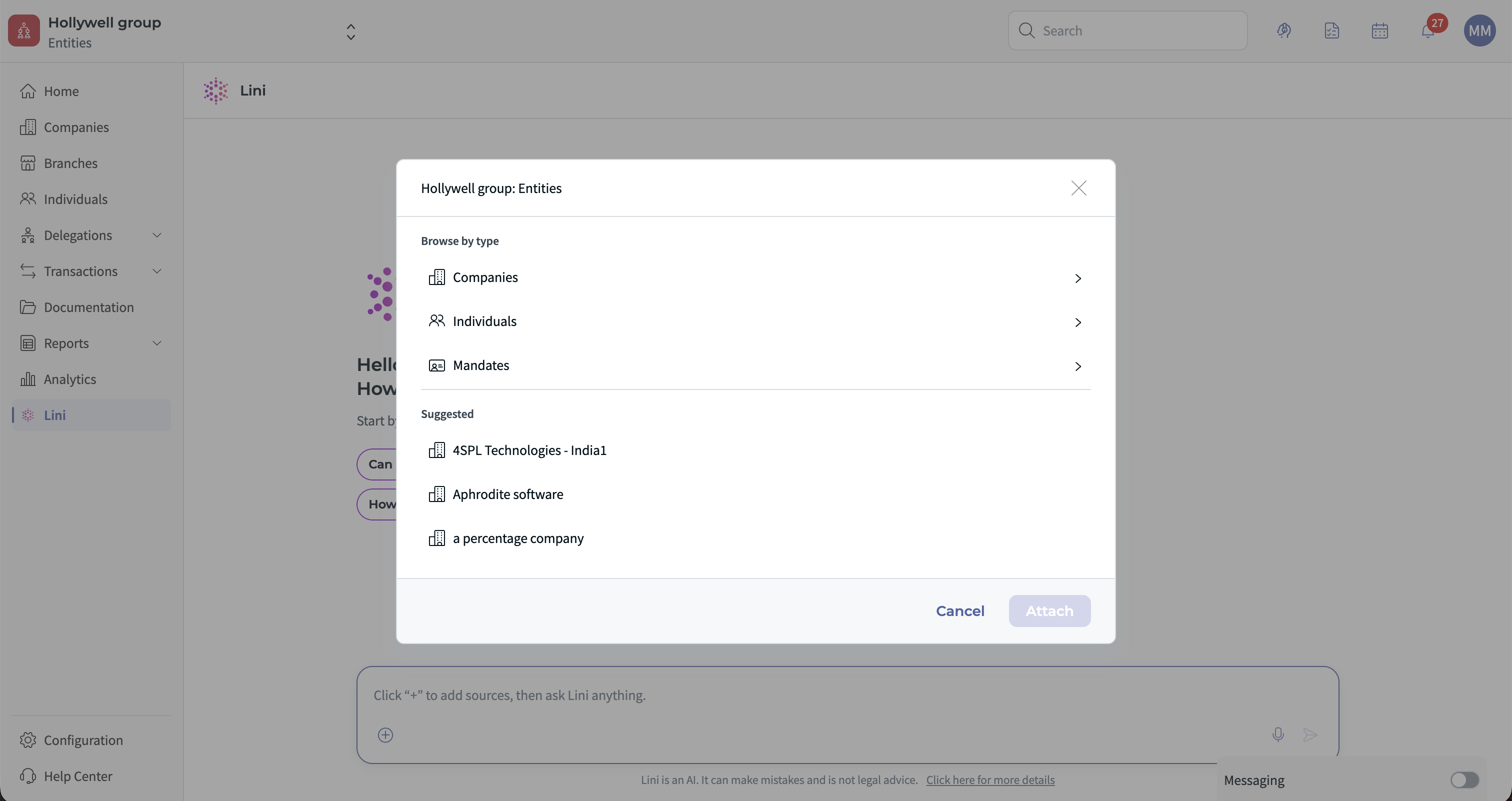
- Select the record in the list. You can also find it by name with the search field at the top of the panel.
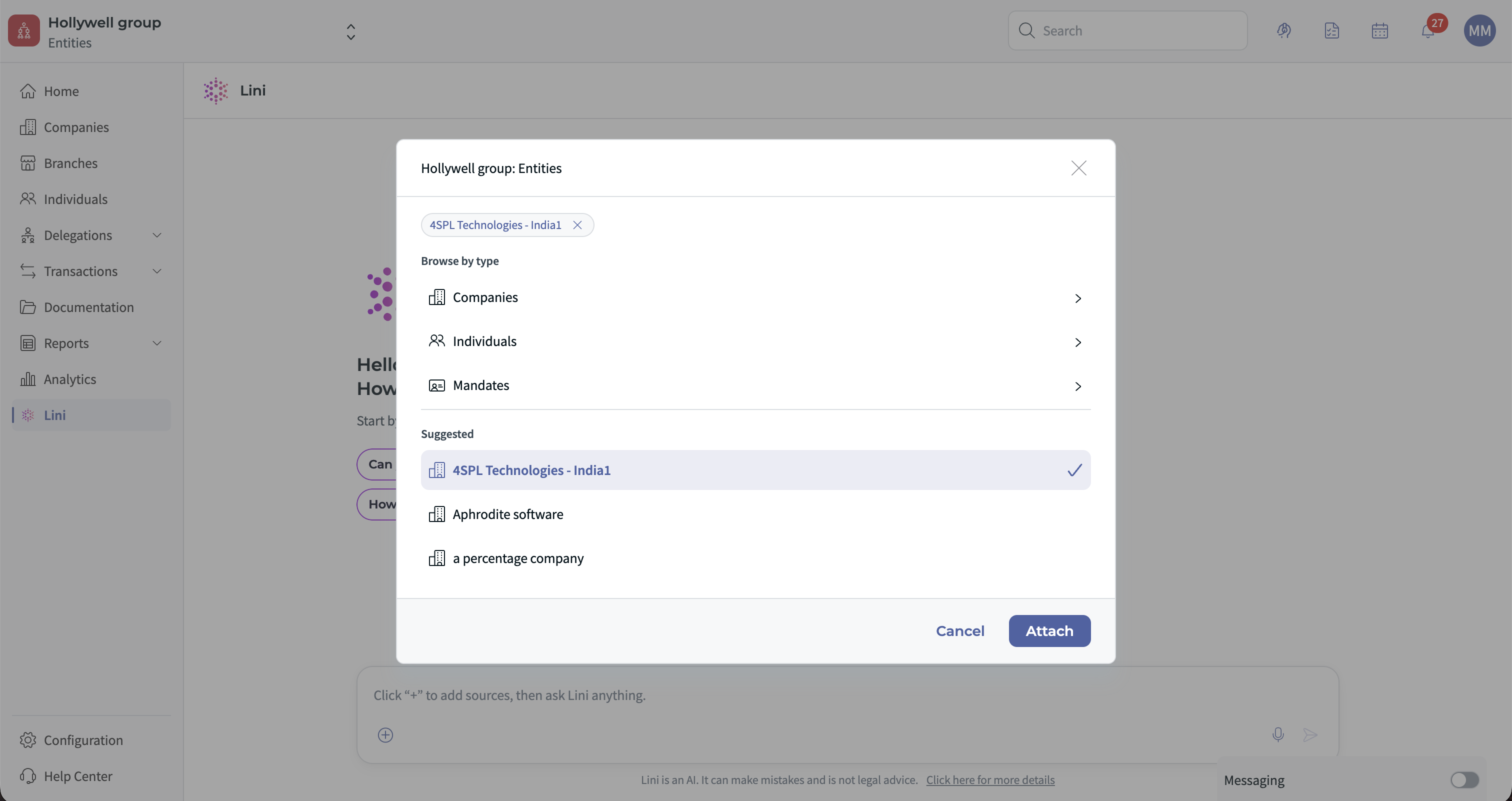
- The record is added to your question as context. Type your question, then click Send.
Check where an answer comes from
When Lini answers from your legal entity data, a See source link appears with the answer.
Click it to open the record behind the answer. You can then check the figures yourself.
![LINI answer about a company's shareholders, with the company context tag and a See source link below the answer [TEMPORARY FIGMA MOCKUP - a human must replace this image with a permanently hosted screenshot before publication]](https://figma-alpha-api.s3.us-west-2.amazonaws.com/images/0b034a92-013c-42b2-9e94-975eb15d12a1)
✅ Capabilities
Search and analyze data
Lini reads your LEM records live. It can combine, filter, count and compare them to answer your question.
Companies
- Search companies by name, legal form, address, scope, date added or last update. Or list them all.
- See the full record of a company: legal form, country, currency, share capital, creation and end dates, parent company, address, scopes and share numbering settings.
- See company statistics for the workspace, and the companies you viewed recently.
- See the legal representatives and bank accounts of a company.
- See the history of a field: its past values, with dates. For example, share capital or registered office.
Individuals
- Search people by first name, last name or address. Or list them all.
- See the full record of a person: email, date of birth, gender, address, scopes and end dates.
- See everything a person is involved in: mandates held, companies owned, share capital transactions and indirect ownership.
Governance bodies and mandates
- List the governance bodies of a company and their members. For example: board of directors, statutory auditors, committees.
- Sort members by role, appointment date, expiry date, end date or renewal date.
- See the details of a mandate: role, holder or representative, and all key dates. When a company holds a mandate, see the people who represent it.
- See the renewal history of a mandate.
- See the mandates a company holds in other organizations.
- Get workspace-wide views: mandates expiring soon, recent appointments, ended mandates, and people holding many mandates.
Share capital and shareholding
- See the shareholders of a company, with their percentage of share capital and voting rights.
- Filter by shareholder type (company, branch, individual) and type of ownership (full ownership, bare ownership, usufruct).
- See the subsidiaries a company owns, and direct and indirect ownership across the whole group.
- See share classes, share statistics and share borrowers.
- See share capital transactions (issues, transfers, etc.) and draft transactions.
Registers, timelines, audit trail and settings
- See company registers and formalities, and the timeline events of a company or a person.
- See the audit trail: who created, changed or deleted companies and people, and when.
- See register and record document templates.
- See field settings: available fields, allowed values in drop-down lists, and saved views.
Search and documents
- Search by keyword in indexed content: documents, companies, people and shares.
- Read a document, summarize it and pull out key information. Lini cites the passages it used.
- Compare a document (for example, signed minutes) with what is recorded in LEM. Lini flags the differences.
Exports
- Export from a saved view, in CSV or XLSX: companies, people, mandates, shareholdings, shares, scope holders, share capital transactions, registers or timelines.
- Download the bulk import template for mandates.
Legal research
- Lini searches legislation, case law and legal commentary from more than 230 jurisdictions.
- Before searching, Lini confirms which national law applies.
- Lini checks each citation before using it.
- Typical topics: maximum term of a director’s mandate, filing formalities after a change of directors, quorum rules, rules on related-party agreements.
- The result is legal research, not legal advice about your situation.
File creation
- Lini creates files only when you ask.
- Files are saved in the “AI Artifact” folder of your workspace.
- They use DiliTrust colors, unless you ask for your own.
File types:
- Word: entity records, governance summaries, mandate reports, editable guides and notes.
- PDF: fixed versions to share, such as lists of directors, shareholding summaries and audit evidence packs.
- Excel: mandate trackers, renewal calendars, entity lists, shareholder tables and data quality checklists.
- PowerPoint: group structure, board composition and share capital summaries for committees.
Create, change and delete data
Lini prepares each change below. It is carried out only after you confirm.
- Companies:
- create a company or a branch,
- change its information: name, legal form, country, currency, address, creation date, ownership and numbering settings, custom fields, share capital, contacts, legal representatives,
- indicate that there is no share capital,
- close, restore or archive,
- update in bulk,
- merge two companies,
- add a bank account.
- Individuals: create; change name, email, gender, address, date of birth and custom fields; close, restore or archive; update in bulk.
- Governance bodies: create a body; change its name or start date; send a notification about it.
- Mandates:
- create (holder or representative, with appointment date),
- change,
- renew with a new expiry date,
- end, with a successor if needed,
- update in bulk,
- import from a file,
- change the renewal history,
- upload mandate files.
- Share capital: record a share capital transaction; replace a transaction; change a shareholder’s holding or a share class; upload transaction files.
- Registers and timelines: create or replace a register or a timeline event; upload files; attach documents to an event.
- Document templates: create, replace, activate or deactivate register and record templates.
- Deletions (permanent): companies, people, governance bodies, mandates, renewal entries, share classes, share capital transactions, registers, timeline events and document templates.
⏩ End-to-end workflows
These examples show how one request can replace many manual steps.
From signed minutes to up-to-date records
- You share the signed board minutes of company X.
- Lini reads them and pulls out the decisions: a resignation, an appointment, a renewal.
- Lini finds the company, the people and the mandates in LEM. It compares them with the minutes.
- Lini flags the differences. For example, a person not yet created in LEM.
- Lini prepares all the changes together: create the person, end the outgoing mandate, create the new mandate, renew the existing mandate, add a timeline event.
- You review the list and confirm.
Monthly review of mandate deadlines
- You ask: “Which mandates expire in the next 6 months?”
- Lini returns a table sorted by expiry date, with the company, governance body, role and holder.
- You ask for an Excel tracker to share with local teams.
- After the general meetings, you ask Lini to prepare the renewals. You confirm them.
Departure of an executive
- You ask: “List all mandates held by Paul Martin.”
- Lini returns all his mandates in the group.
- You give the departure date and the successor.
- Lini prepares the end of each mandate and the successor’s appointments.
- You confirm. Then you ask for a Word summary for the HR file.
Closing an acquisition
- Before signing, you ask for a due diligence summary of the target, as a Word document.
- You ask for slides showing the shareholding before and after the transaction.
- At closing, you share the closing memo. Lini prepares the share transfer, the new board and a timeline event.
- You confirm. Then you export the updated list of subsidiaries to Excel for Finance.
✍ Example requests
Copy these requests and replace the parts in square brackets. To point Lini to a specific record, click + in the chat input, then Explore sources.
- Overview: “Give me a full view of the governance and shareholding of [company].”
- Deadlines: “Which mandates expire before March 31, 2027?”
- People: “In which companies is [person] involved, as a director or shareholder?”
- Shareholding: “Who ultimately owns [company]?”
- Data quality: “Which companies have not been updated for more than 90 days?”
- Audit: “What changed in companies and people last week, and who made the changes?”
- Document: “Compare this resolution with what is recorded in LEM.”
- Changes: “Renew [mandate] until June 30, 2029.”
- Files: “Create an Excel tracker of all board members with appointment and expiry dates.”
- Law: “Under Belgian law, what must be filed after a director is appointed?”
❗ Limitations and best practices
Limitations
- Not yet supported in the chat: Documentation, Delegations of authority, Litigation, Contracts and Tasks. Use the matching LEM modules instead.
- Disabled features: some extra features need separate DiliTrust access. Your administrator or DiliTrust contact can tell you if they can be enabled.
- Some views are not reliable: listing shareholdings, shares and timelines through saved views does not work for now. Lini gets the same information another way, for example through the shareholders or share classes of each company.
- Access rights apply: Lini only sees and changes what your account allows.
- No official legal documents: Lini does not draft minutes, resolutions or delegations.
- No legal advice: legal research is for information only.
Best practices
- Name the company, person or mandate precisely. Or attach it to your question: click +, then Explore sources.
- Give full dates (day, month, year) when you ask for changes.
- Review the list of prepared changes carefully before you confirm.
- Ask for related changes together. You can then review them all at once.
- For important decisions, check the result in the LEM record.
- Ask for a file only if you need to keep or share the result. Otherwise, the answer in the chat is enough.
Tips for using the chat
- Be specific. The more context you give, the more precise the answer. For example, “Show me all ongoing mandates for John Smith” works better than “Show me mandates.”
- Use everyday language. You don’t need technical field names.
- Search mandates by position title, such as Director or CEO.
- Click +, then Explore sources, to attach a company, individual or mandate to your question. Lini then knows exactly which record you mean.
- Use the See source link to check anything you plan to rely on.
- If a technical error occurs, a red banner appears on screen.
❓ FAQ
How do I ask about one specific company, individual or mandate?
- In the chat input, click +.
- Click Explore sources.
- Choose the category: Companies, Individuals or Mandates.
- Select the record.
The record is added to your question as context. Lini answers using that record.
How do I check where an answer comes from?
When Lini answers from your legal entity data, a See source link appears with the answer. Click it to open the record behind the answer.
Is Lini available in other DiliTrust modules?
Yes. Lini is also available in the Board Portal and in Matter Management.
What happens if Lini can’t find an answer?
Lini tells you it can’t find relevant results. Try rephrasing your question, or check that the data exists in the system.
⭐ Related articles
Was this article helpful?
That’s Great!
Thank you for your feedback
Sorry! We couldn't be helpful
Thank you for your feedback
Feedback sent
We appreciate your effort and will try to fix the article