Lini is the AI of the DiliTrust Suite. It helps you in two ways:
- Ask Lini: the AI assistant you talk to. You ask a question or make a request in plain language, and Lini answers or prepares the work for you.
- AI built into your everyday tasks: AI features that work directly in the pages you already use. For example, Smart Reports and Risk Detector in Contract Lifecycle Management, or AI minutes in the Board Portal.
In both cases, Lini only uses the data you are allowed to see, and you stay in control of the result.
This article first explains Ask Lini and what it can do. It then lists the AI features of each module, with links to the detailed articles.
☝ Ask Lini: the assistant you talk to
Ask Lini is one of Lini’s capabilities. It is the chat assistant available inside the DiliTrust Suite. You ask a question or make a request in plain language, and Lini answers using the data and documents you have access to in the module you are working in (meetings, entities, matters, contracts, documents).
Two ways to use Ask Lini
- Full-screen mode, in every module: Lini opens as a full page, giving you more space for longer conversations, analyses and file creation. Full-screen mode is available in all DiliTrust modules.
- Compact mode, on selected pages: Lini opens in a smaller window next to the page you are working on, so you can ask questions without leaving it. Compact mode is available on certain pages only, for example on a meeting in the Board Portal or on a matter in Matter Management.
How to open Lini in full-screen mode
- Open the module you want to work in.
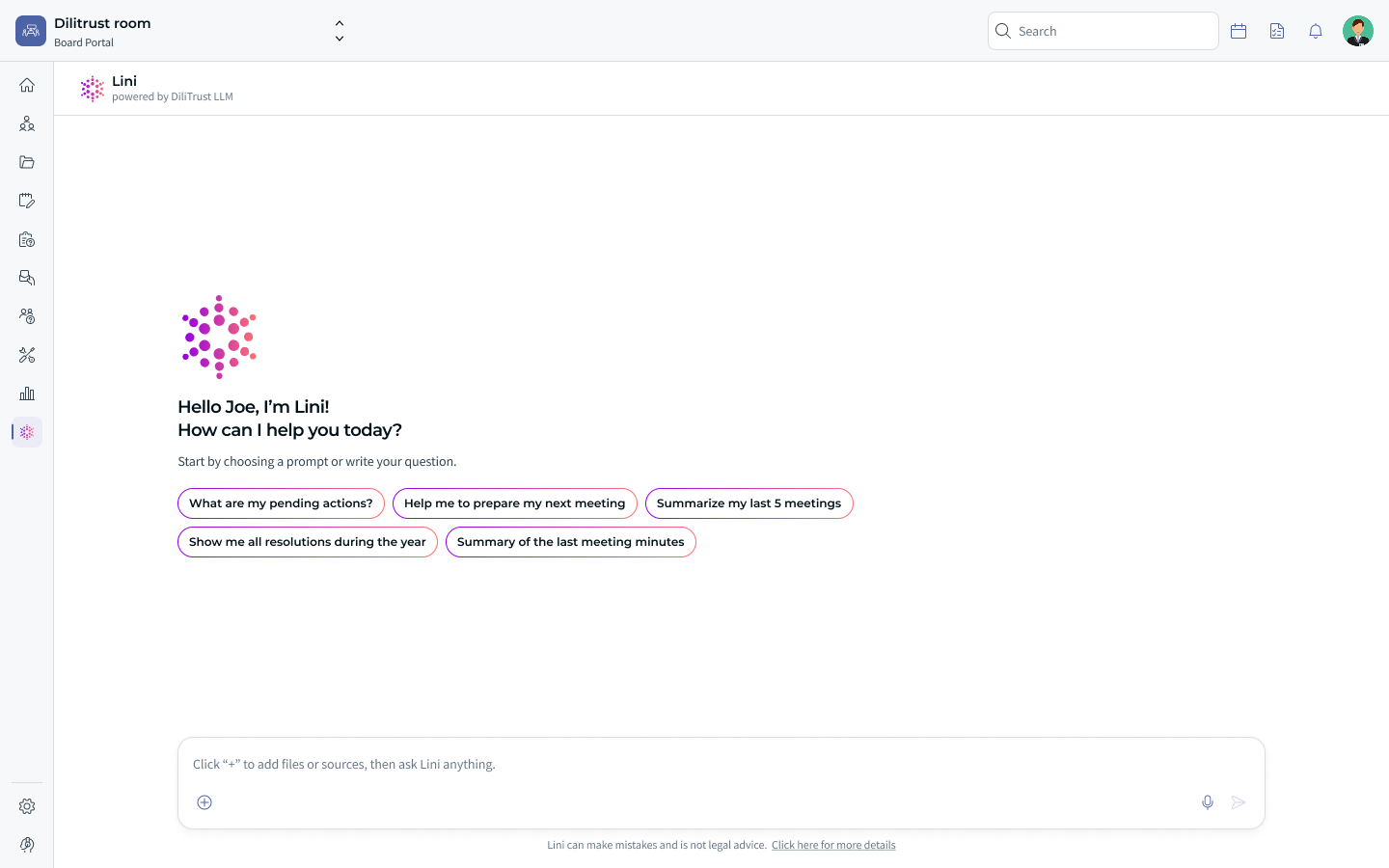
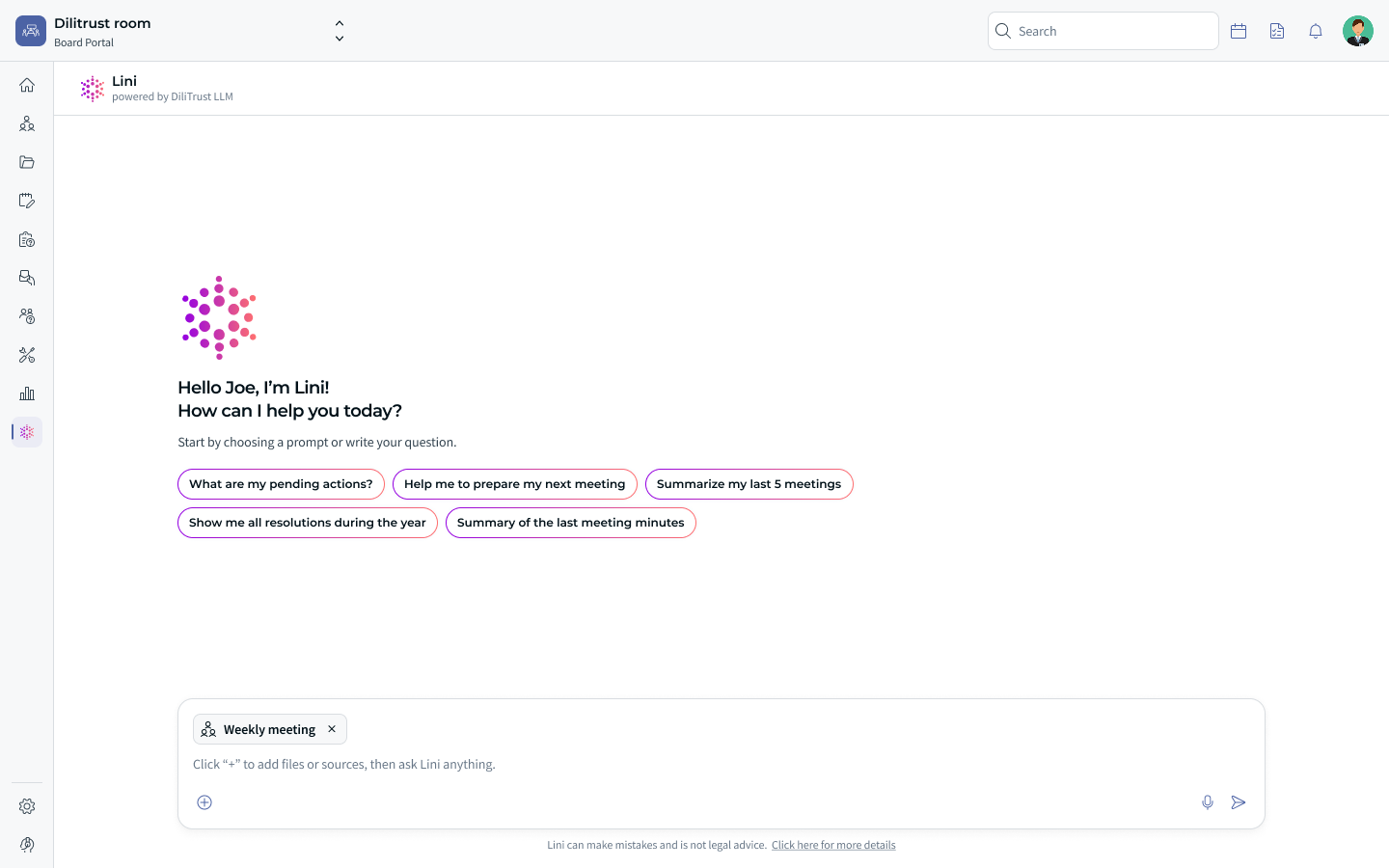
- In the main menu on the left, click the Lini icon. Lini opens as a full page, with a welcome message and suggested prompts.
- Click one of the suggested prompts, or type your question in the message box at the bottom of the page and send it.
- Review the answer before using or sharing it.
How to open Lini in compact mode
- Open a page where compact mode is available, for example a meeting in the Board Portal or a matter in Matter Management.
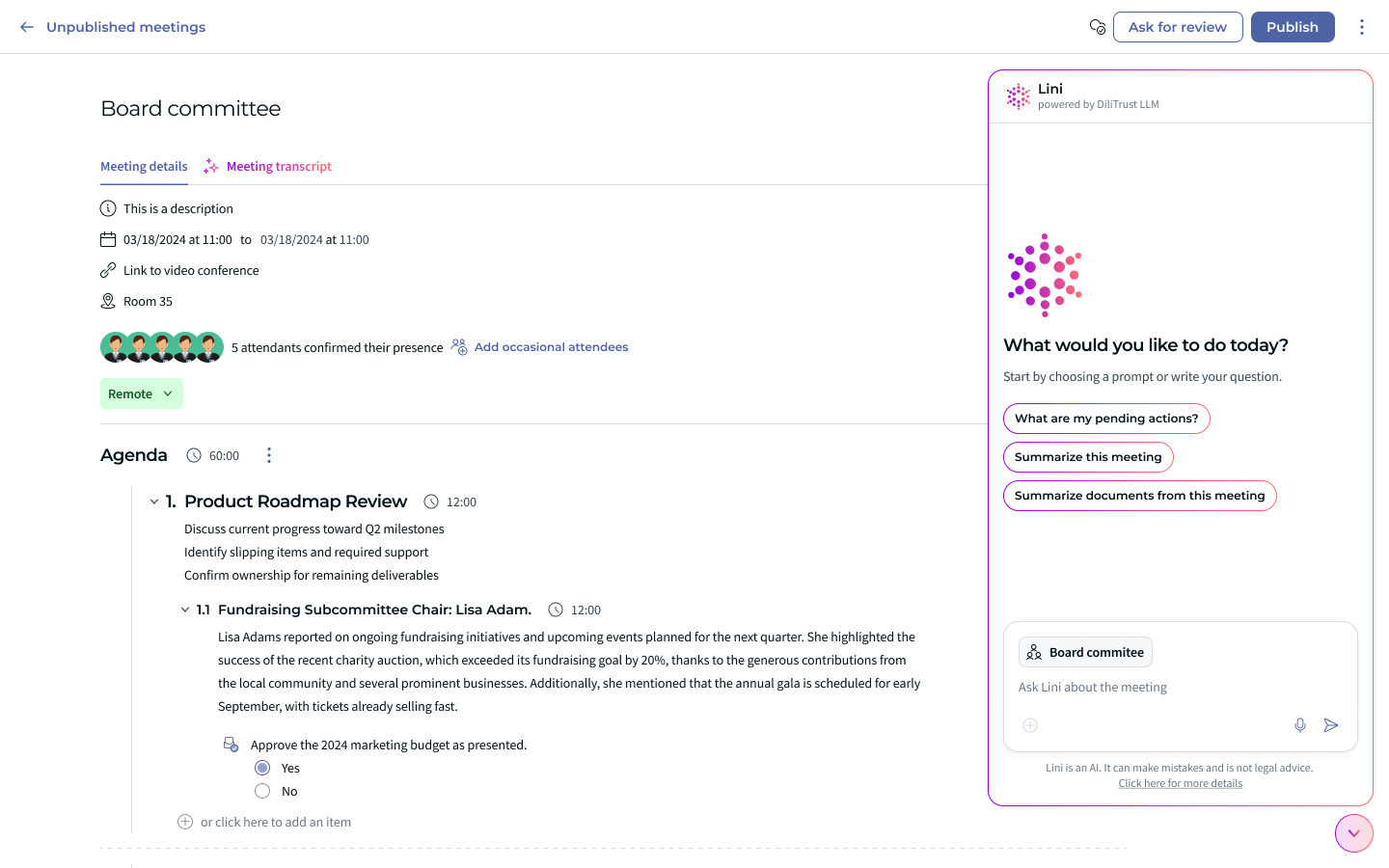
- Click the Lini icon. Lini opens in a panel on the right of the page, so you can keep the page in view.
- Lini already knows which item you are working on: the item's name appears in the message box, and the suggested prompts match the page. On a meeting, for example, you can choose Summarize this meeting or Summarize documents from this meeting.
- Click a suggested prompt or type your question, then send it.
Add sources or use web search
You can tell Lini exactly which content to use, or let it search the web.
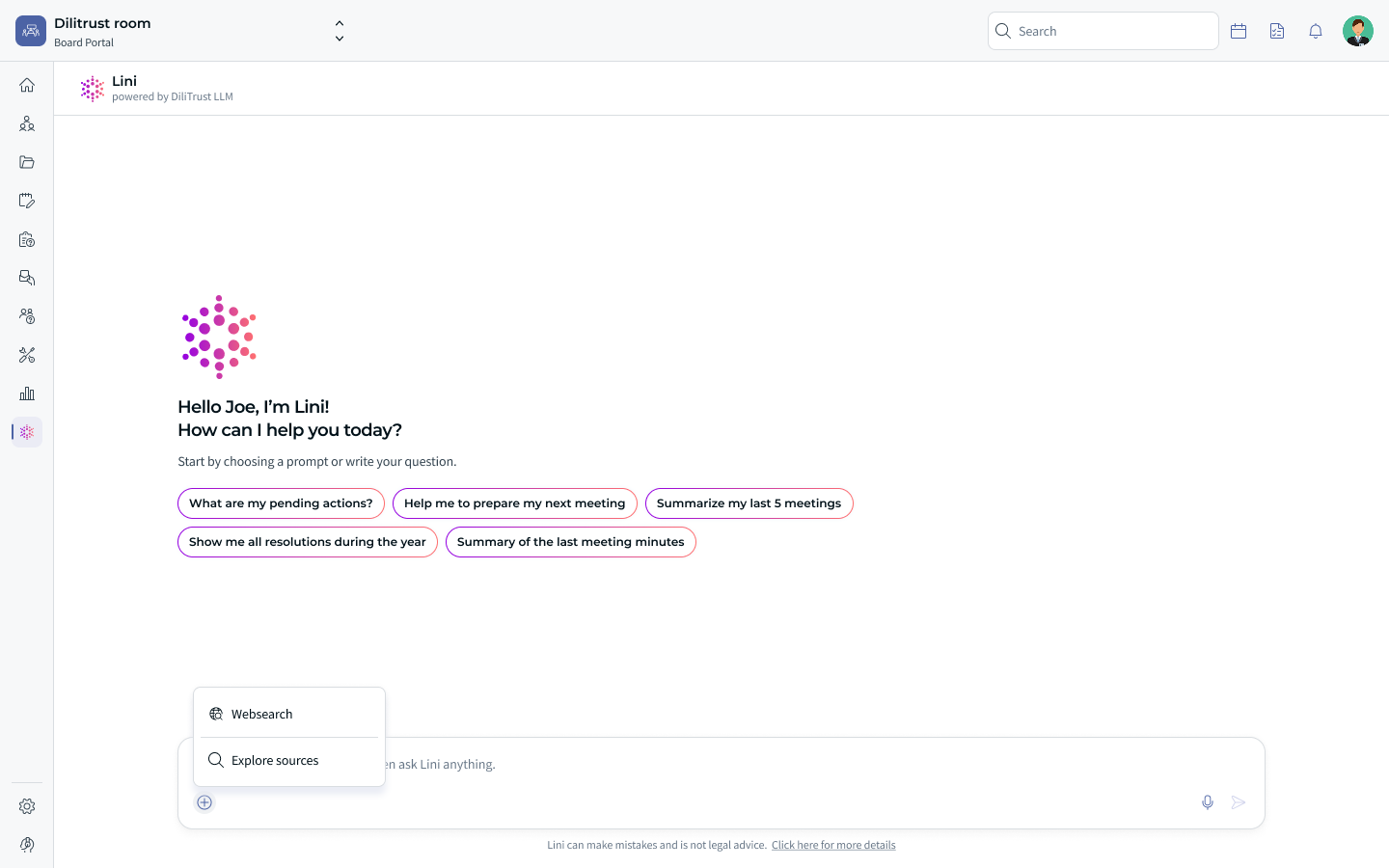
- In the message box, click the + button. A menu opens with two options: Websearch and Explore sources.
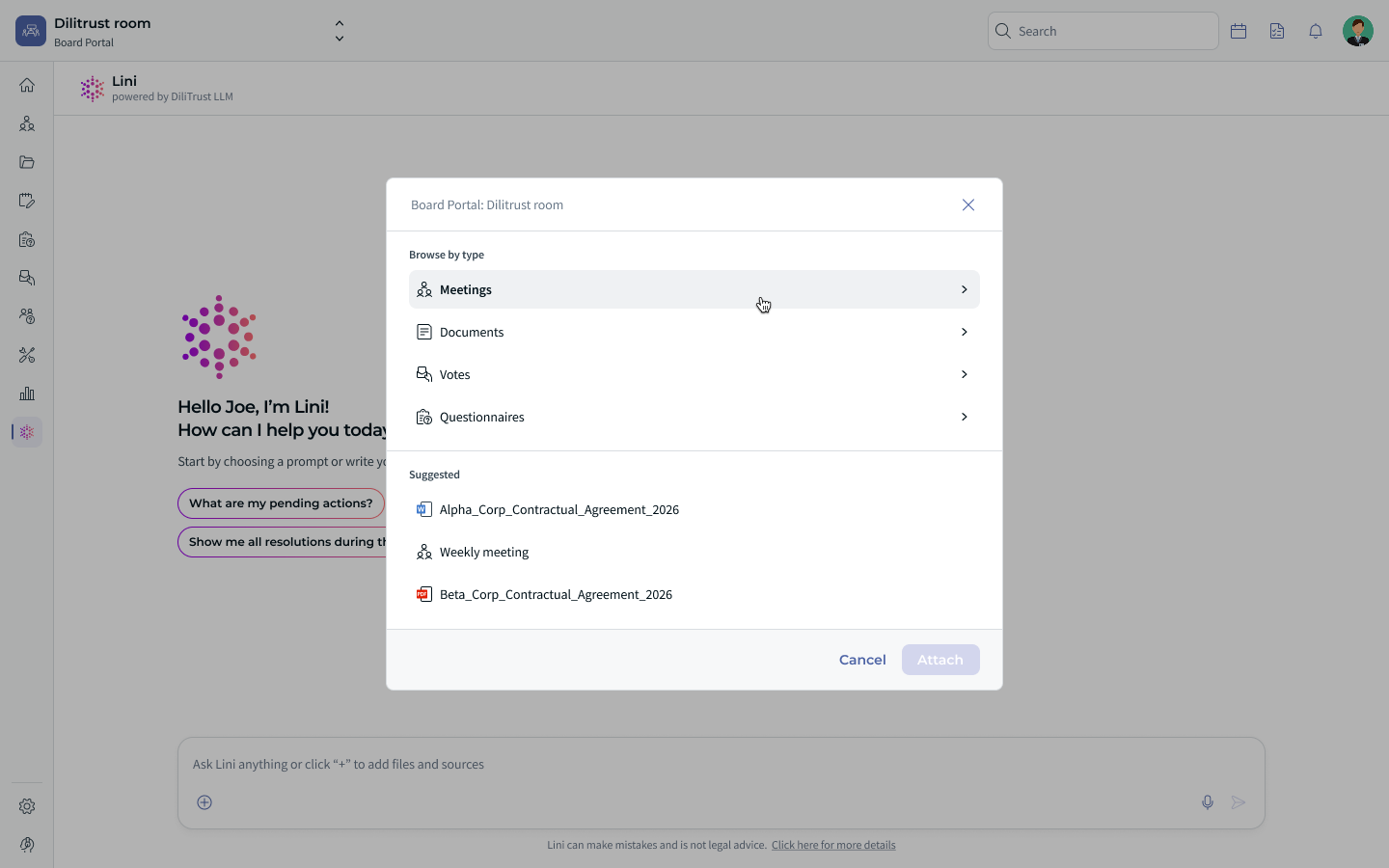
- To use specific content, click Explore sources. A window opens where you can browse by type of content or choose one of the suggested items. The available types depend on the module: in the Board Portal, for example, you can browse Meetings, Documents, Votes and Questionnaires.
- Open a type to see its items, and use the search field to find a specific one. Select one or more items, then click Attach.
- The attached items appear as tags in the message box. To remove one, click the × next to its name. Then type your question and send it.
- To let Lini search the web instead, click Websearch in the + menu. A Web search tag appears in the message box.
Good to know: you cannot use web search and attached sources at the same time. Web search is not available once a source has been attached, and sources are not available while web search is enabled.
⚡ What Lini can do in all modules
- Answer questions about your data: Lini finds information in your meetings, documents, entities, matters or contracts and gives you a direct answer.
- Use the context of your work: when you work in a module, Lini takes into account what you are looking at (a meeting, a document, a matter) to give more relevant answers.
- Summarize documents: Lini summarizes long documents so you can get the key points quickly. You can also generate a summary in one click with the AI Summary button. See Suite – Document Summarization.
- Translate content: Lini translates text into other languages, which helps international boards and teams.
- Draft and rephrase: Lini helps you write or rephrase professional messages and notes.
- Respect your access rights: Lini only sees what your permissions allow. Available features can also depend on your subscription.
- Keep your data secure: all interactions stay within the DiliTrust environment and follow DiliTrust's security and data protection standards (ISO 27001, ISO 27701, SOC 2 Type 2, GDPR). See Lini – Frequently Asked Questions about our AI Engine.
⭐ What Lini can do in the Board Portal, Legal Entity Management and Matter Management
- Legal research: Lini searches legislation, case law and legal commentary across more than 230 jurisdictions. It first confirms which law applies, then checks each citation. This is legal research, not legal advice. See Suite – Legal Research and Analysis with Lini.
- File creation: Lini creates Word, PDF, Excel and PowerPoint files on request (briefing packs, summaries, presentations, trackers). Files are saved in the AI Artifact folder and use DiliTrust colors by default, or your brand colors if you provide them. See Suite – Lini Creates Documents for You.
- Exports: Lini can run the standard exports of the module for you (for example lists, results or registers in CSV, Excel or Word).
- Create and update data, with your approval: Lini prepares the changes and lists them for you. Nothing is executed until you confirm. When a request needs several changes, Lini prepares them together and in the right order. See Suite – Lini Acts for You, With Your Approval.
- Update from a document: Lini reads a document such as minutes, an email or a contract, compares it with what is recorded, flags differences and prepares the updates.
- Deletions: deletions are irreversible. Lini only prepares them when you explicitly ask, and you always have to confirm.
- Advanced analysis: Lini can compare information, follow up on deadlines and open items, and give you an overview across several meetings, entities or matters.
✨ Lini in each module
Here is what Lini does in each module, with links to the detailed articles.
✍ Contract Lifecycle Management (CLM)
Lini helps you review and analyze contracts, in full page or directly in Microsoft Word. It also reviews contracts against your playbooks, builds reports on your portfolio and fills in the summary sheet.
- CLM – Lini: Capabilities and Features
- CLM – Ask Lini: Use Cases & Prompts by Role
- CLM – Risk Detector: AI Contract Review: contract review against your playbooks.
- CLM – Smart Reports: ask a question about your contract portfolio and get a results table and charts.
- How to complete the summary sheet?: AI extraction of key contract information into the summary sheet.
- How do I label the clauses in my contracts?: AI suggests the clauses of your contracts.
- CLM - Monthly AI Success Report: monthly count of AI actions and time saved.
- CLM – Ask Lini in Word
- CLM – Lini AI Features (all AI features of the module)
⚖️ Board Portal (BP)
Lini helps you prepare, run and follow up on meetings: meeting creation, agendas, minutes, audio transcription, search, votes, resolutions, tasks and analysis across meetings.
- BP – Lini: Capabilities and Features
- BP – Ask Lini: Use Cases & Prompts by Role
- Generate Meeting Minutes in the Board Portal: the Create draft with AI option drafts the minutes from the meeting content.
- BP – AI Minutes in Your Own Format: AI minutes that follow the format of each type of meeting.
- BP – Audio Transcription for Board Meetings: transcription of your meetings, which you can use to write the minutes.
- BP – AI Search in Meetings and Minutes: find information across your meetings and minutes.
⛪ Legal Entity Management (LEM)
Lini helps you keep entity data up to date: companies, people, governance bodies, mandates, share capital and registers, with reviews of upcoming mandate expirations and updates from signed minutes.
⚓ Matter Management (MM)
Lini helps you manage matters: status updates, tasks, documents, invoices and provisions, dashboards, risk detection on budgets and inactive matters, and reports across matters.
- MM – Lini: Capabilities and Features
- MM – Ask Lini: Use Cases & Prompts by Role
- QuickView (AI) – Get a Status Update on a Matter Without Effort: a status update on a matter, without effort.
- Matters – Create a Summary Invoice with AI Autofill (Lini): Lini reads the invoice document and pre-fills the invoice form.
- Matters – Custom Dashboards (Analytics): describe a widget in plain language and Lini builds it.
⚡ Lini outside DiliTrust
You can also use DiliTrust data from your own AI assistants (MCP, Microsoft Copilot). See Suite – DiliTrust in Your AI Assistants (MCP and Copilot).
To use your own language model with DiliTrust, see Suite – Bring Your Own LLM to DiliTrust.
☝ Tips and things to know
- Ask clear and specific questions for the most accurate results.
- When summarizing, open the document first so Lini can use its context.
- AI answers, summaries and translations are generated automatically. Review them before sharing, especially for critical or sensitive topics. You remain the decision-maker.
- Available features can vary by module, permissions and subscription.
Was this article helpful?
That’s Great!
Thank you for your feedback
Sorry! We couldn't be helpful
Thank you for your feedback
Feedback sent
We appreciate your effort and will try to fix the article